
Luqeeg Luqeegmz4ip53y7r-12
Luqeeg 12 Key Mechanical Gaming Keyboard User Manual
Model: Luqeegmz4ip53y7r-12
1. Product Overview
The Luqeeg 12 Key Mechanical Gaming Keyboard is a compact, one-handed programmable keypad designed for versatility across various applications, including gaming, office work, and multimedia control. It features hot-swappable mechanical red switches, customizable RGB lighting, and a convenient Type-C wired connection.

Image 1.1: Top-down view of the Luqeeg 12 Key Mechanical Gaming Keyboard, showcasing its compact design and 12 black keycaps.
Key Features:
- Programmable Keys: Customize shortcuts and macros for enhanced productivity and gaming.
- Hot-Swappable Switches: Easily change mechanical switches without soldering, allowing for personalized typing feel.
- RGB Backlighting: Multiple adjustable lighting modes to suit your preference.
- Type-C Wired Connection: Reliable and stable connection with a detachable USB cable for portability.
- Wide Compatibility: Supports Linux, OS X, Windows, and Raspberry Pi.
2. Specifications
| Feature | Description |
|---|---|
| Item Type | Mini Mechanical Keyboard |
| Material | Acrylic + ABS |
| Key Number | 12 keys |
| Switch Type | Red Mechanical Switch |
| Connection Type | Type-C Wired |
| Compatible Devices | PC, Laptop (Universal for computer) |
| Operating Systems | Linux, OS X, Windows, Raspberry Pi |
| Keyboard Backlighting | RGB |
| Dimensions | 7.09 x 5.12 x 1.57 inches |
| Item Weight | 5.9 ounces |
3. What's in the Box
Please check the package contents upon unboxing to ensure all items are present:
- 1 x Luqeeg 12 Key Mechanical Gaming Keyboard
- 1 x Type-C Cable
- 1 x Keycap Puller

Image 3.1: Included accessories: a green keycap puller and a black Type-C USB cable.
4. Setup
Setting up your Luqeeg 12 Key Mechanical Gaming Keyboard is straightforward. No special drivers are required for most operating systems.
4.1 Connecting the Keyboard
- Locate the Type-C port on the back or side of the keyboard.
- Connect one end of the provided Type-C cable to the keyboard's Type-C port.
- Connect the other end of the Type-C cable (USB-A) to an available USB port on your computer.
- The keyboard is plug-and-play and should be recognized by your operating system automatically.

Image 4.1: The keyboard connected via its Type-C USB interface to a laptop, illustrating its plug-and-play functionality.
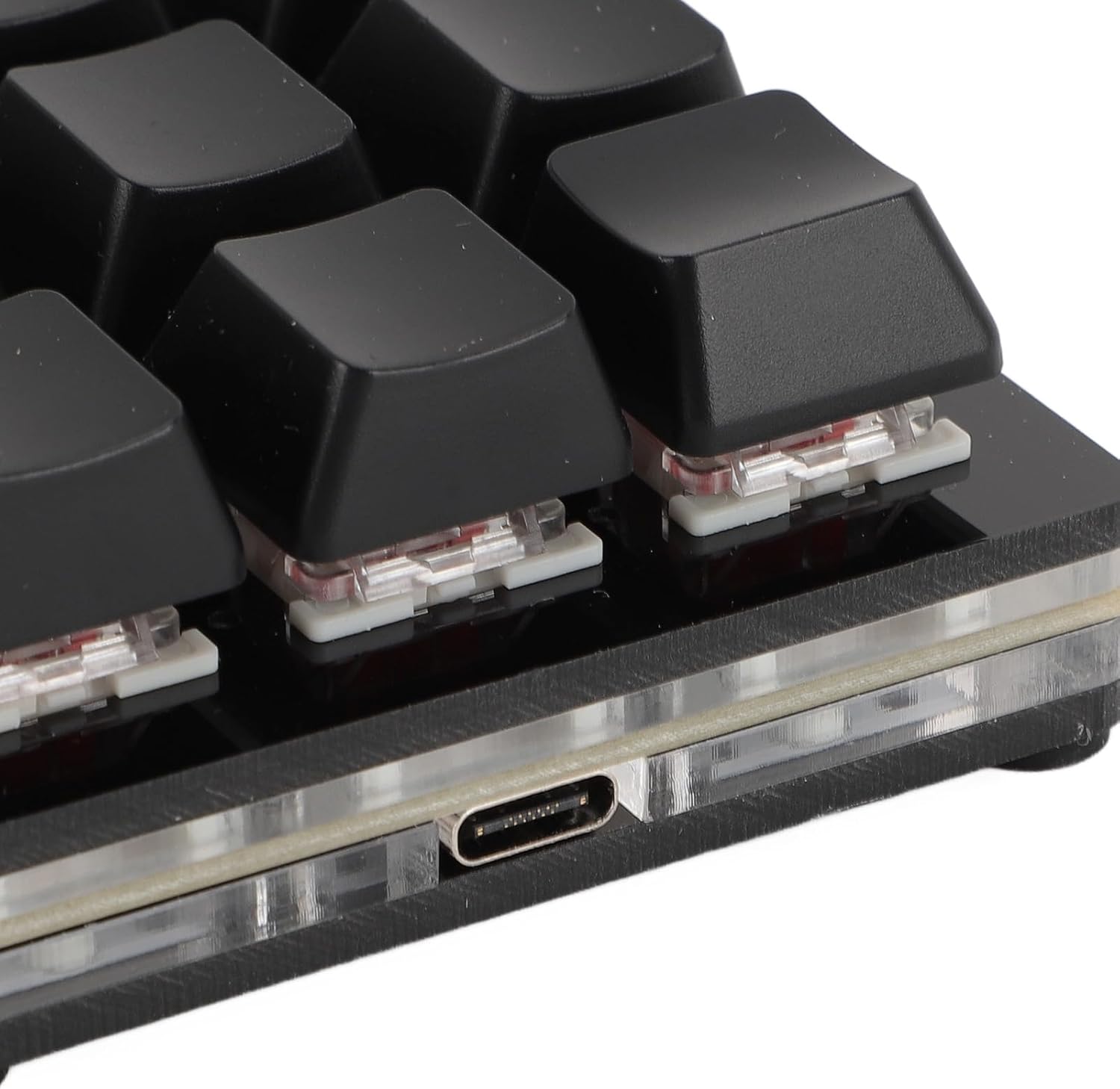
Image 4.2: A close-up view of the Type-C port located on the side of the keyboard.
5. Operating Instructions
The Luqeeg 12 Key Mechanical Gaming Keyboard offers extensive customization and functionality.
5.1 Programmable Functions
This keyboard supports various programmable functions, allowing you to assign custom shortcuts, macros, and multimedia controls to its 12 keys. The keyboard has a memory function, so your settings are saved even after disconnecting.
Common customizable shortcuts include:
- Cut, Undo, Redo, Select All
- Play, Pause, Volume Control (up/down/mute)
- Music Playback Controls (forward, backward)
- Custom Scripts
For users on OS X systems, the 'Command' key functionality is equivalent to the 'key' on Windows OS, facilitating common tasks like copying and pasting.

Image 5.1: Visual representation of the keyboard's versatile functions, including Keyboard, Mouse, Multimedia, String, Game, and Macro Definition capabilities.
5.2 RGB Lighting
The keyboard features RGB lighting with multiple adjustable modes. You can cycle through different lighting effects or turn the lighting off completely based on your preference. Specific instructions for adjusting RGB modes are typically provided by the programming software or a combination of key presses (refer to software documentation if applicable).
5.3 Hot-Swappable Mechanical Switches
The hot-swappable design allows you to easily remove and replace the mechanical switches without soldering. This feature enables customization of the typing feel and sound by installing different compatible switches.
To replace a switch:
- Gently remove the keycap using the provided keycap puller.
- Use a switch puller (not included, but often comes with replacement switches) to carefully pull the switch straight up from the PCB.
- Align the pins of the new switch with the holes on the PCB and press it firmly until it clicks into place.
- Re-attach the keycap.

Image 5.2: A close-up view of a red mechanical switch with a keycap removed, demonstrating the hot-swappable design.
6. Maintenance
Proper care will extend the life and maintain the performance of your keyboard.
6.1 Cleaning
- Disconnect the keyboard from your computer before cleaning.
- Use a soft, dry cloth to wipe down the surface of the keyboard.
- For dust and debris between keycaps, use compressed air.
- If necessary, remove keycaps using the provided keycap puller for deeper cleaning. Clean keycaps with mild soap and water, then ensure they are completely dry before reattaching.
- Avoid using harsh chemicals or abrasive materials.
6.2 Storage
When not in use, store the keyboard in a cool, dry place away from direct sunlight and extreme temperatures.
7. Troubleshooting
If you encounter issues with your keyboard, try the following solutions:
7.1 Keyboard Not Responding
- Check Connection: Ensure the Type-C cable is securely connected to both the keyboard and the computer's USB port. Try a different USB port.
- Restart Computer: Sometimes a simple restart can resolve connectivity issues.
- Test on Another Device: Connect the keyboard to a different computer to determine if the issue is with the keyboard or your original computer's setup.
- Cable Integrity: Inspect the Type-C cable for any signs of damage. Try using a different Type-C cable if available.
7.2 Keys Not Registering
- Check Keycap and Switch: Remove the keycap using the keycap puller and ensure the mechanical switch underneath is properly seated. If it's loose, press it firmly into place.
- Clean Under Keycap: Dust or debris might be obstructing the switch. Use compressed air to clean the area.
- Replace Switch: If a specific key consistently fails, the switch itself might be faulty. Utilize the hot-swappable feature to replace the switch (refer to section 5.3).
7.3 RGB Lighting Issues
- Check Software Settings: If you are using programming software, ensure the RGB settings are correctly configured.
- Cycle Modes: Try cycling through the RGB lighting modes to see if it responds.
- Power Cycle: Disconnect and reconnect the keyboard to reset its lighting controller.
8. Warranty and Support
For warranty information and technical support, please refer to the official Luqeeg website or contact Luqeeg customer service directly. Keep your purchase receipt as proof of purchase for warranty claims.
Manufacturer: Luqeeg
Model Number: Luqeegmz4ip53y7r-12
Date First Available: July 4, 2024
For further assistance, visit the Luqeeg Store on Amazon.
Ask a question about this manual
Ask about setup, troubleshooting, compatibility, parts, safety, or missing instructions. Manuals+ will review the question and use this page’s manual context to help answer it.