
DAREU A955
DAREU Wireless Keyboard and Mouse User Manual
Model: A955 (Mouse) & EK87PRO (Keyboard)
Introduction
This manual provides comprehensive instructions for the DAREU Wireless Gaming Keyboard (EK87PRO) and Wireless Gaming Mouse (A955) combo. It covers setup, operation, maintenance, and troubleshooting to ensure optimal performance and longevity of your devices. Please read this manual carefully before using the product.
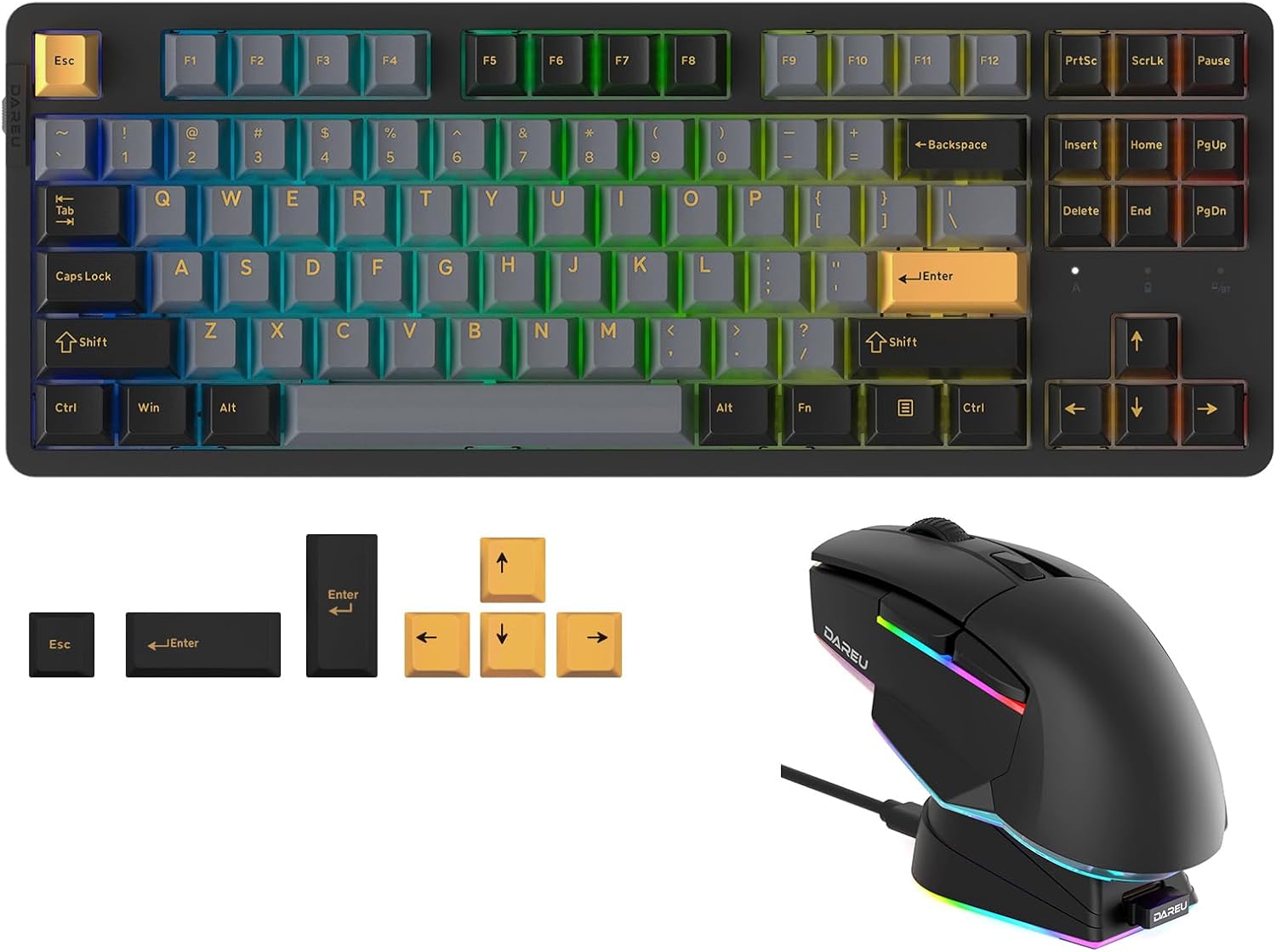
Image: The DAREU EK87PRO Wireless Gaming Mechanical Keyboard and A955 Wireless Gaming Mouse, showcasing their design and key features.
Setup and Connection
Your DAREU keyboard and mouse support three connection methods: Bluetooth 5.1, 2.4GHz wireless, and USB-C wired. This allows for versatile use across multiple devices.
1. Charging the Devices
- Keyboard: Connect the USB-C cable to the keyboard and a power source (e.g., computer USB port, wall adapter). The keyboard has a 4000mAh battery.
- Mouse: Connect the USB-C cable to the mouse or place it on the charging dock (if included) and connect the dock to a power source. The mouse has a long-lasting battery.
- A full charge is recommended before first use.
2. Connection Methods

Image: Diagram illustrating the three connection modes: USB wired, 2.4GHz wireless, and Bluetooth 5.1, along with key combinations for switching modes.
2.1. 2.4GHz Wireless Connection
- Locate the 2.4GHz USB receiver, usually stored in a compartment on the mouse or keyboard.
- Plug the USB receiver into an available USB port on your computer.
- Keyboard: Switch the mode selector on the keyboard to 2.4G mode. The keyboard should automatically connect.
- Mouse: Switch the mode selector on the mouse to 2.4G mode. The mouse should automatically connect.
2.2. Bluetooth 5.1 Connection
- Keyboard: Switch the mode selector on the keyboard to Bluetooth mode. Press and hold Fn + 1, Fn + 2, or Fn + 3 for 3-5 seconds to enter pairing mode (the indicator light will flash rapidly).
- Mouse: Switch the mode selector on the mouse to Bluetooth mode. Press and hold the pairing button (refer to mouse diagram for location) for 3-5 seconds to enter pairing mode.
- On your device (computer, tablet, phone), open Bluetooth settings and search for "DAREU EK87PRO" or "DAREU A955".
- Select the device to pair. Once connected, the indicator light will stop flashing.
- The keyboard can connect to up to five devices simultaneously (Fn+1, Fn+2, Fn+3 for Bluetooth, Fn+4 for 2.4G, Fn+5 for wired).
2.3. USB-C Wired Connection
- Connect the provided USB-C cable to the keyboard/mouse and the other end to a USB port on your computer.
- The devices will automatically switch to wired mode and begin charging.
Operating Instructions
Keyboard Features (EK87PRO)
The EK87PRO keyboard is designed for enhanced gaming and typing experience with its advanced features.
Gasket Mount & PCB Single Key Slotting

Image: Exploded view diagram of the DAREU EK87PRO keyboard's gasket structure, showing layers like PBT keycaps, customized switch, top cover, center frame, PC positioning plate, latex foam, IXPE under shaft pad, silicone sleeve, PCB circuit board, latex backing foam, EVA bottom pad, and bottom cover.
The keyboard features a gasket structure with a 1.2mm thick FR4 PCB and single key slotted design. This provides a softer, more resilient feel and reduces noise, resulting in a more focused and crisp sound.
87 Keys Layout

Image: Comparison showing the compact 87-key layout of the DAREU EK87PRO keyboard next to a full-size keyboard, highlighting the space-saving design.
The 87-key layout retains most essential functionalities while providing more desk space for mouse movement, ideal for gaming.
Hot-Swappable Switches
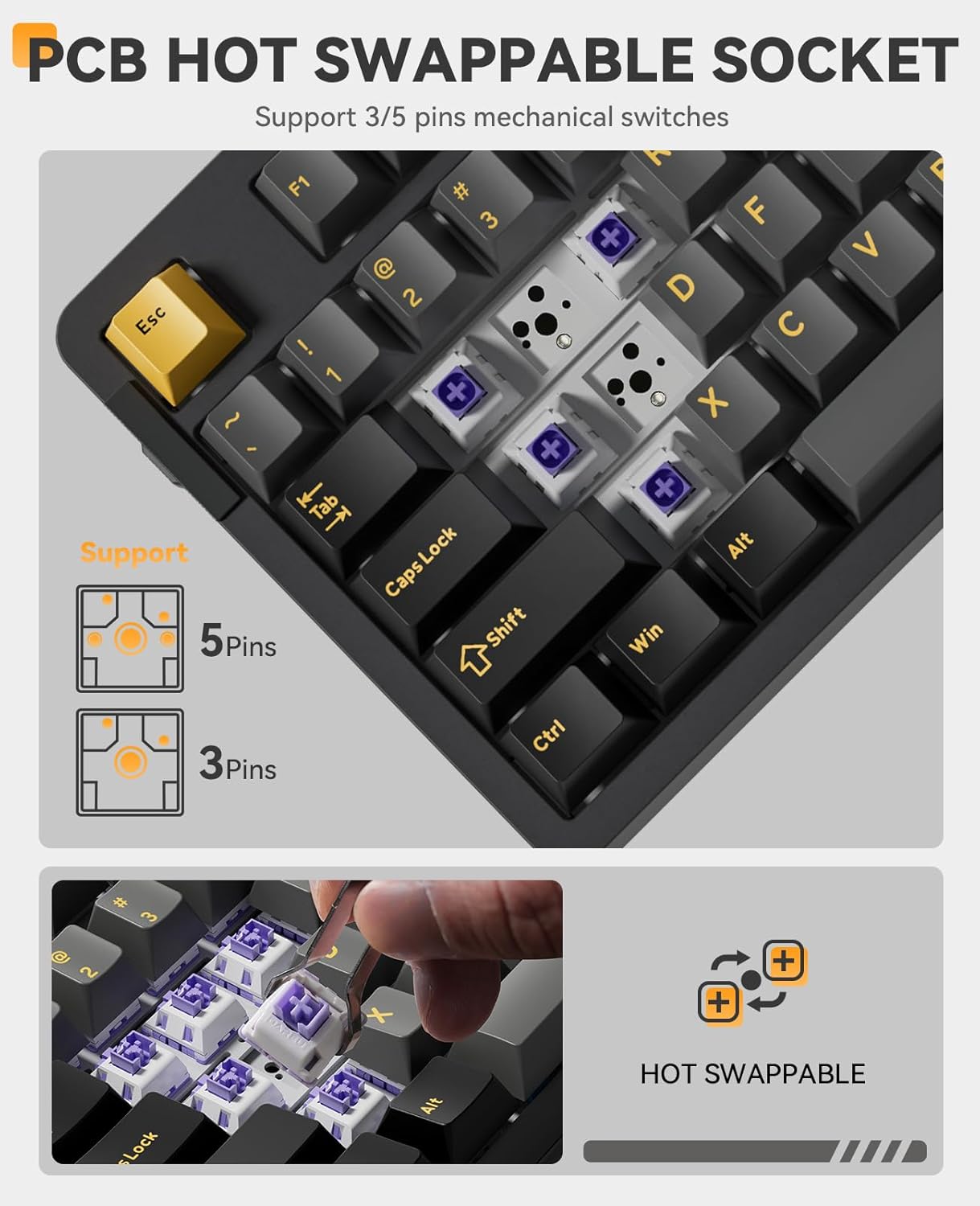
Image: Close-up view of the DAREU EK87PRO keyboard's PCB hot-swappable sockets, illustrating support for both 3-pin and 5-pin mechanical switches.
Equipped with pre-lubed Hifi Dream linear switches, the PCB is hot-swappable, supporting almost all 3-pin or 5-pin mechanical switches on the market. This allows for easy customization of your typing experience.
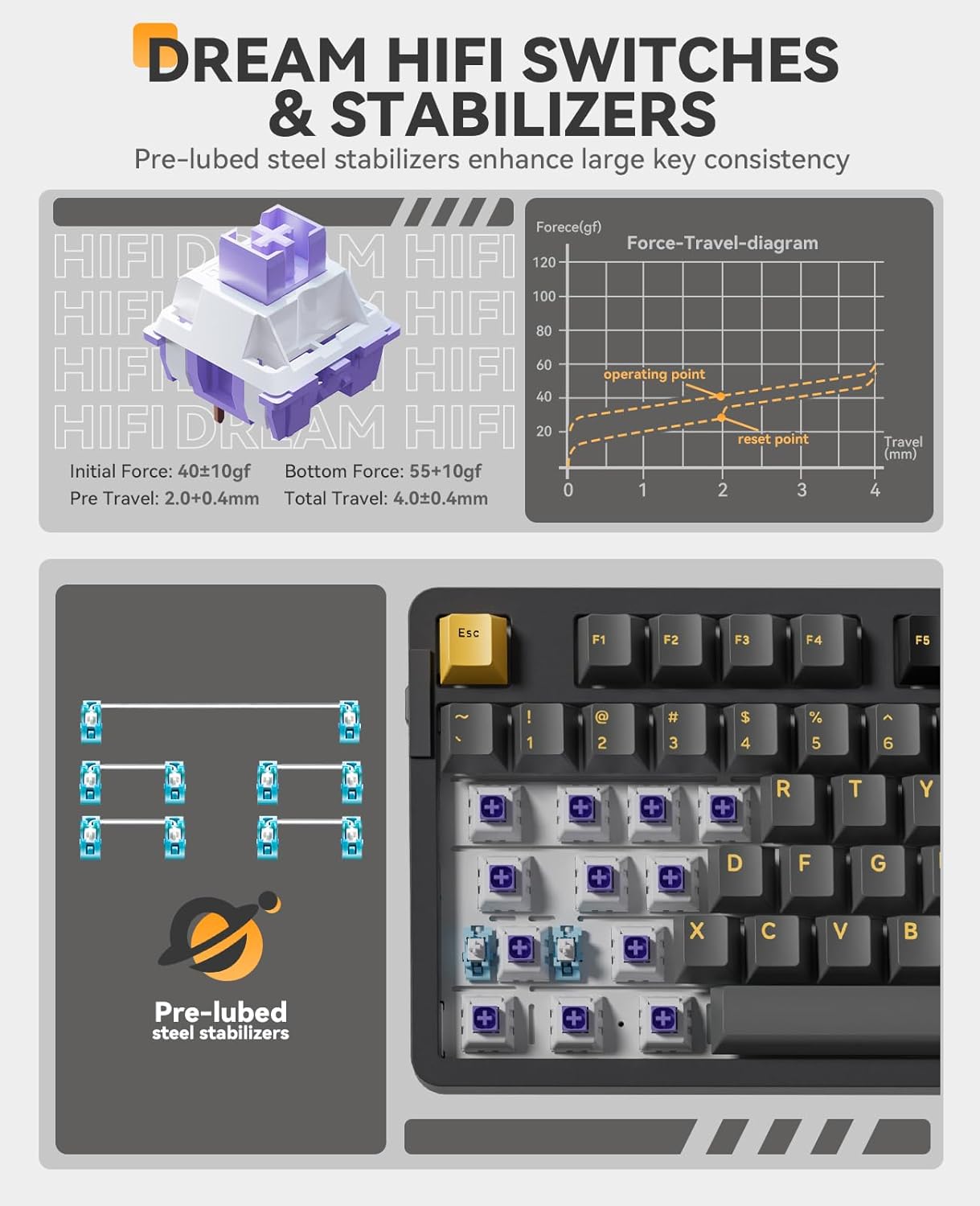
Image: Detailed view of the DAREU Hifi Dream switches and pre-lubed steel stabilizers, including a force-travel diagram illustrating switch characteristics.
RGB Lighting Customization

Image: Illustration of the DAREU EK87PRO keyboard's 16.8 million RGB lighting capabilities and key combinations for adjusting brightness, colors, and effects (Fn + Up/Down for brightness, Fn + { for colors, Fn + } for effects).
The keyboard features south-facing RGB lighting with up to 26 backlight modes and 16.8 million colors. Brightness and speed can be adjusted via the driver software. Use Fn + ↑/↓ for brightness, Fn + { for backlight colors, and Fn + } for backlight effects.
Mouse Features (A955)
The A955 mouse is designed for precision and comfort in gaming.
Tri-mode Connection & Programmable
Similar to the keyboard, the mouse supports BT 5.1, 2.4GHz wireless, and USB-C wired connections. It features a programmable design, allowing customization of buttons and settings via the DAREU driver.
High Performance Sensor
Equipped with an AIM-WL sensor, the mouse offers up to 12000 DPI, 300 IPS tracking speed, and 50G acceleration for precise and responsive movements.
Lightweight Design & Durability

Image: Visual representation of the DAREU A955 mouse's lightweight design, emphasizing features like PBT buttons, no holes, resistance to oil buildup, and no compromise on performance.
Weighing only 88g, the A955 mouse is designed for comfortable extended use. It features KBS II buttons with an 80 million click lifespan and a transparent bottom cover with customizable RGB lighting.

Image: The DAREU A955 mouse with its transparent bottom cover, showcasing the customizable RGB lighting powered by DAREU TINT technology, offering over 16.8 million colors and 6 lighting effects.
Driver Software
For full customization of macros, key assignments, RGB lighting, and mouse settings, download the official DAREU driver software from the DAREU website. All macros and keys are customizable through the driver.
Maintenance
Proper maintenance ensures the longevity and performance of your DAREU devices.
- Cleaning: Use a soft, dry cloth to wipe down the keyboard and mouse. For stubborn dirt, a slightly damp cloth with mild soap can be used, ensuring no liquid enters the device. Avoid harsh chemicals or abrasive materials.
- Keycap Removal (Keyboard): If cleaning under keycaps, use the provided keycap puller. Be gentle to avoid damaging the switches.
- Battery Care: Avoid fully discharging the battery frequently. For long-term storage, charge the devices to about 50% and store them in a cool, dry place.
- Storage: When not in use, store the devices in a clean, dust-free environment.
Troubleshooting
If you encounter issues with your DAREU keyboard or mouse, refer to the following common solutions:
| Problem | Possible Cause / Solution |
|---|---|
| Device not connecting (2.4GHz) |
|
| Device not connecting (Bluetooth) |
|
| Keys/Mouse buttons not responding |
|
| RGB lighting not working/customizing |
|
| Mouse cursor erratic/lagging |
|
Specifications
| Feature | Detail |
|---|---|
| Product Name | DAREU Wireless Gaming Keyboard & Mouse Combo |
| Keyboard Model | EK87PRO |
| Mouse Model | A955 |
| Connectivity | Bluetooth 5.1, 2.4GHz Wireless, USB-C Wired |
| Keyboard Structure | Gasket Mount, PCB Single Key Slotting |
| Keyboard Switches | Pre-lubed Hifi Dream Linear (Hot-swappable 3/5-pin) |
| Keyboard Battery | 4000mAh (Up to 45 days playtime lights-off) |
| Keyboard Lighting | South-facing RGB, 16.8 Million Colors, 26 Modes |
| Mouse DPI | Up to 12000 DPI |
| Mouse Tracking Speed | 300 IPS |
| Mouse Acceleration | 50G |
| Mouse Weight | 88g |
| Mouse Button Lifespan | 80 Million Clicks (KBS II Button) |
Warranty and Support
DAREU products come with a standard manufacturer's warranty. For specific warranty terms and conditions, please refer to the warranty card included with your product or visit the official DAREU website.
For technical support, driver downloads, or further assistance, please visit the DAREU official website or contact DAREU customer service through the contact information provided on their website or your purchase platform.
You can also visit the DAREU Store on Amazon for more information and support resources.
Related documentsA955


Ask a question about this manual
Ask about setup, troubleshooting, compatibility, parts, safety, or missing instructions. Manuals+ will review the question and use this page’s manual context to help answer it.