
1. Introduction
This manual provides detailed instructions for the installation, operation, and maintenance of your MISONDA Autoradio Android 14 10" IPS 2 Din car stereo system. This unit is designed for specific integration with Volkswagen Passat B8 models manufactured between 2015 and 2019. Please read this manual thoroughly before installation and use to ensure proper function and safety.
2. Safety Information
- Always consult a qualified professional for installation to avoid damage to the vehicle's electrical system or the unit.
- Do not operate the unit in a manner that distracts you from driving. Always prioritize road safety.
- Ensure all wiring connections are secure and properly insulated to prevent short circuits.
- Keep the unit away from water and excessive moisture.
- Do not attempt to disassemble or modify the unit. This may void the warranty and cause damage.
- Clean the screen with a soft, dry cloth. Avoid abrasive cleaners.
3. Package Contents
Verify that all items listed below are included in your package. If any items are missing or damaged, contact your retailer.

This image displays the complete set of components included with the MISONDA Autoradio. It shows the main head unit, various power and RCA output sockets, a user manual, GPS antenna, USB cables, installation brackets, an external microphone, a rear camera, and a CANbus decoder.
- MISONDA Autoradio Head Unit
- Power Socket A
- RCA Output Socket A, B, C
- User Manual / Instructions
- GPS Antenna
- USB Cable (multiple)
- Installation Brackets
- External Microphone
- Rear Camera
- Power Socket B, C
- CANbus Decoder
4. Installation Guide
The MISONDA Autoradio is designed for direct fitment in Volkswagen Passat B8 models (2015-2019). Professional installation is highly recommended due to the complexity of vehicle electronics.
4.1 Pre-Installation Steps
- Disconnect Battery: Before starting, disconnect the vehicle's negative battery terminal to prevent electrical shorts.
- Remove Original Unit: Carefully remove the existing car stereo and trim panels. Refer to your vehicle's service manual for specific instructions.
- Inspect Wiring: Familiarize yourself with the vehicle's wiring harness and the provided wiring harnesses for the new unit.
4.2 Wiring Connections
- Power Harness: Connect the main power harness from the new unit to the vehicle's power connector. Ensure the CANbus decoder is correctly integrated if required by your vehicle model.
- RCA Cables: Connect any external amplifiers or subwoofers using the provided RCA output sockets.
- GPS Antenna: Mount the GPS antenna in a location with a clear view of the sky, typically on the dashboard or under the windshield.
- USB Cables: Route the USB cables to a convenient location, such as the glove compartment or center console, for connecting USB devices.
- External Microphone: Connect the external microphone and route it to a suitable position for clear voice pickup, such as near the rearview mirror or on the A-pillar.
- Rear Camera: Connect the rear camera to the designated input. Ensure the camera is properly mounted and wired for reverse trigger.
- Radio Antenna: Connect the vehicle's radio antenna to the unit.
4.3 Mounting the Unit
- Attach the provided installation brackets to the sides of the MISONDA Autoradio.
- Carefully slide the unit into the dashboard opening, ensuring all wires are tucked away and not pinched.
- Secure the unit using the screws or clips provided with the installation brackets.
- Reinstall any trim panels removed earlier.
This image illustrates the dimensions of the MISONDA Autoradio and provides a visual comparison of the dashboard before and after installation in a Volkswagen Passat B8 (2015-2019), demonstrating the integrated fit.
5. Initial Setup
- Reconnect Battery: After installation, reconnect the vehicle's negative battery terminal.
- Power On: Start your vehicle. The unit should power on automatically.
- Initial Configuration: Follow the on-screen prompts to select your language, time zone, and other basic settings.
- Wi-Fi Connection: Connect to a Wi-Fi hotspot (e.g., from your smartphone) to enable online features and download updates.
- Steering Wheel Control Learning: If steering wheel controls are not automatically recognized, navigate to the system settings to manually configure them.
6. Operating Instructions
6.1 Android 14 Operating System
The unit runs on Android 14, providing a familiar smartphone-like interface. You can download and install applications from the Google Play Store, customize the home screen, and access various Android features.

This image highlights the core specifications of the MISONDA Autoradio's Android system, including Android 14, 6GB RAM, 128GB ROM, and an Octa-Core processor, indicating its performance capabilities.
6.2 Wireless Carplay and Android Auto
Connect your smartphone wirelessly via Bluetooth to access Carplay (for iOS devices) or Android Auto (for Android devices). This allows for seamless integration of navigation, music, calls, and messages directly on the unit's screen.
- Pairing: Enable Bluetooth on your phone and the Autoradio. Search for the Autoradio on your phone and pair them.
- Activation: Once paired, select the Carplay or Android Auto icon on the Autoradio's home screen to initiate the connection.

This image illustrates the wireless connectivity options for Carplay and Android Auto, showing how smartphones can integrate with the MISONDA Autoradio for navigation, communication, and media playback.
6.3 GPS Navigation
The unit comes with pre-installed offline maps. For real-time traffic updates and online routing, connect the unit to Wi-Fi.
- Offline Maps: Access the pre-loaded navigation application for guidance without an internet connection.
- Online Maps: Connect to Wi-Fi to use online mapping services, which provide up-to-date traffic information and route optimization.
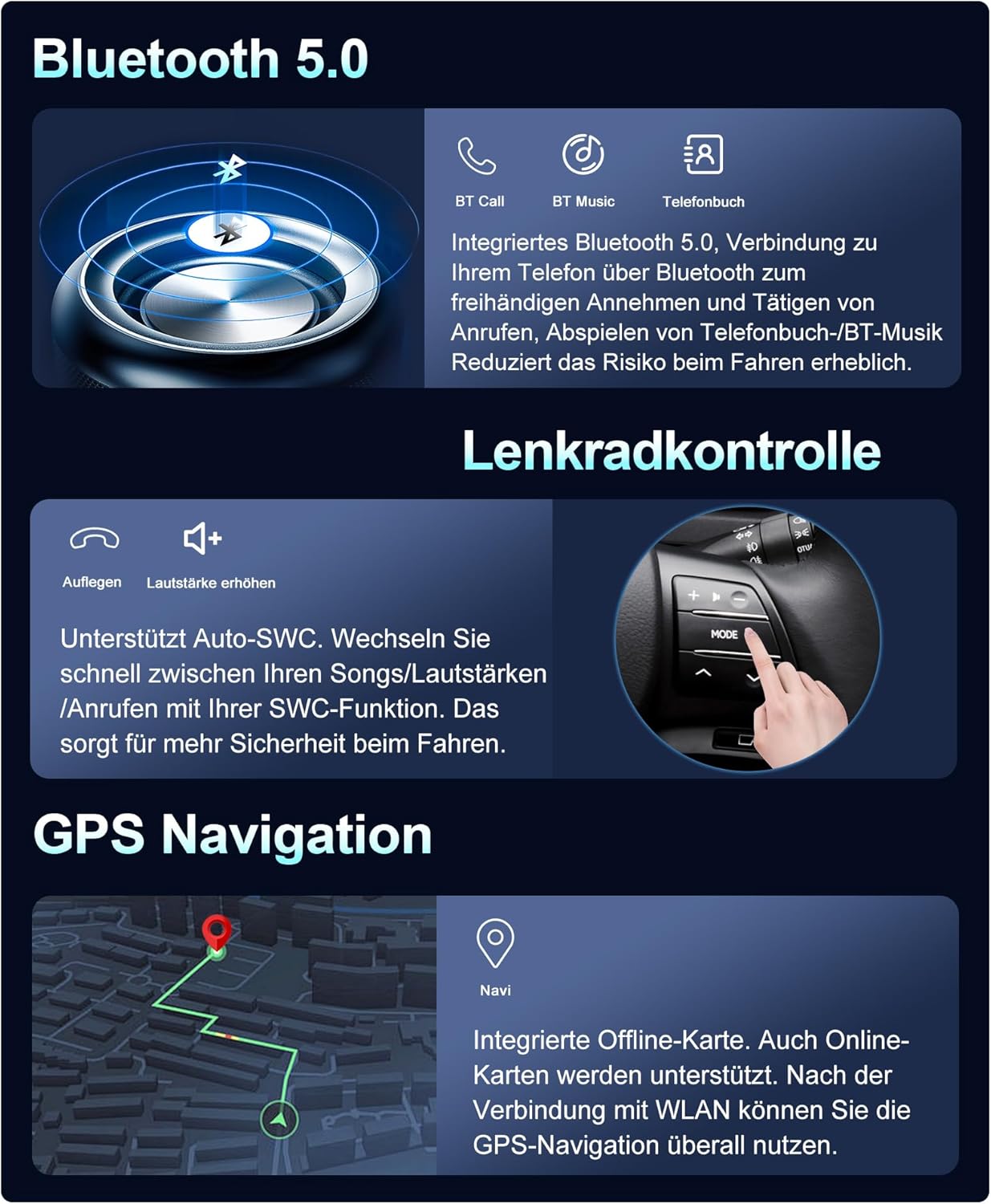
This image highlights three key features: GPS Navigation with integrated offline maps, Bluetooth 5.0 for enhanced connectivity, and the functionality of steering wheel controls for safe operation.
6.4 Bluetooth 5.0
Bluetooth 5.0 provides stable and fast wireless connections for hands-free calling, music streaming (A2DP), and phonebook synchronization.
- Hands-Free Calling: Pair your phone to make and receive calls directly through the unit.
- Audio Streaming: Play music from your phone wirelessly.
- Phonebook: Sync your phone's contacts for easy access.
6.5 DSP (Digital Sound Processor)
The integrated DSP allows for advanced audio customization, including equalization, bass filtering, and sound staging, to optimize sound quality for your vehicle's environment.
- Access the DSP settings through the audio menu to adjust parameters such as equalizer presets, bass boost, and sound field.

This comprehensive image showcases several advanced features: the DSP 64 Equalizer for audio tuning, built-in WLAN for internet access, split-screen multitasking, mirror link for phone display, integrated 4G connectivity, and optional DAB+ digital radio and 360-degree camera support.
6.6 Split Screen Function
The split-screen feature allows you to run two applications simultaneously on the 10-inch display. For example, you can use navigation on one side while playing music or a video on the other.
- To activate, open an application, then long-press the recent apps button or drag another app from the recent apps list to the side of the screen.
6.7 Mirror Link
Mirror Link enables you to display your smartphone's screen directly on the Autoradio. For Android phones, two-way control is supported, allowing you to control your phone from the unit's touchscreen.
- Connect your phone via USB or Wi-Fi and follow the on-screen instructions to activate Mirror Link.
6.8 Steering Wheel Control
The unit supports your vehicle's original steering wheel controls, allowing you to manage audio playback, volume, and calls without taking your hands off the wheel.
- If not automatically configured, access the steering wheel control settings in the system menu to map functions manually.
6.9 Wi-Fi Connectivity
The built-in Wi-Fi module allows you to connect to the internet via a mobile hotspot or home Wi-Fi network. This enables online navigation, app downloads, and streaming services.
- Go to Settings > Network & Internet > Wi-Fi to connect to available networks.
6.10 RDS (Radio Data System)
The integrated RDS function provides additional information from FM radio stations, such as station name, program type, and traffic announcements.
- Access the radio application to tune into FM stations and view RDS information.
6.11 DAB+ (Optional)
If you have the optional DAB+ module installed, you can enjoy digital audio broadcasting with enhanced sound quality and more station choices.
- Ensure the DAB+ antenna is properly connected and scan for available digital radio stations.
6.12 360 Camera (Optional)
The unit supports an optional 360-degree panoramic car camera system, providing a comprehensive view around your vehicle for parking and maneuvering.
- If installed, the 360 camera view can typically be accessed via a dedicated app or automatically when reversing.
7. Maintenance
- Screen Cleaning: Use a soft, lint-free cloth to clean the touchscreen. For stubborn smudges, slightly dampen the cloth with water or a screen-safe cleaner. Do not spray liquid directly onto the screen.
- Software Updates: Periodically check for system software updates via the unit's settings menu (Settings > About device > System updates). Updates can improve performance and add new features.
- General Care: Avoid exposing the unit to extreme temperatures, direct sunlight for prolonged periods, or harsh chemicals.
8. Troubleshooting
| Problem | Possible Cause | Solution |
|---|---|---|
| Unit does not power on. | Loose power connection, blown fuse, vehicle battery issue. | Check all power connections. Inspect vehicle fuses. Ensure vehicle battery is charged. |
| No sound. | Volume too low, mute activated, incorrect audio source, loose speaker wires. | Increase volume. Check mute status. Select correct audio source. Verify speaker connections. |
| GPS signal lost or inaccurate. | GPS antenna obstructed or improperly installed. | Ensure GPS antenna has a clear view of the sky. Check antenna connection. |
| Bluetooth not connecting. | Bluetooth off on phone/unit, incorrect pairing process. | Ensure Bluetooth is enabled on both devices. Delete previous pairings and re-pair. |
| Steering wheel controls not working. | Incorrect wiring, unconfigured settings. | Verify CANbus connection. Access steering wheel control settings to configure manually. |
| Touchscreen unresponsive. | Temporary software glitch, physical damage. | Restart the unit (power cycle). If issue persists, contact support. |
9. Specifications
- Brand: MISONDA
- Vehicle Service Type: Car
- Screen Size: 10 Inches
- Special Features: Bluetooth, RDS, Touchscreen, Wireless Carplay, Android Auto, DSP
- Connectivity Technology: Bluetooth, Wi-Fi
- Map Type: Route, Satellite/Antenna (Offline maps included)
- Included Components: Main unit, various power/RCA sockets, user manual, GPS antenna, USB cables, installation brackets, external microphone, rear camera, CANbus decoder.
- Audio Output Mode: Stereo
- Mounting Type: Dashboard Mount
- Resolution: 1080 x 680
- Operating System: Android 14
- Processor: 64-bit 8-core (Octa-Core)
- RAM: 6GB
- ROM: 128GB
10. Warranty and Support
For warranty information and technical support, please refer to the warranty card included in your package or contact your point of purchase. Keep your purchase receipt as proof of purchase for any warranty claims.