
1. Introduction
This manual provides instructions for the Attoe Wireless Bluetooth Mouse, Model MXY0614. This device features dual-mode connectivity (Bluetooth and 2.4G wireless), a transparent design with RGB backlighting, and a rechargeable battery. Please read this manual carefully before use to ensure proper operation and maintenance.
2. Package Contents
Verify that all items are present in the package:
- 1 x Attoe Wireless Bluetooth Gaming Mouse
- 1 x Charging Cable (Type-C)
- 1 x Instruction Manual

Figure 2.1: Package Contents
3. Product Features
- Magnetic Top Cover: The top cover is secured by strong magnetic adsorption, allowing for easy access to the USB receiver and precise alignment.
- RGB Backlight: Features an RGB water-cooled light band for customizable lighting effects.
- Battery Display: Four indicator lights show the remaining battery level.
- Rechargeable: Built-in 400mAh lithium polymer battery, charged via Type-C port. Full charge takes approximately 2-3 hours.
- Dual Mode Connection: Supports both Bluetooth (BT) and 2.4G wireless modes.
- Auto Sleep: Automatically enters deep sleep mode after 10 minutes of inactivity to conserve power.
- Wide Compatibility: Compatible with Windows 2000/XP/win7/win8/win10, Vista 32-bit, IOS, Linux, and Mac OS.
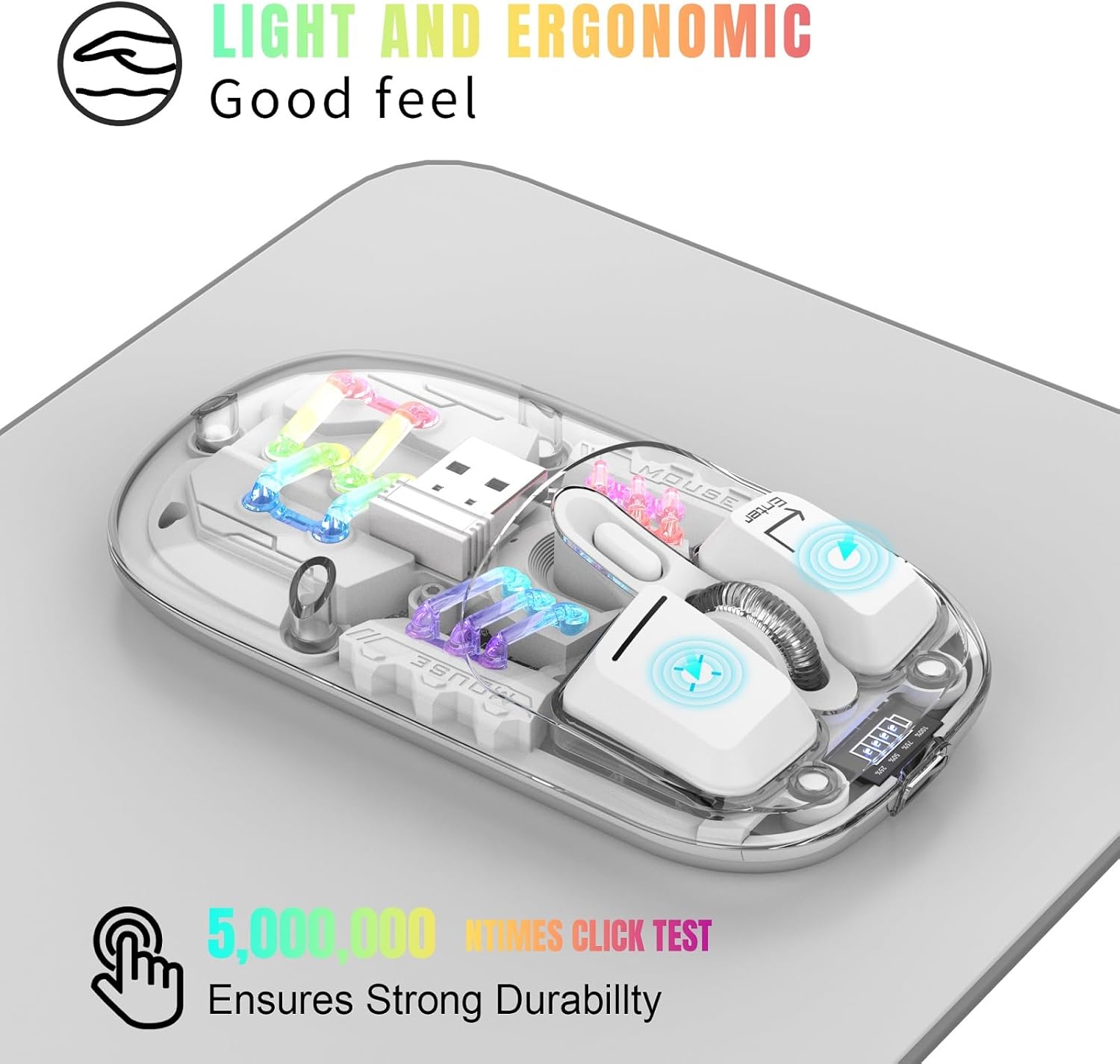
Figure 3.1: Ergonomic Design and RGB Lighting

Figure 3.2: Magnetic Top Cover
4. Product Overview

Figure 4.1: Mouse Components and Controls
The diagram above identifies the key components and controls of the mouse, including the left and right buttons, scroll wheel, DPI adjustment, battery indicator, Type-C charging port, and the location of the 2.4G USB receiver.
5. Setup Instructions
5.1. 2.4G Wireless Connection
- Remove the magnetic top cover of the mouse.
- Take out the USB 2.4G receiver from its storage slot.
- Insert the USB receiver into an available USB port on your computer or device.
- Flip the mouse over and locate the mode switch on the bottom. Slide the switch to the "2.4G" position.
- The mouse will automatically connect to your device. No additional software is required.
5.2. Bluetooth Connection
- Flip the mouse over and locate the mode switch on the bottom. Slide the switch to the "BT" position.
- Press and hold the left, middle (scroll wheel), and right buttons simultaneously for 3 seconds to enter Bluetooth pairing mode. The RGB lights will flash to indicate pairing mode.
- On your device (computer, laptop, tablet), open Bluetooth settings.
- Search for new Bluetooth devices and select "BT5.0 Mouse" or a similar name from the list.
- Confirm the pairing on your device. The mouse's RGB lights will stop flashing once successfully paired.

Figure 5.1: Dual Mode Connectivity
Video 5.1: Demonstrating the connection process and features of the Transparent Gaming Mouse.
6. Operating Instructions
6.1. RGB Lighting Control
- Switch Light Mode: Click the dedicated light mode switch button (refer to Figure 4.1) to cycle through 11 different RGB lighting effects.
- Turn On/Off Lights: Long press the light mode switch button for 3 seconds to turn the RGB lights on or off.
6.2. DPI Adjustment
The mouse features adjustable DPI settings. Click the DPI button (refer to Figure 4.1) to cycle through available DPI levels (e.g., 800, 1200, 1600 DPI). Each click will change the cursor sensitivity.
6.3. Charging the Mouse
- Connect the provided Type-C charging cable to the charging port on the front of the mouse.
- Connect the other end of the cable to a USB power source (e.g., computer USB port, USB wall adapter).
- The battery display lights will indicate charging status. A full charge typically takes 2-3 hours.
- The 4 small lights on the battery display indicate the remaining battery level.
6.4. Auto-Sleep Function
To conserve battery life, the mouse will automatically enter a deep sleep mode if left unused for more than 10 minutes. To wake the mouse, simply move it or press any button.
7. Maintenance
- Keep the mouse clean by wiping it with a soft, dry cloth. Avoid using harsh chemicals or abrasive materials.
- Ensure the Type-C charging port is free from dust and debris.
- Store the USB receiver inside the mouse when not in use to prevent loss.
- Avoid exposing the mouse to extreme temperatures or direct sunlight.
8. Troubleshooting
- Mouse not responding: Ensure the mouse is charged. Check the mode switch (2.4G or BT) is correctly set. For 2.4G, ensure the USB receiver is properly inserted. For Bluetooth, re-enter pairing mode and re-pair with your device.
- Intermittent connection: Ensure the mouse is within the 10-meter wireless range. Avoid obstructions between the mouse and the receiver/device.
- RGB lights not working: Check if the lights are turned off by long-pressing the light mode switch. Ensure the mouse has sufficient battery.
- Cursor movement is erratic: Clean the optical sensor on the bottom of the mouse. Ensure you are using the mouse on a suitable surface.
9. Specifications
| Feature | Specification |
|---|---|
| Model Number | MXY0614 |
| Connectivity | Bluetooth (BT) + 2.4G Wireless |
| Buttons | 4 buttons (Left, Right, Scroll Wheel/Middle, DPI) |
| DPI | 1600 DPI (Adjustable) |
| Rated Voltage/Current | DC 5V/400mA |
| Wireless Connection Distance | 10 meters |
| Switch Life | 20 million cycles |
| Battery | Built-in 400mAh Lithium Polymer (Rechargeable) |
| Charging Port | Type-C |
| Product Weight | 40g (1.41 ounces) |
| Product Dimensions | 113 x 58 x 25mm (4.45 x 2.28 x 0.98 inches) |
| Compatibility | Windows 2000/XP/win7/win8/win10, Vista 32-bit, IOS, Linux, Mac OS |

Figure 9.1: Product Dimensions
10. Warranty and Support
For any questions or issues regarding your Attoe Wireless Bluetooth Mouse, please contact our after-sales service. We are committed to providing a satisfactory resolution.
Contact information for support can typically be found on the product packaging or the official Attoe website.