
1. Introduction
This manual provides instructions for the Nityers Automatic Pet Feeder with Camera & WiFi, Model QQ-029. This device is designed to automate your pet's feeding schedule, monitor their activity, and allow for remote interaction. Please read this manual thoroughly before use to ensure proper operation and maintenance.
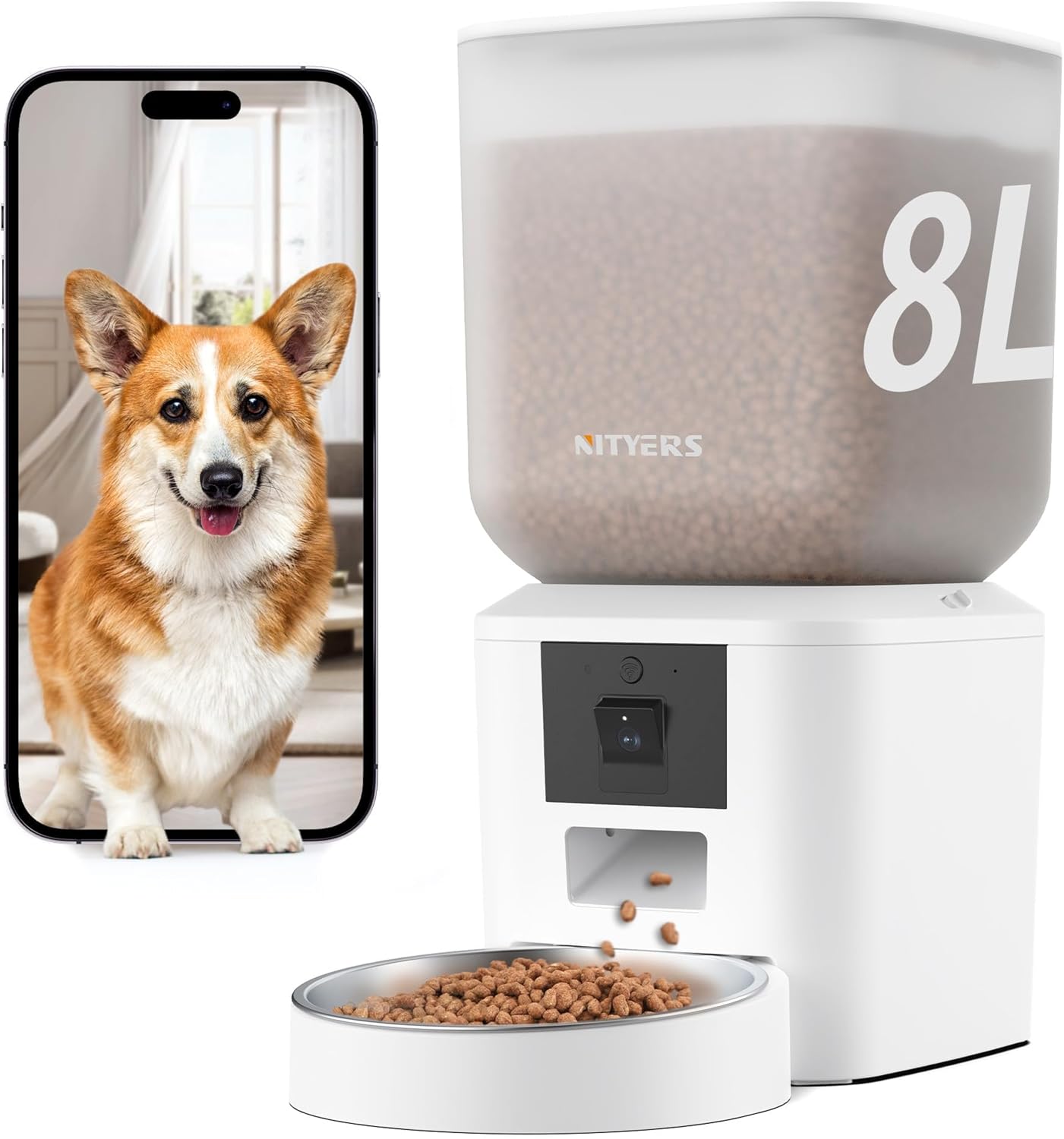
Image 1.1: Nityers Automatic Pet Feeder with Camera and WiFi.
2. Safety Information
- Do not cut or remove any tabs on the feeder, as this may affect performance or cause malfunction.
- Modifying or altering any internal components of the feeder is strictly prohibited. Any damage resulting from unauthorized modifications is not covered under warranty.
- Ensure the feeder is placed on a stable, level surface to prevent tipping.
- Keep the power adapter cable away from pets to prevent chewing or damage.
- This device is intended for dry food only. Do not use with wet food, canned food, or water.
- Regularly clean the feeder components to maintain hygiene and prevent food spoilage.
3. Package Contents
Verify that all items are present in the package:
- WiFi Automatic Pet Feeder Main Body with Camera and Voice Recorder
- 8L Food Storage Container
- Spring-lock Lid with Desiccant Pack
- Stainless Steel Food Bowl
- Bowl Tray
- Power Adapter with Cord (Type-C)
- User Manual
4. Product Overview
The Nityers Automatic Pet Feeder features an 8-liter capacity food tank, a 1080P HD camera with night vision, and dual-band Wi-Fi connectivity for remote control via a smartphone application. It supports scheduled feeding with customizable portions and includes two-way audio communication.

Image 4.1: Feeder capacity and feeding parameters.
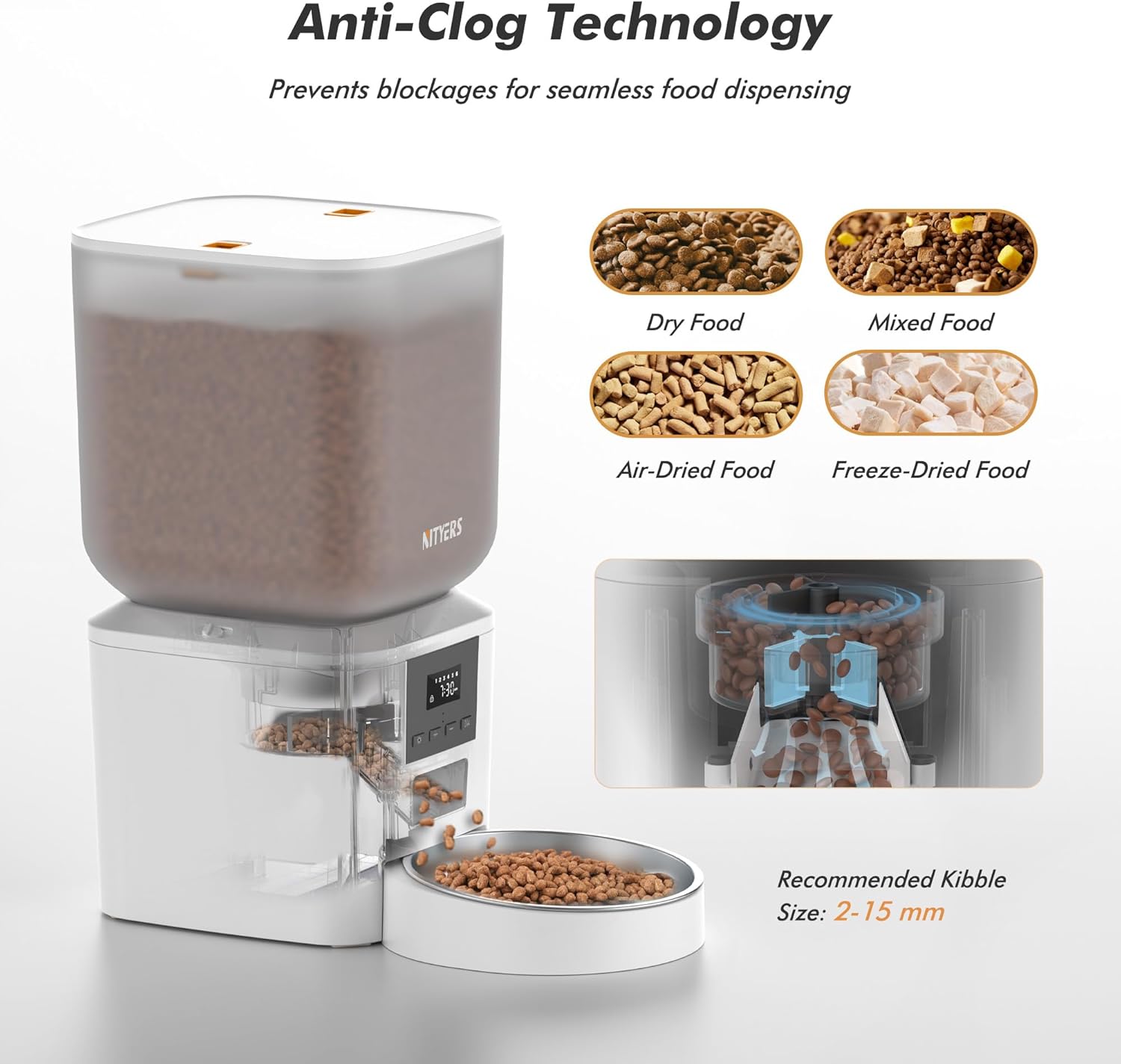
Image 4.2: Anti-Clog Technology and recommended kibble size.
5. Setup Guide
5.1 Unpacking and Assembly
- Remove all components from the packaging.
- Place the main feeder body on a flat, stable surface.
- Insert the stainless steel food bowl into the bowl tray, then attach the tray to the main feeder body.
- Place the 8L food storage container onto the main feeder body, ensuring it is securely seated.
- Open the spring-lock lid, insert the desiccant pack into its designated slot, and then close the lid securely.
5.2 Power Supply
The feeder supports dual power supply modes:
- Primary Power: Connect the Type-C power adapter to the feeder and plug it into a wall outlet.
- Backup Power: For uninterrupted operation during power outages, install 4 AA batteries (not included) into the battery compartment located at the bottom of the feeder.
5.3 App Installation and Wi-Fi Connection
To control the feeder remotely, download and install the companion app:
- Scan the QR code provided in the manual or on the product packaging, or search for "PET ZERO" in the Apple App Store (for iOS) or Google Play Store (for Android).
- Install the "PET ZERO" app on your smartphone.
- Ensure your phone is connected to a 2.4GHz or 5GHz Wi-Fi network. The feeder supports both.
- Open the PET ZERO app and follow the on-screen instructions to add a new device. The app offers Bluetooth mode, QR code mode, and AP mode for connection.
- During the connection process, keep the feeder close to your Wi-Fi router.
- Once successfully connected, the feeder will appear in your app, and you can begin programming feeding schedules.
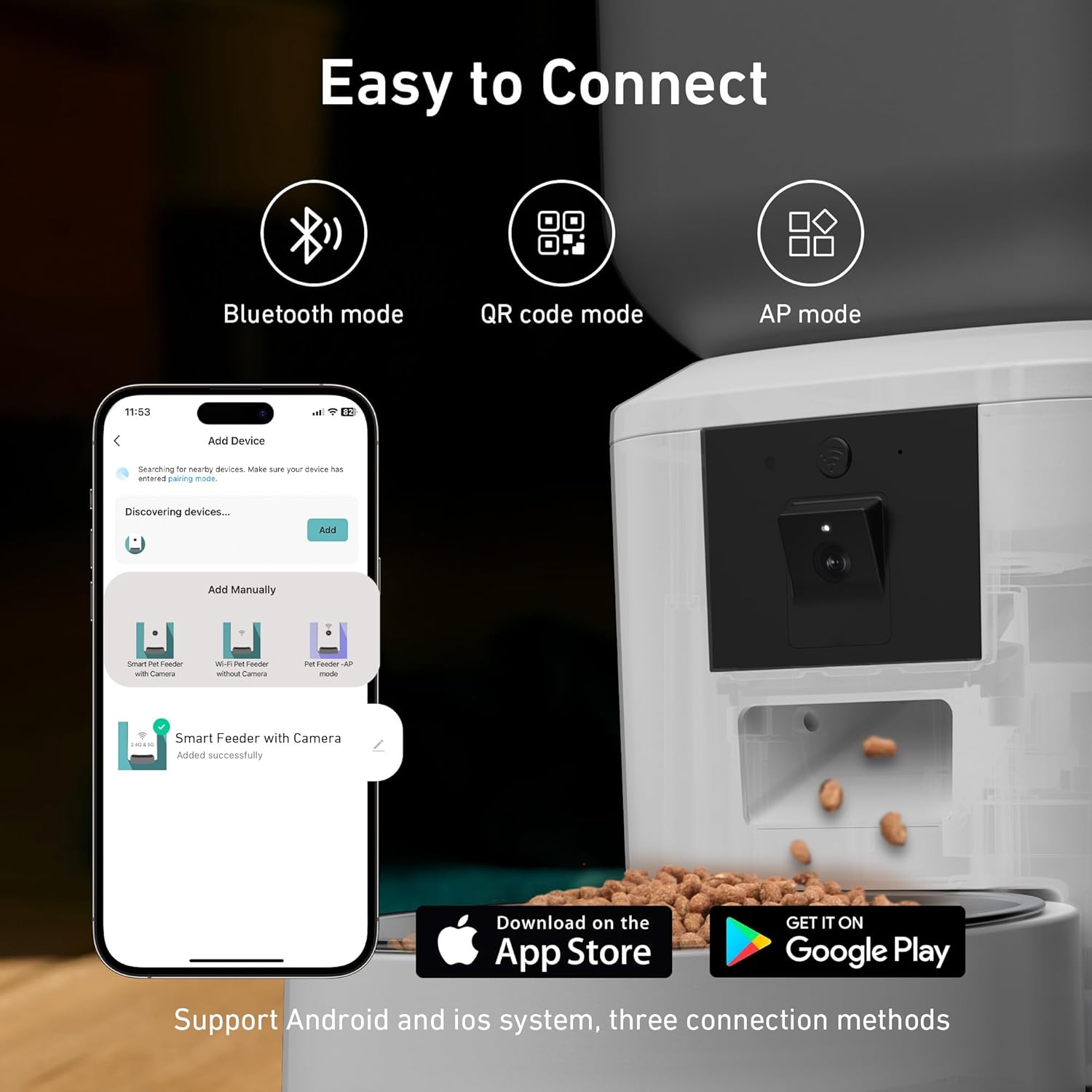
Image 5.1: App connection methods.

Image 5.2: App download and Wi-Fi configuration steps.
For Android users, the app can also be downloaded directly via this link: https://smartapp.tuya.com/kkpetfeederpetzeroandroid
6. Operating Instructions
6.1 Filling the Food Tank
Open the spring-lock lid and pour dry pet food into the 8L storage container. Ensure the food level does not exceed the maximum fill line. Close the lid securely to maintain food freshness.
6.2 Setting Feeding Schedule and Portions
Use the PET ZERO app to customize your pet's feeding schedule:
- In the app, select your feeder device.
- Navigate to the feeding schedule settings.
- Set up to 15 meals per day. For each meal, specify the time and the number of portions (1-99 portions, approximately 7g per portion).
- Save your settings. The feeder will automatically dispense food according to the programmed schedule.

Image 6.1: Customizing feeding schedules and portions in the app.
6.3 Using the Camera
The integrated 1080P HD camera allows you to monitor your pet:
- Live View: Access the live video feed through the app to watch your pet in real-time. The camera offers a 170° wide viewing angle and a 15° tilt for optimal positioning.
- Night Vision: The camera automatically switches to night vision mode in low-light conditions, providing clear visibility up to a 5-meter radius.
- Motion Detection: Receive notifications on your phone when motion is detected near the feeder.

Image 6.2: High-definition camera view.

Image 6.3: Night vision capability.

Image 6.4: Wide field of view.
6.4 Two-Way Audio and Voice Recording
The feeder includes a built-in microphone and speaker:
- Two-Way Talk: Use the app to speak to your pet remotely and hear their responses.
- Voice Recording: Record a 10-second voice message that will play automatically when food is dispensed, alerting your pet that it's mealtime.

Image 6.5: Two-way audio interaction.
6.5 Manual Feeding
You can manually dispense food at any time using the app's manual feed function.
7. Maintenance and Cleaning
7.1 Regular Cleaning
For optimal hygiene, regularly clean the feeder components:
- Stainless Steel Bowl: The removable stainless steel bowl is dishwasher safe or can be washed with hot water and mild detergent.
- Food Tank and Lid: The food tank and lid are fully removable for thorough cleaning. Wash with warm soapy water, rinse thoroughly, and ensure they are completely dry before reassembly.
- Main Body: Wipe the main body with a damp cloth. Do not submerge the main body in water.
7.2 Desiccant Bag Replacement
The desiccant bag helps keep food fresh. Replace it periodically (e.g., every 1-2 months) to maintain effectiveness.

Image 7.1: Desiccant support for food freshness.
7.3 Anti-Clog System
The feeder is designed with anti-clog technology. If a blockage occurs, the feeder may display an error message. Clear any obstructions in the food dispensing mechanism and ensure kibble size is within the recommended 2-15mm range.
8. Troubleshooting
| Problem | Possible Cause | Solution |
|---|---|---|
| Feeder not connecting to Wi-Fi | Incorrect Wi-Fi password; Feeder too far from router; Router settings (e.g., 5GHz only, firewall) | Verify password; Move feeder closer to router; Ensure router supports 2.4GHz and 5GHz (feeder supports both); Check router firewall settings. |
| Food not dispensing | Food tank empty; Dispensing mechanism clogged; Incorrect schedule settings; Low battery (if using backup power) | Refill food tank; Clear any clogs; Verify schedule in app; Replace AA batteries. |
| Camera image unclear or no image | Lens dirty; Poor network connection; Insufficient light (if not in night vision) | Clean camera lens; Check Wi-Fi signal strength; Ensure adequate lighting or verify night vision is active. |
| Two-way audio not working | Microphone/speaker blocked; App permissions; Network issues | Ensure nothing is obstructing microphone/speaker; Check app permissions for microphone access; Verify stable network connection. |
| Feeder loses power | Power adapter disconnected; No backup batteries or batteries depleted | Check power adapter connection; Install fresh AA batteries for backup. |
9. Specifications
| Feature | Detail |
|---|---|
| Model Name | QQ-029 |
| Capacity | 8 Liters (approx. 34 cups) |
| Camera Resolution | 1080P HD |
| Camera Viewing Angle | 170° wide angle, 15° tilt |
| Night Vision | Supported (up to 5m radius) |
| Wi-Fi Connectivity | 2.4GHz & 5GHz |
| Meals Per Day | 1-15 |
| Portions Per Meal | 1-99 (approx. 7g per portion) |
| Voice Recording | 10 seconds |
| Power Supply | Type-C Power Adapter (included), 4 AA Batteries (not included) |
| Material | Plastic, Stainless Steel |
| Dimensions (LxWxH) | 7.36 x 6.57 x 16.93 inches |
| Item Weight | 4.49 pounds |
| Recommended Kibble Size | 2-15 mm |
10. Warranty and Support
Warranty: If an item is found defective within one year of purchase, Nityers will issue a replacement.
Customer Support: For any questions, concerns, or assistance, please contact our friendly and professional 24/7 customer support team. Refer to the product packaging or the Nityers official website for contact details.