
SEUNKWANG G61
SEUNKWANG G61 Wireless Mechanical Keyboard User Manual
Model: G61 | Manufacturer: EWEADN
Introduction
This manual provides comprehensive instructions for the setup, operation, and maintenance of your SEUNKWANG G61 Wireless Mechanical Keyboard. The G61 features a 60% compact layout, three versatile connection modes (Bluetooth 5.0, 2.4GHz wireless, and USB-C wired), and customizable rainbow backlighting with mechanical red switches for a responsive typing experience.
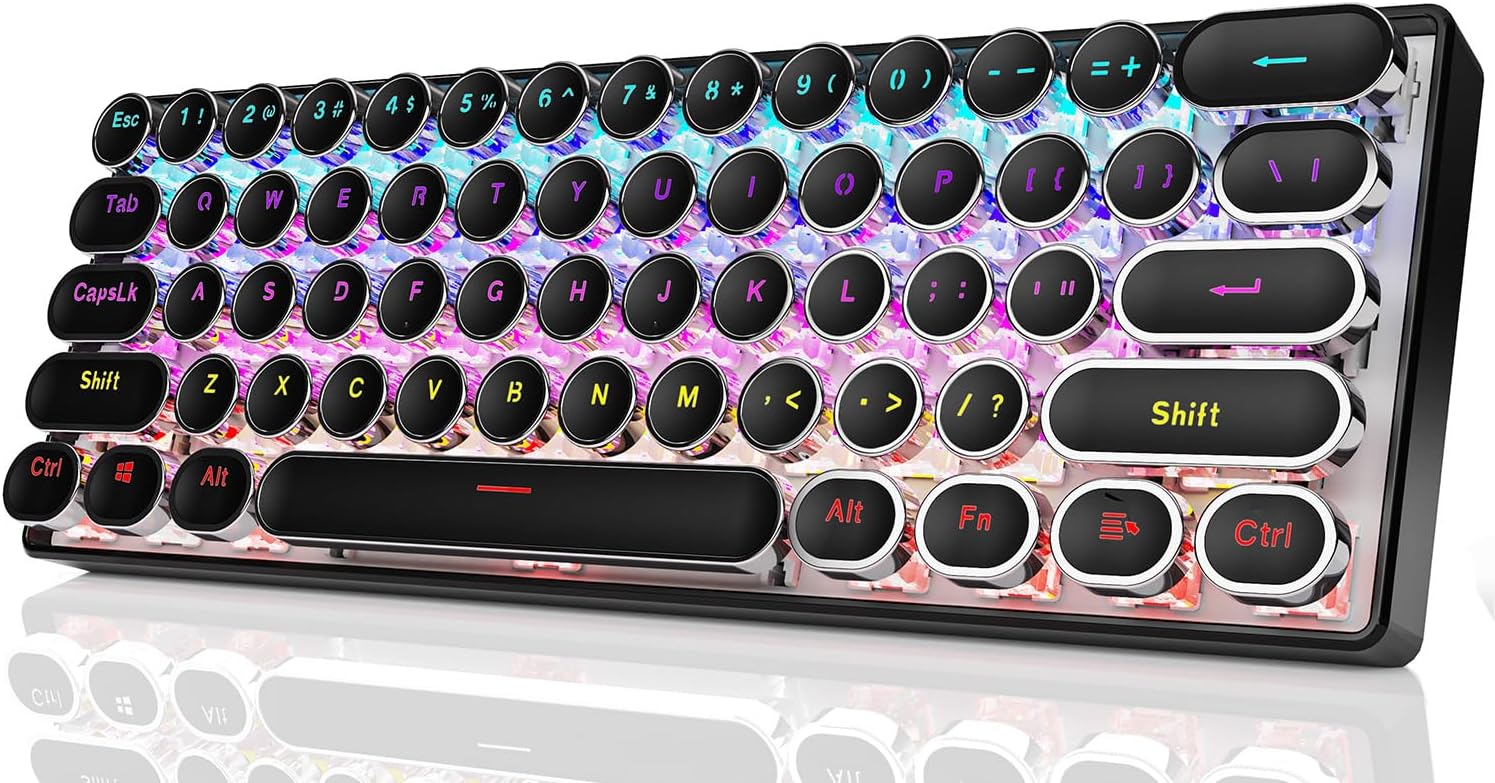
Image: The SEUNKWANG G61 Wireless Mechanical Keyboard showcasing its compact design and vibrant rainbow backlighting.
Product Overview
Package Contents:
- SEUNKWANG G61 Wireless Mechanical Keyboard
- USB-C Cable
- 2.4GHz USB Receiver (stored in the keyboard's back compartment)
- User Manual (this document)
Key Features:
- Three Connection Modes: Bluetooth 5.0, 2.4GHz Wireless, USB-C Wired.
- 60% Compact Layout: Space-efficient design with 61 keys.
- Mechanical Red Switches: Linear switches with light touch and responsive feedback.
- Rainbow Backlighting: 19 adjustable lighting effects with customizable brightness and breathing speed.
- Anti-Ghosting: Full-key anti-ghosting for accurate input.
- Retro Typewriter Style: Round keycaps with a unique aesthetic.

Image: An overview of the G61 keyboard highlighting its main features: 3 connection modes, RGB lighting, 19 light effects, 5 brightness levels, red switches, punk keycaps, 60% layout, and charging support.
Setup and Connection
The G61 keyboard supports three connection methods: Bluetooth, 2.4GHz wireless, and USB-C wired. You can connect up to 5 devices simultaneously and switch between them.
1. Bluetooth Connection (BT1, BT2, BT3):
- Ensure the keyboard is powered on.
- Press Fn + Z, Fn + X, or Fn + C to select one of the three Bluetooth channels (BT1, BT2, BT3). The indicator light will flash, indicating pairing mode.
- On your device (PC, laptop, tablet, smartphone), enable Bluetooth and search for "G61 Keyboard".
- Select the keyboard to pair. The indicator light will stop flashing once connected.
- To switch between paired Bluetooth devices, press Fn + Z/X/C.
2. 2.4GHz Wireless Connection:
- Locate the 2.4GHz USB receiver in the compartment on the back of the keyboard.
- Plug the USB receiver into an available USB port on your computer.
- Press Fn + B to activate 2.4GHz wireless mode. The keyboard should connect automatically.
3. USB-C Wired Connection:
- Connect the provided USB-C cable to the keyboard's USB-C port.
- Connect the other end of the cable to a USB port on your computer.
- Press Fn + V to activate USB-C wired mode. The keyboard will function as a wired device and charge simultaneously.

Image: The G61 keyboard illustrating its three connection modes and ability to connect to up to five devices, including laptops, tablets, and smartphones.

Image: Detailed view of the 2.4GHz wireless receiver and the USB-C port for wired connection and charging.
Charging the Keyboard:
The keyboard is equipped with a 2000 mAh Lithium Ion battery. Connect the USB-C cable to the keyboard and a power source (computer USB port or USB wall adapter) to charge. The keyboard can be used while charging in wired mode.
Operation and Functions
Basic Typing:
The G61 keyboard features a standard 60% layout. For keys with dual functions (e.g., arrow keys, multimedia keys), press the Fn key in combination with the desired key.
Backlight Control:
The keyboard offers 19 distinct rainbow lighting effects. You can adjust the effects, brightness, and breathing speed.
- Change Lighting Effect: Press Fn + Delete to cycle through 19 lighting effects.
- Adjust Brightness: Press Fn + ( to decrease brightness, Fn + ) to increase brightness (5 levels).
- Adjust Breathing Speed: Press Fn + : to decrease speed, Fn + . to increase speed (5 levels).
- Reset Lighting: Press and hold Fn + Spacebar for 3 seconds to reset the lighting to default.

Image: Visual guide for adjusting the keyboard's 19 RGB lighting effects, brightness levels, and breathing speeds using Fn key combinations.
Multimedia and Function Keys:
Utilize the Fn key in combination with other keys for various functions:
- Fn + Q: Switch Window
- Fn + W: Switch Window
- Fn + N: Multimedia
- Fn + E: Multimedia
- Fn + R: Previous song
- Fn + T: Next song
- Fn + Y: Play/Pause
- Fn + A: Play/Pause
- Fn + S: Play/Pause
- Fn + D: Mute
- Fn + F: Volume-
- Fn + G: Volume+

Image: A visual representation of the G61 keyboard's efficient function keys and full-key anti-ghosting capability, detailing various Fn key combinations for system and media control.
Anti-Ghosting:
The G61 keyboard features full-key anti-ghosting technology, ensuring that multiple key presses are registered accurately and simultaneously, which is beneficial for fast typing and gaming.
Video Demonstration:
Video: A demonstration of the G61 Wireless Keyboard, showcasing its aesthetic design, various RGB lighting effects, and responsive typing experience.
Maintenance
Cleaning:
- To clean the keyboard, power it off and disconnect any cables.
- Use a soft, lint-free cloth slightly dampened with water or a mild cleaning solution.
- Avoid spraying liquids directly onto the keyboard.
- For cleaning between keycaps, use compressed air or a small brush.
- The keycaps can be carefully removed for deeper cleaning if necessary.
Storage:
Store the keyboard in a cool, dry place away from direct sunlight and extreme temperatures. When not in use for extended periods, ensure the keyboard is fully charged before storage to maintain battery health.
Troubleshooting
- Keyboard not connecting:
- Ensure the keyboard is powered on and fully charged.
- Verify the correct connection mode (Bluetooth, 2.4GHz, or wired) is selected using Fn key combinations.
- For Bluetooth, ensure your device's Bluetooth is enabled and the keyboard is in pairing mode. Try re-pairing.
- For 2.4GHz, ensure the USB receiver is securely plugged in.
- For wired, ensure the USB-C cable is properly connected to both the keyboard and the computer.
- Try restarting your computer or the keyboard.
- Keys not responding or sticky keys:
- Check for debris under the keycaps. Clean as per maintenance instructions.
- Ensure the keyboard is properly connected and not experiencing interference.
- If using wireless, try switching to wired mode to rule out connection issues.
- Backlight not working or incorrect:
- Ensure the keyboard is powered on.
- Adjust brightness using Fn + ( and Fn + ).
- Cycle through lighting effects using Fn + Delete.
- Perform a lighting reset by holding Fn + Spacebar for 3 seconds.
- Frequent disconnections (Bluetooth/2.4GHz):
- Ensure the keyboard is within the effective range of your device.
- Minimize interference from other wireless devices.
- Ensure the keyboard battery is sufficiently charged.
- Update Bluetooth drivers on your computer if applicable.
If you encounter issues not covered here, please refer to the warranty and support section for assistance.
Specifications
| Model Number | G61 |
| Manufacturer | EWEADN |
| Connectivity Technology | 2.4Ghz, Bluetooth 5.0, USB-C Wired |
| Switch Type | Mechanical Red Switch (Linear) |
| Keycap Style | Retro Typewriter Round Keycaps |
| Backlighting | Rainbow RGB (19 effects, 5 brightness, 5 breathing speeds) |
| Anti-Ghosting | Full-key Anti-Ghosting |
| Battery | 1 Lithium Ion battery (2000 mAh, included) |
| Compatible Devices | PC, Mac laptops, tablets, desktop computers, gaming consoles, smartphones |
| Compatible Systems | Windows 7/8/10/XP/Vista, Linux, Mac OS |
| Item Weight | 2.2 pounds |
| Package Dimensions | 13.23 x 5.75 x 2.4 inches |

Image: Close-up view of the mechanical red switch, detailing its linear type, 3-pin design, operating force (45±10gf), pre-travel (2.0±0.6mm), and durability (100 million key strokes).
Warranty and Support
The SEUNKWANG G61 Wireless Mechanical Keyboard comes with 48-month brand support from the manufacturer, EWEADN. For any questions, technical assistance, or warranty claims, please contact the seller or manufacturer directly through your purchase platform.
Our expert team is available to assist you with any product-related inquiries.
Ask a question about this manual
Ask about setup, troubleshooting, compatibility, parts, safety, or missing instructions. Manuals+ will review the question and use this page’s manual context to help answer it.