
Introduction
This manual provides comprehensive instructions for the setup, operation, maintenance, and troubleshooting of your EWEADN G61 Wireless Mechanical Keyboard. The G61 is a 60% compact typewriter-style keyboard featuring multiple connection modes, vibrant RGB backlighting, and durable mechanical red switches, designed for versatile use across various devices and environments.
Setup
Connection Modes
The G61 keyboard supports three versatile connection modes:
- Bluetooth 5.0: Connects to up to three Bluetooth-enabled devices.
- 2.4GHz Wireless: Utilizes a dedicated USB receiver for a stable wireless connection.
- USB-C Wired: Provides a direct, plug-and-play connection and charges the keyboard simultaneously.
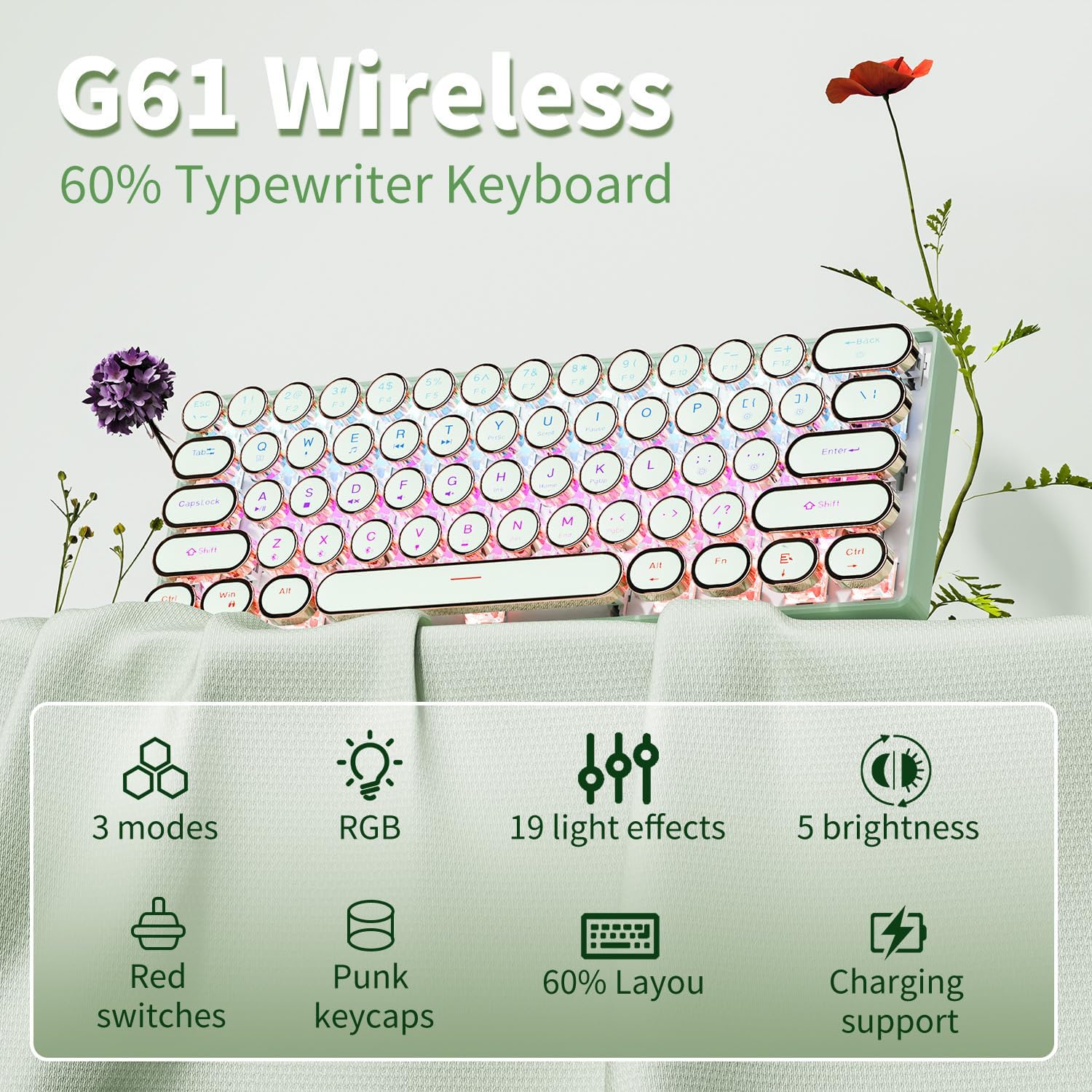
Figure 1: Overview of G61 Keyboard Features and Connection Modes.
Switching Between Devices
To switch between connected devices, use the following key combinations:
- Bluetooth Devices (BT1, BT2, BT3): Press FN + Z for BT1, FN + X for BT2, FN + C for BT3.
- 2.4GHz Wireless Mode: Press FN + B.
- USB-C Wired Mode: Press FN + V.
The keyboard supports connecting up to 5 devices simultaneously (3 Bluetooth, 1 2.4Ghz, 1 wired).

Figure 2: Detailed view of the three connection options.
Battery and Charging
The G61 keyboard is equipped with a 2000 mAh Lithium Ion battery. It is rechargeable via the USB-C port. The keyboard features energy-saving chips and smart power saving functions to optimize battery life.
When connected via USB-C, the keyboard will charge automatically. A USB cable is included in the box.

Figure 3: USB-C charging port on the keyboard.

Figure 4: Battery and power saving features.
Initial Connection Video Guide
Video 1: A short demonstration of the G61 keyboard's features, including RGB lighting, punk keycaps, red switches, and 2.4G & Bluetooth wireless connectivity. This video highlights the aesthetic and functional aspects of the keyboard.
Operating the Keyboard
Compact Layout and Anti-Ghosting
The G61 features a 60% ultra-compact layout with 61 keys, optimizing desk space while retaining essential functionality. It incorporates 104-key anti-ghosting technology, ensuring that multiple simultaneous key presses are registered accurately without conflict, which is crucial for efficient typing and smooth gaming.

Figure 5: The G61's ultra-compact design for portability and space-saving.

Figure 6: Comparison of G61's 60% layout for space efficiency.
Backlighting Control
The keyboard features vibrant rainbow RGB backlighting with 19 adjustable lighting effects. You can customize the lighting to suit your preference:
- Change Lighting Effect: Press Fn + Delete to cycle through 19 different lighting effects.
- Adjust Brightness: Press Fn + ( to decrease brightness or Fn + ) to increase brightness (5 levels).
- Adjust Breathing Speed: Press Fn + : to decrease breathing speed or Fn + . to increase breathing speed (5 levels).
- Reset Lighting: Press and hold Fn + Spacebar for 3 seconds to reset the lighting to default.

Figure 7: Backlight control key combinations.
Keycaps and Switches
The G61 features retro punk round keycaps made with double-shot injection technology, ensuring durability and preventing character fade. The stepped floating keycaps are designed for ergonomic comfort and precise positioning. The keyboard uses highly-durable mechanical red switches, known for their light touch, quiet operation, and fast response. These switches have a trigger route of 2.0±0.6mm, a key force of 45±10gf, and a lifespan of 100 million key strokes.

Figure 8: Mechanical Red Switch specifications and design.

Figure 9: Aesthetic punk keycaps and ergonomic features.
Function Keys
The G61 keyboard includes efficient function keys for various multimedia and system controls:
| Key Combination | Function |
|---|---|
| Fn + Q | Switch Window |
| Fn + A | Play/Pause |
| Fn + S | Play/Pause |
| Fn + D | Mute |
| Fn + E | Multimedia |
| Fn + F | Volume Down |
| Fn + R | Previous Song |
| Fn + G | Volume Up |
| Fn + T | Next Song |

Figure 10: Efficient Function Key Combinations.
Maintenance
Proper maintenance ensures the longevity and optimal performance of your G61 keyboard.
Cleaning
- General Cleaning: Use a soft, lint-free cloth slightly dampened with water or a mild cleaning solution to wipe down the keycaps and keyboard surface. Avoid excessive moisture.
- Dust Removal: Use compressed air to remove dust and debris from between the keycaps and switches.
- Keycap Removal (Optional): For deeper cleaning, keycaps can be carefully removed using a keycap puller (not included) to clean underneath. Reinstall them firmly, ensuring they click into place.
Storage
When not in use for extended periods, store the keyboard in a cool, dry place away from direct sunlight and extreme temperatures. Ensure the keyboard is powered off to conserve battery life.
Troubleshooting
If you encounter issues with your G61 keyboard, please refer to the following common solutions:
| Problem | Possible Cause | Solution |
|---|---|---|
| Keyboard not connecting/frequent disconnections | Low battery, out of range, interference, incorrect mode selected, Bluetooth pairing issue. |
|
| Keys are "sticky" or register multiple inputs | Debris under keycap, software conflict, switch malfunction. |
|
| Backlight not working or incorrect | Backlight turned off, low battery, incorrect setting. |
|
If the issue persists after trying these steps, please contact customer support.
Specifications
| Feature | Detail |
|---|---|
| Model Number | G61 |
| Brand | SEUNKWANG (Manufacturer: EWEADN) |
| Connectivity Technology | 2.4Ghz Wireless, Bluetooth 5.0, USB-C Wired |
| Compatible Devices | PC, Mac laptops, Tablets, Desktop Computers, Gaming Consoles, Projectors, Smart TVs, Smartphones |
| Operating System Support | Windows 7/8/10/XP/Vista, Linux, Mac OS |
| Keyboard Layout | 60% Compact Mini Layout (61 Keys) |
| Switch Type | Mechanical Red Switch |
| Keycap Type | Retro Punk Round Keycaps, Double-shot Injection |
| Backlighting | Rainbow RGB (19 effects) |
| Anti-Ghosting | Full-key Anti-ghosting (104-key technology) |
| Battery | 1 Lithium Ion battery (included), 2000 mAh |
| Item Weight | 1.59 pounds |
| Package Dimensions | 13.07 x 5.75 x 2.6 inches |
| Included in Box | USB Cable |
Warranty and Support
The EWEADN G61 keyboard comes with a 48-month brand support. For any questions, technical assistance, or warranty claims, please contact our customer support team.
Our expert team is dedicated to providing prompt and helpful assistance.
- Customer Service: Refer to your product packaging or the seller's platform for specific contact details.
- Online Resources: Visit the official SEUNKWANG store on Amazon for FAQs and additional product information: SEUNKWANG Store