
Introduction
This manual provides essential instructions for the safe and efficient operation of your KSUN 4G Network Phone ZL20. Please read this manual thoroughly before using the device and retain it for future reference. The KSUN ZL20 is a versatile communication device combining 4G network phone capabilities with Push-to-Talk (PTT) walkie-talkie functionality, designed for reliable and extended use.
Package Contents
Verify that all items listed below are included in your package:
- KSUN ZL20 Device (Host)
- Battery
- Charger (Adapter)
- Charging Cable (Data Cable)
- Back Clip
- Lanyard
- Instruction Manual

The package includes the KSUN ZL20 device, battery, charger adapter, charging cable, back clip, lanyard, and the instruction manual.
This video demonstrates the unboxing process for the KSUN ZL20-2, showcasing all included components such as the main unit, battery, charger, cables, and accessories.
Product Overview
The KSUN ZL20 is a 4G network phone and walkie-talkie designed for robust communication. It features a 2.4-inch touch screen, supports WiFi and Bluetooth connectivity, and operates on Android 8.1. The device is equipped with a PTT button for instant communication and a 4000mAh battery for extended use.

The KSUN ZL20 features a compact design with a 2.4-inch touch screen, providing access to various applications and settings.

This diagram highlights the main buttons and ports of the KSUN ZL20, including the PTT key, side keys, menu key, confirm key, return key, flashlight, function keys, and Type-C fast charging port.
Setup
Battery Installation
- Remove the back cover of the device.
- Align the battery contacts with the terminals inside the compartment.
- Gently press the battery into place until it is secure.
- Replace the back cover.
SIM Card Installation
The device supports SIM card installation for 4G network connectivity. Carefully open the SIM card slot cover, insert your Nano SIM card according to the diagram inside the slot, and close the cover securely. Ensure the device is powered off before inserting or removing the SIM card.
Antenna Installation
Screw the antenna clockwise into the designated port at the top of the device until it is firmly attached. Do not overtighten.
Power On/Off
To power on the device, press and hold the power button located on the side until the screen illuminates. To power off, press and hold the power button, then select 'Power Off' from the on-screen options.
Operating Instructions
Basic Controls
The KSUN ZL20 features a combination of physical buttons and a touch screen for navigation and operation. The PTT (Push-to-Talk) button is located on the side for instant communication. Use the navigation keys below the screen to move through menus and the 'OK' button to confirm selections.
4G Network Communication
The device supports private and group calls over 4G networks. Ensure a valid SIM card is installed and network coverage is available.
- Private Calls: Initiate a call to a specific individual through the PTT application or standard phone dialer.
- Group Calls: Create or join groups within your PTT application to communicate with multiple members simultaneously.
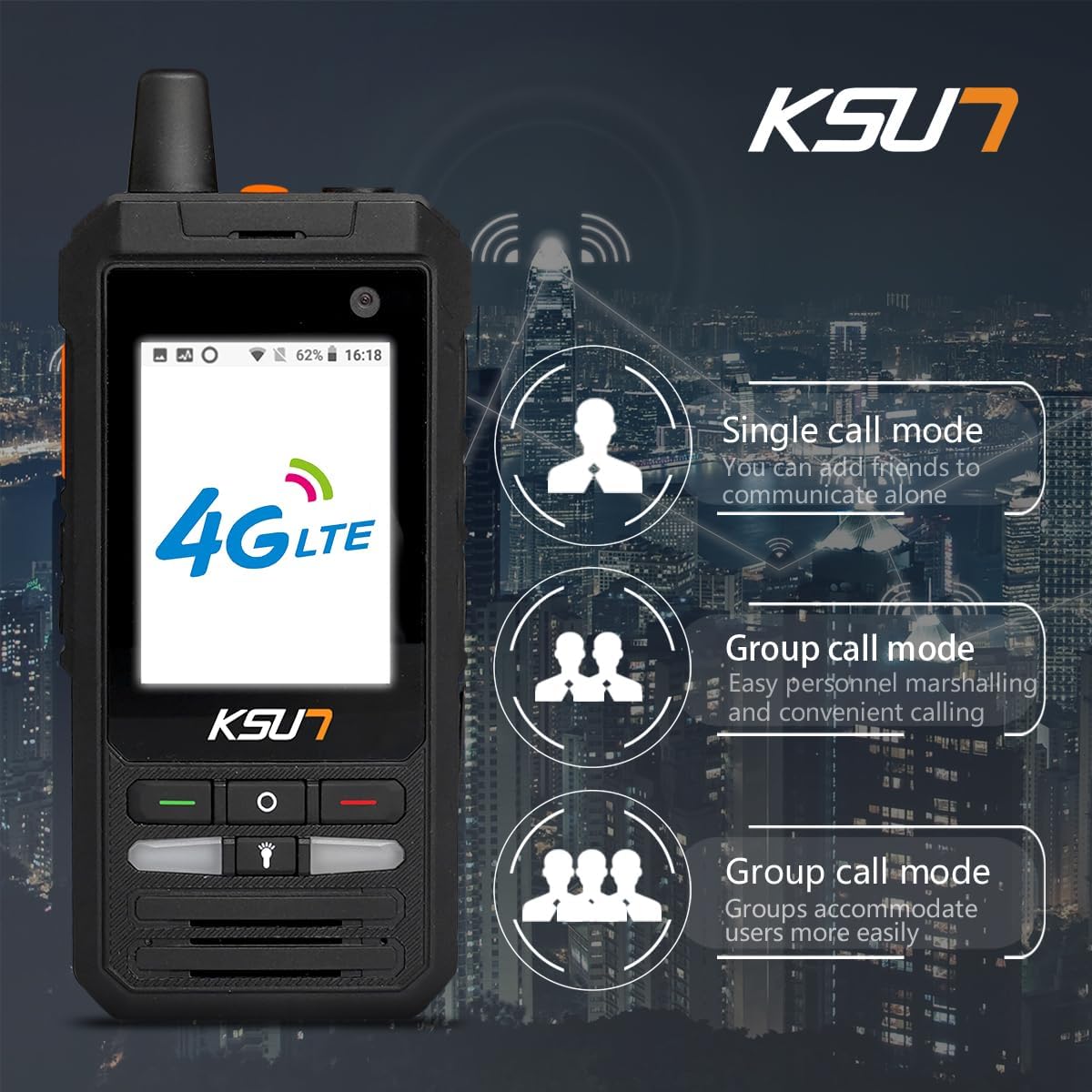
The KSUN ZL20 supports both single call mode for one-on-one communication and group call mode for efficient team communication.
Push-to-Talk (PTT) App Usage
The KSUN ZL20 is compatible with various Push-to-Talk applications, such as Zello. Install your preferred PTT app from the Google Play Store (if available) or sideload it. Once configured, use the dedicated PTT button on the side of the device for instant voice communication.
WiFi Connection
Connect your device to a WiFi network for internet access and enhanced communication capabilities.
- Navigate to 'Settings' on the device.
- Select 'WLAN' or 'Wi-Fi' and toggle it on.
- Choose your desired network from the available list.
- Enter the network password if prompted and confirm to connect.
This video demonstrates the steps to connect the device to a WiFi network, showing how to navigate through settings and enter network credentials.
Bluetooth Connection
Pair your device with Bluetooth accessories like headsets for hands-free operation.
- Go to 'Settings' and select 'Bluetooth'.
- Turn on Bluetooth and search for available devices.
- Select your desired accessory and follow on-screen prompts to pair.
GPS Positioning
The device supports GPS positioning, allowing you to track your location or the location of other staff members in real-time. Access the GPS function through pre-installed mapping applications or dedicated tracking software.
Recording Function
The KSUN ZL20 includes a recording function that can be utilized as needed for voice memos or communication logs. Access the recorder application from the main menu.
Call and SMS Functionality
Beyond Push-to-Talk, the device supports standard call and SMS messaging functions, allowing for versatile communication. Use the phone and messaging applications on the touchscreen interface.
This video demonstrates various functions of the device, including setting up WiFi, Bluetooth, using the call function, SMS, GPS positioning, and the recording feature.
Maintenance
Charging the Battery
Use the provided Type-C charging cable and adapter to charge the device. The 4000mAh battery offers extended usage time and charges quickly. Connect the Type-C cable to the port on the side of the device and the adapter to a power outlet.

The device supports Type-C USB fast charging for convenient and rapid power replenishment.
Cleaning
Wipe the device with a soft, dry cloth. Avoid using harsh chemicals or abrasive materials that could damage the screen or casing. Ensure all ports are closed when cleaning to prevent moisture ingress.
Storage
Store the device in a cool, dry place away from direct sunlight and extreme temperatures when not in use for extended periods. For long-term storage, ensure the battery is partially charged (around 50%) to maintain battery health.
Troubleshooting
If you encounter issues with your KSUN ZL20, please refer to the following common solutions:
- Device not powering on: Ensure the battery is correctly installed and fully charged. Try connecting the charger to see if it powers on.
- No network signal: Check SIM card installation, ensure you are within 4G coverage, or try connecting to an available WiFi network.
- Audio issues: Verify volume settings. Check if any external headsets are properly connected. Restart the device.
- Touchscreen unresponsive: Restart the device. If the issue persists, perform a factory reset (refer to settings) or contact customer support.
- Short battery life: Ensure the battery is fully charged. Reduce screen brightness, close unused applications, or disable unnecessary features like GPS or Bluetooth when not in use.
Specifications
| Feature | Detail |
|---|---|
| Model Number | ZL20 |
| Dimensions | 4.68 x 0.99 x 2.28 inches |
| Weight | 9.6 ounces (0.6 lbs) |
| Screen | 2.4 Inch Touch Screen |
| Operating System | Android 8.1 |
| Battery Capacity | 4000mAh Lithium Polymer (included) |
| Connectivity | 4G Network, WiFi, Bluetooth |
| Special Features | PTT Button, Long Range (up to 100 miles via network), Water Resistant |
| Number of Channels | 22 |
Warranty and Support
KSUN prioritizes customer satisfaction. If you encounter any issues with your radio, please reach out to us via Amazon for assistance. Our customer service team is available to help resolve any problems you may experience.
Protection plans are available for purchase to extend coverage for your device:
- 2-Year Protection Plan
- 3-Year Protection Plan
- Complete Protect: One plan covers all eligible past and future purchases


