
1. Introduction
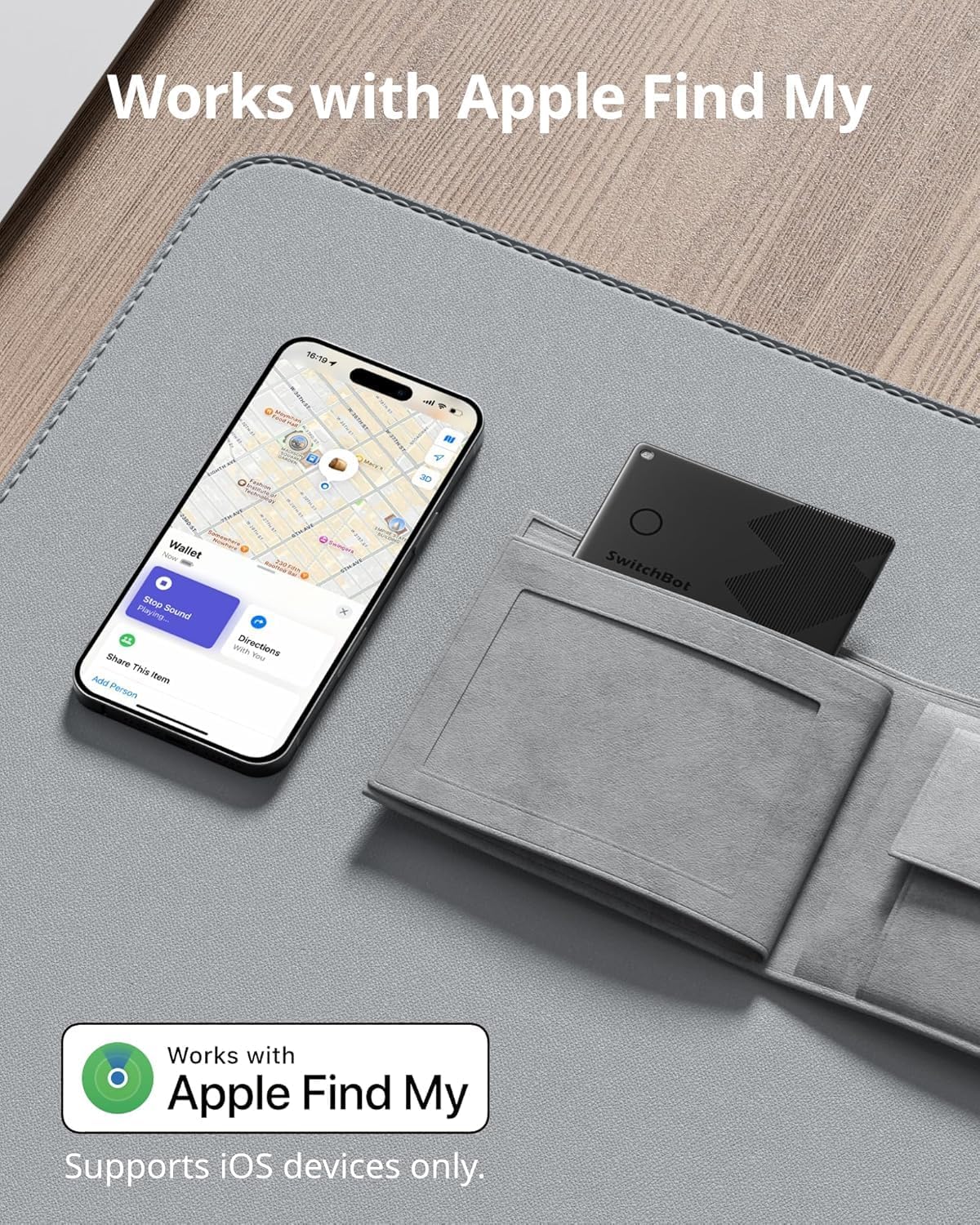
The SwitchBot Wallet Finder Card is a compact Bluetooth tracker designed to help you locate your personal items. It integrates with Apple's Find My network, allowing you to track wallets, keys, luggage, and other valuables using your iOS device. This manual provides detailed instructions for setting up, operating, maintaining, and troubleshooting your Wallet Finder Card.

The card features an ultra-slim design, making it suitable for wallets and card cases. It offers a long battery life and is water-resistant for durability.

2. Package Contents
Verify that all items are present in your package:
- SwitchBot Wallet Finder Card x4
- Quick Start Guide x1
3. Getting Started (Setup)
The SwitchBot Wallet Finder Card is designed to work with Apple's Find My network. Follow these steps to set up your card:
- Ensure your iOS device (iPhone, iPad, or Mac) is updated to the latest software version.
- Open the pre-installed Find My app on your iOS device.
- Navigate to the 'Items' tab.
- Tap the '+' icon and select 'Add Other Item'.
- Press and hold the button on the SwitchBot Wallet Finder Card for approximately 2 seconds until you hear a beep, indicating it's in pairing mode.
- Follow the on-screen instructions in the Find My app to complete the pairing process. You may be prompted to name your item and assign an emoji.

Note: Android devices are not supported for integration with the Apple Find My network. While the SwitchBot app may offer some functionality on Android, the full Find My features are exclusive to iOS.
4. Operating Instructions
4.1 Locating Lost Items
To find your lost item, open the Find My app on your iOS device. Select your Wallet Finder Card from the 'Items' tab. You can then view its last known location on a map or play a sound to help you locate it if it's nearby.

4.2 Finding Your Phone
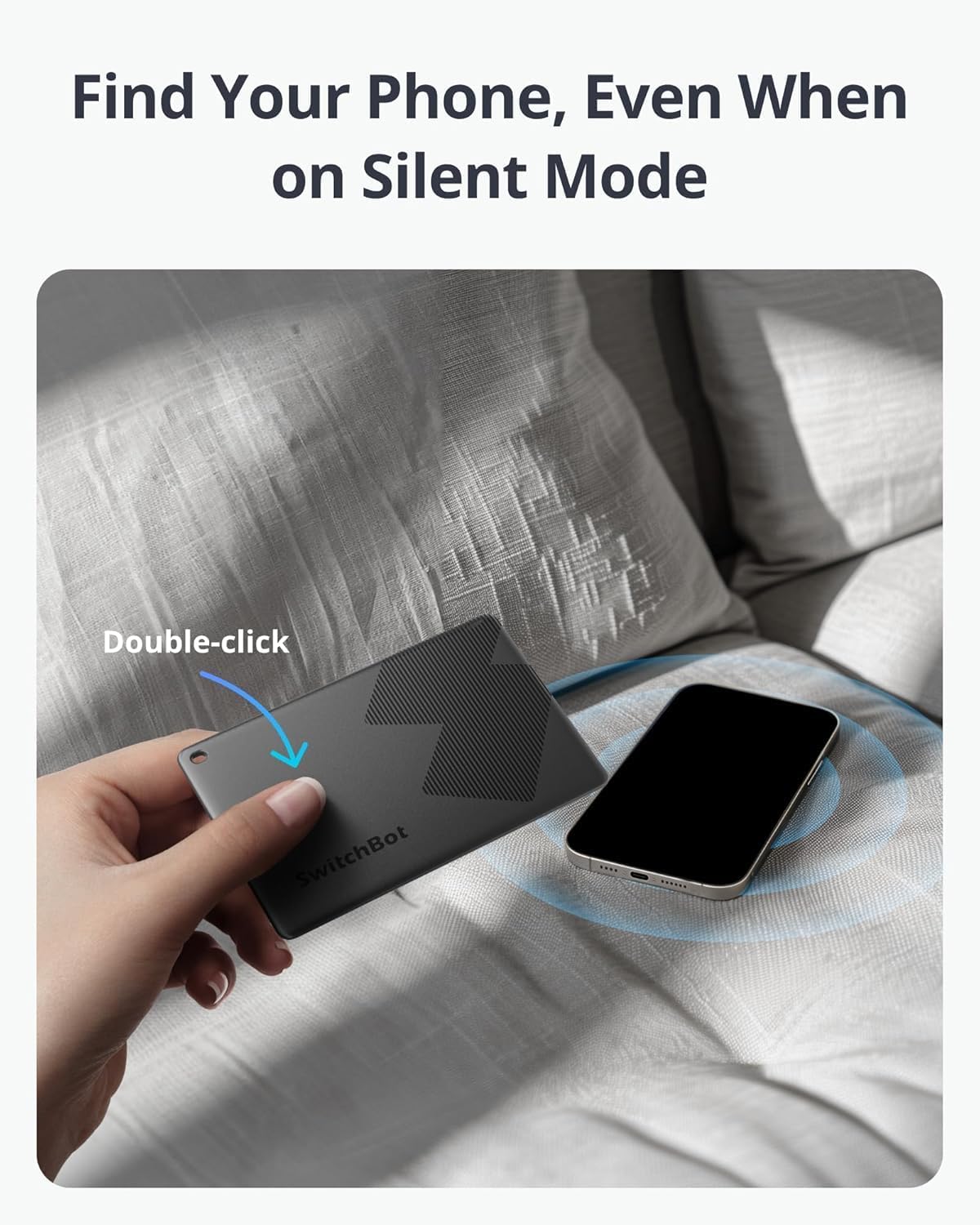
If you misplace your iPhone, you can double-click the button on your SwitchBot Wallet Finder Card. Your iPhone will ring, even if it is set to silent mode, helping you locate it quickly.
4.3 Left-Behind Alerts
The Find My app can notify you if you leave your Wallet Finder Card behind. This feature helps prevent loss by alerting you when your item is no longer detected near your iOS device.
4.4 Sharing Item Location
You can share the location of your Wallet Finder Card with trusted contacts through the Find My app, allowing others to help locate your items.
4.5 NFC Compatibility
The Wallet Finder Card supports NFC (Near Field Communication). If someone finds your lost card, they can scan the QR code on the back using an NFC-enabled smartphone. This will display your contact information (if you have set it up in Lost Mode), allowing them to return the card to you.

4.6 Automation Integration
When linked with a SwitchBot Hub, the Wallet Finder Card can trigger home automation routines. For example, you can set up an automation to turn on lights or other smart devices when you arrive home and your card is detected.

4.7 Feature Comparison (Find My vs. SwitchBot App)
The following table outlines the features available when using the Wallet Finder Card with Apple Find My versus the SwitchBot App:

5. Care and Maintenance
5.1 Battery Life
The SwitchBot Wallet Finder Card is equipped with a non-replaceable, non-rechargeable lithium metal battery designed to last up to 3 years under typical usage conditions. The Find My app or SwitchBot app may provide notifications when the battery level is low.

Once the battery is fully depleted, the card will cease to function and cannot be recharged or have its battery replaced. It is recommended to replace the card after its battery life expires.
5.2 Water Resistance
The Wallet Finder Card has an IP67 water-resistant rating, meaning it is protected against dust ingress and can withstand immersion in water up to 1 meter for up to 30 minutes. This makes it safe for use in rainy conditions or accidental splashes, but it is not intended for prolonged submersion.
6. Troubleshooting
- Card not pairing: Ensure the card's button is pressed for 2 seconds until a beep is heard. Verify your iOS device's Bluetooth is enabled and it is within range. Restart your iOS device and try again.
- No sound from card: Check if the card's alarm volume is set appropriately within the Find My app. Ensure there are no obstructions muffling the sound. Note that the alarm may be quieter if the card is deeply embedded in a bag or wallet.
- Inaccurate location: Location accuracy depends on the density of Apple devices in the vicinity. In areas with fewer Apple devices, location updates may be less frequent or precise.
- Battery draining quickly: While designed for 3 years, actual battery life can vary based on usage frequency and environmental factors. If a card's battery depletes significantly faster than expected, contact customer support.
- Android compatibility: The Wallet Finder Card primarily leverages Apple's Find My network, which is exclusive to iOS. While the SwitchBot app may offer some basic functions on Android, full tracking capabilities are not available.
7. Technical Specifications
| Product Dimensions | 3.35 x 2.13 x 0.1 inches |
| Item Weight | 0.48 ounces (0.03 Pounds) |
| Model Number | W2500032 |
| Batteries | 1 Lithium Metal battery (included, non-replaceable) |
| Battery Life | Up to 3 years |
| Connectivity | Bluetooth |
| Water Resistance | IP67 |
| Compatible Devices | iOS Smartphones, Tablets (for Apple Find My) |
| Manufacturer | Wonderlabs |
8. Warranty and Support
8.1 Warranty Information
SwitchBot offers a 12-month trade-in policy for any quality issues encountered with the Wallet Finder Card. This warranty covers manufacturing defects and ensures product functionality under normal use.
8.2 Customer Support
For technical assistance, warranty claims, or any other inquiries, please visit the official SwitchBot website or contact their customer support team. Refer to the Quick Start Guide included in your package for specific contact details or support resources.


