
1. Introduction and Overview
The Maxpro Fagor Connect+ FG2804 is a versatile multifunction food processor designed to simplify your cooking experience. It features a 5-liter stainless steel bowl, an intuitive 10-inch LED touchscreen, and integrated Wi-Fi connectivity for guided recipes and automatic updates. With its powerful 1500W motor, it can perform various tasks including cooking, simmering, steaming, browning, mixing, kneading, and chopping.
Key features include:
- 5-liter stainless steel bowl with handle for easy handling.
- Integrated Wi-Fi for step-by-step guided recipes and automatic updates.
- Intuitive 10-inch (25.4cm) LED touchscreen display.
- Reverse function for delicate tasks like kneading dough for bread and pastries, or preparing risottos, soups, and stews.
- Integrated scale for precise ingredient measurements.
- Pre-loaded with 400 recipes, with monthly updates.
- "Do It Yourself" page for manual program settings and saving custom recipes.
- Google Assistant Voice Control activation.
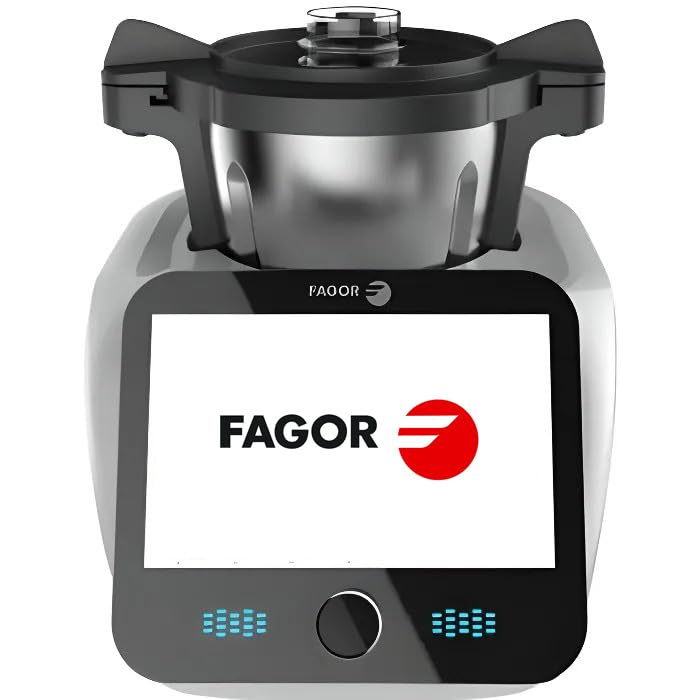
Image 1: The Maxpro Fagor Connect+ FG2804 food processor, showcasing its large touchscreen display with a recipe.
2. Setup
Before first use, ensure all packaging materials are removed. Place the food processor on a stable, flat, and dry surface. Ensure adequate ventilation around the appliance.
- Unpack Components: Carefully remove the main unit, stainless steel bowl, lid, and all accessories from the packaging.
- Clean Components: Wash the stainless steel bowl, lid, and all accessories (spatula, chopping blade, blade protection, measuring cap, steam bowl, butterfly whisk, steam basket) with warm soapy water. Rinse thoroughly and dry completely before assembly. The main unit should be wiped with a damp cloth.
- Assemble the Bowl: Place the clean stainless steel bowl onto the main unit. Ensure it is securely seated.
- Insert Accessories: Depending on your recipe, insert the appropriate accessory (e.g., chopping blade, butterfly whisk) into the bowl. The system allows for easy accessory changes without removing the bowl.
- Secure the Lid: Place the lid onto the bowl and turn it clockwise until it locks securely into place. The appliance will not operate if the lid is not properly secured.
- Connect to Power: Plug the power cord into a suitable electrical outlet.
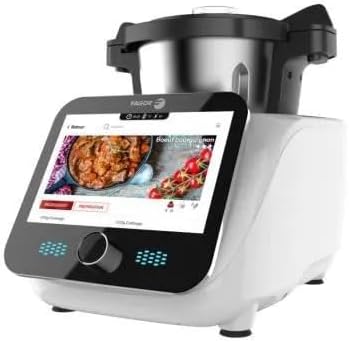
Image 2: The Fagor Connect+ food processor with its various accessories, including the stainless steel bowl, lid, and different blades/attachments.
3. Operating Instructions
The Fagor Connect+ offers both automated guided recipes and manual control for maximum flexibility.
3.1. Using Guided Recipes (Wi-Fi Connected)
- Power On: Turn on the appliance. The 10-inch LED touchscreen will display the main menu.
- Connect to Wi-Fi: Ensure your appliance is connected to your home Wi-Fi network to access the full recipe library and receive automatic updates. Follow the on-screen prompts for initial Wi-Fi setup.
- Browse Recipes: Use the touchscreen to browse recipes by theme (e.g., Cocktails, Baby Food, Italian, Exotic) or use the search bar to find recipes by ingredients.
- Select a Recipe: Tap on your desired recipe. The screen will display step-by-step instructions, including ingredient lists and preparation steps.
- Follow Instructions: The appliance will guide you through each step, indicating when to add ingredients, which accessory to use, and automatically setting the correct time, temperature, and speed.
- Intelligent Suggestions: The new interface may offer intelligent suggestions for complementary recipes (e.g., an appetizer, sauce, or dessert) based on your preferences or previously prepared dishes.
- Voice Control: Activate Google Assistant Voice Control in the settings to operate the appliance hands-free.
3.2. Manual Operation ("Do It Yourself" Page)
- Access Manual Mode: Navigate to the "Do It Yourself" page on the touchscreen.
- Set Parameters: Manually adjust the speed (11 speeds available), temperature, and time according to your recipe.
- Use Integrated Scale: The integrated scale allows for precise weighing of ingredients directly in the bowl.
- Select Function: Choose from various functions such as chopping, mixing, kneading (using the reverse function for delicate doughs), cooking, simmering, steaming, browning, liquefying, or emulsifying.
- Save Custom Recipes: You can save your customized manual settings as new recipes for future use.
4. Maintenance
Proper maintenance ensures the longevity and optimal performance of your Fagor Connect+ food processor.
- Cleaning the Main Unit: Always unplug the appliance before cleaning. Wipe the main unit with a soft, damp cloth. Do not immerse the main unit in water or any other liquid.
- Cleaning the Bowl and Accessories: The stainless steel bowl and most accessories (spatula, chopping blade, blade protection, measuring cap, steam bowl, butterfly whisk, steam basket) are dishwasher safe. For best results, rinse immediately after use to prevent food from drying on.
- Hand Washing: If hand washing, use warm soapy water and a non-abrasive sponge. Rinse thoroughly and dry completely.
- Storage: Store the appliance and its accessories in a clean, dry place.
Important: The main appliance unit is NOT dishwasher safe and should only be cleaned by hand wiping.
5. Troubleshooting
If you encounter issues with your Fagor Connect+ food processor, refer to the following common troubleshooting steps:
- Appliance Not Turning On:
- Ensure the power cord is securely plugged into a working electrical outlet.
- Check if the lid is properly closed and locked. The appliance has a safety mechanism that prevents operation if the lid is not secured.
- Motor Not Operating:
- Verify that the bowl and accessories are correctly assembled.
- Check for any error messages on the touchscreen display and consult the digital manual for specific codes.
- Wi-Fi Connectivity Issues:
- Ensure your Wi-Fi router is on and functioning correctly.
- Check the Wi-Fi settings on the appliance's touchscreen and re-enter network credentials if necessary.
- Move the appliance closer to your Wi-Fi router if signal strength is weak.
- Inaccurate Scale Readings:
- Ensure the appliance is on a flat, stable surface and not vibrating during weighing.
- Remove any items from the main unit's base before using the scale.
- Tare the scale before adding ingredients.
If the problem persists after attempting these steps, please contact customer support for further assistance.
6. Specifications
| Feature | Detail |
|---|---|
| Brand | Maxpro |
| Model Name | Fagor Connect+ |
| Model Number | FG2804 |
| Power | 1500 Watts (800W motor + 1000W heating) |
| Bowl Capacity | 5 Litres (3.5L usable) |
| Material | Stainless Steel (bowl and blade) |
| Number of Speeds | 11 |
| Special Features | Adjustable Speed Control, Programmable, Integrated Scale, Wi-Fi Connectivity, 10-inch LED Touchscreen, Voice Control (Google Assistant) |
| Dimensions (L x W x H) | 40 cm x 30 cm x 30 cm |
| Weight | 10 Kilograms |
| Recommended Uses | Grinding, Chopping, Liquefying, Emulsifying, Cooking, Simmering, Steaming, Browning, Mixing, Kneading |
| Included Components | 5L Stainless Steel Bowl, Spatula, Chopping Blade, Blade Protection for Mixing, Lid with 90ml Measuring Cap, Steam Bowl, Butterfly Whisk, Steam Basket |
| Care Instructions | Main unit: Hand wash only. Bowl and accessories: Dishwasher safe. |
7. Warranty and Support
Your Maxpro Fagor Connect+ FG2804 food processor comes with a standard manufacturer's warranty. Please refer to the warranty card included in your product packaging for specific terms and conditions, including warranty period and coverage details.
For technical support, service, or warranty claims, please contact Maxpro customer service. Contact information can typically be found on the product packaging, the official Maxpro website, or the warranty card.
When contacting support, please have your model number (FG2804) and proof of purchase readily available.