1. Product Overview
The TECKNET Wireless Keyboard and Mouse KB006 is a versatile input device combo designed for enhanced productivity and convenience. This set offers multiple connection options, including 2.4G wireless via a USB dongle and Bluetooth, allowing seamless switching between up to four different devices. Its compact design, quiet keys, and long-lasting rechargeable battery make it suitable for various computing environments.

Figure 1.1: The TECKNET Wireless Keyboard and Mouse KB006, showcasing the keyboard and the included USB receiver.
2. Package Contents
- TECKNET Wireless Keyboard (KB006)
- TECKNET Wireless Mouse
- USB 2.4G Receiver
- USB-C Charging Cable
- User Manual
3. Getting Started (Setup)
3.1 Charging the Device
Before initial use, ensure the keyboard and mouse are fully charged. Connect the provided USB-C charging cable to the charging port on the keyboard and a USB power source. A full charge typically takes approximately 2 hours and can provide up to 180 days of use, depending on usage.

Figure 3.1: The Type-C charging port on the keyboard, highlighting its quick charge capability and battery life.
3.2 Connecting via 2.4G USB Receiver
- Locate the USB 2.4G receiver, usually stored in a compartment on the mouse or keyboard.
- Plug the USB receiver into an available USB port on your computer or device.
- Turn on the keyboard and mouse. They should automatically connect to the receiver. The indicator light for 2.4G will illuminate.
3.3 Connecting via Bluetooth
The keyboard supports Bluetooth 4.0/5.0 connectivity and can pair with up to three Bluetooth devices.
- Turn on the keyboard.
- Press and hold the Fn key along with one of the Bluetooth keys (1@, 2@, or 3#) for over 3 seconds. The corresponding indicator light (BT1, BT2, or BT3) will flash rapidly, indicating pairing mode.
- On your device (computer, tablet, smartphone), go to Bluetooth settings and search for new devices.
- Select "TECKNET KB006" (or similar name) from the list of available devices to complete the pairing process. The indicator light will stop flashing and remain solid once connected.
- Repeat for other Bluetooth devices using different Bluetooth channels.

Figure 3.2: Instructions for connecting the keyboard to your device, including Bluetooth pairing steps and indicator light locations.
4. Operating Instructions
4.1 Switching Between Connected Devices (4 Modes Connection)
The keyboard supports connection to up to four devices: one via 2.4G USB receiver and three via Bluetooth. To switch between connected devices:
- For 2.4G connection: Press Fn + 4$.
- For Bluetooth connections: Press Fn + 1@, Fn + 2@, or Fn + 3# to switch to the corresponding Bluetooth channel.
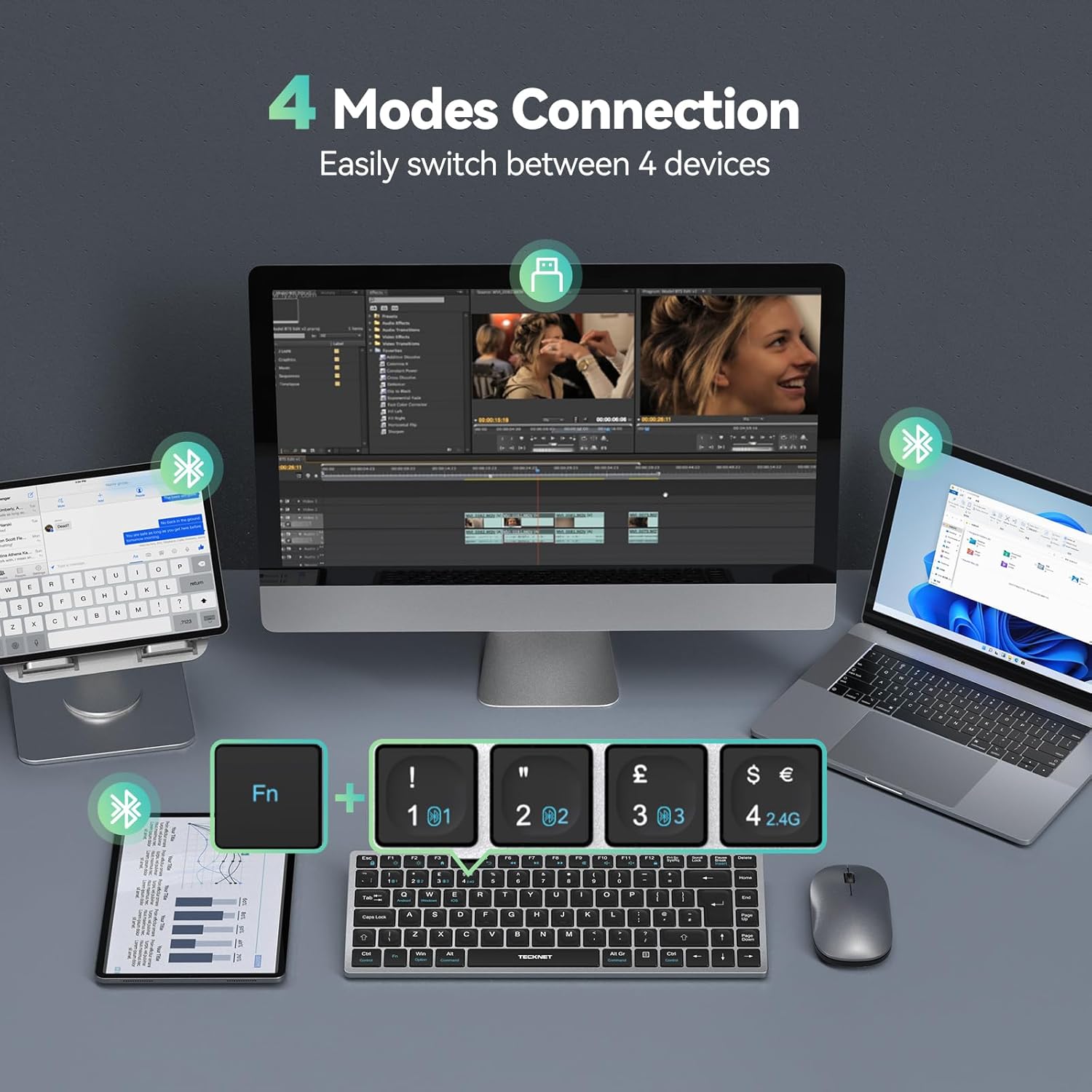
Figure 4.1: Visual representation of the keyboard's ability to easily switch between four connected devices (laptop, desktop, tablet, smartphone).
4.2 Switching Operating Systems
The keyboard is compatible with Android, Windows, and iOS operating systems. To optimize key functions for your specific OS:
- For Android: Press Fn + Q.
- For Windows: Press Fn + W.
- For iOS: Press Fn + E. (Note: iOS compatibility may be limited for iPhones.)
4.3 Auto-Sleep Function
To conserve battery life, the keyboard features an auto-sleep mode. If inactive for a period, it will enter sleep mode. To wake it up, simply press any key. There might be a slight delay for the first character to register after waking from sleep.
4.4 Comfortable and Quiet Typing
The keyboard is designed for comfortable typing with rapid responsiveness and reduced noise, minimizing typing sounds by up to 90% compared to standard keyboards.
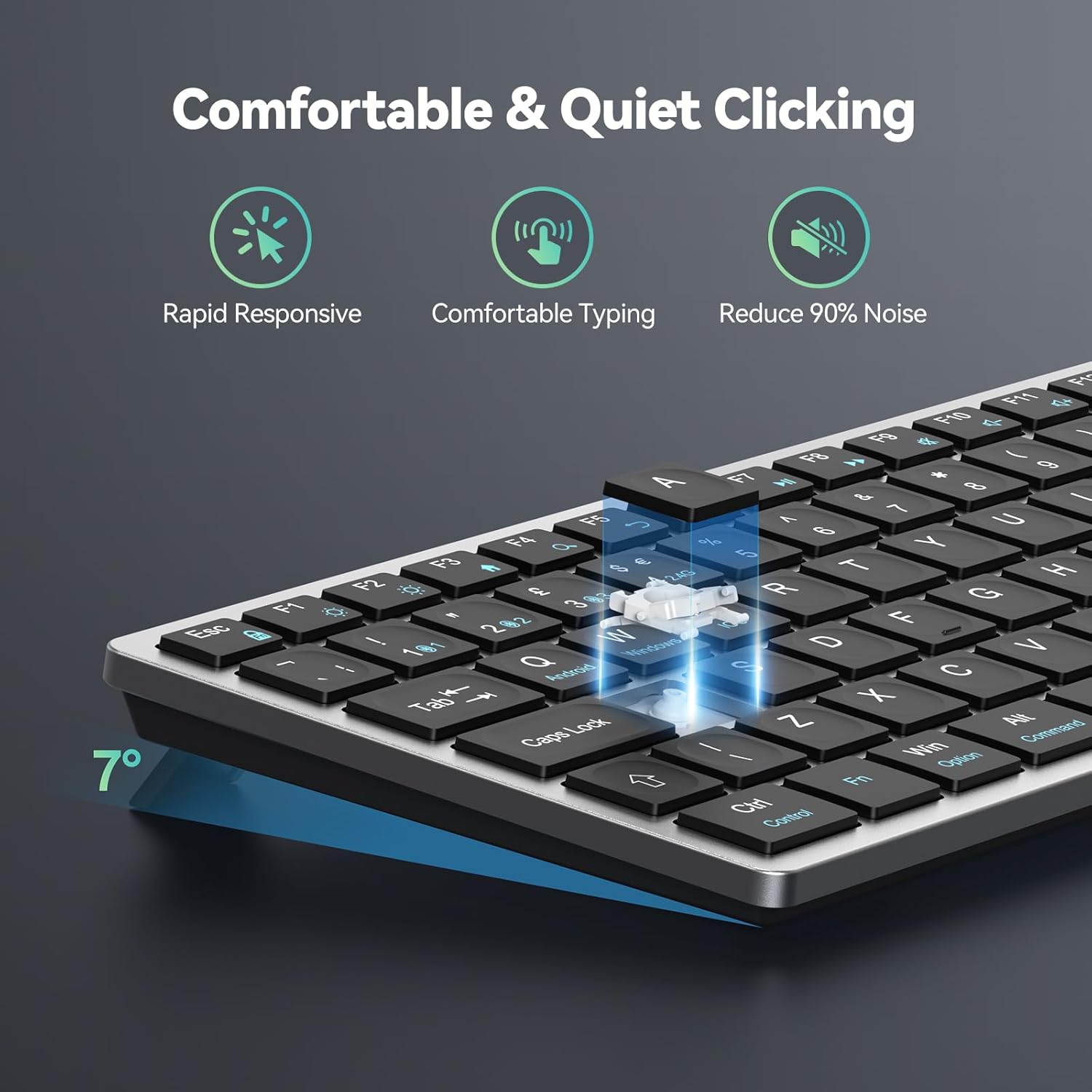
Figure 4.2: Illustration of the keyboard's design for comfortable and quiet typing, emphasizing reduced noise.
4.5 Wide Compatibility
The TECKNET KB006 is broadly compatible with various devices and operating systems, including Android, Windows, Mac OS 10.15 and above, and iOS (invalid in iPhone).

Figure 4.3: Icons representing the wide compatibility of the keyboard with Android, Windows, Mac OS, and iOS devices.
5. Maintenance
To ensure the longevity and optimal performance of your TECKNET Wireless Keyboard and Mouse:
- Charging: Regularly charge the keyboard and mouse using the provided USB-C cable to maintain battery health. Avoid prolonged periods of complete discharge.
- Cleaning: Use a soft, dry cloth to clean the surfaces of the keyboard and mouse. For stubborn dirt, a slightly damp cloth with mild soap can be used, ensuring no liquid enters the device. Avoid abrasive cleaners or solvents.
- Storage: Store the devices in a cool, dry place away from direct sunlight, extreme temperatures, and high humidity when not in use for extended periods.
6. Troubleshooting
If you encounter issues with your TECKNET Wireless Keyboard and Mouse, please refer to the following common solutions:
- Device not connecting:
- Ensure the keyboard and mouse are turned on and fully charged.
- For 2.4G connection, ensure the USB receiver is securely plugged into a working USB port. Try a different USB port.
- For Bluetooth connection, ensure Bluetooth is enabled on your device and the keyboard is in pairing mode (indicator light flashing). Remove previous pairings from your device's Bluetooth list and try re-pairing.
- Ensure you are on the correct connection channel (2.4G or BT1/BT2/BT3) on the keyboard.
- Lag or unresponsive input:
- Check battery levels and recharge if necessary.
- Ensure there are no strong wireless interferences (e.g., other 2.4GHz devices, Wi-Fi routers) nearby.
- Move the keyboard and mouse closer to the receiver or Bluetooth device.
- If the keyboard was in auto-sleep mode, the first key press might have a slight delay.
- Keys not working or incorrect characters:
- Verify that the correct operating system mode (Fn+Q/W/E) is selected for your device.
- Restart your computer/device and reconnect the keyboard.
7. Specifications
| Model | KB006 |
| Connectivity Technology | 2.4G Wireless, Bluetooth 4.0/5.0 |
| Number of Keys | 108 |
| Keyboard Description | Rechargeable |
| Special Feature | Rechargeable, Multi-Device Switching, Quiet Clicking, Auto-Sleep |
| Compatible Devices | PC, Android, Windows, Mac OS 10.15+, iOS (invalid in iPhone) |
| Package Dimensions | 12.76 x 6.38 x 1.06 inches |
| Item Weight | 1.17 pounds |
8. Warranty and Support
TECKNET products are designed to meet high-quality standards. For warranty information or technical support, please refer to the warranty card included in your package or visit the official TECKNET website. You can also contact TECKNET customer service directly for assistance with product setup, troubleshooting, or general inquiries.
For more information, visit the TECKNET Store on Amazon.


