
Introduction
The vLinker iCar Pro 2S is a wireless Bluetooth 5.2 OBDII adapter designed to transform your iOS, Android device, or Windows PC into a professional-grade diagnostic scan tool. This device allows you to read and clear vehicle trouble codes, monitor live data, and perform various diagnostic functions. It is compatible with a wide range of OBD2-compliant vehicles, including electric (EV) and hybrid models.
Product Overview
What's in the Box
- 1 x vLinker iCar Pro 2S OBD2 Bluetooth Adapter
- 1 x User Manual
- 1 x Packing Box
Key Features
- Bluetooth 5.2 Connectivity: Ensures fast and stable communication with your device.
- Wide Vehicle Compatibility: Supports all OBD2 protocols and commands, compatible with domestic, Asian, and European vehicles sold in the USA after 1996. Also supports 12V light diesel vehicles (6.5T or less) after 1996. Not for 24V power diesel cars.
- BatterySaver Technology: Features auto sleep and wake-up modes, with low power consumption (34mA operating, 3mA sleep current) to prevent battery drain. Includes over-voltage, over-current, and over-temperature protection.
- Advanced Diagnostic Capabilities: Reads and clears trouble codes, displays live data, performs active testing, and monitors real-time performance.
- EV/Hybrid Support: Supports remote wake-up and auto sleep functions for electric and hybrid vehicles, with up to 208 groups of pass, block, and flow control filters for complex EV diagnostic needs.
- Third-Party App Compatibility: Fully compatible with ELM327-based OBD2 apps such as Torque, CarScanner, OBD Fusion, OBD JScan, BimmerCode, and V-Tool (apps not included and require separate download/purchase).
- Fast Data Transfer: Data transfer speeds up to 3Mbps with a maximum read of 4KB.

Image: The vLinker iCar Pro 2S OBD2 Bluetooth Adapter, a compact diagnostic tool.
Setup Instructions
1. Physical Installation
- Ensure your vehicle's ignition is turned OFF before plugging in the iCar Pro 2S adapter.
- Locate your vehicle's OBD2 port. This is typically found under the dashboard on the driver's side.
- Firmly plug the vLinker iCar Pro 2S adapter into the OBD2 port.
- Turn your car's ignition to the ON position (engine does not need to be running, but ignition must be on).

Image: Visual guide for plugging the iCar Pro 2S into the OBD2 port and turning on ignition.
2. App Installation
The vLinker iCar Pro 2S requires a compatible third-party OBD2 application to function. These apps are not included with the device and must be downloaded or purchased separately from your device's app store (e.g., Apple App Store, Google Play Store). Popular compatible apps include:
- Torque
- CarScanner
- OBD Fusion
- OBD JScan
- BimmerCode
- V-Tool (for Volvo models 2005-present)
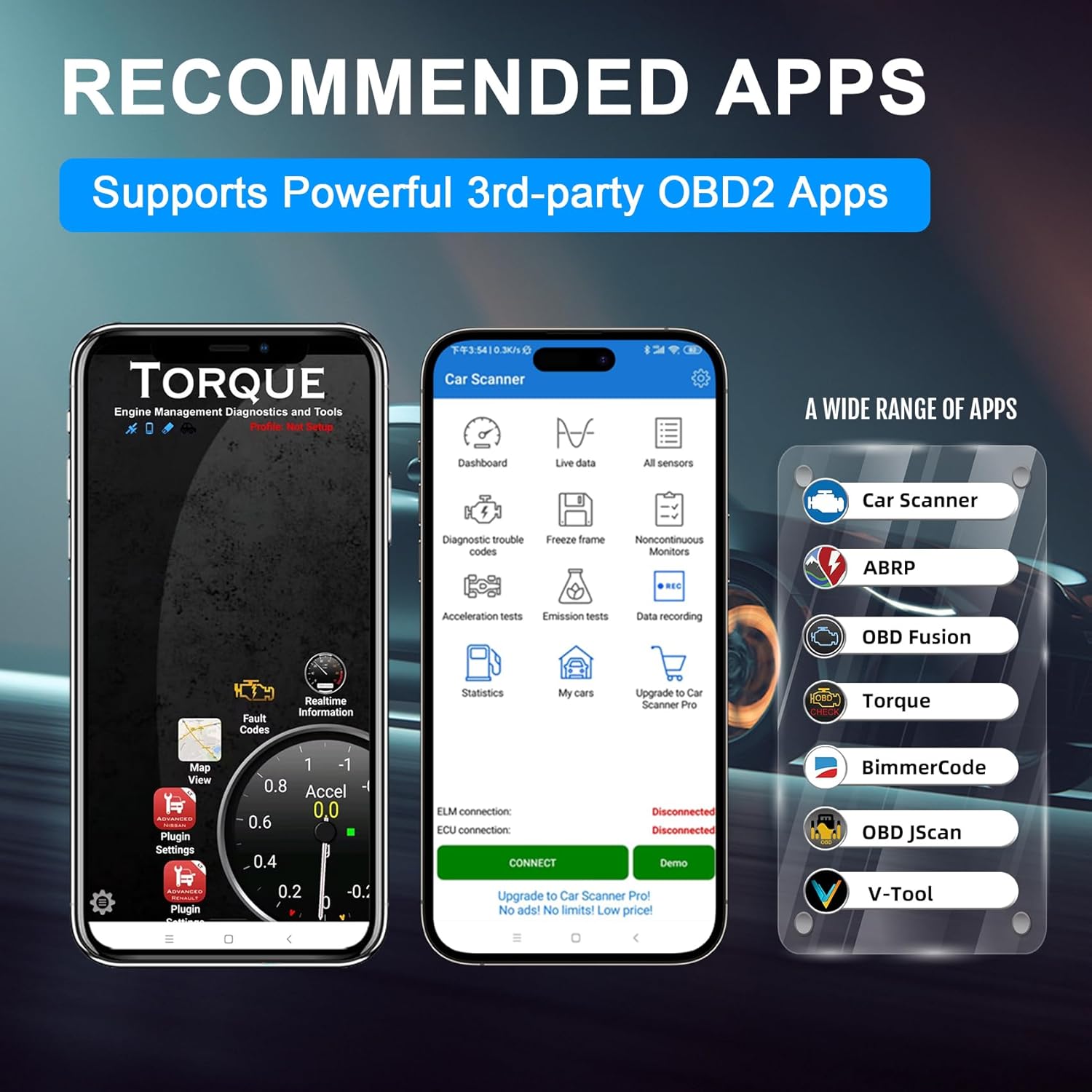
Image: A selection of recommended third-party OBD2 applications compatible with the vLinker iCar Pro 2S.
3. Bluetooth Connection
For iOS Devices (Direct Connect)
For iOS devices, the vLinker iCar Pro 2S connects directly via Bluetooth 5.2 without requiring manual pairing in the iOS Bluetooth settings. Follow these steps within your chosen OBD2 app:
- Open your preferred OBD2 application.
- Navigate to the app's settings or connection menu.
- Select "Bluetooth" as the connection type.
- Choose the vLinker iCar Pro 2S from the list of available devices within the app.
- The app should now connect to the adapter.

Image: Step-by-step guide for connecting the vLinker iCar Pro 2S to an iOS device via an OBD2 app.
For Android & Windows Devices (Pairing Required)
For Android and Windows devices, you must first pair the vLinker iCar Pro 2S via your device's Bluetooth settings before connecting through the app.
- Go to your device's Bluetooth settings.
- Scan for new devices and select "vLinker" or "iCar Pro 2S" to pair.
- Enter the pairing code if prompted (usually 1234 or 0000, refer to your app's instructions if different).
- Once paired, open your preferred OBD2 application.
- Navigate to the app's settings or connection menu.
- Select "Bluetooth" as the connection type.
- Choose the paired vLinker iCar Pro 2S from the list within the app.
- The app should now connect to the adapter.

Image: Step-by-step guide for pairing and connecting the vLinker iCar Pro 2S to an Android device via Bluetooth and an OBD2 app.
Operating Instructions
Once connected, your chosen OBD2 application will provide the interface for interacting with your vehicle's data. The vLinker iCar Pro 2S facilitates the following core functions:
Reading Diagnostic Trouble Codes (DTCs)
DTCs indicate specific issues detected by your vehicle's onboard diagnostic system. Most apps will have a dedicated section to read these codes. Each code typically corresponds to a specific problem area, which can be researched further for diagnosis.
Clearing Diagnostic Trouble Codes (DTCs)
After addressing a vehicle issue, you can use the app to clear the stored DTCs and turn off the Check Engine Light. Clearing codes without fixing the underlying problem will likely result in the codes reappearing.
Monitoring Live Data
Access real-time sensor data from your vehicle, such as engine RPM, coolant temperature, vehicle speed, fuel system status, and more. This data is crucial for diagnosing intermittent problems and monitoring vehicle performance.

Image: Example of live vehicle data displayed on a smartphone application connected to the vLinker iCar Pro 2S.
Performing Active Tests
Some advanced OBD2 applications, in conjunction with the vLinker iCar Pro 2S, allow you to send commands directly to the vehicle's Electronic Control Unit (ECU) to activate specific components or systems. This feature helps in narrowing down problem areas by testing components like fuel pumps, cooling fans, or window motors.
Electric and Hybrid Vehicle Specific Features
The iCar Pro 2S supports advanced diagnostics for EVs and hybrid vehicles, including remote wake-up and auto sleep functions. It can also manage up to 208 groups of pass, block, and flow control filters, which are essential for detailed diagnostics and monitoring of electric vehicle systems.

Image: Illustration of filter groups for efficient management and diagnosis of electric vehicles.
Maintenance
Firmware Updates
The vLinker iCar Pro 2S supports lifetime free firmware updates to ensure compatibility with new vehicles and diagnostic protocols. To update the firmware:
- Scan the QR code provided in the product packaging or visit the official vLinker website to download the "VgateFwUpdater" app. Download VgateFwUpdater
- Open the VgateFwUpdater app and click "Auto connect".
- Once connected, click "Download" to start the firmware update.
- Wait for the upgrade process to complete successfully.
Image: Visual guide for updating the firmware of the vLinker iCar Pro 2S using the VgateFwUpdater app.
BatterySaver Technology
The iCar Pro 2S features BatterySaver technology, allowing it to remain plugged into your vehicle's OBD2 port without draining the battery. It automatically enters a low-power sleep mode when idle (sleep current as low as 3mA) and wakes up when an app attempts to connect. This feature includes over-voltage, over-current, and over-temperature protection to safeguard both the device and your vehicle's electrical system.

Image: Icon representing the BatterySaver Technology, highlighting its low power consumption.
Troubleshooting
- Device Not Connecting:
- Ensure the adapter is firmly plugged into the OBD2 port.
- Verify your vehicle's ignition is in the ON position.
- For Android/Windows, confirm the device is paired in your system's Bluetooth settings before opening the app.
- For iOS, ensure you are selecting the device directly within the app's connection settings.
- Try restarting your device (phone/tablet/PC) and the OBD2 app.
- Check if the adapter's indicator lights are active. - App Not Detecting Adapter:
- Confirm you are using a compatible ELM327-based OBD2 application.
- Ensure Bluetooth is enabled on your device.
- Close and reopen the app.
- Check the app's settings to ensure the correct connection type (Bluetooth) and adapter are selected. - No Data or Incorrect Readings:
- Verify the adapter is securely connected.
- Ensure your vehicle is OBD2-compliant and within the supported model years.
- Some advanced functions may require specific app versions or vehicle compatibility. - Firmware Update Issues:
- Ensure a stable internet connection during the download process.
- Do not disconnect the adapter or close the app during the update.
- If issues persist, contact vLinker technical support.
Specifications
| Feature | Detail |
|---|---|
| Brand | vLinker |
| Model Number | iCar Pro 2S |
| Connectivity | Bluetooth 5.2 |
| Operating System Compatibility | iOS, Android, Windows |
| Power Source | Vehicle Powered |
| Product Dimensions (L x W x H) | 1.76" x 1.56" x 0.77" (4.47 cm x 3.96 cm x 1.96 cm) |
| Item Weight | 20 Grams |
| Operating Current | 34mA |
| Sleep Current | 3mA |
| Data Transfer Speed | Up to 3Mbps |
| Max Read Bytes | 4KB |
| Supported Protocols | All OBD2 protocols (SAE J1850 PWM, SAE J1850 VPW, ISO9141-2, ISO14230-4 KWP, ISO15765-4 CAN, SAE J1939, USER1 CAN, USER2 CAN) |
Warranty and Support
Warranty Information
The vLinker iCar Pro 2S Bluetooth 5.2 wireless car diagnostic scanner comes with a solid 1-Year Warranty from the date of purchase. This warranty covers manufacturing defects and ensures the product meets its specified performance.
Technical Support
vLinker provides lifetime Firmware FREE updates and round-the-clock technical support. Should you encounter any issues, including failure to connect the device or other operational problems, the responsive vLinker team is available to provide fast responses and technical assistance. Please refer to the contact information provided in your product packaging or on the official vLinker website for support.


