
GMKTec NucBox M4
GMKTec NucBox M4 Mini PC User Manual
Model: NucBox M4
1. Introduction
The GMKTec NucBox M4 is a high-performance mini PC designed for demanding tasks such as video editing, 3D rendering, complex simulations, professional applications, and light gaming. It features an 11th Generation Intel Core i9-11900H processor, Intel Iris Xe Graphics, 32GB DDR4 RAM, and a 1TB PCIe 3.0 SSD. This manual provides detailed instructions for setting up, operating, maintaining, and troubleshooting your NucBox M4 Mini PC.
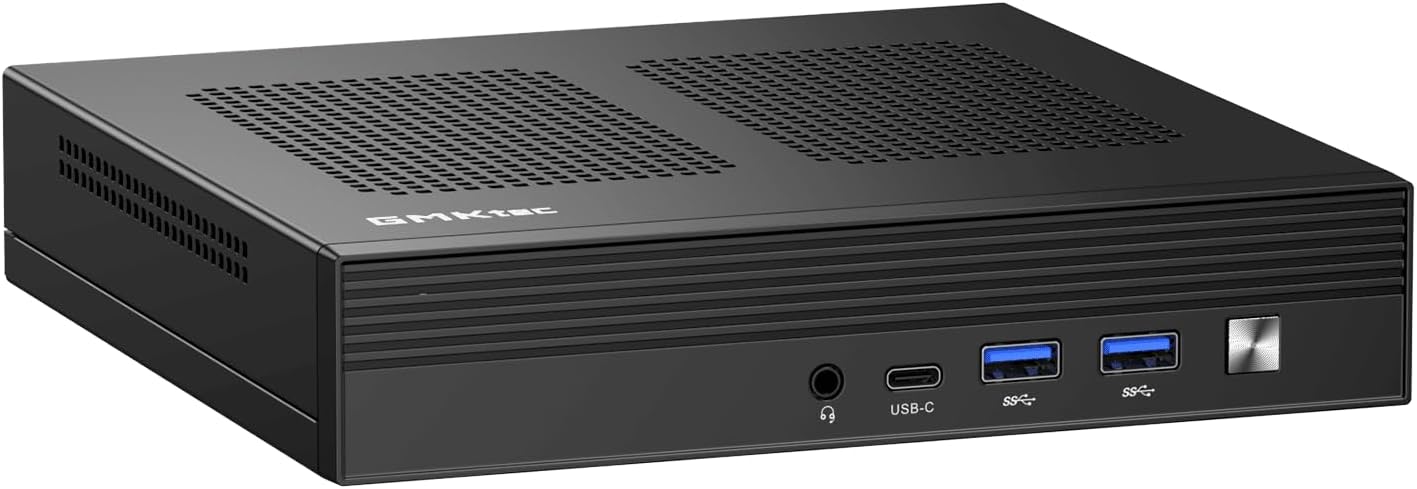
Figure 1.1: The GMKTec NucBox M4 Mini PC, showcasing its compact design and front panel.
2. Package Contents
Please check the package contents upon unboxing. If any items are missing or damaged, contact customer support.
- GMKTec NucBox M4 Mini PC
- Power Adapter
- User Manual (this document)
- (Optional) VESA Mount Kit
3. Product Overview
Familiarize yourself with the ports and features of your NucBox M4 Mini PC.

Figure 3.0: Key features and components of the GMKTec NucBox M4 Mini PC.

Figure 3.1: Front and Rear Port Layout of the NucBox M4 Mini PC.
Front Panel Ports:
- 3.5mm Audio Jack: For headphones or speakers.
- USB-C Port (DP/DATA): Full-featured USB4.0 Type-C port supporting DisplayPort and data transfer.
- USB 3.2 Gen 2 Ports (x2): High-speed data transfer for peripherals.
- Power Button: To turn the device on/off.
Rear Panel Ports:
- DisplayPort 1.4 (x1): Supports up to 4096 x 2304 @ 60Hz.
- HDMI 2.0 Ports (x2): Supports 4K @ 60Hz.
- USB 3.2 Gen 2 Ports (x2): High-speed data transfer for peripherals.
- 2.5G Giga LAN (RJ45) Ports (x2): For high-speed wired network connections.
- DC Power Input (19V/6.32A): Connect the power adapter here.
The NucBox M4 supports up to three displays simultaneously via its HDMI, DisplayPort, and Type-C outputs, enabling an extended desktop experience.

Figure 3.2: Example of a triple screen display setup with the NucBox M4 Mini PC.
4. Setup Guide
4.1 Initial Connection
- Place the NucBox M4 on a stable, flat surface with adequate ventilation.
- Connect your monitor(s) to the HDMI, DisplayPort, or USB-C video outputs.
- Connect a USB keyboard and mouse to the available USB 3.2 ports.
- (Optional) Connect an Ethernet cable to one of the 2.5G LAN ports for a wired network connection.
- Connect the power adapter to the DC power input port on the rear panel, then plug the adapter into a power outlet.
4.2 Powering On
Press the power button located on the front panel. The power indicator light will illuminate, and the system will begin to boot.
4.3 Operating System Setup
The NucBox M4 comes pre-installed with Windows 11 Pro. Upon first boot, you will be guided through the initial Windows setup process, which includes:
- Region and keyboard layout selection.
- Network connection setup (Wi-Fi 6 or Ethernet).
- Microsoft account sign-in or local account creation.
- Privacy settings configuration.
Follow the on-screen prompts to complete the setup.
5. Operating Instructions
5.1 Basic Operation
Once Windows 11 Pro is set up, you can begin using your NucBox M4 like any standard desktop computer.
- Shut Down/Restart/Sleep: Access these options via the Start Menu in Windows.
- Connectivity: Utilize Wi-Fi 6 for wireless internet or the 2.5G LAN ports for wired connections. Bluetooth 5.2 allows connection to wireless peripherals.
- USB Ports: Connect external drives, USB hubs, printers, and other USB devices to the available USB 3.2 Gen 2 ports.
- Audio: Use the 3.5mm audio jack for headphones or external speakers.
5.2 Storage Expansion
The NucBox M4 includes a 1TB M.2 2280 PCIe 3.0 SSD. For additional storage, the device supports:
- Up to 2TB M.2 2280 PCIe 3.0 SSD (ready for PCIe 4.0 compatibility).
- A 2.5-inch HDD (not included).
Refer to the internal component diagram for slot locations. Installation of additional storage requires opening the device and is recommended for experienced users.

Figure 5.1: Exploded view illustrating internal components and upgrade options.
6. Maintenance
6.1 Cleaning
To ensure optimal performance and longevity, regularly clean your NucBox M4.
- Use a soft, dry cloth to wipe the exterior.
- For dust accumulation in vents, use compressed air. Ensure the device is powered off and unplugged before cleaning.
- Do not use liquid cleaners directly on the device.
6.2 Software Updates
Keep your Windows 11 Pro operating system and device drivers updated to ensure system stability, security, and performance.
- Windows Updates: Go to Settings > Windows Update to check for and install updates.
- Driver Updates: Drivers are typically updated through Windows Update. For specific component drivers (e.g., Intel graphics), visit the official Intel or GMKTec support websites.
6.3 Cooling System
The NucBox M4 features a Super Cooling Fan system. Ensure that the ventilation holes on the device are not obstructed to allow for proper airflow and prevent overheating.
7. Troubleshooting
This section addresses common issues you might encounter with your NucBox M4 Mini PC.
| Problem | Possible Cause | Solution |
|---|---|---|
| No power / System does not turn on | Power adapter not connected or faulty; Power outlet issue. | Ensure power adapter is securely connected to the PC and a working power outlet. Try a different outlet. |
| No display on monitor | Monitor not connected or turned on; Incorrect input source on monitor; Faulty cable. | Check monitor power and cable connections. Ensure monitor input source matches the port used (HDMI, DP, USB-C). Try a different cable or monitor. |
| No Wi-Fi connection | Wi-Fi disabled; Router issue; Driver issue. | Check Wi-Fi settings in Windows. Restart your router. Ensure Wi-Fi drivers are updated. |
| System is slow or unresponsive | Too many applications running; Low disk space; Overheating. | Close unnecessary applications. Free up disk space. Ensure proper ventilation and clean vents. Check Task Manager for resource usage. |
If the problem persists after trying these solutions, please contact customer support.
8. Technical Specifications
Detailed specifications for the GMKTec NucBox M4 Mini PC.
| Feature | Specification |
|---|---|
| Processor | Intel Core i9-11900H (8 Cores, 16 Threads, up to 4.9 GHz, 24MB Intel Smart Cache) |
| Graphics | Intel Iris Xe Graphics (up to 1.45 GHz, 80 Execution Units) |
| RAM | 32GB DDR4 3200MHz (2x SO-DIMM slots, expandable up to 128GB) |
| Storage | 1TB M.2 2280 PCIe 3.0 SSD (supports up to 2TB, PCIe 4.0 compatible); Supports 2.5-inch HDD (not included) |
| Operating System | Windows 11 Pro (supports Linux) |
| Wireless Connectivity | Wi-Fi 6 (802.11ax), Bluetooth 5.2 |
| Wired Connectivity | 2x 2.5G Giga LAN (RJ45) ports |
| Video Outputs | 2x HDMI 2.0 (4K@60Hz), 1x DisplayPort 1.4 (4096x2304@60Hz), 1x USB4.0 Type-C (full-feature) |
| USB Ports | 4x USB 3.2 Gen 2 ports (total) |
| Audio Port | 1x 3.5mm Audio Jack |
| Dimensions (L x W x H) | Approx. 7.3 x 7.1 x 3.7 inches (18.5 x 18 x 9.4 cm) |
| Weight | Approx. 959g (2.1 lbs) |
9. Warranty and Support
For warranty information, technical support, or service inquiries, please refer to the manufacturer's official website or contact your point of purchase.
- Spare Parts Availability: Information regarding spare parts availability is not provided.
- Software Updates Guarantee: Information regarding guaranteed software updates is not provided.
It is recommended to keep your purchase receipt as proof of purchase for warranty claims.
Related documentsNucBox M4


Ask a question about this manual
Ask about setup, troubleshooting, compatibility, parts, safety, or missing instructions. Manuals+ will review the question and use this page’s manual context to help answer it.