
1. Introduction
This user manual provides detailed instructions for the ATTACK SHARK Wired Keyboard Set, which includes a 68 Key Alice Layout Hotswappable Mechanical Gaming Keyboard and a 62 Key Membrane Keyboard. Please read this manual thoroughly before using the keyboards to ensure proper setup, operation, and maintenance.
2. Package Contents
Verify that all items are present in your package:
- 1 x ATTACK SHARK 68 Key Alice Layout Mechanical Keyboard Kit (Gray)
- 1 x Set of Mechanical Switches (for Alice Keyboard)
- 1 x Set of Keycaps (for Alice Keyboard)
- 1 x ATTACK SHARK 62 Key Membrane Keyboard (White)
- 1 x USB Type-C Cable (for Alice Keyboard)
- 1 x USB Cable (for Membrane Keyboard)
- 1 x User Manual (this document)
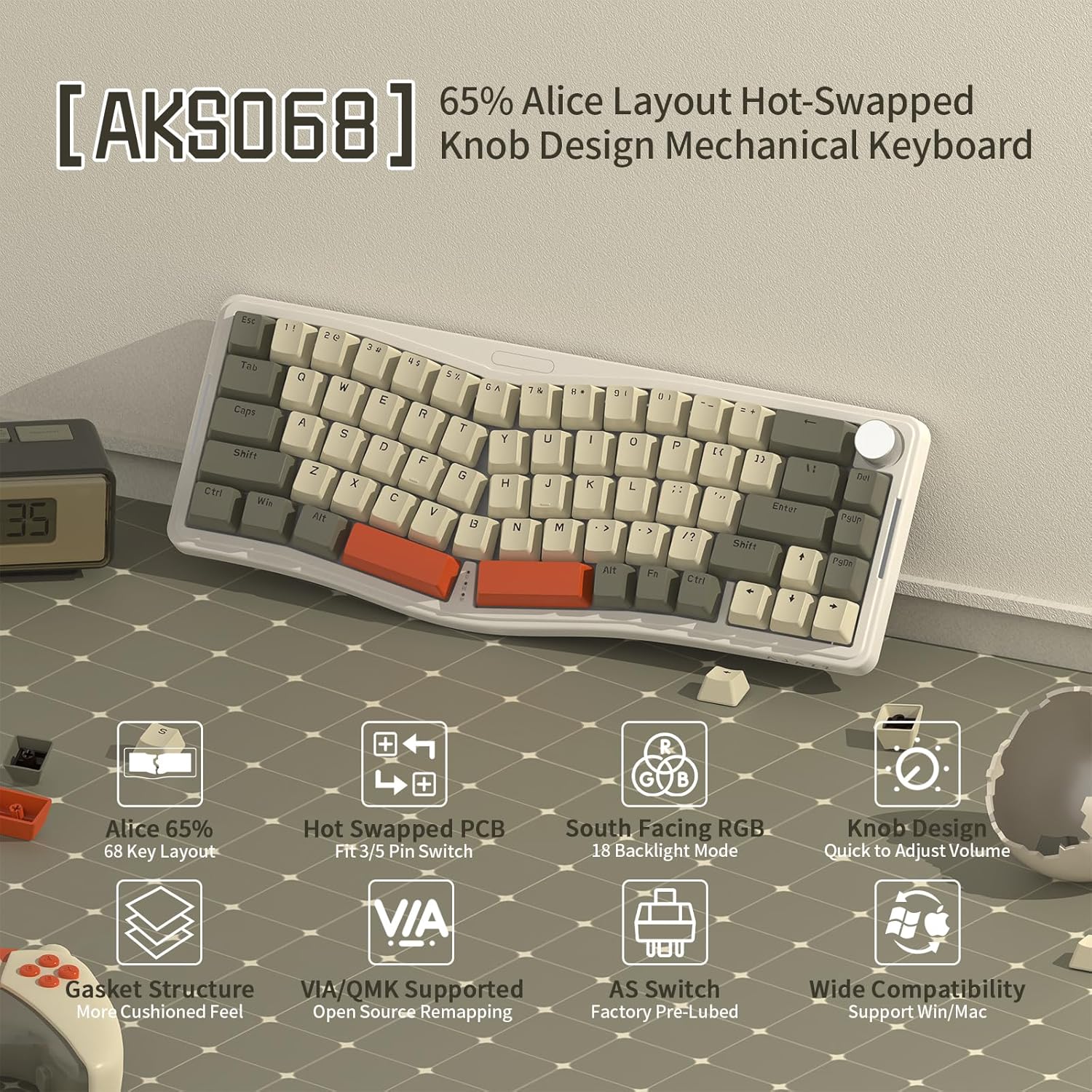
Image: Overview of the ATTACK SHARK Wired Keyboard Set, showing both the Alice layout mechanical keyboard and the 62-key membrane keyboard.
3. 68 Key Alice Layout Mechanical Keyboard (AK9068)
3.1. Features
- Alice 65% Layout: Ergonomic 68-key design for comfortable typing.
- Hot-Swappable PCB: Supports 3-pin and 5-pin switches, allowing for easy switch replacement without soldering.
- South-Facing RGB Backlight: Features 18 backlight modes for customizable illumination.
- Gasket Mount Structure: Provides a cushioned feel and reduces typing noise.
- Sound Dampening: Includes 4 layers of soundproof material to minimize internal resonance.
- Knob Design: Multifunctional knob for quick volume adjustment.
- VIA/QMK Supported: Open-source remapping software for advanced customization.
- AS Switches: Factory pre-lubed switches for smooth and quiet operation.
- Wide Compatibility: Supports Windows and Mac operating systems.
- Full Key Anti-Ghosting: Ensures all key presses are registered accurately during rapid input.
- Double Layer Stand: Adjustable feet for alternative typing angles.
- Tri-Color ABS Keycaps: Durable keycaps for personalization.
- Type-C Port: Detachable USB Type-C cable for reliable wired connection.

Image: The AK9068 Alice Layout Mechanical Keyboard highlighting its key features such as 65% Alice layout, hot-swappable PCB, south-facing RGB, gasket structure, knob design, VIA/QMK support, and wide compatibility.

Image: Underside view of the AK9068 Alice Layout Mechanical Keyboard, showing the double-layer stand for adjustable typing angles, the Type-C port for connection, and anti-slip mats for stability.
3.2. Setup
The Alice mechanical keyboard comes as a kit. Follow these steps to assemble and set up your keyboard:
- Install Switches: Carefully align the pins of each mechanical switch with the corresponding holes on the PCB (Printed Circuit Board). Press firmly until the switch is seated securely. Ensure the switch is oriented correctly for south-facing LEDs.
- Install Keycaps: Place the appropriate keycaps onto the installed switches. Refer to the Alice layout for correct keycap placement.
- Connect to PC: Connect the provided USB Type-C cable to the Type-C port on the back of the keyboard and the other end to an available USB port on your computer.
- Driver Installation: Your computer should automatically detect and install the necessary drivers. No additional software is required for basic functionality.
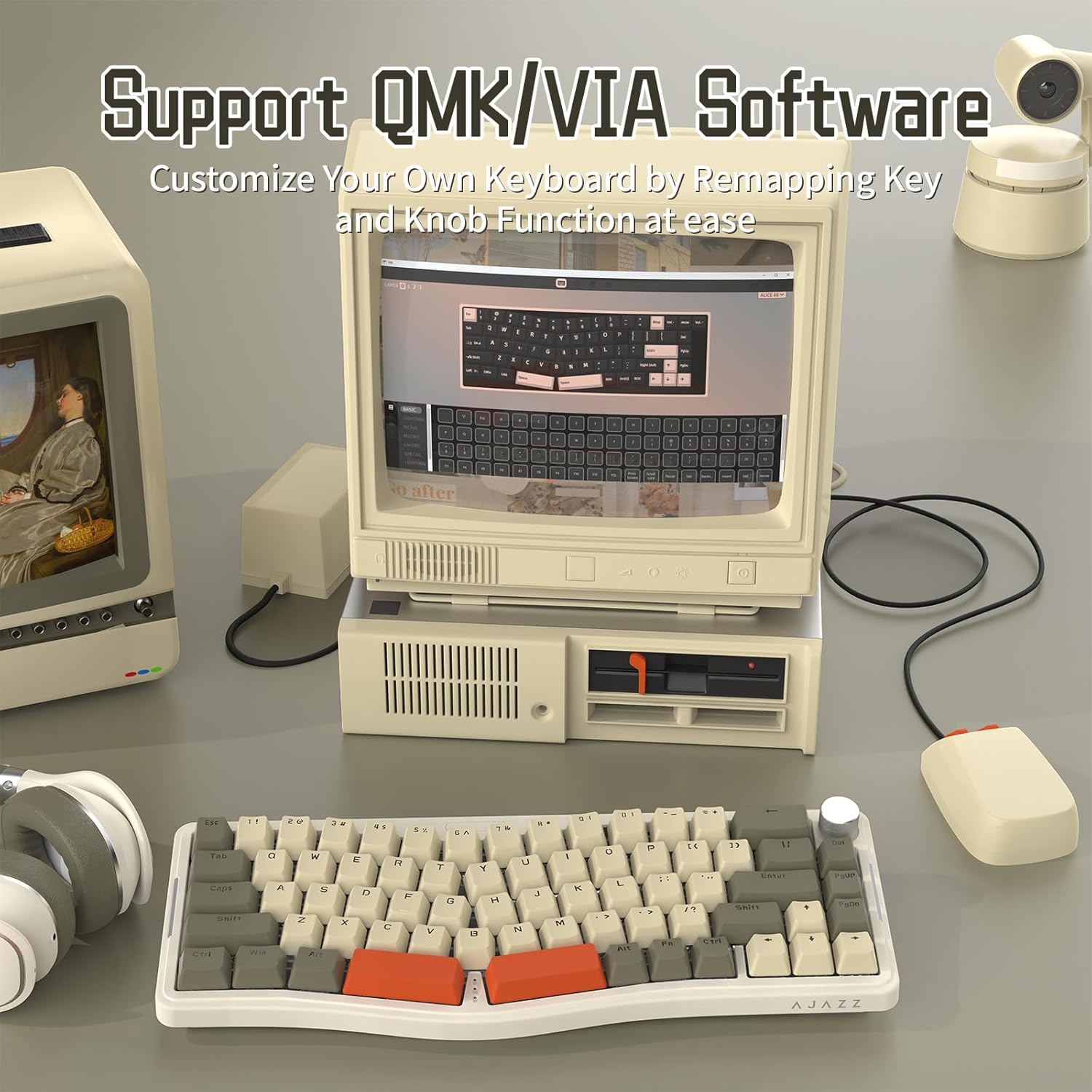
Image: Close-up view of the AK9068 Alice Layout Mechanical Keyboard demonstrating its hot-swappable switch sockets and the AS Red Switches, highlighting the ease of switch installation and replacement.
3.3. Operation
The Alice mechanical keyboard offers standard typing functionality along with special features:
- Knob Functionality:
- Turn Left/Right: Adjusts system volume.
- Press: Mutes/Unmutes audio.
- Anti-Ghosting: The keyboard supports full key anti-ghosting (NKRO), ensuring all simultaneous key presses are registered accurately.
- Adjustable Typing Angle: Utilize the double-layer stands on the underside of the keyboard to adjust the typing angle for ergonomic comfort.
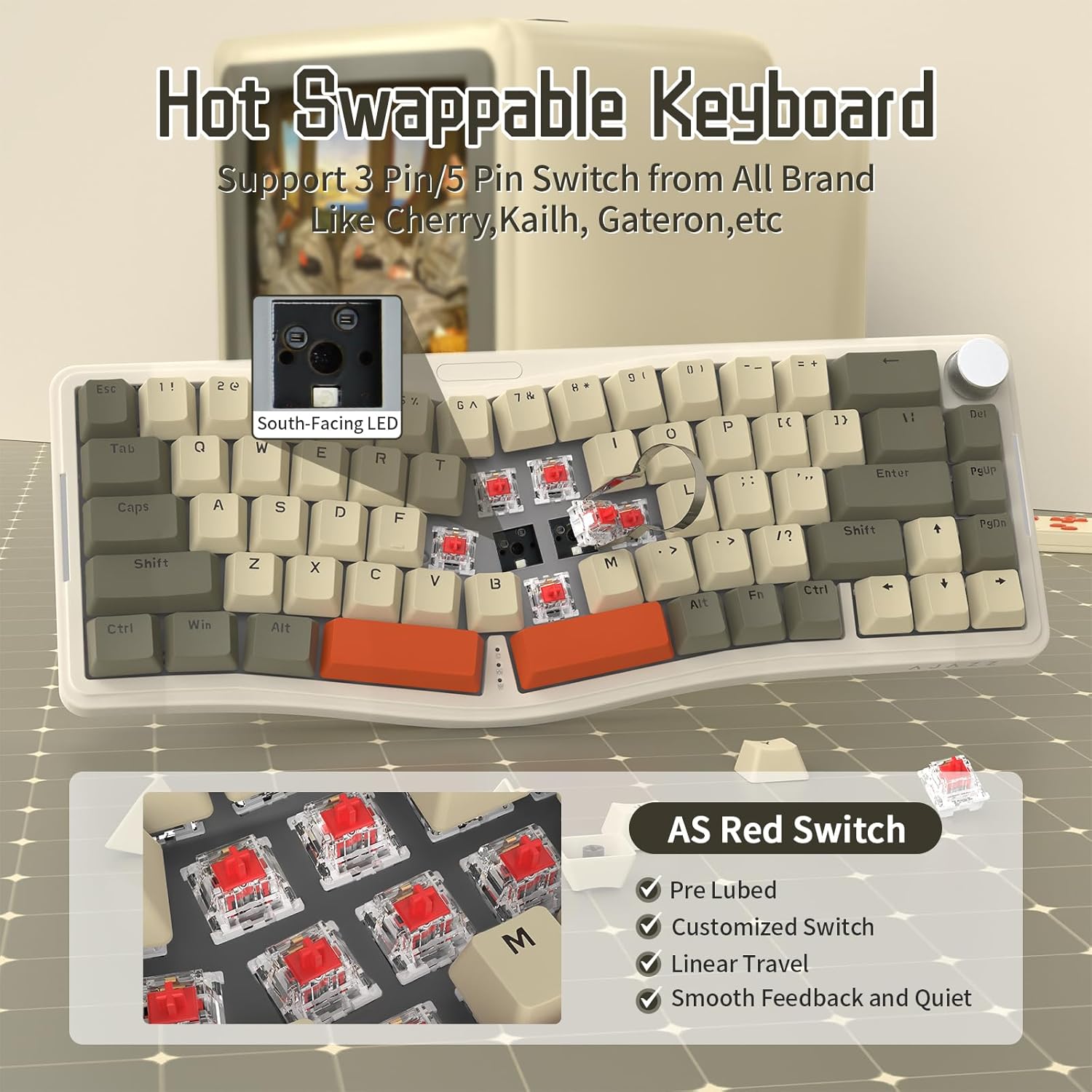
Image: The AK9068 Alice Layout Mechanical Keyboard illustrating the functionality of its metal knob for volume control (turn left/right) and mute/unmute (press), along with the full key anti-ghosting feature.
3.4. Customization (VIA/QMK)
The Alice mechanical keyboard supports VIA and QMK software for advanced key remapping and customization of the knob function.
- Download Software: Access the VIA software and JSON file from the official link: bit.ly/4amBzF8.
- Load JSON File: Open the VIA software and load the provided JSON file for your keyboard model.
- Remap Keys: Use the VIA interface to remap individual keys, create macros, and customize the knob's functions according to your preferences.
- Apply Changes: Save and apply your changes within the VIA software. The customizations will be stored on the keyboard's firmware.

Image: The AK9068 Alice Layout Mechanical Keyboard displayed with a computer screen showing the VIA software interface, demonstrating the ability to customize key mappings and knob functions.
3.5. Maintenance
- Cleaning: Use a soft, dry cloth to wipe the keyboard surface. For deeper cleaning, remove keycaps and use compressed air to clear debris from between switches.
- Switch Replacement: To replace switches, use a switch puller tool to gently remove the existing switch. Align the new switch's pins with the PCB sockets and press firmly until it clicks into place.
- Keycap Replacement: Use a keycap puller tool to remove keycaps. Ensure new keycaps are compatible with Cherry MX style stems.
4. 62 Key Membrane Keyboard
4.1. Features
- Compact 62 Key Layout: Space-saving design suitable for various setups.
- RGB Backlight: Features rainbow backlighting for visual appeal.
- Wired Connectivity: Reliable USB wired connection.
- 19 Key Anti-Ghosting: Ensures accurate registration of multiple simultaneous key presses.
- Crater Structure: Provides tactile feedback similar to mechanical keyboards.
- Lower Noise: Designed for quieter operation compared to some mechanical keyboards.
- Two-Color Injection Keycaps: Durable keycaps with legends that won't fade.
- Radiant Space Bar: Unique design element.
- Unique Logo Key: The ESC key doubles as a logo key.

Image: The ATTACK SHARK 62 Key Membrane Gaming Keyboard showcasing its compact layout, RGB backlight, wired connectivity, and 19-key anti-ghosting capabilities.

Image: Close-up of the ATTACK SHARK 62 Key Membrane Gaming Keyboard, highlighting its crater structure for tactile feedback, lower noise operation, and two-color injection keycaps.
4.2. Setup
- Connect to PC: Connect the USB cable of the membrane keyboard to an available USB port on your computer.
- Driver Installation: Your computer should automatically detect and install the necessary drivers. No additional software is required for basic functionality.
4.3. Operation
- ESC Key Function: The unique logo key functions as the ESC key. To use its ESC function, press FN + Logo Key.
- Anti-Ghosting: The keyboard supports 19-key anti-ghosting, ensuring accurate registration of multiple simultaneous key presses.
4.4. Backlight Control
Control the RGB backlight settings using the following key combinations:
- Change Backlight Mode: Press FN + [Key Combination] (Specific key combination not provided in source, common ones are FN + INS, HOME, PGUP, PGDN, DEL, END or FN + Scroll Lock/Pause/Print Screen).
- Adjust Brightness (3 Levels): Press FN + [{ / }] (or similar keys, based on image PT08 showing FN + [{ and FN + }]).
- Adjust Changing Speed (3 Speeds): Press FN + [; / '] (or similar keys, based on image PT08 showing FN + ; and FN + ').
- Change Backlight Color: Press FN + [P] (based on image PT08).
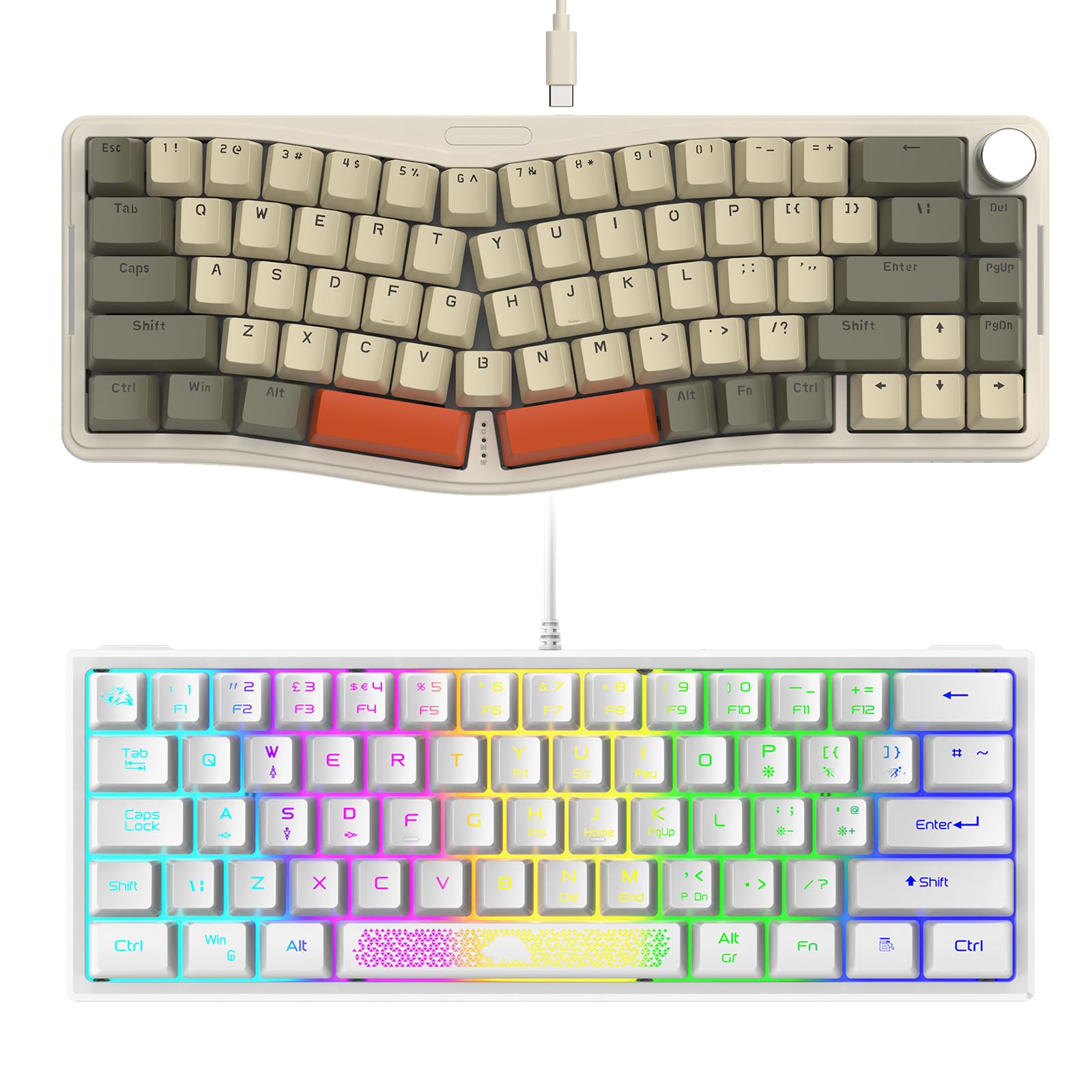
Image: The ATTACK SHARK 62 Key Membrane Gaming Keyboard illustrating its gorgeous rainbow LED backlight and controls for brightness, changing speed, and backlight color using FN key combinations.
4.5. Maintenance
- Cleaning: Use a soft, dry cloth to wipe the keyboard surface. For deeper cleaning, use compressed air to clear debris from between keycaps. Avoid using harsh chemicals or abrasive materials.
5. Troubleshooting
If you encounter issues with your ATTACK SHARK keyboards, refer to the following common solutions:
| Problem | Possible Cause | Solution |
|---|---|---|
| Keyboard not responding | Loose USB connection, faulty USB port, driver issue. |
|
| Backlight not working (Membrane Keyboard) | Backlight turned off, brightness set to minimum. |
|
| Keys not registering (Alice Keyboard) | Loose or faulty switch. |
|
| Knob not adjusting volume (Alice Keyboard) | Software conflict, knob remapped via VIA. |
|
6. Specifications
| Feature | 68 Key Alice Mechanical Keyboard (AK9068) | 62 Key Membrane Keyboard |
|---|---|---|
| Brand | ATTACK SHARK | |
| Layout | Alice 65% (68 Keys) | Compact (62 Keys) |
| Switch Type | Mechanical (Hot-Swappable, 3/5-pin) | Membrane (Crater Structure) |
| Connectivity | Wired (USB Type-C for Alice, USB for Membrane) | |
| Backlight | South-Facing RGB (18 Modes) | Rainbow RGB |
| Anti-Ghosting | Full Key (NKRO) | 19 Keys |
| Customization | VIA/QMK Programmable | N/A (Backlight controls via FN keys) |
| Special Features | Gasket Mount, Sound Dampening, Knob Control | Radiant Space Bar, Unique Logo Key (ESC) |
| Compatible Devices | PC, Mac (for Alice) | |
| Color | Gray | White |
7. Warranty and Support
ATTACK SHARK products are designed for quality and reliability. For warranty information and technical support, please refer to the official ATTACK SHARK website or contact their customer service directly. Keep your purchase receipt as proof of purchase for warranty claims.
For the latest drivers, software, and support resources, please visit the official ATTACK SHARK support page.


