1. Introduction
This manual provides instructions for the setup, operation, and maintenance of your FamBrow P105 Digital Photo Frame. Please read this manual thoroughly before using the device to ensure proper functionality and to maximize your user experience.
2. Package Contents
Verify that all items listed below are present in your product packaging. If any items are missing or damaged, please contact customer support.
- FamBrow Digital Picture Frame × 1
- Photo Frame Holder × 1
- DC Power Cord × 1
- 32GB Memory Card × 1
- Multi-language Manual × 1 (UK.DE.IT.ES.FR)

Image 2.1: The image displays the complete contents of the FamBrow P105 Digital Photo Frame package, including the frame, stand, power adapter, 32GB SD card, and user manual.
3. Setup
3.1. Unpacking and Placement
- Carefully remove all components from the packaging.
- Attach the provided stand to the back of the photo frame for desktop placement, or use the integrated mounting points for wall installation. The frame supports both horizontal and vertical orientations, automatically adjusting the display.
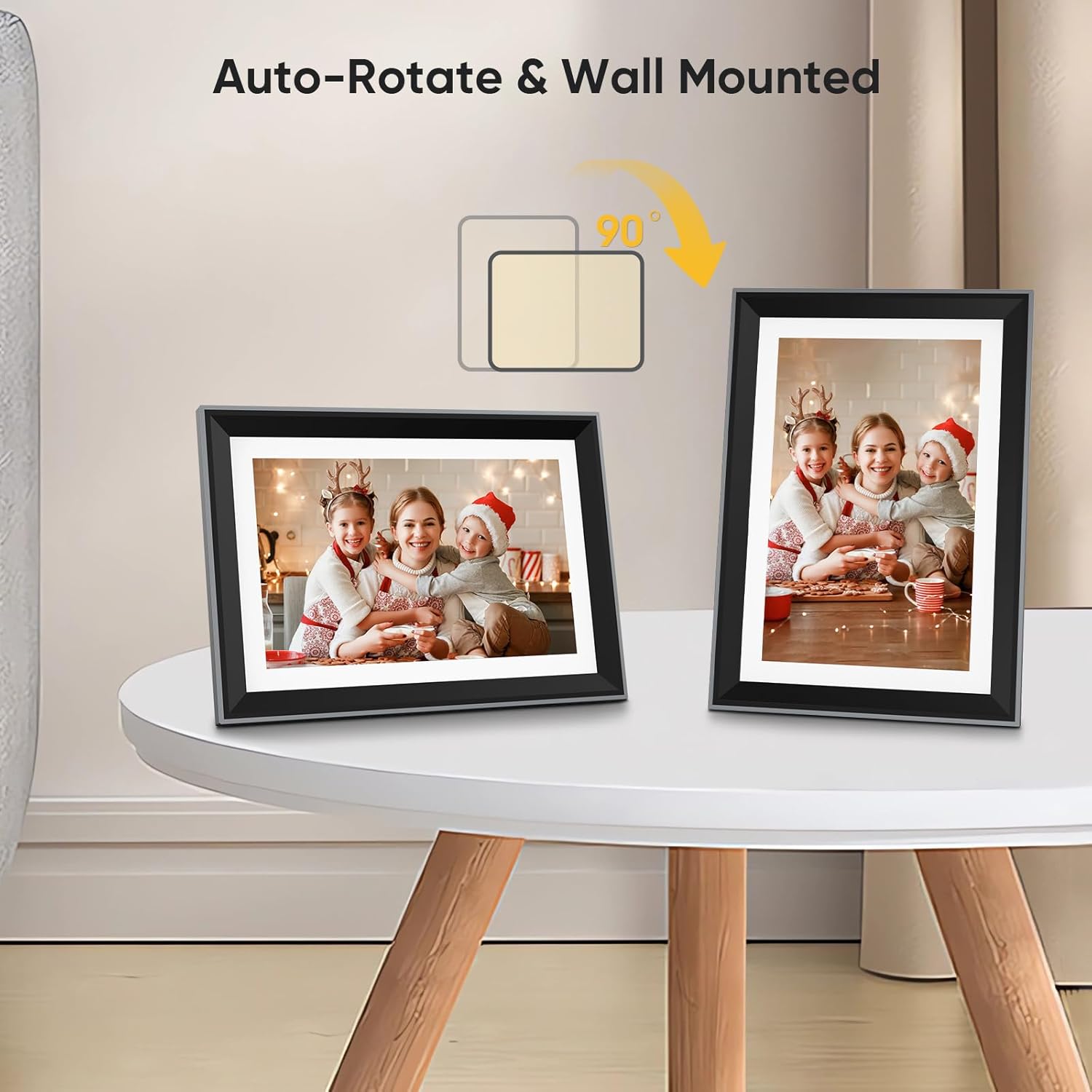
Image 3.1: This image illustrates the auto-rotate feature and wall-mounting capability of the digital photo frame, showing it displayed both horizontally and vertically on a surface.
3.2. Powering On
- Connect the DC power cord to the frame's power input port.
- Plug the power adapter into a standard electrical outlet. The frame will automatically power on.
3.3. Wi-Fi Connection
To utilize cloud features and remote media transfer, connect the frame to a Wi-Fi network:
- On the frame's touch screen, navigate to the 'Settings' menu.
- Select 'Wi-Fi' and choose your desired network from the list.
- Enter the Wi-Fi password using the on-screen keyboard.
- Confirm the connection. A successful connection will be indicated on the screen.

Image 3.2: The image shows the digital photo frame connected via Wi-Fi, emphasizing its cloud capabilities for sharing memories. A family is depicted taking a selfie, which can then be displayed on the frame.
4. Operating Instructions
4.1. Basic Navigation (Touch Screen)
The FamBrow P105 features a 10.1-inch IPS FHD touch screen for intuitive control:
- Tap: Select an item or confirm an action.
- Swipe: Navigate through menus or browse photos/videos.
- Pinch-to-zoom: Adjust the size of displayed images.
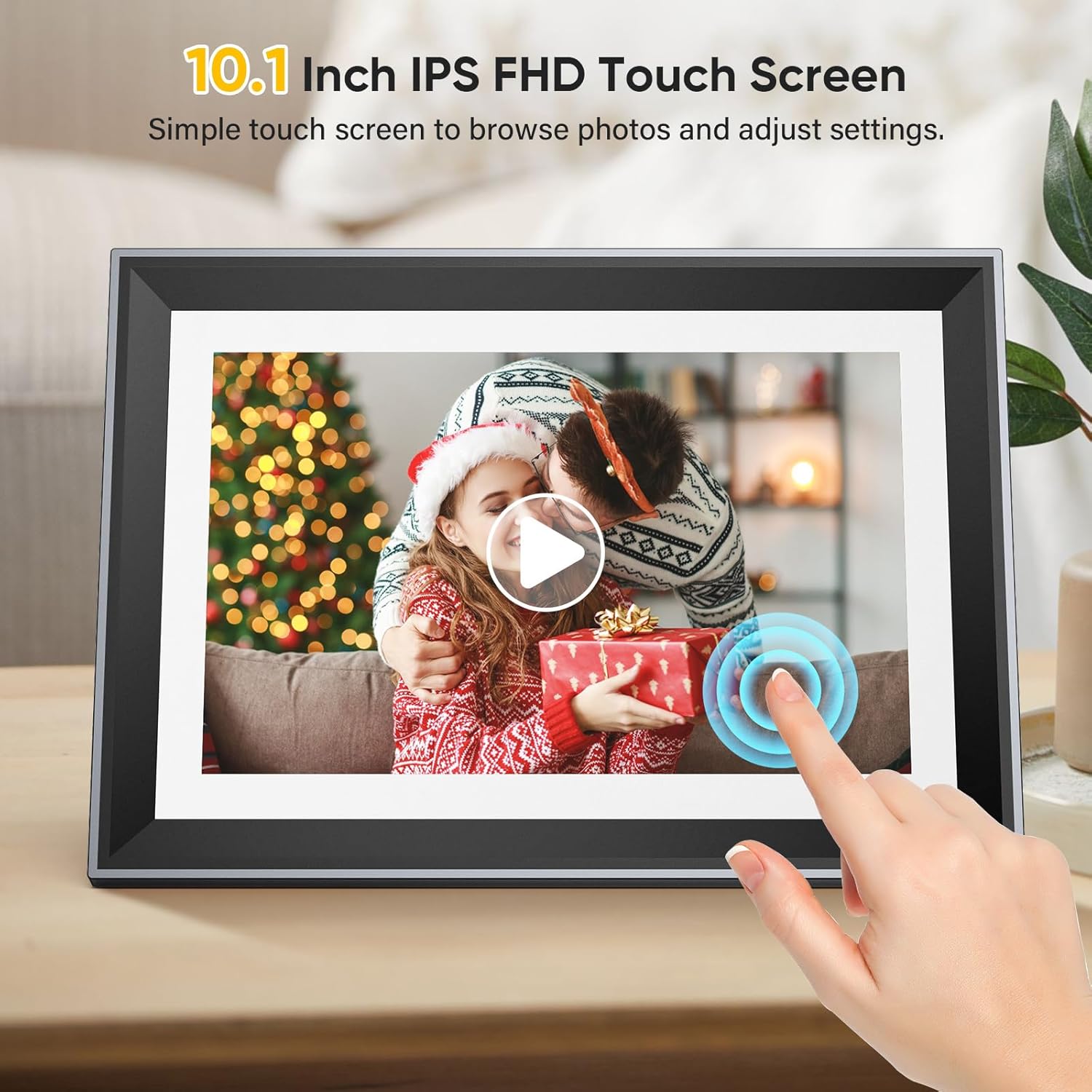
Image 4.1: A hand is shown interacting with the 10.1-inch IPS FHD touch screen of the digital photo frame, demonstrating its ease of use for browsing photos and adjusting settings.
4.2. Uploading and Displaying Media
Media can be transferred to the frame via Wi-Fi, SD card, or USB drive.
- Wi-Fi Transfer: Use the dedicated mobile application (e.g., 'vphoto' as shown in images) to send photos and videos directly to the frame over Wi-Fi.
- SD Card/USB: Insert an SD card (up to 32GB included) or a USB drive into the designated slot. The frame will automatically detect the storage and allow you to import media.

Image 4.2: The main product image shows the digital photo frame displaying a picture of a baby. A smartphone next to it illustrates the 'vphoto' app for wireless photo transfer, and a 32GB SD card is also visible, indicating multiple media input options.
4.3. Media Playback and Storage
The frame supports various media formats and offers ample storage:
- Photos: JPG, PNG, BMP.
- Videos: MP4, MOV, AVI.
- Audio: FLAC, OGG, WAV.
- Storage: Built-in 16GB memory, expandable with the included 32GB SD card, capable of storing over 60,000 photos.

Image 4.3: This image highlights the frame's capacity to store over 60,000 photos (with 16GB built-in memory and a 32GB SD card) and its support for various media types, including video (MP4/MOV/AVI), photos (JPG/PNG/BMP), and audio (FLAC/OGG/WAV).
4.4. Settings and Features
Access the 'Settings' menu to customize various aspects of your frame:
- Music: Play background music during slideshows.
- Alarm Clock: Set alarms for reminders.
- Sleep Mode: Schedule the frame to turn off/on automatically.
- Brightness: Adjust screen brightness.
- Language: Select your preferred display language.
- Slideshow Mode: Configure transition effects, display duration, and playback order for photos.

Image 4.4: The image showcases the digital photo frame displaying a vibrant photo, surrounded by icons that represent its diverse functionalities, including music playback, alarm clock, sleep mode, brightness control, language selection, and slideshow customization.
5. Maintenance
5.1. Cleaning
To clean the screen and frame:
- Power off the device and unplug it from the power source.
- Use a soft, lint-free cloth slightly dampened with water or a screen-cleaning solution.
- Gently wipe the screen and frame. Avoid using harsh chemicals or abrasive materials.
5.2. Software Updates
Periodically check the manufacturer's official website or the frame's settings menu for available software updates. Keeping your device's software up-to-date ensures optimal performance and access to new features.
6. Troubleshooting
If you encounter issues with your FamBrow P105, refer to the following common problems and solutions:
| Problem | Possible Cause | Solution |
|---|---|---|
| Frame does not power on | Power cord not connected; Power outlet issue | Ensure power cord is securely connected. Try a different power outlet. |
| Cannot connect to Wi-Fi | Incorrect password; Router too far; Network issue | Verify Wi-Fi password. Move frame closer to router. Restart router. |
| Photos/Videos not displaying | Unsupported format; Corrupted file; SD card/USB not inserted correctly | Check media format compatibility. Ensure SD card/USB is fully inserted. Try re-uploading files. |
| Touch screen unresponsive | Temporary software glitch; Screen dirty | Restart the frame. Clean the screen with a soft cloth. |
7. Specifications
Detailed technical specifications for the FamBrow P105 Digital Photo Frame:
| Feature | Detail |
|---|---|
| Brand | FamBrow |
| Model | P105 |
| Color | Black |
| Screen Size | 10.1 inches |
| Resolution | 1080p |
| Connectivity Technology | USB, Wi-Fi |
| Compatible Devices | SD Card, SDHC Card, USB |
| Product Dimensions (L x W x H) | 24.4 x 16.8 x 2.5 cm |
| Product Weight | 1.08 Kilograms |
| Power Source | AC |
| Human Interface Input | Touch Screen |
| Image Format | 16:10 |
| Frame Material | Plastic |
8. Warranty Information
The manufacturer guarantees the availability of spare parts for this product for 20 years from the date of purchase. For specific warranty terms and conditions, please refer to the documentation included with your product or contact the manufacturer directly.
9. Support
For further assistance, technical support, or inquiries not covered in this manual, please refer to the contact information provided in your product packaging or visit the official FamBrow website.


