
1. Introduction
This manual provides detailed instructions for the setup, operation, and maintenance of your BISOFICE K40 Android 13.0 2D Barcode Scanner PDA. This device is designed for efficient data collection, inventory management, and point-of-sale operations, offering robust performance and connectivity.

Image 1.1: Front and back view of the BISOFICE K40 Handheld PDA.

Image 1.2: Overview of key features including Android 13, 2D scanning, 8MP camera, 4500mAh battery, Qualcomm processor, 4-inch screen, and connectivity options.
2. Product Overview
2.1 Key Components
The BISOFICE K40 features a 4-inch touchscreen display, a physical numeric keypad, an integrated 2D barcode scanner, and an 8-megapixel rear camera. The device is powered by a Qualcomm QCM2290 quad-core processor running Android 13.
2.2 Technical Highlights
- Operating System: Android 13.0
- Processor: Qualcomm QCM2290 Quad-core 2.0G
- Memory: 4GB RAM + 64GB Storage
- Display: 4-inch Touchscreen
- Barcode Scanner: K2 2D Scanner (supports PDF417, GS1 Composite, Aztec Code, Data Matrix, QR Code)
- Camera: 8MP Rear Camera with Flash and Autofocus
- Battery: 4500mAh Removable Lithium Polymer
- Connectivity: 2G/3G/4G, Wi-Fi (2.4&5G), Bluetooth 5.0, GPS/Beidou/Glonass/Galileo
3. Setup
3.1 Unboxing
Upon opening the package, verify that all components are present:
- BISOFICE K40 Handheld PDA
- Rechargeable Battery
- USB Charging Cable
- Power Adapter (may vary by region)
- Quick Start Guide
3.2 Battery Installation and Charging
- Locate the battery compartment on the back of the device.
- Carefully open the battery cover.
- Insert the 4500mAh lithium polymer battery, ensuring the contacts align correctly.
- Close the battery cover securely.
- Connect the USB charging cable to the device's charging port and the other end to the power adapter. Plug the adapter into a power outlet.
- Allow approximately 2 hours for a full charge. A fully charged battery provides 8-10 hours of continuous working time and up to 30 days of standby time.

Image 3.1: Details on the 4500mAh battery, showing 2-hour charging time, 30-day standby, and 8-10 hours continuous use.
3.3 Powering On/Off
- To Power On: Press and hold the Power button until the device vibrates and the screen lights up.
- To Power Off: Press and hold the Power button, then select 'Power Off' from the options on the screen.
3.4 SIM/SD Card Installation (Optional)
If your model supports cellular connectivity or requires expandable storage:
- Power off the device and remove the battery.
- Locate the SIM card slot and/or MicroSD card slot.
- Insert the SIM card with the gold contacts facing down, ensuring it clicks into place.
- Insert the MicroSD card (if desired) into its designated slot.
- Reinstall the battery and battery cover.
4. Operating the Device
4.1 Basic Navigation
The BISOFICE K40 operates on Android 13, providing a familiar smartphone-like interface. Navigate using the 4-inch touchscreen or the physical numeric keypad for data entry.

Image 4.1: The device features a convenient numeric keypad for alternative input, useful in various working conditions.
4.2 Barcode Scanning
The integrated K2 2D scanner allows for quick and accurate data capture.
- Open the scanning application on the device.
- Point the scanner window at the barcode. The optimal scanning distance is approximately 45 cm (1.48 ft).
- Press the dedicated scan button (usually located on the side or front of the device) to activate the scanner.
- Ensure the red scanning light covers the entire barcode for best results. The device will provide an audible or haptic feedback upon successful scan.
The K2 scanner supports a wide range of barcode types, including PDF417, Micro PDF417, GS1 Composite, Aztec Code, Data Matrix, QR Code, and Micro QR Code. It is designed to read even fuzzy or frayed barcodes effectively.
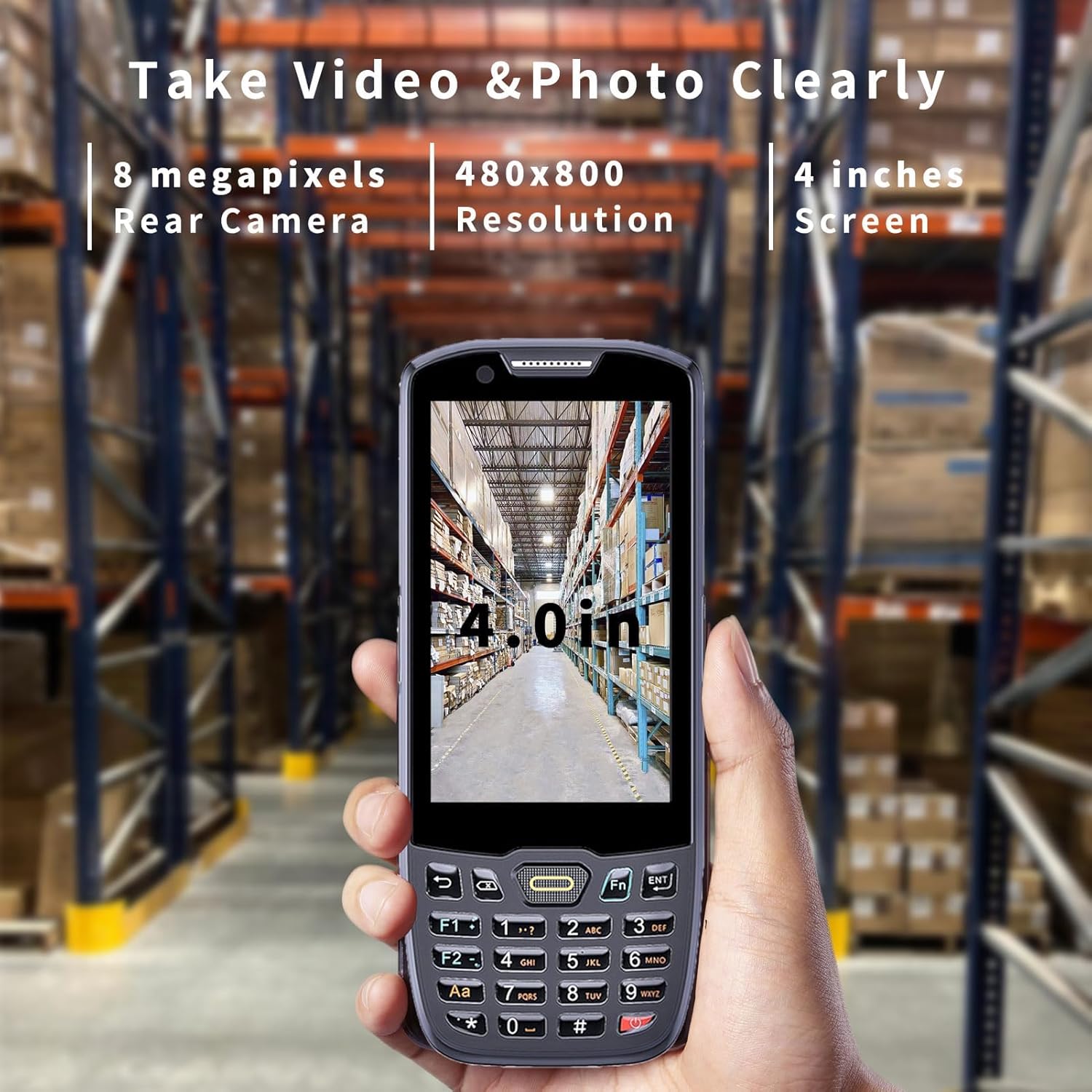
Image 4.2: The K2 scanner in use, demonstrating its 45cm scanning distance in a warehouse environment.

Image 4.3: Illustration of the K2 scanner's capability to read various 1D and QR codes, including fuzzy and frayed ones.
4.3 Camera Usage
The 8-megapixel rear camera with flash and autofocus allows for clear image capture, even in low-light conditions. This can be useful for documenting inventory, damaged goods, or other operational needs.
- Open the Camera application.
- Frame your subject on the 4-inch screen.
- Tap the screen to focus or press the shutter button to capture the image.

Image 4.4: The 8MP rear camera with 480x800 resolution and 4-inch screen for clear photo and video capture.
4.4 Connectivity
The device offers robust connectivity options for seamless data transmission and communication.
- Wi-Fi: Supports IEEE 802.11 a/b/g/n dual-band (2.4GHz & 5GHz) for fast wireless network access. Configure Wi-Fi settings via the Android settings menu.
- Bluetooth: Bluetooth 5.0 enables stable wireless connection to peripherals such as printers or headsets. Pair devices through the Bluetooth settings.
- Cellular: Supports 2G, 3G, and 4G networks for mobile data and communication. Ensure a SIM card is installed and configured correctly.
- GPS: Integrated Global Positioning System (GPS), Beidou, Glonass, and Galileo provide accurate location services.

Image 4.5: Visual representation of the device's multiple connectivity options: WiFi, 4G, Bluetooth, 2G, 3G, and GPS.
5. Maintenance
5.1 Cleaning the Device
- Use a soft, lint-free cloth slightly dampened with water or a screen cleaner to wipe the display and device body.
- Do not use harsh chemicals, abrasive cleaners, or solvents.
- Ensure the scanner window is clean and free of dust or smudges for optimal scanning performance.
5.2 Battery Care
- Avoid exposing the battery to extreme temperatures.
- Charge the battery regularly, but avoid leaving it fully discharged for extended periods.
- If the device will not be used for a long time, charge the battery to about 50% and store it in a cool, dry place.
5.3 Software Updates
Periodically check for system updates to ensure your device has the latest features, security patches, and performance improvements. Updates can typically be found in the device's 'Settings' menu under 'System' or 'About Phone'.
6. Troubleshooting
6.1 Common Issues and Solutions
| Issue | Possible Cause | Solution |
|---|---|---|
| Device does not power on | Low battery; Battery not installed correctly | Charge the device for at least 30 minutes; Reinstall the battery ensuring proper contact. |
| Barcode not scanning | Scanner window dirty; Incorrect distance; Barcode damaged | Clean the scanner window; Adjust scanning distance; Try scanning a different barcode. |
| Wi-Fi/Bluetooth connectivity issues | Wi-Fi/Bluetooth off; Out of range; Network issues | Ensure Wi-Fi/Bluetooth is enabled; Move closer to the access point/device; Restart the device and router. |
| Device is slow or unresponsive | Too many apps running; Low storage | Close unnecessary applications; Clear cache; Free up storage space. |
6.2 Factory Reset
If persistent issues occur, a factory reset may be necessary. Warning: A factory reset will erase all data on the device. Back up important data before proceeding.
- Go to 'Settings' > 'System' > 'Reset options'.
- Select 'Erase all data (factory reset)'.
- Confirm your choice and follow the on-screen prompts.
7. Specifications
| Feature | Detail |
|---|---|
| Operating Voltage | 5 Volts |
| Connectivity Technology | USB Cable, Wi-Fi |
| Brand | Bisofice |
| Power Source | Battery Powered |
| Compatible Devices | Desktop, Laptop, Smartphone |
| Manufacturer | BISOFICE |
| Date First Available | June 28, 2024 |
| Item Weight | 1.49 pounds |
| Package Dimensions | 9.06 x 4.72 x 3.15 inches |
8. Warranty and Support
For warranty information, technical support, or service inquiries, please refer to the warranty card included with your product or visit the official Bisofice store online.
Official Bisofice Store: Visit the Bisofice Store