
Introduction
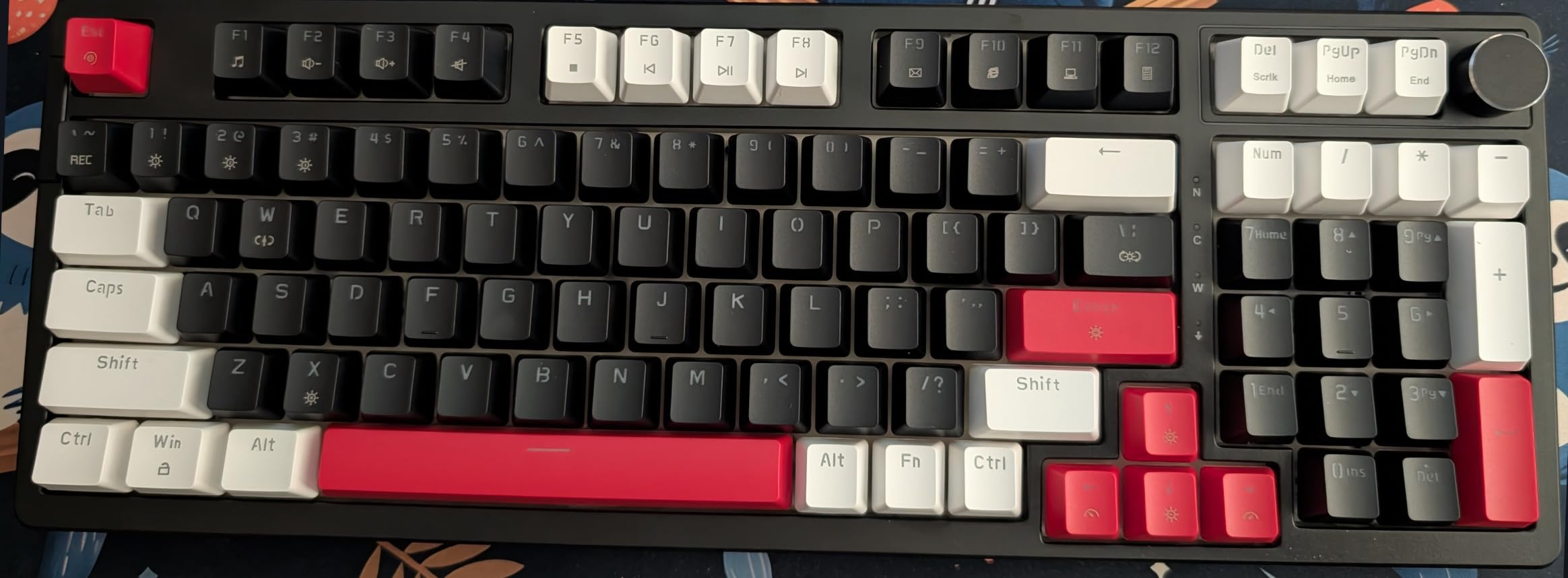
Thank you for choosing the SbocKeeb 98 Monstor Wired Mechanical Gaming Keyboard. This manual provides detailed instructions for setting up, operating, maintaining, and troubleshooting your new keyboard. Designed for both gaming and office use, this keyboard features a 98-key layout, hot-swappable switches, RGB backlighting, a gasket mount structure, and a convenient control knob.
Package Contents
Please verify that all items are present in your package:
- SbocKeeb 98 Monstor Wired Mechanical Gaming Keyboard
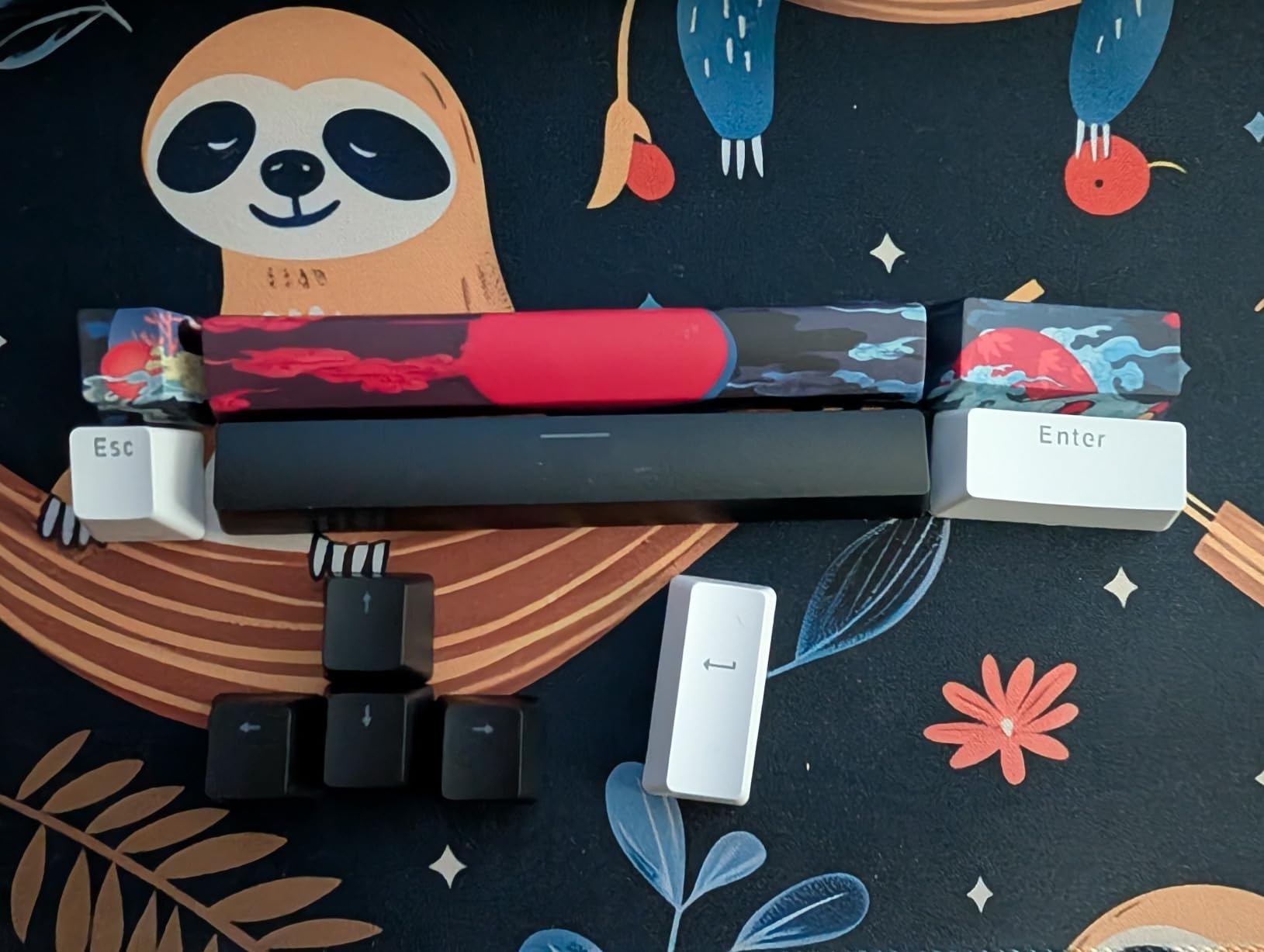
- USB Cable
Setup Guide
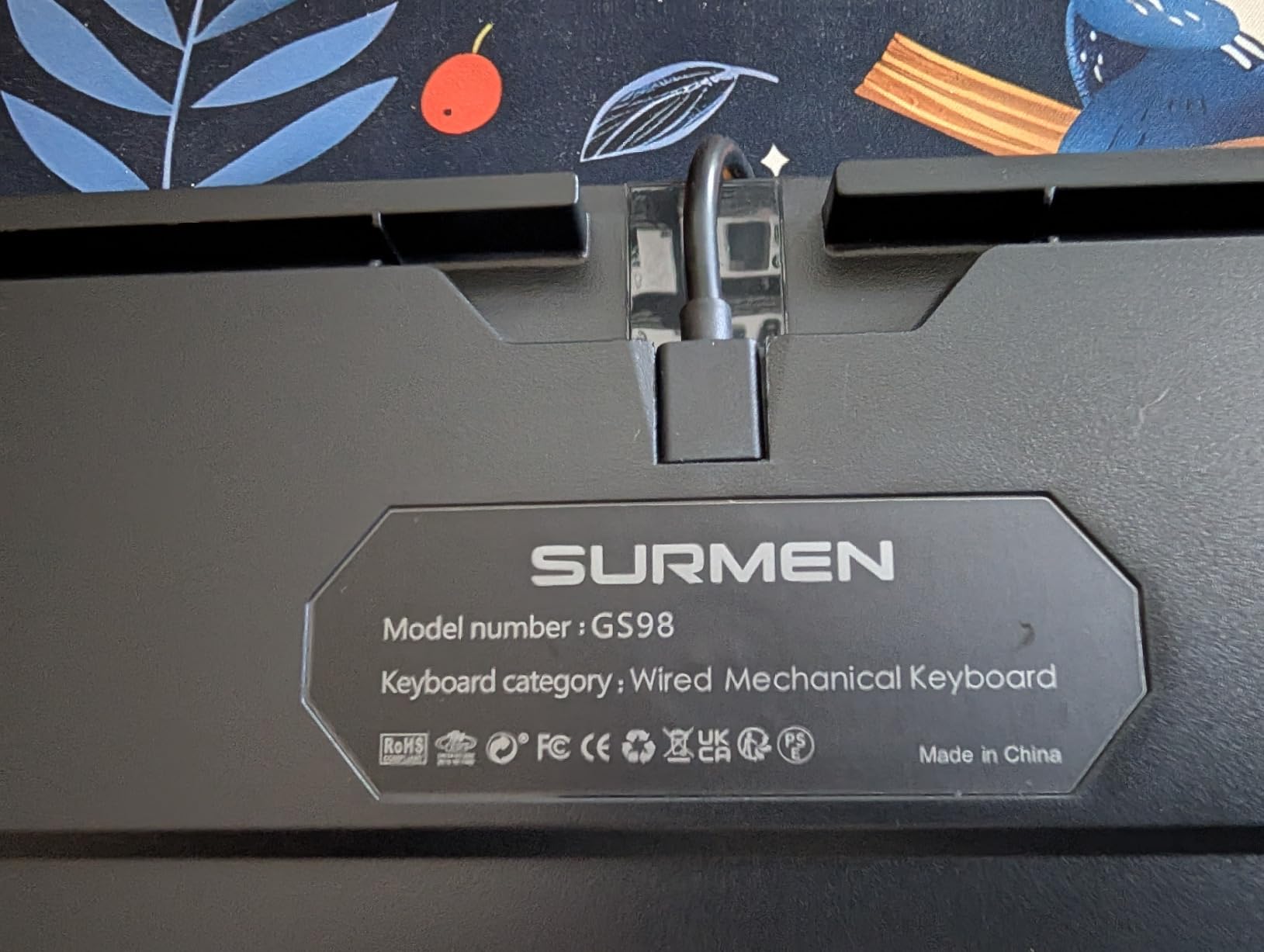
- Connect the USB Cable: Locate the USB-C port on the back of the keyboard. Connect the provided USB cable to this port.
- Connect to Computer: Plug the other end of the USB cable (USB-A) into an available USB port on your computer.
- Driver Installation: The keyboard is plug-and-play. Your operating system (Windows or Mac) will automatically detect and install the necessary drivers. No additional software is required for basic functionality.
- Adjust Keyboard Feet: For ergonomic comfort, you can adjust the two-stage adjustable feet located on the underside of the keyboard.
Operating Instructions
RGB Backlight Control
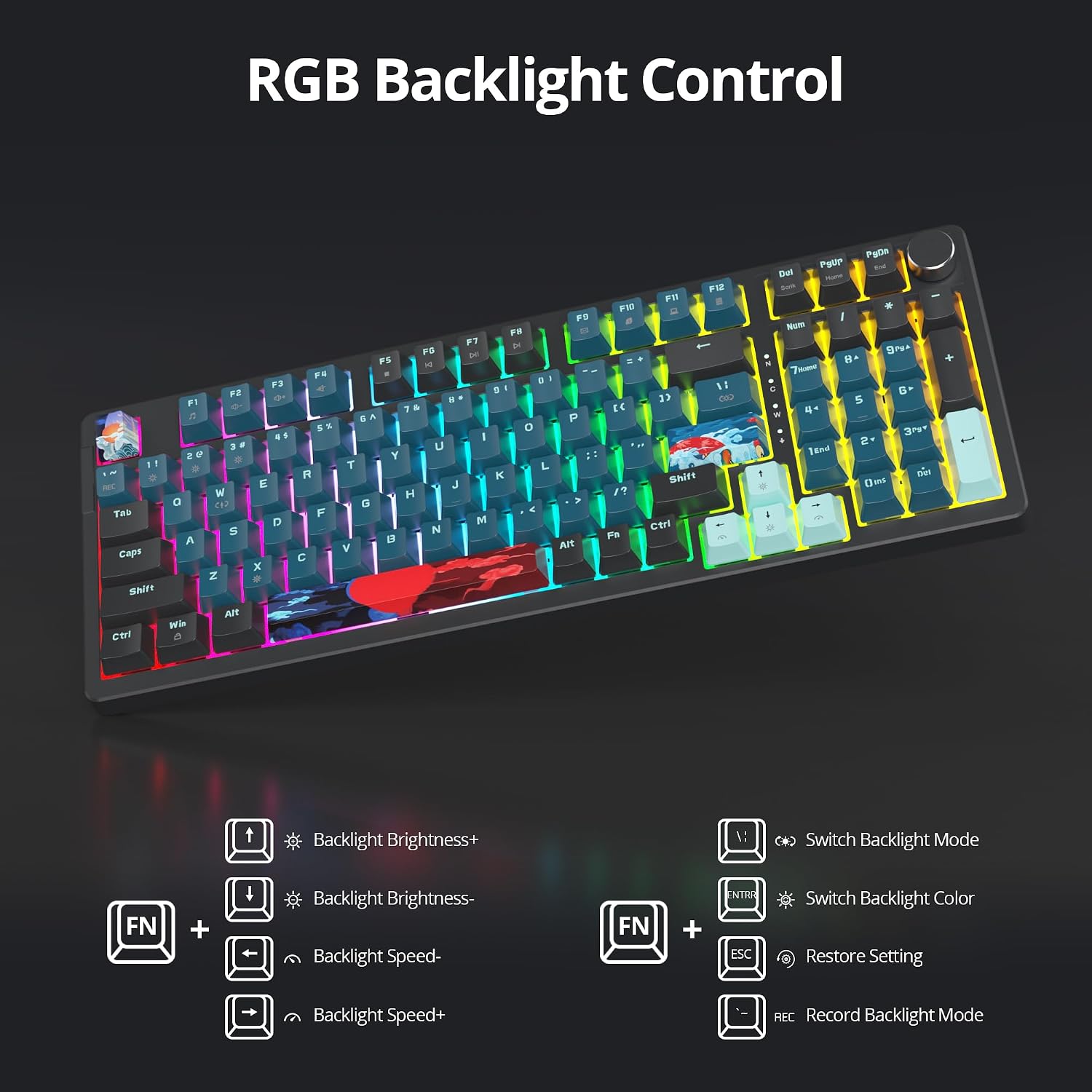
The keyboard features customizable RGB backlighting. Use the following key combinations with the Fn key to adjust lighting effects:
- Fn + ↑: Increase Backlight Brightness
- Fn + ↓: Decrease Backlight Brightness
- Fn + ←: Decrease Backlight Speed
- Fn + →: Increase Backlight Speed
- Fn + \|: Switch Backlight Mode
- Fn + Enter: Switch Backlight Color
- Fn + Esc: Restore Default Settings
- Fn + Rec: Record Backlight Mode (specific instructions may vary by firmware)
Multifunction Knob
The keyboard features a multifunction knob for quick media control:
- Rotate Clockwise: Increase Volume
- Rotate Counter-clockwise: Decrease Volume
- Press Down: Play/Pause Media
Hot-Swappable Switches
This keyboard supports hot-swappable 3-pin and 5-pin mechanical switches, allowing you to customize your typing experience without soldering. To change a switch:
- Remove Keycap: Use a keycap puller to gently remove the desired keycap.
- Remove Switch: Use a switch puller to carefully grip the top and bottom clips of the switch and pull it straight up.
- Insert New Switch: Align the pins of the new switch with the holes on the PCB. Press down firmly until the switch clicks into place. Ensure the pins are not bent.
- Replace Keycap: Place the keycap back onto the new switch.

Maintenance
Proper maintenance ensures the longevity and performance of your keyboard:
- Cleaning Keycaps: Use a soft, damp cloth to wipe down keycaps. For deeper cleaning, remove keycaps with a keycap puller and wash them with mild soap and water. Ensure they are completely dry before reattaching.
- Cleaning the Keyboard Body: Use a soft, dry cloth to wipe the keyboard's surface. For dust between keys, use compressed air. Avoid using harsh chemicals or abrasive materials.
- Switch Care: If switches feel gritty, they may benefit from lubrication. This is an advanced maintenance step and should only be performed if you are comfortable with disassembling switches.
- Cable Management: Ensure the USB cable is not kinked or under excessive strain to prevent damage.
Troubleshooting
If you encounter issues with your keyboard, refer to the following common solutions:
| Problem | Solution |
|---|---|
| Keyboard not responding |
|
| RGB backlighting not working or incorrect |
|
| Specific keys not registering |
|
| Multifunction knob not working |
|
Specifications
| Feature | Detail |
|---|---|
| Brand | SbocKeeb |
| Model | 98 Monstor |
| Connectivity Technology | USB Wired |
| Keyboard Type | Mechanical |
| Layout | 98-Key (96% layout with number pad) |
| Switch Type | Linear (Red Switch) |
| Hot-Swappable | Yes, supports 3-pin and 5-pin switches |
| Backlighting | RGB |
| Special Features | Gasket Structure, Control Knob, NKRO (N-Key Rollover) |
| Compatible Operating Systems | Windows, Mac |
| Material | Plastic |
| Recommended Use | Gaming |
Warranty and Support
For warranty information and technical support, please refer to the documentation included with your purchase or visit the official SbocKeeb website. Keep your proof of purchase for any warranty claims.