
Introduction
Thank you for choosing the SbocKeeb V500 75% Wired Mechanical Gaming Keyboard. This keyboard is designed to provide a superior typing and gaming experience with its compact layout, gasket-mounted structure, hot-swappable switches, and customizable RGB backlighting. This manual provides detailed instructions for setup, operation, maintenance, and troubleshooting to ensure optimal performance and longevity of your device.

Image: The SbocKeeb V500 75% Wired Mechanical Gaming Keyboard, showcasing its compact design and RGB lighting.
What's in the Box
Please check the package contents to ensure all items are present:
- SbocKeeb V500 75% Wired Mechanical Gaming Keyboard
- USB-A to USB-C Cable
- Keycap Puller / Switch Puller Tool
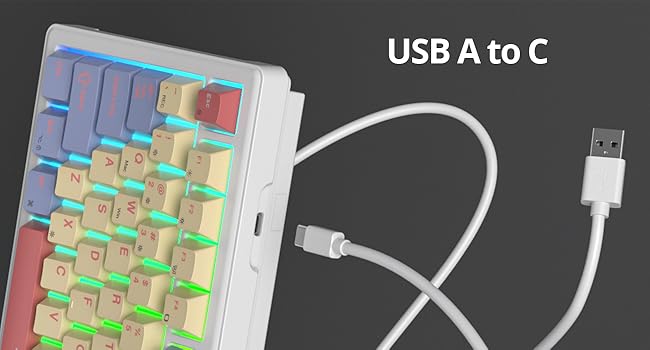
Image: The included USB-A to USB-C cable for connecting the keyboard.
Setup Instructions
- Connect the Keyboard: Insert the USB-C end of the provided cable into the port on the keyboard. Connect the USB-A end to an available USB port on your computer (PC or Mac).
- System Recognition: Your computer should automatically detect and install the necessary drivers for the keyboard. This process may take a few moments.
- Switch Operating System Mode: To switch between Windows and Mac modes, press Fn + W for Windows or Fn + Q for Mac. The keyboard's layout will adjust accordingly.
Video: Demonstrates switching the keyboard between Windows and Mac operating system modes using Fn+W and Fn+Q key combinations.
Operating Instructions
75% Compact Layout
The V500 features a 75% layout, which is more compact than full-sized keyboards, saving desk space while retaining essential keys. This layout includes a dedicated function row, arrow keys, and a navigation cluster.
Multi-function Knob
The integrated knob allows for quick and convenient control over media functions:
- Rotate: Turn clockwise to increase volume, counter-clockwise to decrease volume.
- Press: Press the knob to play or pause media.

Image: Close-up of the multi-function knob, indicating its volume control and play/pause capabilities.
Customizable RGB Backlighting
The keyboard features 16.8 million RGB color options and various lighting effects. You can customize these effects using the dedicated software or through onboard shortcuts. It also supports music rhythm lighting effects.
- Change Lighting Effect: Use Fn + \| to cycle through different RGB modes.
- Adjust Brightness: Use Fn + Up Arrow to increase brightness, Fn + Down Arrow to decrease brightness.
- Adjust Speed: Use Fn + Left Arrow to slow down effect, Fn + Right Arrow to speed up effect.
- Turn Backlight On/Off: Use Fn + P to toggle the backlight.
Video: Showcases the creamy sound profile and various RGB lighting effects of the keyboard, highlighting its hot-swappable feature.
Full-Key Macro Programmability
Utilize the V500 driver software to customize individual keys or create complex macro combinations. This feature enhances gaming performance and work efficiency. The keyboard also supports N-key rollover and a WIN key lock (Fn + Win) to prevent accidental presses during intense use.

Image: Screenshot of the keyboard's customization software, showing options for lighting, key remapping, and macro recording.
Hot-Swappable Switches
The hot-swap PCB allows you to replace 3-pin or 5-pin mechanical switches without soldering. This enables customization of the typing feel and acoustic performance to your preference. The keyboard comes with pre-lubed linear white jade switches for a smooth and quiet operation.

Image: A close-up view of the keyboard with several keycaps and switches removed, demonstrating the hot-swappable feature.
Video: An overview of the custom 75% wired mechanical gaming keyboard, highlighting its features and design.
Maintenance
Regular maintenance helps preserve the keyboard's performance and appearance.
- Cleaning Keycaps: Use the provided keycap puller to remove keycaps. Clean them with a soft cloth dampened with mild soap and water. Ensure they are completely dry before reattaching.
- Cleaning the Keyboard Body: Use a soft, dry cloth to wipe down the keyboard body. For stubborn dirt, a slightly damp cloth can be used, but avoid excessive moisture.
- Dust Removal: Use compressed air to remove dust and debris from between the keycaps and switches.
- Switch Maintenance: If you replace switches, handle them carefully to avoid bending the pins. Ensure they are seated correctly in the hot-swap sockets.
Troubleshooting
- Keyboard not responding:
- Ensure the USB cable is securely connected to both the keyboard and the computer. Try connecting to a different USB port or using a different USB cable. Restart your computer.
- RGB lighting not working or incorrect:
- Check if the backlight is turned off (Fn + P). Cycle through lighting effects (Fn + \|) to see if it responds. Ensure the keyboard software is installed and updated, and check its settings.
- Keys not registering or double-typing:
- This could indicate a faulty switch. Since the keyboard is hot-swappable, you can replace the affected switch. Ensure the switch is properly seated in its socket. Clean any debris around the switch.
- Knob not functioning:
- Ensure the keyboard is properly connected. If the issue persists, try restarting your computer. Check for any software conflicts if you have other media control applications running.
Specifications
| Feature | Detail |
|---|---|
| Brand | SbocKeeb |
| Model | V500 |
| Layout | 75% (82 Keys) |
| Connectivity | Wired (USB-A to USB-C) |
| Switch Type | Linear (Pre-lubed White Jade) |
| Hot-Swappable | Yes (3-pin/5-pin compatible) |
| Backlighting | RGB (16.8 million colors, customizable effects) |
| Special Features | Gasket Mount, Multi-function Knob, Macro Programmable, N-key Rollover, WIN Key Lock |
| Compatible OS | Windows, Mac |
| Material | Plastic |

Image: Detailed diagram illustrating the multi-layer gasket structure of the keyboard for enhanced typing feel and sound dampening.
Video: Explains the five-layer padding and gasketed mount design of the keyboard, highlighting its benefits for stability and tactile comfort.
Warranty and Support
The SbocKeeb V500 keyboard comes with a standard manufacturer's warranty. For specific warranty terms, duration, and support inquiries, please refer to the product packaging or contact SbocKeeb customer service directly. Keep your purchase receipt as proof of purchase for warranty claims.
For further assistance, visit the official SbocKeeb website or contact their support channels.