
1. Introduction
The Phomemo M835 is a compact and lightweight inkless thermal printer designed for on-the-go printing. Utilizing advanced thermal technology, it eliminates the need for ink cartridges, ribbons, or toner, offering a cost-effective and clean printing solution. This manual provides essential information for setting up, operating, maintaining, and troubleshooting your M835 printer.
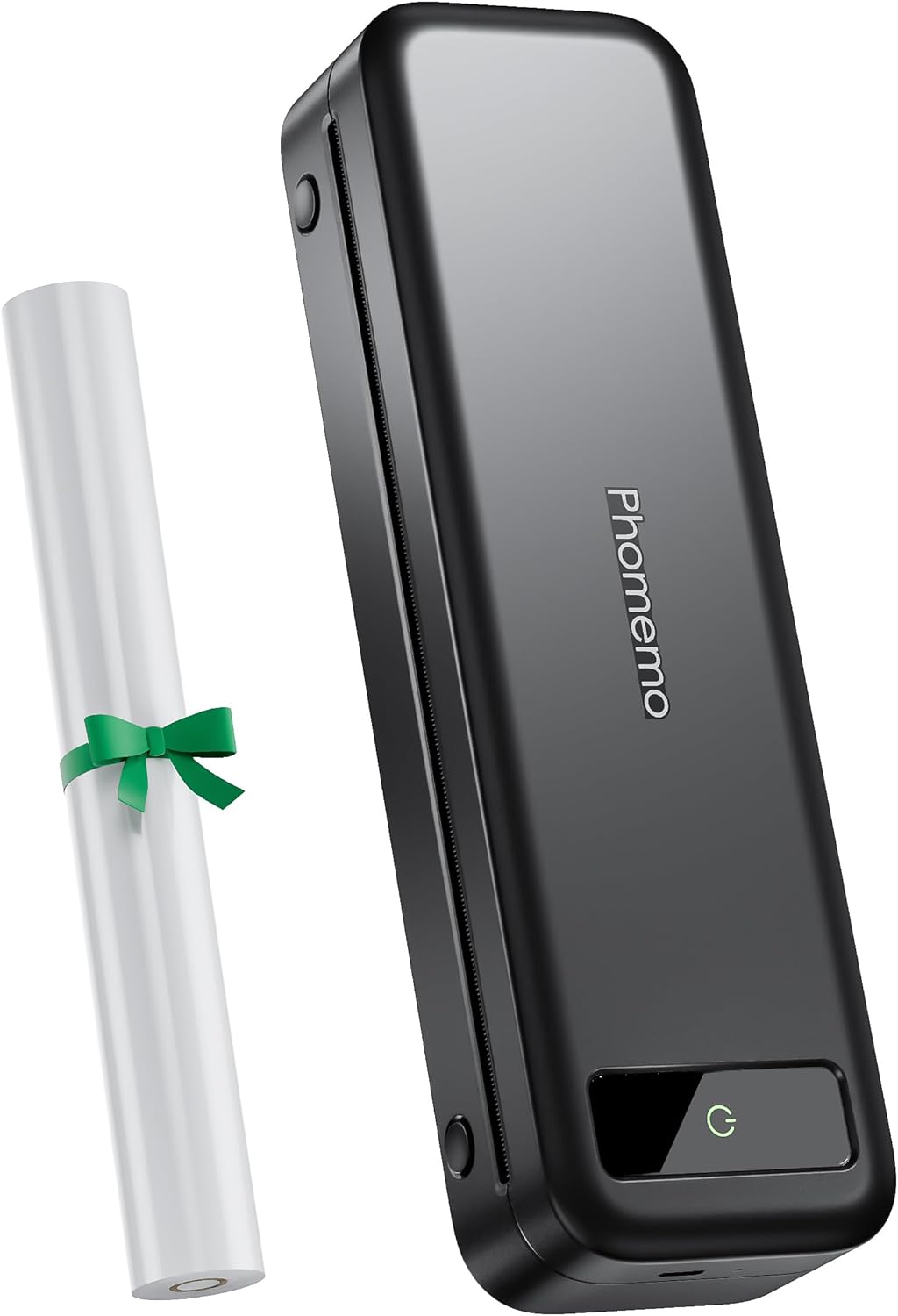
Figure 1: Phomemo M835 Portable Thermal Printer

Figure 2: Compact and Portable Design of the M835 Printer
Video 1: Overview of the M835 Portable Printer for Travel
2. What's in the Box
Your Phomemo M835 package includes the following items:
- 1 x M835 Portable Thermal Printer
- 1 x A4 Size Thermal Paper Roll (pre-installed in the printer paper bin)
- 1 x Flannel Storage Bag
- 1 x Type-C Charging Cable
- 1 x Quick Start Guide
3. Setup
3.1 Initial Charging
Before first use, fully charge your Phomemo M835 printer using the provided Type-C charging cable. The printer features a 2600 mAh battery, capable of printing up to 150 sheets on a full charge.
3.2 Loading Paper
The M835 printer supports various thermal paper types and sizes, including 8.5"/A4, 4.33", 3.15", and 2.08" rolls, as well as individual sheets and folded paper. A roll of A4 thermal paper is pre-installed.
- To open the paper bin, press the cover open buttons located on either side of the printer.
- Remove any protective paper or empty rolls.
- Insert the thermal paper roll or individual sheets, ensuring the paper is aligned correctly with the adjustable stoppers.
- Close the top cover securely.

Figure 3: Built-in Paper Bin for Thermal Paper Rolls
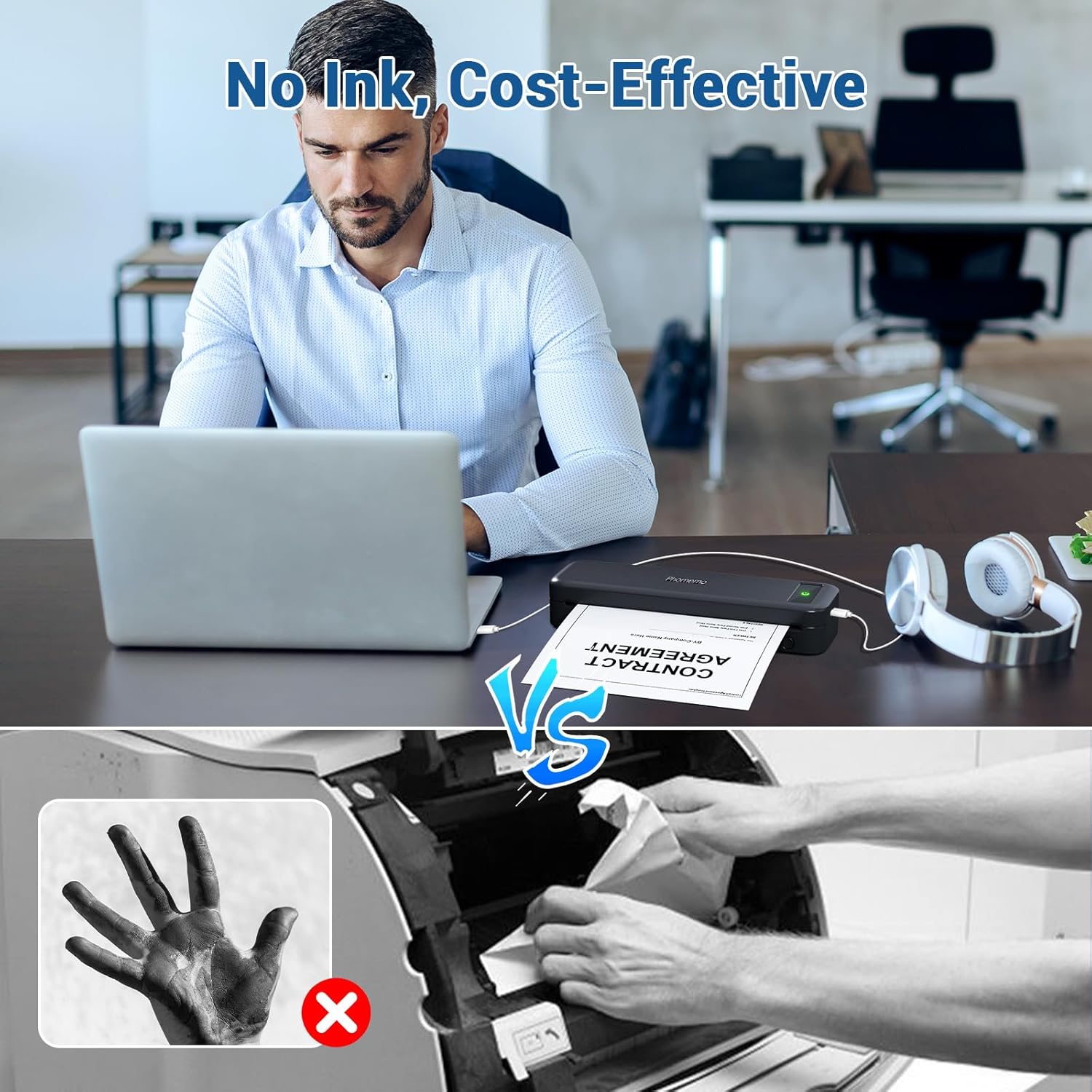
Figure 4: Supported Thermal Paper Sizes
3.3 Powering On/Off
Press and hold the power button on the printer for 3 seconds to turn it on or off. The indicator light will illuminate when the printer is on.
3.4 Connecting to Devices
The Phomemo M835 offers versatile connectivity options:
3.4.1 Mobile Devices (iOS & Android) via Bluetooth
- Download the "Phomemo" App from the App Store (iOS) or Google Play (Android).
- Ensure Bluetooth is enabled on your mobile device.
- Open the Phomemo App, go to settings, and select the M835 model.
- The app will automatically search for and connect to your printer.

Figure 5: Bluetooth and USB Connectivity
Video 2: How to connect the M835 portable printer with the Phomemo app
3.4.2 Computers (Windows/Mac/Linux) via USB
- Visit M835.phomemo.com to download the appropriate driver for your operating system (Windows, Mac, or Linux).
- Install the downloaded driver on your computer.
- Connect the M835 printer to your computer using the provided Type-C USB cable.
- Once the driver is installed and the printer is connected, it will appear as an available printer in your system's print dialogue.
Video 3: How to set up the M835 Thermal Printer on Windows
Video 4: How to use the M835 Portable Printer on Mac
Video 5: How to set up the M835 Portable Printer on Linux System
4. Operating Instructions
4.1 Printing Documents
Once connected, you can print documents directly from the Phomemo app on your mobile device or from any application on your computer. Select "M835" as your printer from the print dialogue.
4.2 Inkless Thermal Printing
The M835 uses thermal printing technology, which means it does not require ink. Instead, it uses heat to react with specially coated thermal paper, producing crisp, clear black-and-white prints. This eliminates the mess and cost associated with traditional ink printers.

Figure 6: Benefits of Inkless Thermal Printing
5. Maintenance
5.1 Cleaning the Print Head
To ensure optimal print quality, regularly clean the print head. Use a soft, lint-free cloth lightly dampened with isopropyl alcohol. Gently wipe the print head surface. Ensure the printer is off and cool before cleaning.
5.2 Paper Storage
Thermal paper is sensitive to heat, light, and humidity. Store thermal paper in a cool, dry place away from direct sunlight and heat sources to prevent discoloration and fading of prints over time.
5.3 Battery Care
To prolong battery life, avoid fully discharging the printer frequently. Charge the printer regularly, even if not in constant use. Store the printer in a cool, dry place when not in use for extended periods.
6. Troubleshooting
6.1 Common Issues and Solutions
- Printer not connecting: Ensure Bluetooth is on (for mobile) or USB cable is securely connected and drivers are installed (for computer). Restart both the printer and your device.
- Poor print quality: Check if the thermal paper is loaded correctly and is not damaged. Clean the print head as described in the Maintenance section.
- Paper jams: Open the printer cover and carefully remove any jammed paper. Ensure paper is loaded straight and not wrinkled.
- Printer not turning on: Ensure the battery is charged. Connect the printer to a power source using the Type-C cable.
For more detailed troubleshooting steps, please refer to the Phomemo App's FAQ section or visit the official Phomemo support website.
7. Specifications
| Feature | Detail |
|---|---|
| Model Name | M835-BK |
| Printing Technology | Thermal |
| Connectivity | Bluetooth, USB (Type-C) |
| Max Print Resolution | 203 dpi |
| Supported Paper Sizes | 8.5" x 11" (US Letter), A4, 4.33" (110mm), 3.15" (80mm), 2.08" (53mm) |
| Supported Paper Types | Thermal Paper Roll, Individual-sheet Thermal Paper, Folded Thermal Paper |
| Battery Capacity | 2600 mAh |
| Max Input Sheet Capacity | 150 sheets (continuous printing) |
| Item Weight | 1.5 pounds |
| Product Dimensions | 10.39"D x 3.07"W x 1.77"H |
8. Warranty and Support
The Phomemo M835 Portable Printer comes with a limited warranty. For specific warranty terms and conditions, please refer to the warranty card included in your product packaging or visit the official Phomemo website.
For further assistance, technical support, or to purchase accessories and thermal paper, please visit the Phomemo Store on Amazon or the official Phomemo website.


