
BORN4SHIP D467
BORN4SHIP D467 Thermal Shipping Label Printer User Manual
Model: D467 | Brand: BORN4SHIP
1. Introduction
This manual provides detailed instructions for the setup, operation, and maintenance of your BORN4SHIP D467 Thermal Shipping Label Printer. Please read this manual thoroughly before using the printer to ensure proper function and longevity.
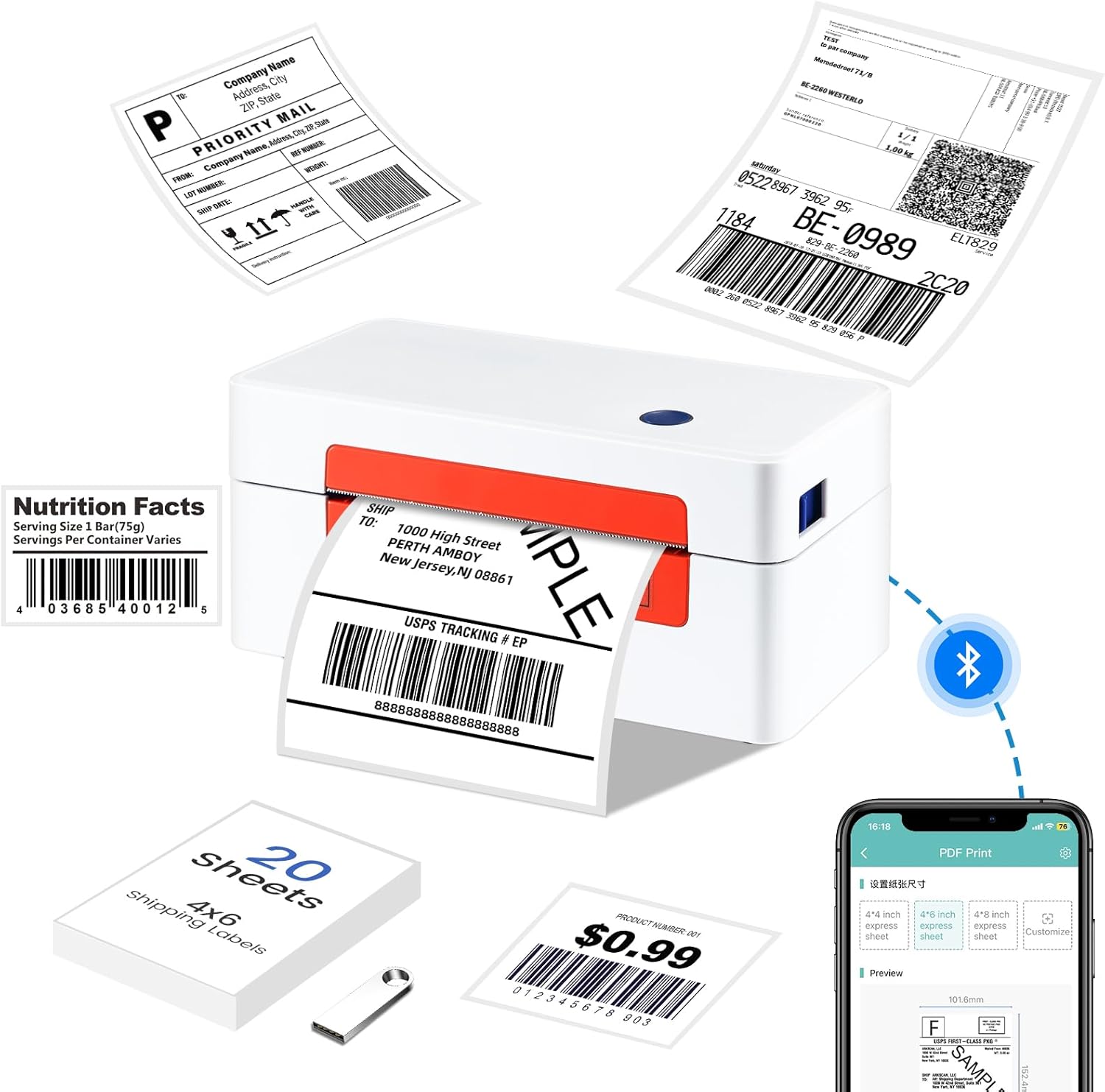
Image 1.1: The BORN4SHIP D467 Thermal Shipping Label Printer, demonstrating its capability to print various label types including shipping labels, barcodes, and product labels.
2. What's in the Box
Verify that all items are present in the package:
- 1 x BORN4SHIP D467 Shipping Label Printer
- 1 x User Manual (this document)
- 1 x USB Flash Drive (containing Printer Driver, user manual, and operational videos)
- 1 x USB Cable
- 1 x Power Adapter
- 20 Pages 4x6 Shipping Labels (for initial testing)
3. Product Specifications
| Model Name | D467 Shipping Label Printer |
| Printing Technology | Thermal |
| Connectivity | Bluetooth and USB Connection |
| Maximum Media Size | 4 x 6 inch (supports labels from 1.57" to 4.3" width) |
| Print Resolution | 203 dpi |
| Print Speed | Up to 72 labels/minute (152mm/s) |
| Compatible Devices | Laptops, Desktops, Tablets, Smartphones |
| Operating Systems | Windows, Mac, Linux, iOS, Android, ChromeOS |
| Product Dimensions | 3.16"D x 7.8"W x 3.15"H |
| Item Weight | 1.98 pounds (900 Grams) |
| UPC | 692878862301 |

Image 3.1: Key features of the D467 printer, highlighting its compact size, thermal printing technology, and 203 DPI resolution.
4. Setup Guide
4.1 Initial Hardware Setup
- Connect Power: Plug the power adapter into the printer and then into a power outlet.
- Load Labels: Open the printer cover and load your thermal labels. Ensure the labels are facing up and aligned correctly within the guides. The printer supports labels from 1.57" to 4.3" width, with a maximum size of 4x6 inches.
- Power On: Press the power button to turn on the printer.

Image 4.1: The D467 printer operates without ink or toner, ensuring clean and efficient label printing.
4.2 Driver and Software Installation
The printer supports both USB and Bluetooth connectivity. Choose the appropriate method for your device.
4.2.1 USB Connection (Windows, Mac, Linux)
- Connect USB: Connect the printer to your computer using the provided USB cable.
- Install Drivers: Insert the included USB flash drive into your computer. Locate and install the appropriate printer driver for your operating system (Windows, Mac, or Linux). Follow the on-screen instructions.
- Test Print: After driver installation, perform a test print to confirm connectivity and functionality.

Image 4.2: The printer connected to a laptop via USB, demonstrating compatibility with various desktop operating systems.
4.2.2 Bluetooth Connection (iOS, Android, Tablets, ChromeOS)
- Download App: Download the "Ezlabel" application from your device's app store (App Store for iOS, Google Play Store for Android).
- Enable Bluetooth: Ensure Bluetooth is enabled on your mobile device or tablet.
- Pair Device: Open the "Ezlabel" app. The app will guide you through pairing with the BORN4SHIP D467 printer via Bluetooth.
- Connect in App: Within the Ezlabel app, select the printer from the list of available Bluetooth devices to establish a connection.

Image 4.3: Visual steps for connecting the printer to a mobile device via Bluetooth using the Ezlabel application.
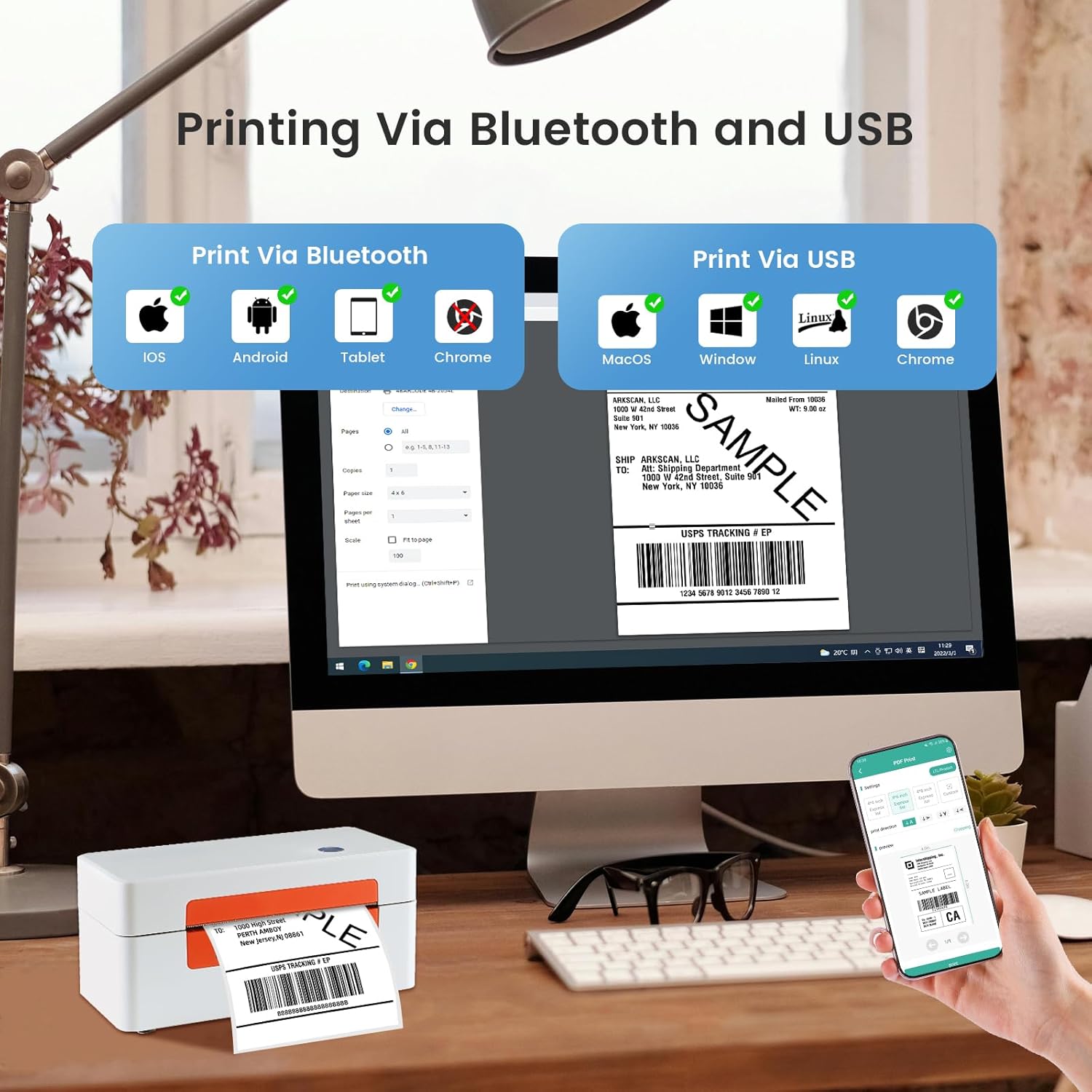
Image 4.4: Overview of supported operating systems for both Bluetooth and USB printing methods.
5. Operating Instructions
5.1 Loading Labels
- Ensure the printer is powered off or in standby mode.
- Gently open the top cover of the printer.
- Insert the roll or stack of thermal labels into the label compartment. Ensure the printable side of the labels faces upwards.
- Adjust the label guides to fit the width of your labels snugly, without creasing them.
- Feed the first label through the printer mechanism until it protrudes slightly from the front slot.
- Close the top cover. The printer will automatically detect the label gap and calibrate.

Image 5.1: The printer is designed to accommodate 4x6 inch shipping labels and can print various other label formats.

Image 5.2: The printer supports a wide range of direct thermal labels, from 1 inch to 4.5 inches in width.
5.2 Printing Labels
Once the printer is connected and labels are loaded, you can proceed with printing:
- From Computer (USB): Open your desired document or shipping platform (e.g., UPS, FedEx, Amazon, Shopify). Select the BORN4SHIP D467 printer from your printer options. Ensure the label size is correctly set to 4x6 inches or your custom label dimensions in the print settings. Click "Print".
- From Mobile Device (Bluetooth via Ezlabel App): Open the "Ezlabel" app. Select the document or image you wish to print. Adjust print settings such as label size and orientation within the app. Confirm the print job.

Image 5.3: The printer offers high-speed printing at 152mm/s (72 labels/minute) with clear 203 DPI resolution.
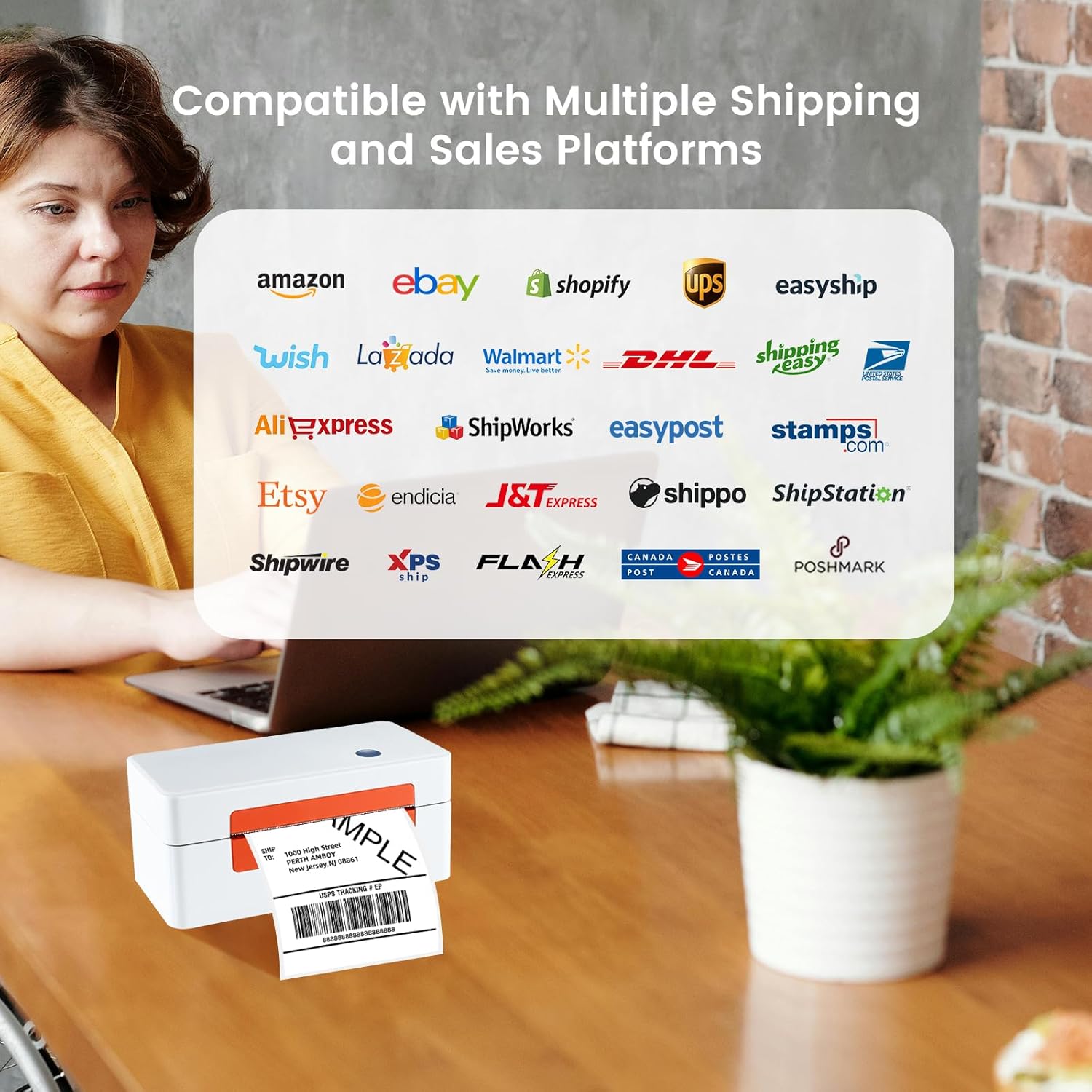
Image 5.4: The printer is compatible with a wide array of shipping carriers and e-commerce platforms.

Image 5.5: The printer is suitable for diverse labeling needs, from shipping to product identification.

Image 5.6: Versatile applications of the printer for various business and personal labeling tasks.
6. Maintenance
Regular maintenance ensures optimal performance and extends the life of your thermal printer.
- Cleaning the Print Head:
The print head is a critical component. If print quality degrades (e.g., faint lines, missing dots), clean the print head. Power off the printer and allow it to cool. Gently wipe the print head with an alcohol swab or a lint-free cloth lightly dampened with isopropyl alcohol. Allow it to dry completely before use.
- Cleaning the Platen Roller:
The platen roller helps feed labels. Clean it with an alcohol swab to remove any adhesive residue or dust that might affect label feeding.
- Exterior Cleaning:
Wipe the exterior of the printer with a soft, dry cloth. Avoid using abrasive cleaners or solvents.
- Label Storage:
Store thermal labels in a cool, dry place away from direct sunlight and heat to prevent premature degradation of the thermal coating.
7. Troubleshooting
This section addresses common issues you might encounter with your BORN4SHIP D467 printer.
| Problem | Possible Cause | Solution |
|---|---|---|
| Printer not responding | Power cable loose, printer off, USB/Bluetooth not connected. | Check power connection. Ensure printer is powered on. Verify USB cable is securely connected or Bluetooth is paired and connected in the app. |
| Poor print quality (faint, streaky) | Dirty print head, low-quality labels, incorrect print density settings. | Clean the print head (refer to Section 6.1). Use high-quality thermal labels. Adjust print density settings in your printer driver or Ezlabel app. |
| Labels not feeding correctly | Labels loaded incorrectly, label guides not adjusted, platen roller dirty. | Re-load labels ensuring they are face up and aligned. Adjust label guides. Clean the platen roller (refer to Section 6.1). |
| Printer stops mid-print | Out of labels, paper jam, overheating. | Check label supply and reload if necessary. Clear any paper jams. Allow printer to cool down if it feels hot. |
| Bluetooth connection issues | Bluetooth not enabled, printer not discoverable, interference. | Ensure Bluetooth is enabled on your device. Restart both printer and device. Try re-pairing the printer in the Ezlabel app. Move closer to the printer to reduce interference. |
8. Warranty and Support
The BORN4SHIP D467 Thermal Shipping Label Printer comes with a limited warranty. For specific warranty terms and conditions, please refer to the warranty information included with your purchase or visit the official BORN4SHIP website.
For technical support, troubleshooting assistance, or to inquire about replacement parts, please contact BORN4SHIP customer service through their official website or the contact information provided in your product packaging.
Ask a question about this manual
Ask about setup, troubleshooting, compatibility, parts, safety, or missing instructions. Manuals+ will review the question and use this page’s manual context to help answer it.