
Introduction
Thank you for purchasing the Avylet 9.26-inch Portable Car Audio Display. This device offers a seamless driving experience with features like wireless Apple CarPlay, Android Auto, screen mirroring, and a rear camera. This manual provides detailed instructions for setup, operation, and maintenance to ensure optimal performance and safety.

The Avylet 9.26-inch Portable Car Audio Display with its intuitive CarPlay interface.
Important Safety Information
Please read and follow these safety guidelines carefully to prevent damage to the device or injury.
- The device must be used with its rated power voltage.
- Always use the dedicated car charger provided with the product. Avoid using third-party USB cables or non-genuine car chargers, as this may lead to unstable voltage, compatibility issues, device malfunction, or reduced performance.
- Do not install the device near heat sources such as the engine compartment or air conditioning vents. High temperatures can shorten the device's lifespan.
- After installation, always check the wiring connections to prevent malfunctions caused by poor contact.
- A protective film is affixed to the device screen. Please remove it before use.
- When connected to CarPlay or Android Auto, avoid frequent switching between applications or running multiple applications simultaneously to maintain connection stability and device performance.
Package Contents
Verify that all items listed below are included in your package:

A visual representation of all items included in the product package.
- Car Audio Player (Main Unit)
- Installation Accessories
- User Manual (Japanese and other languages)
- Suction Cup Bracket
- Adhesive Bracket
- Waterproof Rear Camera (6m cable)
- Power Cable (Type-C to Cigarette Lighter Socket, 3.5m)
- AUX Cable (1.5m)
- Rear Camera Mounting Tape x2
- Spare Adhesive Tape
- Rear Camera Mounting Screws x2
- Wire Clips x4
- Suction Mount Adhesive Gasket
Setup
1. Mounting the Device
The Avylet display offers flexible mounting options to suit various vehicle interiors. Choose between the adhesive bracket for dashboard mounting or the suction cup bracket for windshield mounting.

Different mounting methods for the display, including dashboard and windshield options.
- Adhesive Bracket: Securely attach the adhesive bracket to a clean, flat surface on your dashboard.
- Suction Cup Bracket: Attach the suction cup bracket to your windshield or dashboard. Ensure the surface is clean for strong adhesion.
2. Power Connection
Connect the provided power cable (Type-C to Cigarette Lighter Socket) to the device and then plug it into your vehicle's 12-32V cigarette lighter socket.
3. Rear Camera Installation (Optional)
The included rear camera provides parking assistance. To enable this feature:
- Mount the rear camera at the back of your vehicle.
- Connect the camera cable to the AV IN port on the main unit.
- Connect the red wire from the camera cable to your vehicle's reverse light power supply. This ensures the display automatically switches to the rear camera view when you engage reverse gear.

Rear camera wiring diagram, showing connections to the display and vehicle's reverse light.
Operating Instructions
1. Wireless Apple CarPlay / Android Auto Connection
Connect your smartphone wirelessly to access navigation, music, calls, and more directly on the display.

The display seamlessly integrates with Apple CarPlay and Android Auto.
- Ensure your phone's Bluetooth and Wi-Fi are turned ON.
- On the Avylet display, select either 'Apple CarPlay' or 'Android Auto' mode.
- On your phone, search for and connect to the device's Bluetooth (e.g., 'T86 xxxx').
- Confirm the pairing request on both devices.
- Once connected, the system will automatically reconnect in the future.
Note for Android Auto: If you experience connection issues, try updating all Android Auto and Google-related frameworks and services on your phone. If the problem persists, uninstall and reinstall the Android Auto application.
2. Voice Control (Siri / Google Assistant)
Utilize voice commands for hands-free operation of navigation, calls, and messages, enhancing driving safety.

Hands-free control using Siri or Google Assistant for various functions.
- Activate Siri or Google Assistant on your connected smartphone.
- Use commands like "Hey Siri, play music" or "Hey Google, navigate home."
- Map applications like Apple Maps and Google Maps can be synchronized and displayed on the 9.26-inch HD screen for clear navigation.
3. Screen Mirroring
Mirror your smartphone screen onto the Avylet display for a larger viewing experience.

Enjoy videos and other content from your smartphone on the larger display via screen mirroring.
- Connect your smartphone to the car stereo's Wi-Fi.
- Activate the screen mirroring function on your smartphone.
- Your phone's screen will be synchronized with the 9.26-inch display.
Note: Some applications, such as Amazon Prime Video and Netflix, may not support playback via screen mirroring due to content protection.
4. Audio Output Modes
The device supports four audio output methods for enhanced sound quality.
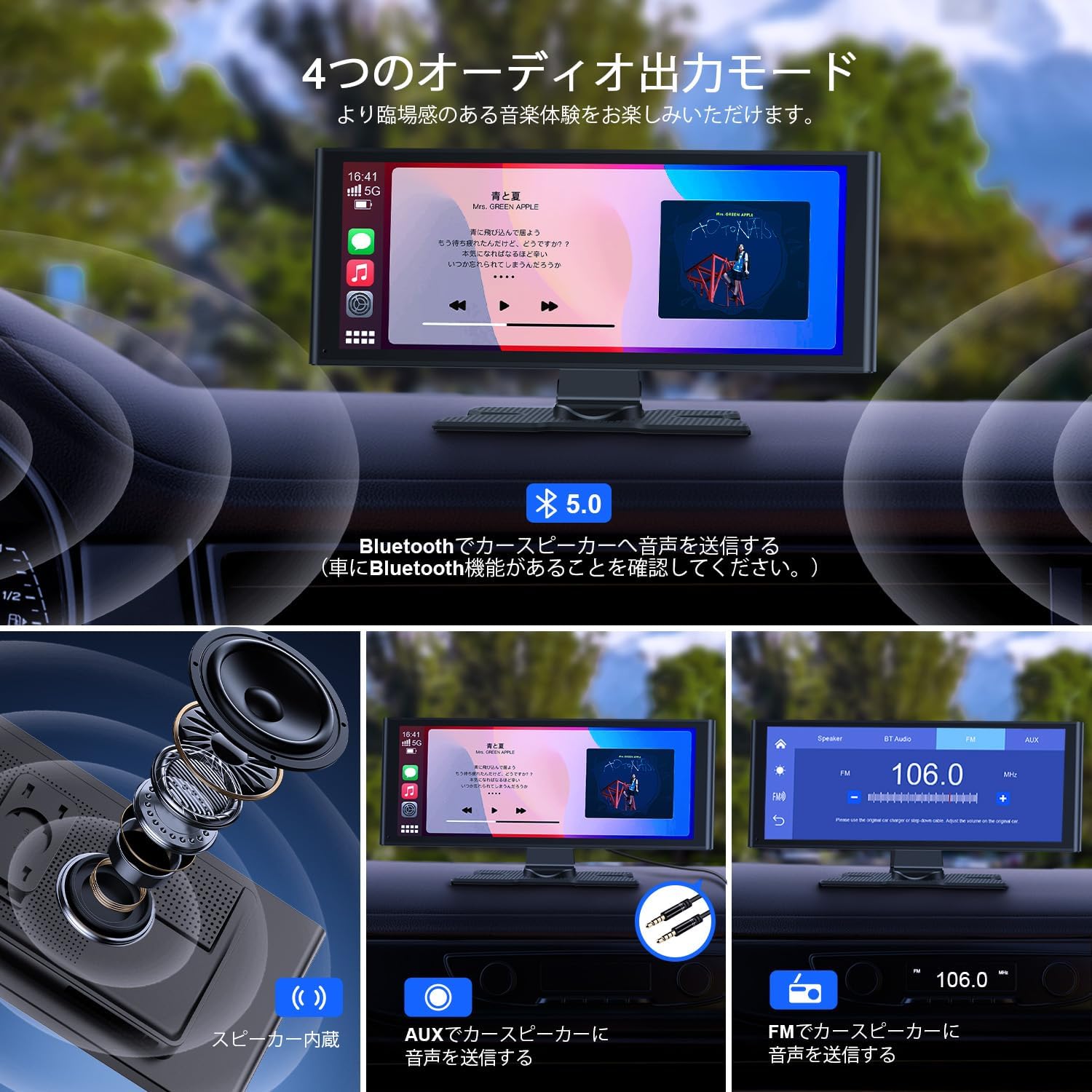
Choose from four audio output modes for your preferred listening experience.
- Built-in Speaker: Audio is played directly through the device's integrated speaker.
- Bluetooth: Wirelessly transmit audio to your car's speakers via Bluetooth. Ensure your car stereo has Bluetooth functionality.
- FM Transmission: Transmit audio wirelessly to your car's speakers by synchronizing the device's FM frequency with your car's radio.
- AUX: For the highest quality, lossless audio experience, connect the included AUX cable to your car's AUX input jack.
5. Rear Camera & Reverse Assist
The high-definition, IP67 waterproof rear camera simplifies backing up.

The rear camera provides a clear view and parking assistance when reversing.
- When you engage reverse gear, the display automatically shows the rear camera feed.
- The camera features a 170° wide-angle view and adjustable parking guidelines.
Note: This feature supports real-time rear view and backup assist only. It does not support recording functionality. Always ensure the camera's mounting position and angle are correct, and calibrate the guidelines before relying on the reverse assist function.
6. Customizable Startup Screen
Personalize your device by customizing the startup screen with your favorite images.

Customize your device's startup screen with personal images or car logos.
You can send your preferred images (e.g., car brand logo, family photos, pets, scenery) to our official email address, and we will create a special startup screen for you. Please contact customer support for details.
7. Screen Saver
The device features an automatic screen saver to conserve power.

The screen saver automatically dims the display after a set period of inactivity.
If there is no operation within a set time, the screen will automatically turn dark, helping to save your car's battery.
Maintenance
To ensure the longevity and optimal performance of your Avylet display, follow these maintenance tips:
- Cleaning: Use a soft, dry cloth to clean the screen and body of the device. For stubborn smudges, lightly dampen the cloth with water or a screen-safe cleaner. Avoid harsh chemicals or abrasive materials.
- Temperature: Avoid exposing the device to extreme temperatures, both hot and cold, for extended periods.
- Storage: If storing the device for a long time, disconnect it from power and store it in a cool, dry place.
Troubleshooting
If you encounter any issues with your Avylet display, please refer to the following common solutions:
- Device Not Powering On:
- Ensure the power cable is securely connected to both the device and the car's cigarette lighter socket.
- Check if the car's cigarette lighter socket is functioning correctly.
- Wireless CarPlay/Android Auto Connection Issues:
- Verify that your smartphone's Bluetooth and Wi-Fi are both turned ON.
- Disconnect your phone from any other Bluetooth devices before attempting to connect to the Avylet display.
- For Android Auto, ensure all related apps and services on your phone are updated to the latest version. If problems persist, try uninstalling and reinstalling the Android Auto app.
- Poor Audio Quality:
- If using FM transmission, try different FM frequencies to find one with less interference.
- For the best audio quality, use the provided AUX cable to connect to your car's AUX input.
- Screen Mirroring Not Working for Certain Apps:
- Some streaming applications (e.g., Amazon Prime Video, Netflix) may have content protection that prevents them from being mirrored. This is a limitation of the app, not the device.
- Rear Camera Not Displaying:
- Ensure the rear camera cable is securely connected to the AV IN port on the main unit.
- Verify that the red wire from the camera cable is correctly connected to your vehicle's reverse light power supply.
If these steps do not resolve your issue, please contact customer support for further assistance.
Specifications
| Feature | Specification |
|---|---|
| Screen Size | 9.26 inches |
| Display Type | IPS |
| Resolution | 1600x600 |
| Compatible Devices | Smartphones (iPhone/Android) |
| Compatible OS | Android, iOS |
| Connectivity | Bluetooth, Wi-Fi |
| Controller Type | iOS/Android |
| Special Features | Android Auto / CarPlay, Screen Mirroring |
| Audio Output Modes | Built-in Speaker, Bluetooth, AUX, FM |
| Control Method | Touch, Voice |
| Product Dimensions | 3 x 24 x 9.4 cm |
| Product Weight | 363 g |
| Manufacturer Reference | RC06 |
Warranty and Support
Your Avylet Portable Car Audio Display comes with a standard 1-year manufacturer's warranty from the date of purchase.
Warranty Extension: You can extend your warranty to 2 years by contacting us within 7 days of receiving your product. Please refer to the instructions in the manual or your order details for contact information.
For technical support, product exchanges, or refunds, please do not hesitate to contact us. Our support team aims to respond within 24 business hours.
Contact Methods:
- Via Amazon: Go to your Amazon Order History > Select 'Problem with order'.
- Via Line ID: Refer to the contact information provided in the included user manual.
Important Note: There are no additional charges for dedicated apps required to use this product's functions, such as download fees or monthly subscriptions. If you encounter any difficulties with app downloads or operation, please contact customer support.
