
Introduction
This manual provides essential information for the HP Victus Gaming Laptop, model 15-fa. It covers initial setup, operational guidelines, maintenance procedures, troubleshooting tips, and detailed product specifications. Please read this manual thoroughly to ensure proper use and longevity of your device.
The HP Victus Gaming Laptop is designed for performance, featuring a 12th Gen Intel Core i5-12450H processor, NVIDIA GeForce RTX 3050 graphics, 16GB RAM, and a 2TB PCIe 4.0 SSD, all housed within a 15.6-inch FHD 144Hz display. It operates on Windows 11 Pro.

Image: The HP Victus Gaming Laptop with its lid open, showcasing the 15.6-inch display with the Windows 11 Pro operating system interface.
Video: An overview of the HP Victus Gaming Laptop, highlighting its design and key features. This video provides a visual introduction to the product.
Setup
1. Unboxing and Initial Inspection
Carefully remove all components from the packaging. The box should contain the following items:
- HP Victus Gaming Laptop
- AC adapter
- Battery (may be integrated)
- Documentation
- HDMI Cable
Inspect the laptop and accessories for any signs of damage. If any components are missing or damaged, contact your retailer or HP support immediately.
2. Powering On and Charging
- Connect the AC adapter to the laptop's power port and then to a power outlet.
- Press the power button to turn on the laptop.
- Allow the battery to fully charge before initial use, or continue using it while charging.
3. Operating System Setup (Windows 11 Pro)
Follow the on-screen instructions to complete the Windows 11 Pro setup. This typically involves:
- Selecting your region and keyboard layout.
- Connecting to a Wi-Fi network.
- Signing in with or creating a Microsoft account.
- Setting up privacy settings.
4. Connecting Peripherals
Your HP Victus laptop offers various ports for connecting external devices. Refer to the port diagram below for identification.

Image: A detailed diagram illustrating the various ports available on the HP Victus Gaming Laptop, including USB-C, USB-A, HDMI, RJ45, SD Card Reader, and headphone/microphone combo jack.
- USB-C (5Gbps signaling rate, DisplayPort 1.4, HP Sleep and Charge): For data transfer, video output, and charging compatible devices.
- USB Type-A (5Gbps signaling rate, HP Sleep and Charge): For connecting USB devices like mice, keyboards, or external drives.
- HDMI 2.1: For connecting to external displays or TVs.
- RJ-45: For wired Ethernet network connection.
- Multi-format SD media card reader: For reading SD memory cards.
- Headphone/microphone combo: For connecting headphones or a headset.
Operating Your Laptop
1. Basic Interaction
The laptop features a full-size backlit keyboard and a precision touchpad for navigation. Familiarize yourself with common Windows gestures for efficient use.
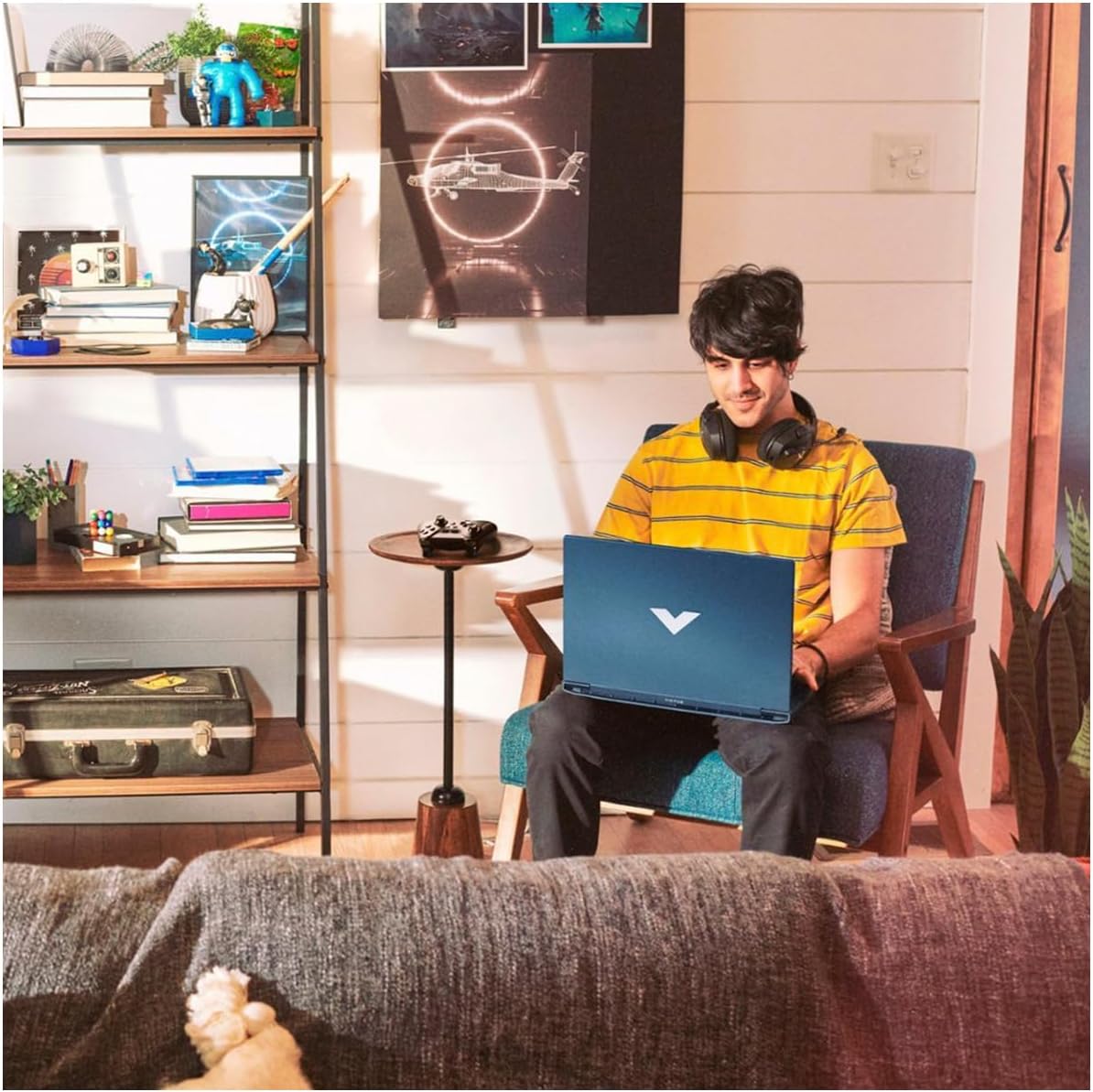
Image: A user comfortably operating the HP Victus Gaming Laptop in a home environment, demonstrating typical usage.

Image: A close-up view of hands interacting with an external gaming keyboard and mouse, with the HP Victus laptop visible nearby, illustrating its use with peripherals.
2. Display and Graphics
Your laptop is equipped with a 15.6-inch FHD (1920 x 1080) 144Hz IPS anti-glare display, powered by an NVIDIA GeForce RTX 3050. This combination provides smooth visuals and high frame rates for gaming and multimedia. Adjust display settings via Windows Display Settings or NVIDIA Control Panel for optimal performance.
3. Audio Features
Experience clear audio through HP Dual Speakers with HP Audio Boost, custom-tuned by B&O. Adjust volume and audio profiles through the Windows sound settings or dedicated HP audio software.
4. Network and Connectivity
- Wi-Fi 6: Connect to wireless networks for internet access. Manage connections through the Windows network settings.
- Bluetooth: Pair with Bluetooth-enabled devices such as headphones, speakers, or game controllers.
- RJ-45 (Ethernet): For a stable, high-speed wired internet connection.
Maintenance
1. Cleaning Your Laptop
- Use a soft, lint-free cloth slightly dampened with water or a screen cleaner for the display.
- For the keyboard and chassis, use a soft cloth. Avoid harsh chemicals.
- Periodically use compressed air to clear dust from vents to maintain optimal cooling.
2. Battery Care
- Avoid extreme temperatures.
- Do not fully discharge the battery frequently.
- If storing the laptop for an extended period, ensure the battery is charged to about 50-70%.
3. Software Updates
Regularly update Windows 11 Pro and device drivers (especially graphics drivers) to ensure security, performance, and compatibility. You can check for updates via Windows Update and the HP Support Assistant application.
4. Storage Management
Your laptop comes with a 2TB PCIe 4.0 SSD. Regularly manage your storage by deleting unnecessary files, uninstalling unused applications, and utilizing cloud storage if needed, to maintain optimal system performance.
Troubleshooting
This section addresses common issues you might encounter. For more complex problems, refer to the HP support website or contact technical support.
1. Laptop Does Not Power On
- Ensure the AC adapter is securely connected to both the laptop and a working power outlet.
- Verify the power outlet is functional by plugging in another device.
- If the battery is completely drained, allow it to charge for at least 30 minutes before attempting to power on again.
2. Display Issues
- No image on screen: Ensure the laptop is powered on. Try connecting an external monitor via HDMI to check if the issue is with the laptop's display or graphics output.
- Flickering or distorted image: Update your graphics drivers. Adjust display resolution and refresh rate in Windows settings.
3. Connectivity Problems (Wi-Fi/Bluetooth)
- Wi-Fi not connecting: Check if Wi-Fi is enabled in Windows settings. Restart your router and modem. Ensure you are entering the correct Wi-Fi password.
- Bluetooth device not pairing: Ensure Bluetooth is enabled on both the laptop and the device. Place devices close to each other. Try removing and re-pairing the device.
4. Performance Issues
- Slow performance: Close unnecessary applications. Check Task Manager for processes consuming high CPU or RAM. Ensure sufficient free space on the SSD.
- Overheating: Ensure vents are clear of obstructions. Use the laptop on a hard, flat surface. Consider using a cooling pad if persistent.
Specifications
Below are the key technical specifications for the HP Victus Gaming Laptop 15-fa:
| Feature | Detail |
|---|---|
| Model Name | Victus 15-fa |
| Processor | 12th Gen Intel Core i5-12450H (8 Cores, up to 4.40 GHz) |
| Graphics | NVIDIA GeForce RTX 3050 (Dedicated) |
| Display | 15.6-inch FHD (1920 x 1080), 144 Hz, IPS, micro-edge, anti-glare, 250 nits, 45% NTSC |
| RAM | 16 GB SO-DIMM |
| Storage | 2 TB PCIe 4.0 SSD |
| Operating System | Windows 11 Pro |
| Ports | 1x USB-C (5Gbps, DisplayPort 1.4, HP Sleep and Charge), 2x USB-A (5Gbps, HP Sleep and Charge), 1x HDMI 2.1, 1x RJ45, 1x SD Card Reader, 1x Headphone/Microphone combo |
| Wireless Connectivity | Wi-Fi 6, Bluetooth |
| Audio | HP Dual Speakers, HP Audio Boost, B&O Tuning |
| Keyboard | Backlit Keyboard with Numeric Keypad |
| Dimensions (LxWxH) | 14.09 x 10.04 x 0.93 inches |
| Weight | 5.06 pounds |
| Color | Performance Blue |

Image: A diagram illustrating the physical dimensions (width, depth, height) of the HP Victus Gaming Laptop.
Warranty and Support
1. Product Warranty
Your HP Victus Gaming Laptop comes with a 12-month warranty. This warranty covers manufacturing defects and hardware malfunctions under normal use. Please retain your proof of purchase for warranty claims. For detailed terms and conditions, refer to the warranty documentation included with your product or visit the official HP website.
2. Technical Support
For technical assistance, troubleshooting beyond this manual, or warranty service, please contact HP Support. You can find support resources, drivers, and contact information on the official HP website:
When contacting support, have your laptop's serial number and model number (15-fa) ready. These can usually be found on a sticker on the bottom of the laptop or within the system information in Windows.


