
Douk Audio DAC-Q11
Douk Audio Q11 Digital to Analog Audio Converter User Manual
Model: DAC-Q11 | Brand: Douk Audio
1. Introduction
The Douk Audio Q11 is a state-of-the-art Digital to Analog Audio Converter (DAC) engineered to deliver an exceptional audio experience. It integrates advanced technology, including a unique dual DAC chip switching system, allowing users to select between the robust dynamics of the ESS9038Q2M chip and the refined tones of the AK4493 chip. This device is designed for audiophiles seeking high-fidelity sound conversion from various digital sources to analog outputs for their audio systems.

Figure 1: Front view of the Douk Audio Q11 Digital to Analog Audio Converter, showcasing its dual OLED displays and central control knob.
2. Key Features
- Switchable Dual DAC Chips: Features both ESS9038Q2M and AK4493 DAC chips, allowing users to switch between them for different sound characteristics.
- High-Performance Audio: Achieves an exceptional Signal-to-Noise Ratio (SNR) of ≥117dB and an ultra-low Total Harmonic Distortion (THD) of 0.0003%.
- High-Resolution PC-USB Input: Supports audio transmission up to 32Bit/384kHz and DSD256 playback via PC-USB.
- Multiple Connectivity Options: Equipped with Optical, Coaxial, and PC-USB inputs, along with two sets of RCA and two sets of AUX outputs.
- Dual OLED Display: Two OLED screens provide real-time information on sampling rates, volume levels, and the active decoding chip.
- Large Volume Knob: Designed for precise and easy volume adjustments.
- Exquisite Design: Features a glass window on top to showcase internal components and comes with a remote control for convenience.
2.1 Dual DAC Chip Technology
The Q11 is pioneering with its world's first DAC chip switching technology, backed by a proprietary patent. This allows you to experience the robust dynamics of the ESS9038Q2M or the refined tones of the AK4493, vastly enhancing personalized audio experiences.

Figure 2: Illustration of the dual DAC chip architecture and key performance metrics.
2.2 Multiple Inputs and Outputs
The Q11 offers versatile connectivity to integrate seamlessly with various audio sources and playback devices. It supports Optical, Coaxial, and PC-USB inputs for digital audio, and provides two sets of RCA and two sets of 3.5mm AUX outputs for analog connections.

Figure 3: Front and rear views illustrating the comprehensive input and output options.
2.3 User Interface and Design
The unit features dual OLED displays that show real-time sampling rates, volume levels, and the active decoding chip status, enhancing user convenience. A large, easy-to-use volume control knob allows for delicate and precise audio adjustments. The top panel includes a glass window, offering a view of the internal circuitry.
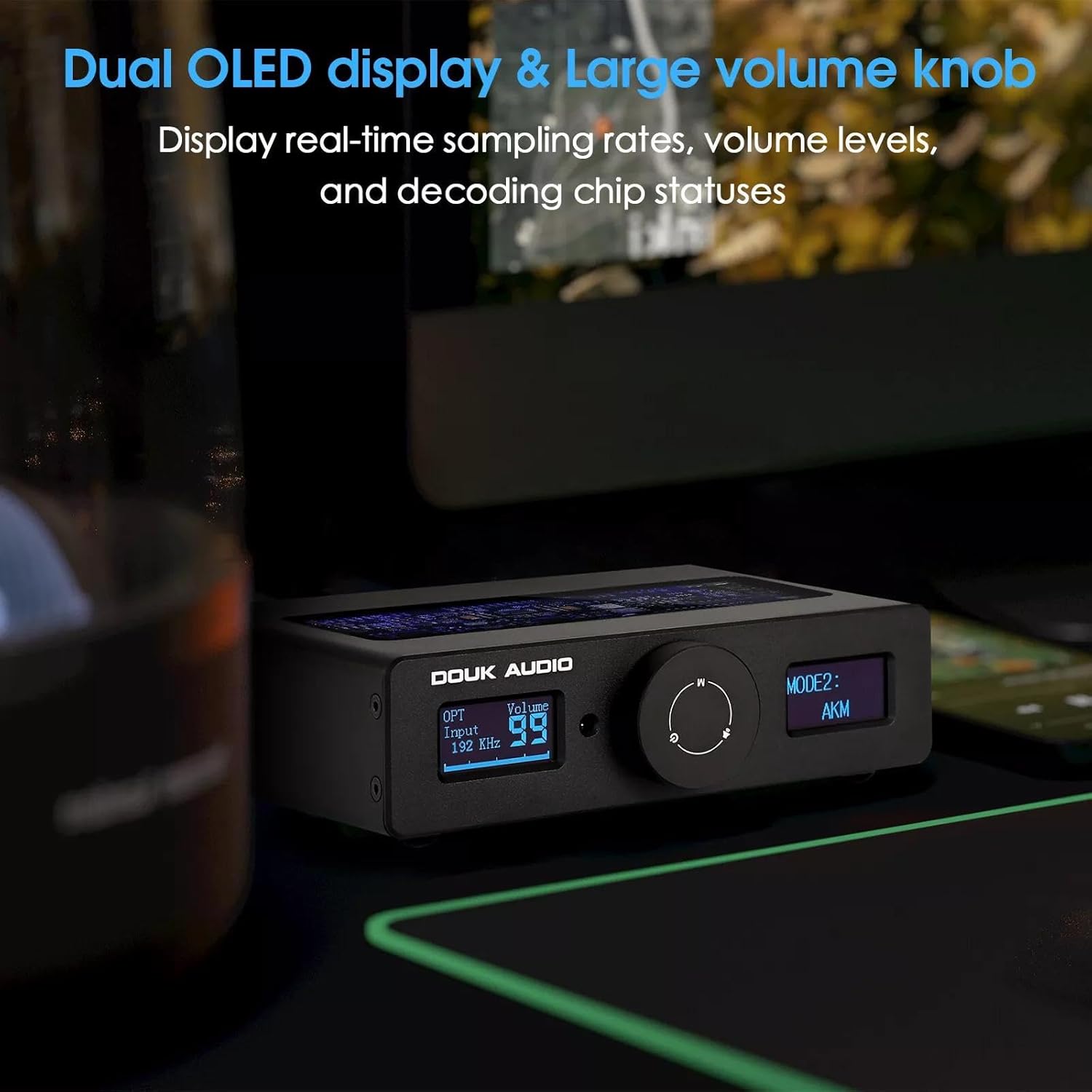
Figure 4: Close-up of the Q11's front panel, highlighting the OLED displays and control knob.
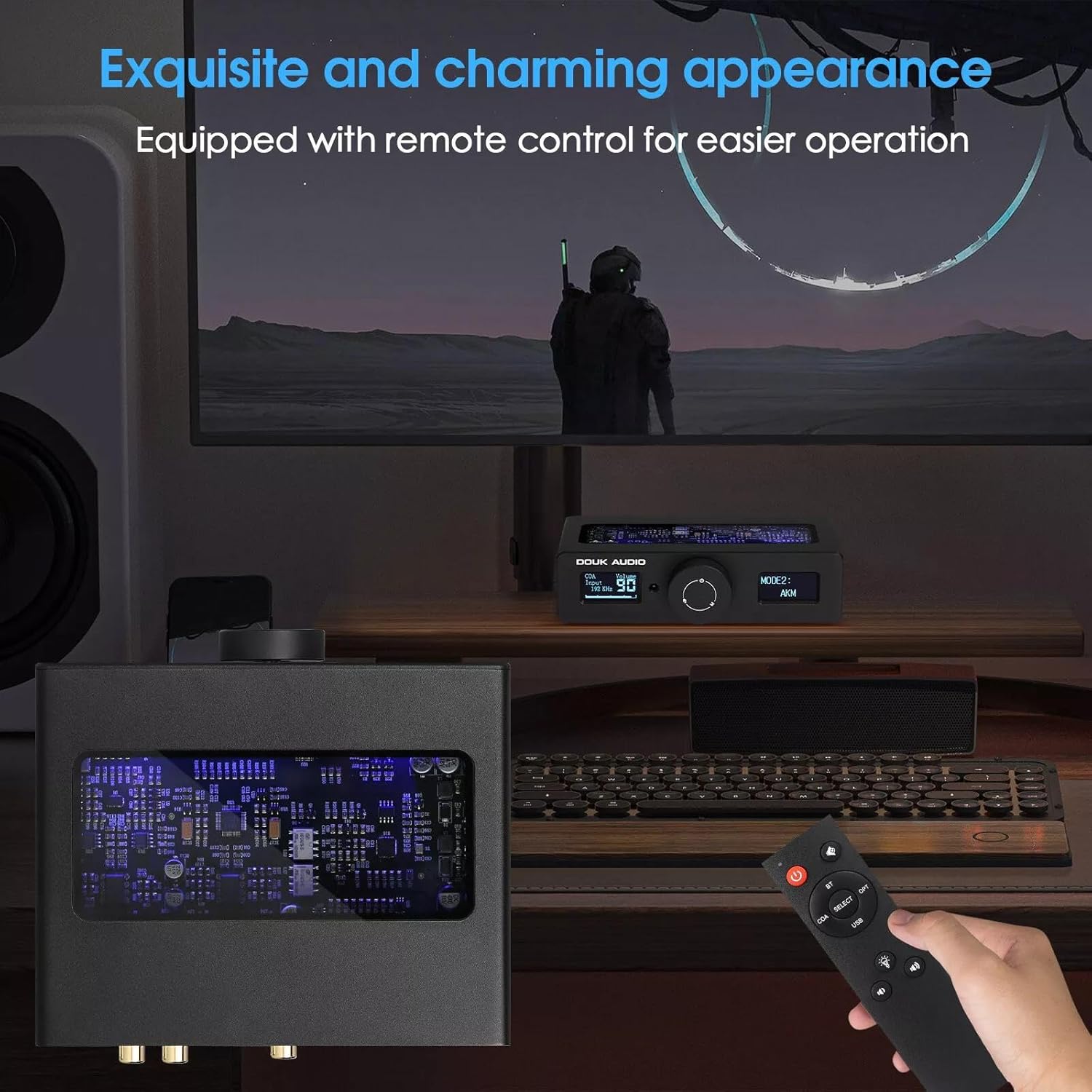
Figure 5: The Q11 in a desktop setup, demonstrating the included remote control and the transparent top panel.
3. Setup Guide
3.1 Unpacking the Device
Carefully remove all components from the packaging. Please verify that all items listed below are present:
- 1x DAC-Q11 Unit
- 1x Remote Control (batteries not included)
- 1x Optical Cable
- 1x USB Cable
- 1x DC 12V Power Adapter

Figure 6: Contents included in the Douk Audio Q11 package.
3.2 Connecting to Power
- Connect the DC 12V power adapter to the "DC 12V IN" port on the rear panel of the DAC-Q11.
- Plug the power adapter into a suitable wall outlet.
3.3 Connecting Audio Sources
Choose one of the following input methods based on your audio source:
- Optical Input (OPT): Connect an optical cable from your audio source (e.g., TV, game console, CD player) to the "OPT" port on the Q11.
- Coaxial Input (COA): Connect a coaxial cable from your audio source to the "COA" port on the Q11.
- PC-USB Input: Connect the provided USB cable from your computer (PC or Laptop) to the "PC-USB" port on the Q11. Ensure necessary drivers are installed on your computer for optimal performance, especially for DSD playback.
3.4 Connecting Audio Outputs
Connect the Q11 to your amplifier or active speakers using either RCA or AUX outputs:
- RCA Outputs (OUT 1 / OUT 2): Use RCA cables to connect the "OUT 1" or "OUT 2" RCA ports on the Q11 to the corresponding analog inputs on your amplifier or active speakers.
- AUX Outputs (OUT 1 / OUT 2): Use 3.5mm AUX cables to connect the "OUT 1" or "OUT 2" AUX ports on the Q11 to the corresponding 3.5mm inputs on your amplifier or active speakers. Both RCA and AUX outputs can work simultaneously.
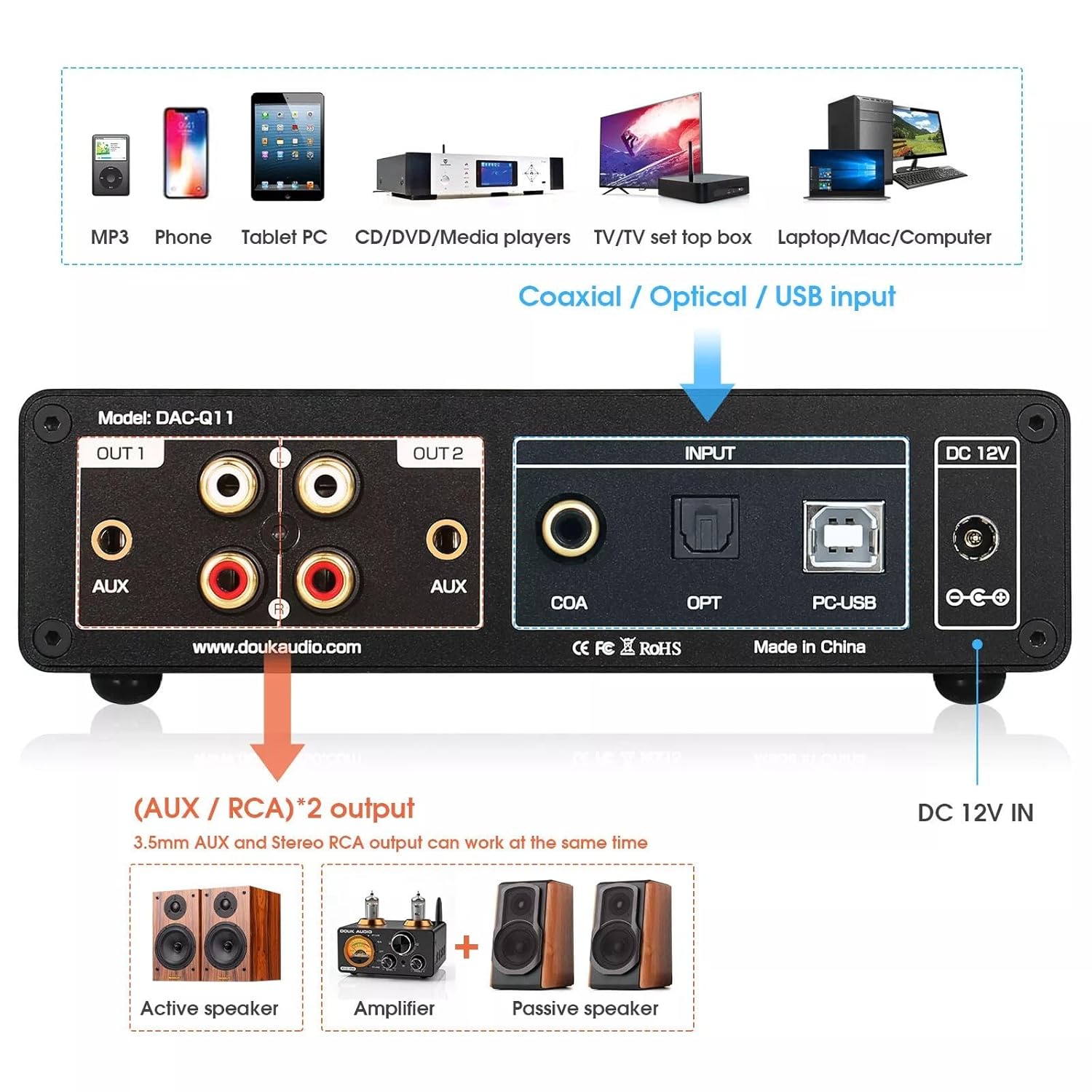
Figure 7: Rear panel connection diagram for the Douk Audio Q11.
4. Operating Instructions
4.1 Power On/Off
Press the central knob on the front panel to power the unit on or off.
4.2 Input Selection
Rotate the central knob to cycle through the available input modes: Optical (OPT), Coaxial (COA), and PC-USB. The selected input will be displayed on the left OLED screen.

Figure 8: Front panel layout with labeled controls and displays.
4.3 Volume Adjustment
Rotate the central knob to adjust the output volume. The volume level (0-99) will be displayed on the left OLED screen.
4.4 DAC Chip Mode Selection
The Douk Audio Q11 allows you to switch between different DAC chip modes to tailor the sound to your preference. This function is primarily controlled via the included remote control.
- Mode 1 (AKM + ESS): Both DAC chips are active, providing a blended sound signature.
- Mode 2 (AKM): Only the AK4493 chip is active, offering its characteristic sound.
- Mode 3 (ESS): Only the ESS9038Q2M chip is active, providing its characteristic sound.
Use the dedicated buttons on the remote control to cycle through these modes. The active mode will be displayed on the right OLED screen.
Video 1: Demonstration of the Douk Audio Q11's user interface, including volume adjustment and DAC chip mode switching.
5. Technical Specifications
| Parameter | Value |
|---|---|
| Product Dimensions | 6.1 x 4.92 x 1.65 inches |
| Weight | 1.3 Pounds |
| Item Model Number | DAC-Q11 |
| Manufacturer | Douk Audio |
| Signal-to-Noise Ratio (SNR) | ≥117dB |
| Total Harmonic Distortion (THD) | 0.0003% |
| PC-USB Input Support | 32Bit/384kHz, DSD256 |
| Inputs | Optical, Coaxial, PC-USB |
| Outputs | 2x RCA, 2x 3.5mm AUX |
6. Maintenance and Care
- Cleaning: Use a soft, dry cloth to clean the exterior of the unit. Avoid using abrasive cleaners, solvents, or strong chemicals, as they may damage the finish.
- Ventilation: Ensure adequate ventilation around the unit to prevent overheating. Do not block any ventilation openings.
- Placement: Place the unit on a stable, flat surface away from direct sunlight, heat sources, excessive dust, moisture, or vibrations.
- Power Disconnection: Disconnect the power adapter from the wall outlet if the unit will not be used for an extended period.
7. Troubleshooting
| Problem | Possible Cause | Solution |
|---|---|---|
| No sound output | Incorrect input selected; Cables not properly connected; Volume too low; Amplifier/speakers off or muted. | Verify the correct input is selected on the Q11. Check all audio cables for secure connections. Increase the volume on the Q11 and your amplifier/speakers. Ensure amplifier/speakers are powered on and not muted. |
| Distorted or poor sound quality | Poor quality audio source; Damaged cables; Incorrect sampling rate setting; Interference. | Ensure your audio source is of good quality. Replace any damaged cables. Check the sampling rate displayed on the Q11 and ensure it matches your source. Move the unit away from other electronic devices that may cause interference. |
| Remote control not working | Batteries are dead or incorrectly inserted; Obstruction between remote and unit; Remote sensor blocked. | Replace batteries with new ones, ensuring correct polarity. Remove any obstructions between the remote and the Q11. Ensure the remote sensor on the Q11's front panel is not blocked. |
| PC-USB DSD playback issues | Missing or incorrect DSD drivers for your operating system. | Contact Douk Audio customer support directly to obtain the necessary DSD drivers for your specific operating system. |
8. Warranty and Support
For information regarding warranty coverage and terms, please refer to the documentation provided at the time of purchase or contact your retailer. For technical support, driver downloads, or any other inquiries, please visit the official Douk Audio website or contact their customer service department.
Related documentsDAC-Q11


Ask a question about this manual
Ask about setup, troubleshooting, compatibility, parts, safety, or missing instructions. Manuals+ will review the question and use this page’s manual context to help answer it.