
Introduction
This manual provides essential information for the proper setup, operation, maintenance, and troubleshooting of your MP myPhone Watch Pastel Smartwatch. Please read this manual thoroughly before using your device to ensure optimal performance and longevity.
Setup
1. Unboxing and Initial Charge
Carefully remove all components from the packaging. The box should contain the MP myPhone Watch Pastel smartwatch, a charging cable, and this user manual. Before first use, fully charge the device.
- Connect the charging cable to the charging port on the back of the smartwatch.
- Plug the USB end of the cable into a standard USB power adapter (not included) or a computer's USB port.
- The watch display will indicate charging status. Allow approximately 2 hours for a full charge.
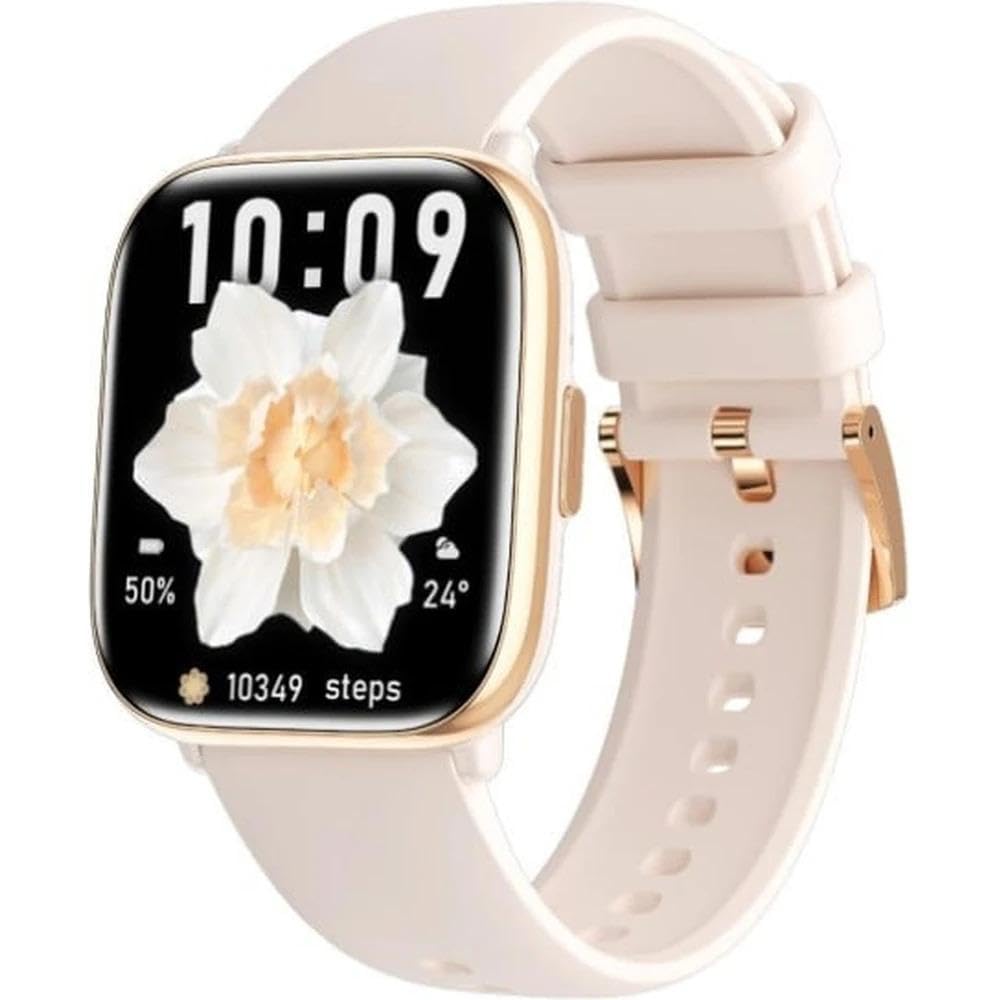
Image: The MP myPhone Watch Pastel Smartwatch, showcasing its 1.75-inch AMOLED display and sleek design.
2. App Installation
To unlock the full functionality of your smartwatch, download and install the dedicated companion application on your smartphone.
- Scan the QR code provided in the quick start guide (if applicable) or search for "myPhone Connect App" in your smartphone's app store (Google Play Store for Android, Apple App Store for iOS).
- Download and install the application.
- Follow the on-screen instructions to create an account and set up your profile.
3. Device Pairing
Pair your smartwatch with your smartphone via Bluetooth through the companion app.
- Ensure Bluetooth is enabled on your smartphone.
- Open the "myPhone Connect App" and navigate to the device pairing section.
- The app will search for available devices. Select "myPhone Watch Pastel" from the list.
- Confirm the pairing request on both your smartphone and the smartwatch.
Operating Instructions
1. Basic Navigation
- Touchscreen: Swipe left/right, up/down to navigate through menus and widgets. Tap to select items.
- Side Button: Press to wake the screen, return to the watch face, or access the app menu. Long press for power options.
2. Bluetooth Calling
The smartwatch supports Bluetooth calling, allowing you to make and receive calls directly from your wrist when connected to your smartphone.
- Ensure your smartwatch is connected to your smartphone via Bluetooth.
- Access the 'Phone' or 'Call' function on your smartwatch.
- You can dial numbers directly or access your phone's contacts/call history.
- To answer an incoming call, tap the green icon on the watch screen.
3. Notifications
Receive notifications from your smartphone apps directly on your smartwatch.
- Ensure notification permissions are enabled for the "myPhone Connect App" on your smartphone.
- Configure which app notifications you wish to receive through the companion app settings.
- Swipe down from the watch face to view recent notifications.
4. Health Monitoring
The smartwatch features various health monitoring functions to help you track your well-being.
- Heart Rate: Access the heart rate monitor from the app menu or a dedicated widget. The watch will measure your heart rate automatically or on demand.
- Blood Oxygen (SpO2): Initiate an SpO2 measurement from the app menu. Remain still during the measurement.
- Sleep Tracking: Wear the watch to bed for automatic sleep pattern analysis. View detailed reports in the companion app.
- Hydration Reminders: Set reminders in the app to ensure adequate water intake throughout the day.
- Menstrual Cycle Tracking: Input and track your menstrual cycle data through the companion app for predictive insights.
Disclaimer: The health monitoring features are not intended for medical use and should not replace professional medical advice.
5. Sport Modes
Select from multiple sport modes to track your workouts accurately.
- Navigate to the 'Workout' or 'Sport' section on your watch.
- Choose your desired activity (e.g., running, cycling, walking).
- The watch will record metrics such as duration, calories burned, and heart rate.
6. Always-on Display
The 1.75-inch AMOLED display supports an 'Always-on Display' feature, allowing the time and basic information to remain visible without fully waking the screen. This feature can be enabled or disabled in the watch settings to manage battery consumption.
7. IP67 Water Resistance
The MP myPhone Watch Pastel is rated IP67, meaning it is resistant to dust and can withstand immersion in water up to 1 meter for 30 minutes. This makes it suitable for daily use, including hand washing, light rain, and showering.
- Avoid prolonged immersion or use in hot water, saunas, or steam rooms.
- Do not press buttons underwater.
- After exposure to water, dry the watch thoroughly before charging or using the touchscreen.
Maintenance
1. Cleaning Your Smartwatch
Regular cleaning helps maintain the appearance and functionality of your device.
- Wipe the screen and body with a soft, lint-free cloth.
- For stubborn dirt, slightly dampen the cloth with water. Avoid using harsh chemicals or abrasive materials.
- Clean the charging contacts periodically with a dry cloth to ensure proper charging.
2. Battery Care
To maximize battery life and longevity:
- Avoid fully discharging the battery frequently.
- Charge the device using the provided cable and a compatible power source.
- Store the watch in a cool, dry place if not used for extended periods.
3. Software Updates
Periodically check for software updates through the "myPhone Connect App". Updates often include performance improvements, new features, and bug fixes. Ensure your watch is sufficiently charged before initiating an update.
Troubleshooting
Common Issues and Solutions:
- Watch not turning on: Ensure the watch is fully charged. Connect it to the charger for at least 30 minutes. If it still doesn't turn on, try a long press (10-15 seconds) of the side button.
- Unable to pair with smartphone:
- Ensure Bluetooth is enabled on your smartphone and the watch.
- Make sure the watch is within range of your smartphone.
- Restart both your smartphone and the smartwatch.
- Clear the Bluetooth cache on your smartphone (if applicable) and try pairing again.
- Inaccurate health readings:
- Ensure the watch is worn snugly on your wrist, but not too tight.
- Clean the sensors on the back of the watch.
- Remain still during measurements.
- Battery drains quickly:
- Reduce screen brightness.
- Disable 'Always-on Display' if not essential.
- Limit the number of apps sending notifications to the watch.
- Ensure no background apps are running unnecessarily on the watch.
Factory Reset
If issues persist, a factory reset may resolve them. Warning: A factory reset will erase all data on your smartwatch and restore it to its original settings. You will need to re-pair it with your smartphone.
- Navigate to 'Settings' on your smartwatch.
- Find the 'System' or 'Reset' option.
- Select 'Factory Reset' and confirm.
Specifications
| Model Name | Watch Pastel |
| Display | 1.75-inch AMOLED, 390 x 450 pixels |
| Battery Capacity | 230 mAh |
| Battery Autonomy | Up to one week (depending on usage) |
| Connectivity | Bluetooth |
| Water Resistance | IP67 (Dust and water resistant up to 1 meter for 30 minutes) |
| Dimensions | 16.5 x 8.7 x 3.6 cm (packaging); 180 grams (packaging) |
| Manufacturer | myPhone |
Warranty and Support
Warranty Information
This product comes with a 2-year manufacturer's warranty. For specific warranty terms and conditions, please refer to the official MP myPhone website or contact your retailer.
Additionally, a 30-day return policy may apply depending on the retailer. Please consult the retailer's return policy for details.
Customer Support
For technical assistance, troubleshooting beyond this manual, or warranty claims, please contact MP myPhone customer support through their official website or the contact information provided with your purchase.
You can typically find support contact details on the manufacturer's website: www.myphone.pl (This is a placeholder link, please refer to the actual manufacturer's website for accurate support information).