
Introduction
Thank you for choosing the YOVDA W2 4-Channel Dash Cam. This manual provides detailed instructions for the proper installation, operation, and maintenance of your device. Please read this manual thoroughly before use to ensure optimal performance and safety.
The YOVDA W2 dash cam is designed to enhance driving safety by providing comprehensive 360-degree video surveillance around and inside your vehicle. It features four 1080P cameras, advanced night vision, GPS tracking, Wi-Fi connectivity, and a 24-hour parking monitoring system.
Product Overview
Key Features
- 4-Channel Recording: Simultaneously records front, rear, left, and right views in 1080P resolution.
- 360° Adjustable Cameras: All four cameras can be rotated to capture desired angles.
- Superior Night Vision: F1.8 aperture, 170° ultra-wide angle, 4 infrared lights, and WDR technology for clear recordings in low-light conditions.
- Built-in GPS: Records real-time speed, time, and route location, viewable on Google Maps via the GPS player.
- Built-in Wi-Fi & App Control: Connect to your smartphone via Wi-Fi to view, manage, and download recorded videos.
- G-Sensor: Automatically detects collisions and locks current video files to prevent overwriting.
- Loop Recording: Overwrites the oldest unlocked files when the memory card is full, ensuring continuous recording. Supports up to 128GB Micro SD card (64GB card included).
- 24-Hour Parking Monitor: Provides continuous surveillance when the vehicle is parked (requires optional hardwire kit).
- Super Capacitor: Enhances durability and extends the device's lifespan.

This image provides an overview of the YOVDA W2 dash cam, highlighting its four cameras for comprehensive 360-degree coverage and the built-in G-Sensor feature.
What's in the Box
- 1 x YOVDA W2 4-Channel Dash Cam
- 1 x 64GB Micro SD Card
- Power Cable (Car Charger)
- Mounting Bracket (Suction Cup)
Note: A hardwire kit for the 24-hour parking monitor is sold separately.
Setup
1. Inserting the Micro SD Card
Before inserting or removing the Micro SD card, ensure the dash cam is powered off. The device supports Micro SD cards up to 128GB. For optimal performance, use a U3 or higher speed card.
After inserting the card, it is recommended to format it directly within the dash cam's settings menu. This ensures compatibility and prepares the card for recording.
2. Mounting the Dash Cam
The YOVDA W2 dash cam typically uses a suction cup mount for installation on the windshield. Choose a location that does not obstruct your view of the road.
- Clean the windshield surface where you intend to mount the dash cam.
- Attach the suction cup mount to the dash cam.
- Press the suction cup firmly onto the windshield, ensuring it is in a flat position and securely attached.
- Adjust the angle of the dash cam and its individual cameras to cover the desired viewing areas (front, rear, left, right, and interior).
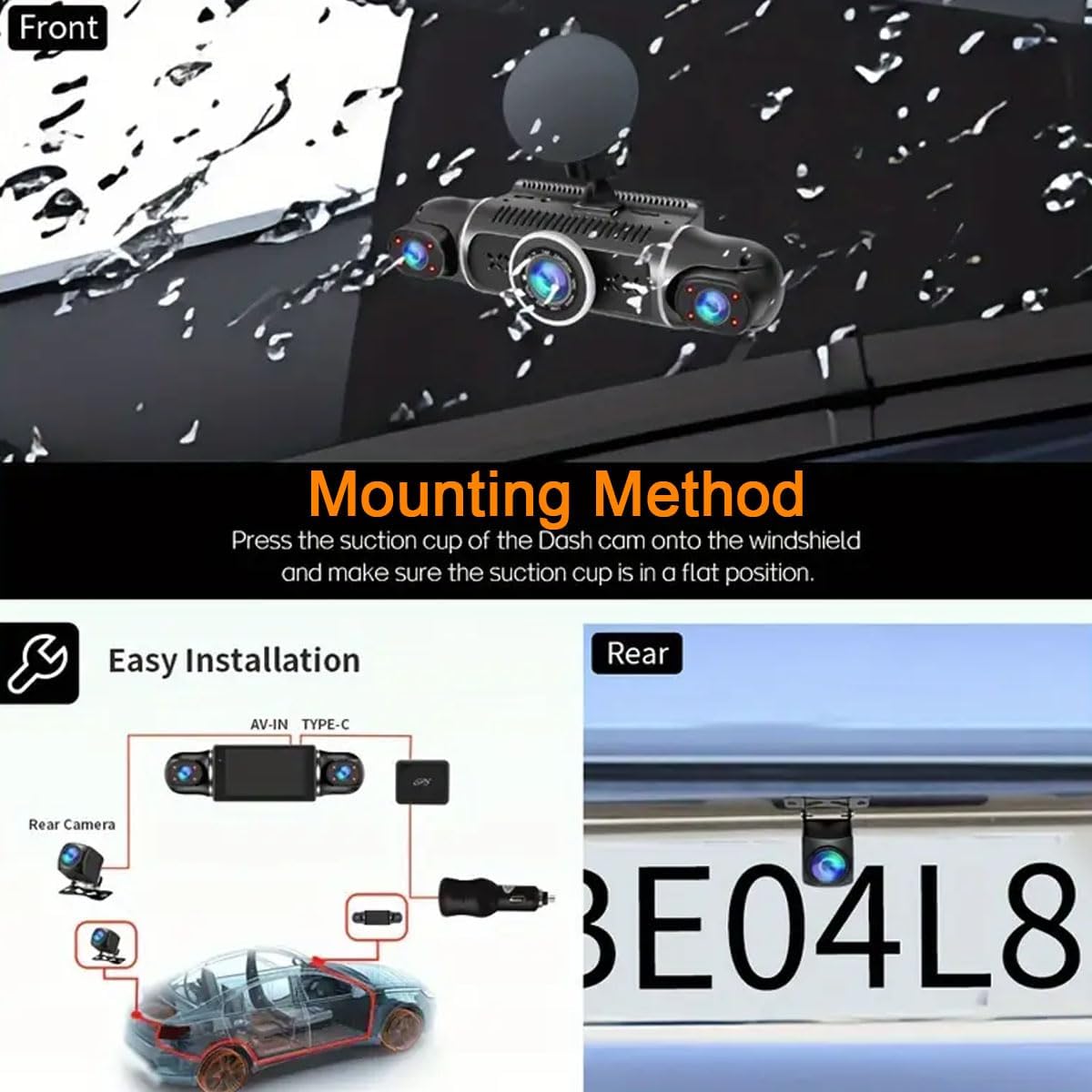
This image illustrates the suction cup mounting method for the dash cam on the windshield and a wiring diagram for connecting the front and rear cameras, along with the power source.
3. Connecting Power
Connect the provided power cable to the dash cam and plug the other end into your vehicle's 12V power outlet (cigarette lighter socket). The dash cam will typically power on automatically when the vehicle starts and power off when the engine is turned off.
Operating Instructions
Basic Operation
- Power On/Off: The dash cam powers on automatically with vehicle ignition and powers off when the engine is off. Manual power buttons may also be present for specific functions.
- Recording: Once powered on, the dash cam automatically begins loop recording.
- Display: The 3.0-inch IPS screen displays live views from the cameras. You can switch between camera views through the device's menu.
Advanced Features
Loop Recording
The dash cam continuously records video in segments. When the Micro SD card reaches its maximum capacity, the oldest unlocked video files are automatically overwritten to make space for new recordings. This ensures uninterrupted recording.
G-Sensor (Collision Detection)
In the event of a sudden impact or collision, the built-in G-Sensor automatically detects the event and locks the current video file. This prevents the footage from being overwritten by loop recording, preserving critical evidence.

This image illustrates the G-Sensor feature, which locks video footage during a collision, and the loop recording function, which continuously records over older files.
24-Hour Parking Monitor
To activate the 24-hour parking monitoring feature, an optional hardwire kit (not included) is required. This kit provides continuous power to the dash cam, allowing it to record events even when the vehicle is parked and the engine is off. The system typically uses motion detection or G-sensor triggers to record parking incidents.
Night Vision
The dash cam is equipped with advanced night vision capabilities, including an F1.8 large aperture, 4 infrared lights, and WDR (Wide Dynamic Range) technology. This allows for clear video recording in low-light conditions, both inside and outside the vehicle.

This image highlights the dash cam's excellent night vision, showing a clear view of a city street at night, contrasting with typical low-light and dark conditions.
Built-in GPS
The integrated GPS module records your vehicle's speed, time, and geographical location. This data can be viewed on a map using a dedicated GPS player software on your computer, providing a detailed record of your routes.
Built-in Wi-Fi and App Control
Connect your smartphone to the dash cam via Wi-Fi using the dedicated mobile application. This allows you to:
- View live footage from the cameras.
- Manage recorded videos.
- Download videos directly to your smartphone for easy sharing or backup.
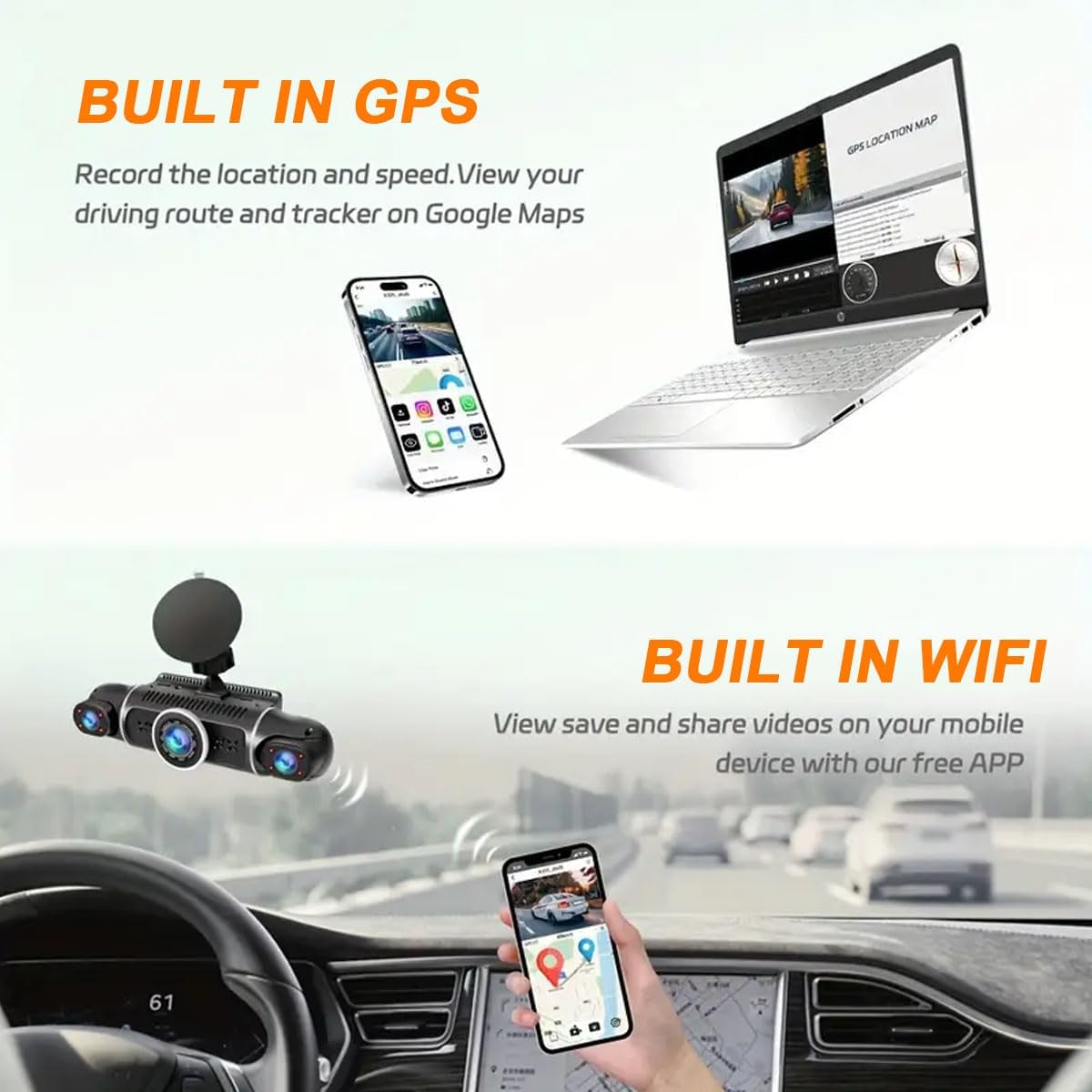
This image illustrates the built-in GPS feature, showing a map with a driving route on a laptop, and the built-in Wi-Fi feature, showing the dash cam app interface on a smartphone.
Refer to the app's instructions for detailed connection and usage procedures. Ensure the app is updated for best performance.
Maintenance
- SD Card Formatting: Regularly format the Micro SD card (e.g., once a month) within the dash cam's settings to maintain optimal recording performance and prevent data corruption. Back up any important files before formatting.
- Cleaning: Use a soft, dry cloth to clean the dash cam's lens and screen. Avoid using abrasive cleaners or solvents.
- Temperature: Operate the dash cam within the specified temperature range of -20℃ to 65℃. Extreme temperatures can affect performance and lifespan.
- Firmware Updates: Check the manufacturer's website or app for available firmware updates to ensure your dash cam has the latest features and bug fixes.
Troubleshooting
| Problem | Possible Cause | Solution |
|---|---|---|
| Dash cam does not power on. | No power supply; faulty power cable; vehicle's 12V outlet is not working. | Check power cable connection. Test the 12V outlet with another device. Ensure vehicle ignition is on. |
| Recording stops or freezes. | SD card is full; SD card error; incompatible SD card; faulty SD card. | Format the SD card. Replace with a new, high-speed (U3 or higher) Micro SD card (max 128GB). |
| Poor video quality at night. | Lens is dirty; extreme low light conditions. | Clean the camera lenses. Ensure WDR is enabled in settings. |
| Wi-Fi connection issues. | Incorrect app usage; interference; outdated app. | Ensure Wi-Fi is enabled on the dash cam and your phone. Restart both devices. Update the mobile app. |
| Parking monitor not working. | Hardwire kit not installed; incorrect settings. | Install the optional hardwire kit. Check parking monitor settings in the dash cam menu. |
Specifications
| Feature | Detail |
|---|---|
| Model Number | W2 |
| Video Capture Resolution | 4 x 1080P (Front, Rear, Left, Right) |
| Display Size | 3.0 inch IPS Screen |
| Field of View | 170° (Front/Rear), 140° (Left/Right Interior) |
| Connectivity | Wi-Fi, GPS |
| Special Features | 360° View, Loop Recording, WDR, Night Vision, Motion Detection, G-Sensor, Parking Mode, App Control |
| Storage | Supports Micro SD card up to 128GB (U3 or higher recommended, 64GB included) |
| Operating Temperature | -20℃ to 65℃ (-4°F to 149°F) |
| Power Source | 1 Lithium Ion battery (included), Vehicle 12V power outlet |
| Product Dimensions | 6.9 x 1.6 x 1.9 inches |
| Item Weight | 15.8 ounces |
| Mounting Type | Suction Cup Mount |
Warranty and Support
For warranty information and technical support, please refer to the official YOVDA website or contact YOVDA customer service directly. Contact details are typically provided on the product packaging or within the mobile application.
You can also reach out to the seller through the platform where the product was purchased for assistance.