
Introduction
This manual provides instructions for the installation, operation, and maintenance of your SIXWIN 4G+64G Android 13 Car Stereo. This unit is specifically designed for Hyundai Santa Fe IX45 models from 2013 to 2017, featuring a 9-inch touch screen, Android 13 operating system, 4GB RAM, and 64GB ROM. It integrates various functions including wireless CarPlay, Android Auto, Mirror Link, Bluetooth 5.0, FM radio, GPS navigation, Wi-Fi connectivity, and support for steering wheel controls and backup cameras.

Image: Overview of the SIXWIN Android 13 Car Stereo unit installed in a Hyundai Santa Fe IX45 dashboard, highlighting key features like Android 13, 4G+64G memory, Bluetooth 5.0, FM, GPS, WiFi, SWC, and backup camera support.

Image: Visual representation of the multiple functions available on the SIXWIN car stereo, including Android 13, WiFi, GPS, Bluetooth 5.0, 1080p Full HD display, backup camera support, steering wheel control (SWC), Short Cut feature, 32-band equalizer, FM/RDS radio, and split-screen capability.
Setup
Package Contents
Before beginning installation, verify that all components are present in the package:

Image: A diagram showing the contents of the SIXWIN car stereo package, which includes the AHD Rear Camera, installation tools, microphone, RCA cable, power cable, various parts, 6-pin and 4-pin USB cables, camera input cable, user manual, and GPS antenna.
Installation
The car stereo comes with a plug-and-play cable designed for easy installation in Hyundai Santa Fe IX45 (2013-2017) models. Follow the vehicle's specific disassembly and reassembly procedures for the dashboard.
Important Note: If your vehicle is equipped with an original car amplifier, additional wiring harnesses and protocol boxes may be required. Please contact customer support for assistance if this applies to your vehicle.
Wiring Diagram
Refer to the following diagram for proper connection of all cables and accessories.

Image: Detailed connection and wiring diagram for the SIXWIN car stereo. It illustrates connections for the main unit, radio antenna, 8-pin Canbus plug, rear camera input, GPS antenna, and a comprehensive breakdown of RCA and power cable connections, including audio outputs, video output, subwoofer, AUX inputs, and microphone input.
Backup Camera Installation
The unit supports an AHD backup camera. Connect the camera to the designated input. The system will automatically display the camera feed when the vehicle is in reverse gear.

Image: Features of the backup camera, including 1080p Full HD resolution, AHD compatibility, waterproof design, night vision capabilities, and a wide-angle lens.
Steering Wheel Control (SWC) Connection
Connect the SWC cable as per the wiring diagram. Once connected, you can configure the steering wheel buttons to control various functions of the car stereo, such as switching songs, adjusting volume, and answering calls. This enhances driving safety by allowing you to keep your focus on the road.
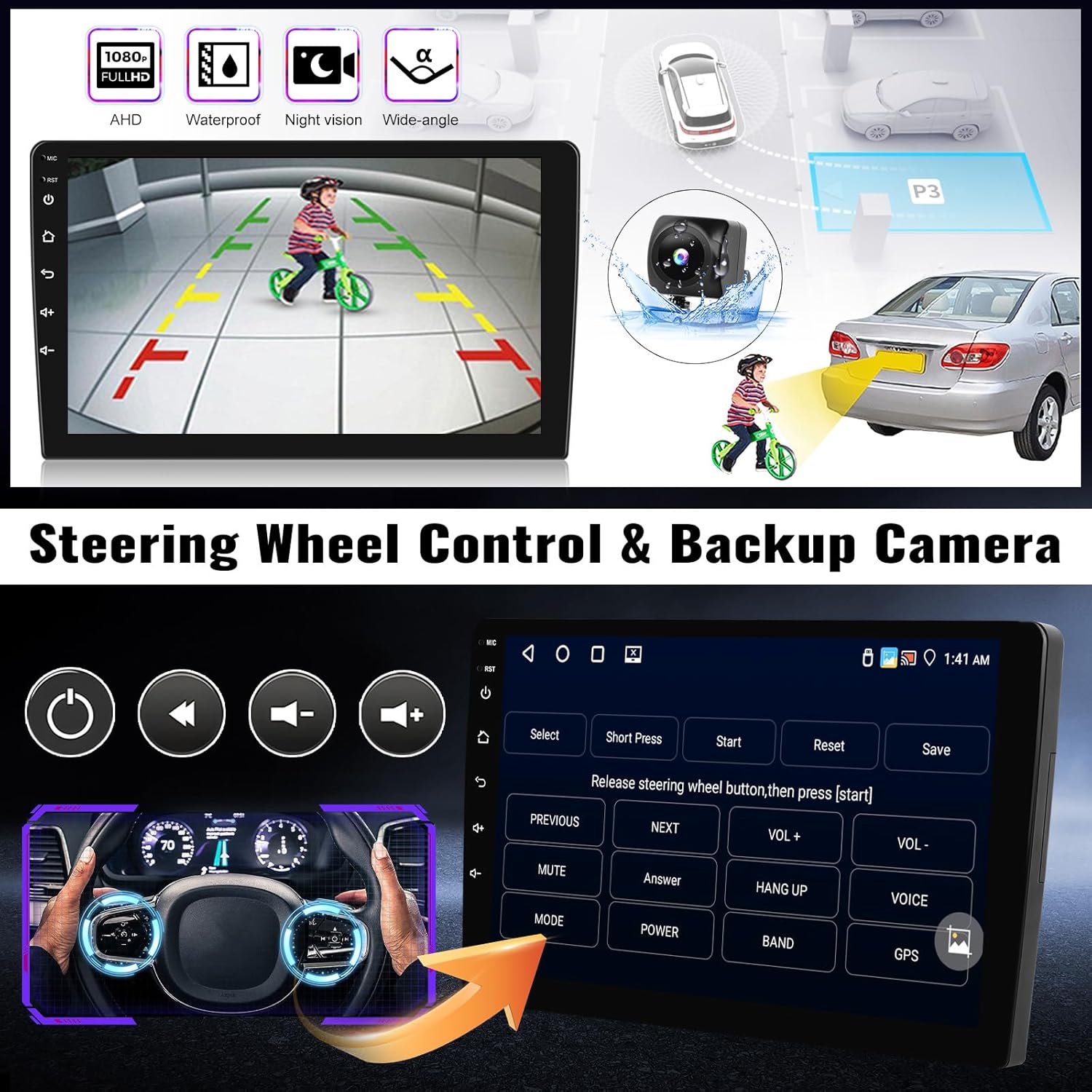
Image: The car stereo's interface for setting up steering wheel controls, showing options to assign functions like previous, next, volume up/down, answer, hang up, and voice commands. Also shown is a view from a backup camera with parking guidelines.
Operating Instructions
User Interface and Desktop Themes
The Android 13 system offers multiple customizable UI desktop themes. Navigate to the settings menu to select your preferred theme. The split-screen function allows you to run two applications simultaneously, such as navigation and music playback.

Image: Demonstrates the "Short Cut" feature and the three-panel homepage display on the car stereo. Users can customize the homepage with frequently used apps and widgets for quick access.
Short Cut Feature
The Short Cut feature allows you to quickly access frequently used applications. You can customize these shortcuts on your home screen for convenience.

Image: A visual of the "Short Cut" feature, showing how users can add or remove application icons from a quick access bar on the car stereo's interface.
Wireless CarPlay & Android Auto / Mirror Link
The unit supports both wireless and wired CarPlay and Android Auto. It also features Mirror Link functionality.
Wireless CarPlay Connection
- Ensure Bluetooth is enabled on your car stereo and smartphone.
- Connect your phone to the car stereo via Bluetooth.
- Open the "Zlink" app on the car stereo.
- Follow the on-screen prompts to establish the wireless Apple CarPlay connection.
Wired Android Auto Connection
- Download the Android Auto app on your smartphone.
- Connect your phone to the car stereo using a USB cable.
- Ensure Bluetooth is enabled on your car stereo and smartphone.
- Open the "Zlink" app on the car stereo.
- Follow the on-screen prompts to establish the wired Android Auto connection.
Note: Samsung phones may not be fully supported for Android Auto functionality.

Image: Illustrates the CarPlay, Android Auto, and Mirror Link functionalities. It shows examples of voice commands like "Hey Siri, open music," "Navigate home," and "Hey assistant, call Jane," along with app interfaces for navigation, music, and communication.

Image: Step-by-step instructions for connecting Wireless Apple CarPlay via Bluetooth and the "Zlink" app, and Wired Android Auto via USB cable and the Android Auto app, also using "Zlink."
GPS Navigation
The car stereo supports both online and offline GPS navigation. The pre-installed "Here We Go" app allows for offline navigation. Download necessary map data for your region when connected to Wi-Fi.
Offline Navigation Setup
- Connect the car stereo to a Wi-Fi network.
- Open the "Here We Go" app.
- Download the required offline map data for your desired regions.
- Once downloaded, navigation will function without an internet connection.

Image: A display of the GPS navigation interface, showing a map with a highlighted route, current location, and estimated time of arrival. Icons for various navigation apps are also visible.
Wi-Fi Connection
Connect the car stereo to a Wi-Fi network to access online navigation, download apps, stream music, and browse the internet, similar to a smartphone.

Image: Depicts the Wi-Fi connection feature, showing a smartphone icon with a Wi-Fi signal and various social media and streaming app icons, indicating online connectivity for the car stereo.
Bluetooth 5.0
Pair your smartphone via Bluetooth 5.0 for hands-free calling, playing music, and downloading phone contacts. An external microphone ensures clear audio during calls.
Pairing a Bluetooth Device
- Go to the Bluetooth settings on the car stereo.
- Enable Bluetooth on your smartphone and make it discoverable.
- Select your phone from the list of available devices on the car stereo.
- Confirm the pairing code on both devices.

Image: The Bluetooth 5.0 interface, showing a dialer screen for making calls and a music playback screen, indicating hands-free calling and audio streaming capabilities.
FM/RDS Radio
The built-in FM radio provides 18 preset stations. The RDS (Radio Data System) feature displays station information where available.

Image: The FM/RDS Radio interface, displaying current frequency, preset stations, and an equalizer visualizer, along with a classic radio icon.
Audio Equalizer (32EQ)
Customize your audio experience with the integrated 32-band equalizer to fine-tune sound output.
Maintenance
- Cleaning: Use a soft, dry cloth to clean the screen and unit. Avoid abrasive cleaners or solvents.
- Software Updates: Periodically check for software updates via the system settings menu to ensure optimal performance and access to new features. Connect to Wi-Fi for updates.
- Temperature: Avoid exposing the unit to extreme temperatures.
Troubleshooting
| Problem | Possible Cause | Solution |
|---|---|---|
| Unit does not power on. | Incorrect wiring; Blown fuse; Power supply issue. | Check all power connections according to the wiring diagram. Verify vehicle fuses. Consult a professional if issues persist. |
| No sound output. | Volume too low; Mute activated; Speaker wiring issue; Amplifier compatibility. | Increase volume, check mute settings. Verify speaker connections. If your car has an original amplifier, ensure correct wiring harnesses are used. |
| Steering Wheel Controls not working. | SWC cable not connected; Incorrect configuration; Vehicle incompatibility. | Ensure the SWC cable is properly connected. Access the SWC settings in the unit's menu to configure buttons. Some vehicles may require an additional CANbus decoder. |
| Backup Camera not displaying. | Camera not connected; Incorrect camera input; Vehicle's original camera incompatibility. | Verify the backup camera is correctly connected to the designated input. Ensure the camera is powered. If using the vehicle's original camera, it may require an adapter or interface module. |
| CarPlay/Android Auto not connecting. | Bluetooth/Wi-Fi off; Incorrect app (Zlink) usage; USB cable issue; Phone incompatibility. | Ensure Bluetooth and Wi-Fi are active on both devices. Use the "Zlink" app. Try a different USB cable for wired connections. Note that some Samsung phones may have compatibility issues. |
| GPS signal weak or inaccurate. | GPS antenna not properly installed; Obstruction; Outdated maps. | Ensure the GPS antenna is installed in a clear location with an unobstructed view of the sky. Update offline maps if necessary. |
Specifications
| Feature | Detail |
|---|---|
| Model Name | 4G+64G |
| Operating System | Android 13 |
| Memory (RAM + ROM) | 4GB RAM + 64GB ROM |
| Screen Size | 9 inches |
| Resolution | 1080 x 720 |
| Touch Screen Type | Capacitive |
| Connectivity Technology | Bluetooth 5.0, Wi-Fi |
| Special Features | Wireless CarPlay, Android Auto, Mirror Link, GPS Navigation, FM/RDS Radio, Steering Wheel Control (SWC), Backup Camera Support, Split Screen, Multiple UI Themes, 32-band Equalizer |
| Supported Satellite Navigation System | GPS |
| Audio Output Mode | Stereo |
| Compatible Vehicle Type | Hyundai Santa Fe IX45 (2013-2017) |
| Product Dimensions | 1 x 1 x 1 cm; 1.39 kg (Unit only, approximate) |
Warranty
This SIXWIN car stereo comes with a 1-Year Warranty from the date of purchase. Please retain your proof of purchase for warranty claims. The warranty covers manufacturing defects and malfunctions under normal use. It does not cover damage caused by improper installation, misuse, accidents, or unauthorized modifications.
Support
For technical assistance, installation queries, or warranty support, please contact SIXWIN customer service:
- Email: mangjiwujp@163.com
- Please provide your product model number (4G+64G) and purchase details when contacting support.
