
1. Introduction
The TIMEKNOW Wireless CarPlay AI Box 5.0 is an advanced multimedia adapter designed to enhance your in-car entertainment and connectivity. It transforms your existing OEM wired CarPlay system into a wireless Android 13.0 platform, offering access to a wide range of applications, streaming services, and navigation features. This device is powered by a Qualcomm 6125 8-Core processor with 8GB RAM and 128GB storage, ensuring smooth and efficient performance.
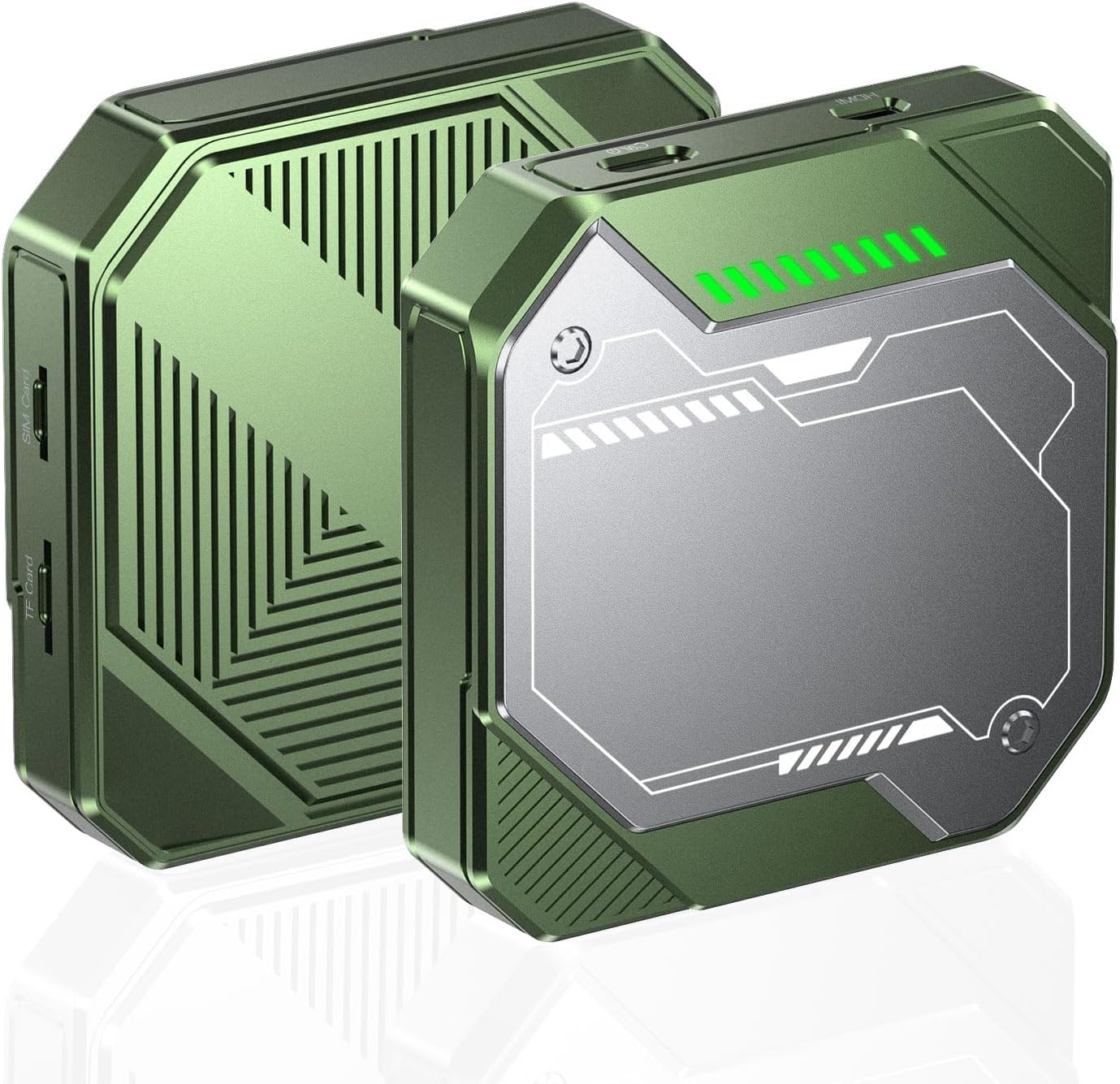
Image 1.1: Front and back view of the TIMEKNOW Wireless CarPlay AI Box 5.0.
2. What's in the Box
Please check the package contents to ensure all items are present:
- TIMEKNOW Wireless CarPlay AI Box 5.0
- USB-A to USB-C Cable (x1)
- USB-C to USB-C Cable (x1)
- HDMI Cable (x1)
- User Manual

Image 2.1: Package contents of the AI Box 5.0.
3. Product Overview
The AI Box 5.0 offers a seamless integration with your vehicle's existing wired CarPlay system, providing a full Android experience on your car's display. Key features include:
- Wireless CarPlay & Android Auto: Convert your wired connection to wireless for convenience.
- Android 13.0 Operating System: Access to Google Play Store for various apps.
- High Performance: Qualcomm 6125 8-Core processor, 8GB RAM, 128GB ROM.
- Streaming Media: Enjoy YouTube, Netflix, and other streaming services directly on your car screen.
- Multiple Control Methods: Supports touchscreen, steering wheel controls, and OEM knob control.
- Voice Assistant: Compatible with Siri and Google Assistant for hands-free operation.
- Built-in GPS: For accurate navigation.

Image 3.1: Multifunctional display and control options.

Image 3.2: Performance specifications of the Snapdragon processor.
4. Setup Instructions
Follow these steps to set up your TIMEKNOW Wireless CarPlay AI Box 5.0:
4.1. Initial Connection
- Ensure your vehicle supports OEM wired CarPlay.
- Connect the Wireless Adapter to your car's USB port (the one used for wired CarPlay) using the provided USB-C to USB-A or USB-C to USB-C cable.
- The AI Box will power on, and an indicator light will illuminate.

Image 4.1: Connecting the AI Box to your car.
4.2. Android 13.0 System Boot
After connecting, the system will boot up. This may take a few moments. Once complete, you will see the Android 13.0 desktop interface on your car's display, providing access to pre-installed and downloadable applications.

Image 4.2: Android 13.0 interface on car display.
4.3. Connecting Wireless CarPlay
- On your iPhone, turn on Bluetooth and Wi-Fi.
- On your iPhone's Bluetooth settings, search for and pair with the device named "Aurora-xxxx" (or similar, as displayed on your car screen).
- Confirm the pairing request on both your iPhone and the car screen.
- Once paired, select "CarPlay" on your car's display to begin using wireless CarPlay.

Image 4.3: Wireless CarPlay connection process.
4.4. Connecting Wireless Android Auto
- On your Android phone, turn on Bluetooth and Wi-Fi.
- On your Android phone's Bluetooth settings, search for and pair with the device named "Aurora-xxxx" (or similar, as displayed on your car screen).
- Confirm the pairing request on both your Android phone and the car screen.
- Once paired, select "Android Auto" on your car's display to begin using wireless Android Auto.

Image 4.4: Wireless Android Auto connection process.
5. Operation
5.1. Navigation and Controls
The AI Box 5.0 supports various control methods for ease of use:
- Touchscreen Control: Directly interact with the car's display.
- Steering Wheel Control: Use your vehicle's existing steering wheel buttons for audio, calls, and navigation.
- OEM Knob Control: Utilize your car's original control knob for menu navigation.
- Voice Control: Activate Siri (for CarPlay) or Google Assistant (for Android Auto/Android system) by saying "Hey Siri" or "Hey Google" for hands-free commands.
5.2. Streaming Media and Apps
With the Android 13.0 system, you can download and use various applications from the Google Play Store. Popular streaming services like YouTube, Netflix, and others are readily available for in-car entertainment.

Image 5.1: Available streaming media applications.
5.3. SIM and Micro SD Card Usage
The device supports SIM cards for cellular data connectivity and Micro SD cards for expanded storage, allowing you to download more apps or store media files directly on the device.
6. Compatibility
The TIMEKNOW Wireless CarPlay AI Box 5.0 is compatible with over 800 vehicle models that feature factory-installed OEM wired CarPlay. Please note that it is not applicable to BMW vehicles.
For a comprehensive list of compatible CarPlay models, you can refer to the official Apple CarPlay website: https://www.apple.com/ios/carplay/available-models/

Image 6.1: Broad vehicle compatibility.
7. Maintenance
To ensure the longevity and optimal performance of your AI Box 5.0, follow these maintenance guidelines:
- Cleaning: Use a soft, dry cloth to clean the device. Avoid liquid cleaners or abrasive materials.
- Temperature: Operate and store the device within recommended temperature ranges (typically 0°C to 45°C or 32°F to 113°F). Avoid extreme heat or cold.
- Moisture: Keep the device dry. Do not expose it to water or excessive humidity.
- Firmware Updates: Periodically check for and install firmware updates to ensure the best performance and compatibility.
8. Troubleshooting
If you encounter issues with your AI Box 5.0, refer to the following common problems and solutions:
| Problem | Possible Cause | Solution |
|---|---|---|
| Device does not power on. | Incorrect USB port, faulty cable, insufficient power. | Ensure connection to the correct OEM CarPlay USB port. Try a different USB cable. Check car's USB port for power. |
| No display on car screen. | CarPlay not activated, incorrect input source, device not fully booted. | Ensure your car's display is set to CarPlay mode. Wait for the device to fully boot. Reconnect the device. |
| Wireless CarPlay/Android Auto not connecting. | Bluetooth/Wi-Fi off, incorrect pairing, interference. | Ensure Bluetooth and Wi-Fi are enabled on your phone. Forget previous pairings and re-pair. Move phone closer to the device. |
| Apps are slow or freezing. | Too many apps running, low storage, poor internet connection. | Close background apps. Clear cache. Check SIM card or Wi-Fi signal strength. Restart the device. |
| No sound. | Volume too low, incorrect audio output, car's audio source. | Adjust volume on both the device and car stereo. Ensure car's audio source is set to CarPlay/Android Auto. |
9. Specifications
| Feature | Detail |
|---|---|
| Model | Wireless CarPlay AI Box 5.0 |
| Operating System | Android 13.0 |
| Processor | Qualcomm QCM 6125 8-Core |
| Memory (RAM) | 8GB |
| Storage (ROM) | 128GB |
| Connectivity | Bluetooth, Wi-Fi, Cellular (SIM card support) |
| Connector Type | USB-C to USB-A, USB-C to USB-C |
| Supported Internet Services | YouTube, Netflix, Google Store, etc. |
| Resolution | 1080p |
| Special Features | Bluetooth, Text-to-Speech, Touchscreen, Built-in GPS |
| Item Weight | 0.1 Ounces |
| Manufacturer | TIMEKNOW |
10. Warranty and Support
For warranty information and technical support, please refer to the documentation included with your purchase or contact TIMEKNOW customer service through the retailer where the product was purchased. Keep your proof of purchase for warranty claims.
