
1. Introduction
This manual provides essential information for setting up, operating, and maintaining your CUBOT A10 smartphone. Please read it carefully to ensure optimal performance and longevity of your device.
2. What's in the Box
Your CUBOT A10 package includes the following items:
- A10 Smartphone x 1
- Type-C Cable x 1
- Charger x 1
- User Manual x 1
- Protective Case x 1
- SIM Eject Pin x 1

3. Setup Guide
3.1. Inserting SIM and TF Card
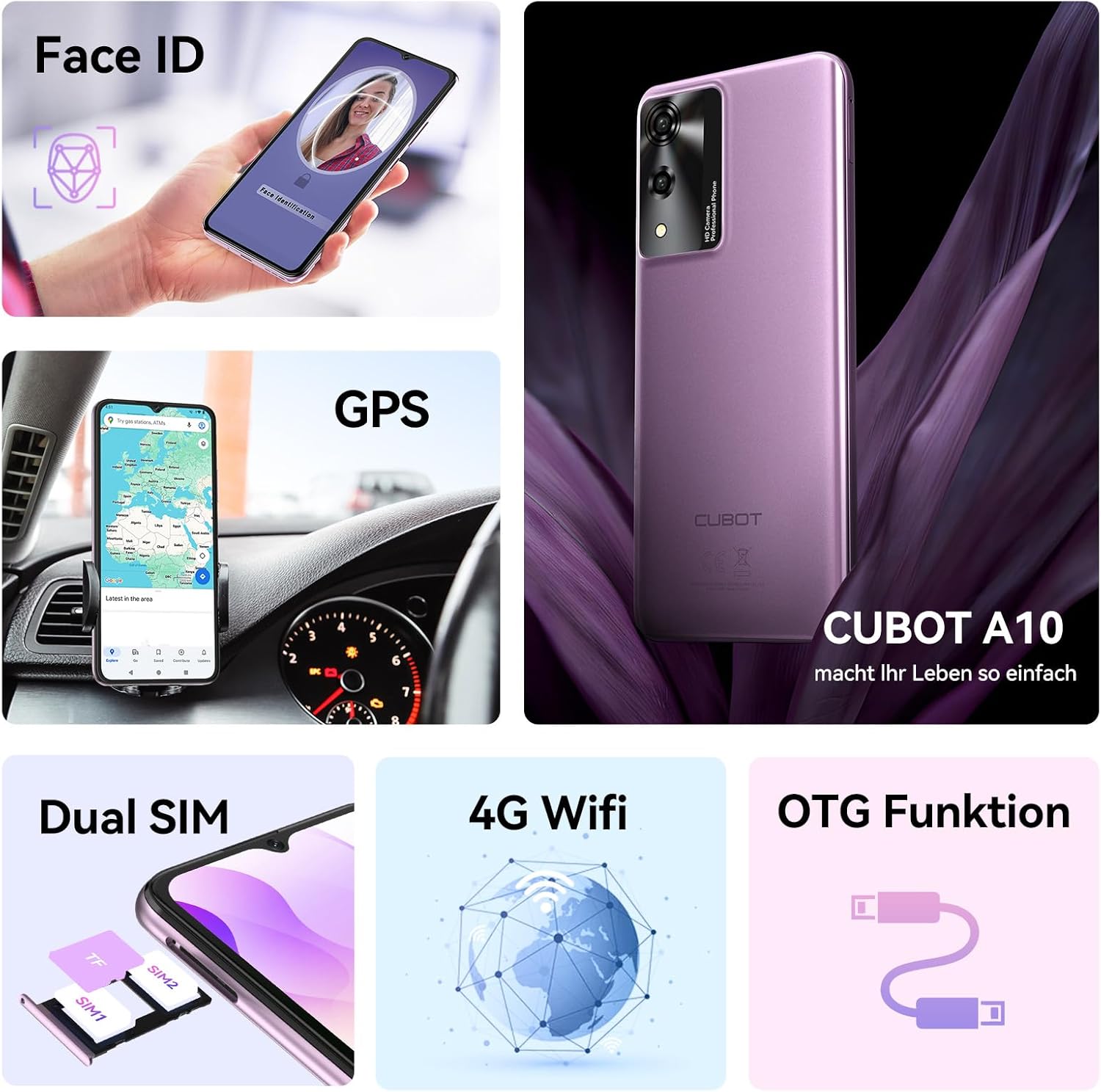
The CUBOT A10 supports either two 4G SIM cards or one SIM card along with a 1TB TF card for expanded storage. Use the provided SIM eject pin to open the SIM tray located on the side of the device. Carefully place your SIM card(s) and/or TF card into the designated slots, ensuring correct orientation. Close the tray securely.
3.2. Initial Power On and Charging
To power on your CUBOT A10, press and hold the power button until the CUBOT logo appears. For first-time use or if the battery is depleted, connect the device to the charger using the provided Type-C cable. The phone features a large 5100mAh battery, providing extended usage time.

4. Operating Your Device
4.1. Android 14 System Overview
The CUBOT A10 runs on the latest Android 14 operating system, offering enhanced personalization options, improved privacy controls, and a smooth user experience. You can customize your desktop with app groupings, widgets, and intelligent floating windows. Privacy features allow you to manage data access and advertising preferences.

4.2. Display Features
The device features a 6.56-inch HD+ display with a resolution of 720*1612 pixels and a 90Hz refresh rate, providing a clear and responsive visual experience. The display supports 10-point touch for precise interaction.

4.3. Camera Functions
The CUBOT A10 is equipped with a 48MP main camera and a 16MP front camera. It offers various shooting modes including Panorama, Portrait, Pro, Night Mode, and Time-lapse photography, allowing for versatile photo capture.

4.4. Performance and Storage
The smartphone comes with 12GB RAM (4GB physical + 8GB extended) and 128GB internal storage, expandable up to 1TB via a TF card. This configuration supports smooth multitasking and ample space for applications, games, photos, and videos.

4.5. Additional Features
The CUBOT A10 includes features such as Face ID for secure unlocking, GPS+GLONASS+Galileo+BEIDOU navigation for accurate positioning, and OTG (On-The-Go) functionality, allowing the phone to act as a power bank or connect to USB devices.
5. Maintenance
5.1. Battery Care
To maximize battery life, avoid exposing the device to extreme temperatures. Charge the battery regularly and avoid fully discharging it frequently. The 5100mAh battery is designed for long-lasting performance.
5.2. Software Updates
Regularly check for and install software updates to ensure your device has the latest features, security patches, and performance improvements. Updates are typically found in the device's settings under 'System' or 'About Phone'.
5.3. Cleaning Your Device
Use a soft, lint-free cloth to clean the screen and body of your smartphone. Avoid using harsh chemicals or abrasive materials that could damage the finish or screen. For stubborn smudges, a slightly damp cloth can be used, followed by a dry one.
6. Troubleshooting
6.1. Common Issues and Solutions
- Device not turning on: Ensure the battery is charged. Connect the charger and wait a few minutes before attempting to power on again.
- Apps crashing or freezing: Close background applications. If the issue persists, restart the device. Consider clearing the app's cache or reinstalling the app.
- Poor network signal: Check your SIM card insertion. Move to an area with better network coverage. Restart the device.
- Battery draining quickly: Reduce screen brightness, disable unnecessary features like GPS or Bluetooth when not in use, and close background apps.
- Storage full: Delete unnecessary files, photos, or videos. Move media to a TF card if installed. Uninstall unused applications.
7. Specifications
| Feature | Detail |
|---|---|
| Brand | CUBOT |
| Model Name | A10 |
| Operating System | Android 14 |
| RAM Size | 12 GB (4+8GB extended) |
| Storage Capacity | 128 GB (expandable up to 1TB with TF card) |
| Display Size | 6.56 inches |
| Display Resolution | 720*1612 |
| Refresh Rate | 90 Hz |
| Main Camera | 48 MP |
| Battery Capacity | 5100 mAh |
| CPU Model | Octa Core Processor |
| Connectivity | Dual 4G SIM, WLAN 2.4G, Bluetooth 5.2, OTG, GPS, Face ID |
8. Product Videos
8.1. CUBOT A10 Product Overview
This video provides a comprehensive overview of the CUBOT A10 smartphone's features and design.
8.2. CUBOT A10 Unboxing Video
Watch this video to see the unboxing experience and initial setup of the CUBOT A10 smartphone.
9. Warranty and Support
CUBOT offers a 2-year repair protection for customers who purchase their products. For any issues or inquiries, please contact customer service. 24-hour customer service is available to assist you with problem resolution.


