
Ourlife B0D81DD8WL
Ourlife WiFi Extender Signal Booster User Manual
Model: B0D81DD8WL
Introduction
The Ourlife WiFi Extender Signal Booster is designed to expand your existing wireless network coverage, eliminate dead zones, and provide a stable, high-speed internet connection throughout your home or office. Featuring dual-band technology (2.4GHz and 5GHz) and four high-gain antennas, this device ensures comprehensive 360-degree coverage and supports data transfer rates up to 1200Mbps.
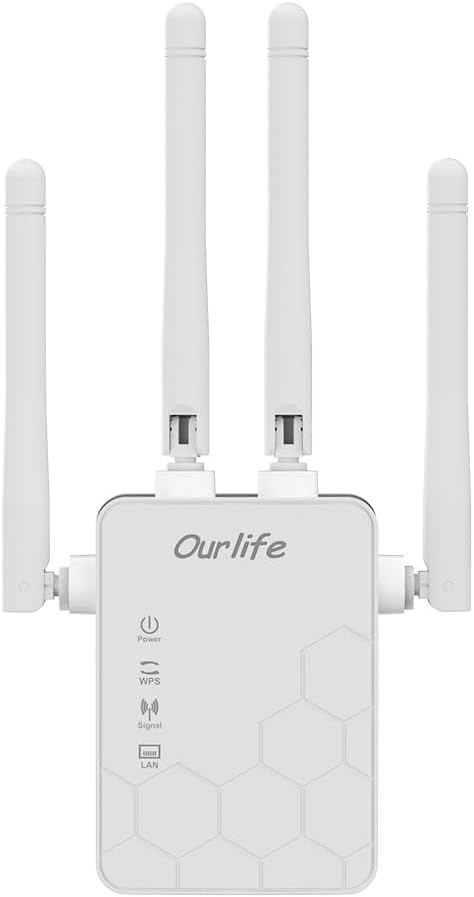
Front view of the Ourlife WiFi Extender, showcasing its compact design and four adjustable antennas.
What's in the Box
- Ourlife WiFi Extender (repeater body)
- User Manual
Key Features
- Dual-Band Technology: Supports both 2.4GHz (up to 300Mbps) and 5GHz (up to 867Mbps) for a combined 1200Mbps data transfer rate.
- Extended Coverage: Four high-gain antennas provide 360-degree full coverage, eliminating Wi-Fi dead zones.
- Multiple Operating Modes: Supports Repeater, Access Point (AP), and Router modes to suit various network needs.
- Wide Device Compatibility: Connects up to 30+ devices simultaneously, including smartphones, laptops, tablets, game consoles, and smart home devices.
- Wired Connectivity: Equipped with Ethernet ports to connect wired devices like smart TVs or desktop computers.
- Easy Setup: One-button WPS setup for quick connection, or configure via mobile phone/PC web interface.
- Enhanced Security: Supports wireless security protocols to protect your network and data.

Diagram illustrating key features such as easy operation, efficient heat dissipation, high-speed performance, signal penetration, strong stability, and network safety.
Setup Guide
Setting up your Ourlife WiFi Extender is a straightforward process. You can choose between WPS (Wi-Fi Protected Setup) for quick connection or a web-based setup for more control.
Method 1: WPS Button Setup
- Unbox: Carefully remove the extender from its packaging.
- Plug In: Plug the Ourlife WiFi Extender into an electrical outlet near your existing router. Wait for the Power indicator light to turn solid.
- Press WPS on Extender: Press the WPS button on the Ourlife WiFi Extender. The WPS indicator light will start blinking.
- Press WPS on Router: Within 2 minutes, press the WPS button on your main Wi-Fi router.
- Pair: The extender will automatically connect to your router. Once connected, the Signal indicator light on the extender will turn solid, indicating a successful connection.

Visual guide for the fast and simple WPS setup process.
Method 2: Web Interface Setup (Mobile Phone or PC)
- Plug In: Plug the Ourlife WiFi Extender into an electrical outlet.
- Connect to Extender's Wi-Fi: On your mobile phone or PC, connect to the Wi-Fi network broadcast by the extender (e.g., "Ourlife_Extender" or similar, check the label on the device). No password is required for the initial connection.
- Access Setup Page: Open a web browser and enter the default IP address or domain name (usually found in the included user manual or on the device label, e.g.,
192.168.1.1orextender.local). - Login: Enter the default username and password (e.g., "admin" for both, check manual).
- Select Mode: Choose your desired operating mode (Repeater, AP, or Router). For extending existing Wi-Fi, select Repeater mode.
- Select Network: Scan for available Wi-Fi networks and select your main router's network.
- Enter Password: Enter the Wi-Fi password for your main router's network.
- Configure Extender's SSID (Optional): You can choose to keep the same network name as your router or create a new one for the extended network.
- Apply Settings: Save the settings. The extender will restart and connect to your main router.
- Relocate Extender: Once setup is complete, you can unplug the extender and move it to a location halfway between your router and the Wi-Fi dead zone. Ensure the Signal indicator light shows a strong connection.
Operating Modes
The Ourlife WiFi Extender supports multiple operating modes to cater to different networking requirements:
- Repeater Mode: Extends the coverage of an existing wireless network. This is the most common mode for eliminating Wi-Fi dead zones.
- Access Point (AP) Mode: Transforms a wired network connection into a wireless one. Ideal for areas with Ethernet access but no Wi-Fi.
- Router Mode: Functions as a primary wireless router, creating a new private network. (Note: This mode is typically used when you have a modem but no router).
You can switch between these modes via the web interface setup, as described in the setup guide.
Connectivity and Coverage
This extender is designed to provide robust connectivity and extensive coverage:
- Multi-Device Support: Capable of connecting over 30 devices simultaneously, ensuring stable performance even with high network traffic.
- Wired Device Connection: The integrated Ethernet ports allow you to connect wired devices such as smart TVs, gaming consoles, desktop PCs, or network-attached storage (NAS) directly to the extender, providing a stable wired connection.
- Enhanced Signal Penetration: The four external high-gain antennas are engineered to provide stronger signal penetration through walls and obstacles, significantly improving coverage and reducing signal loss.
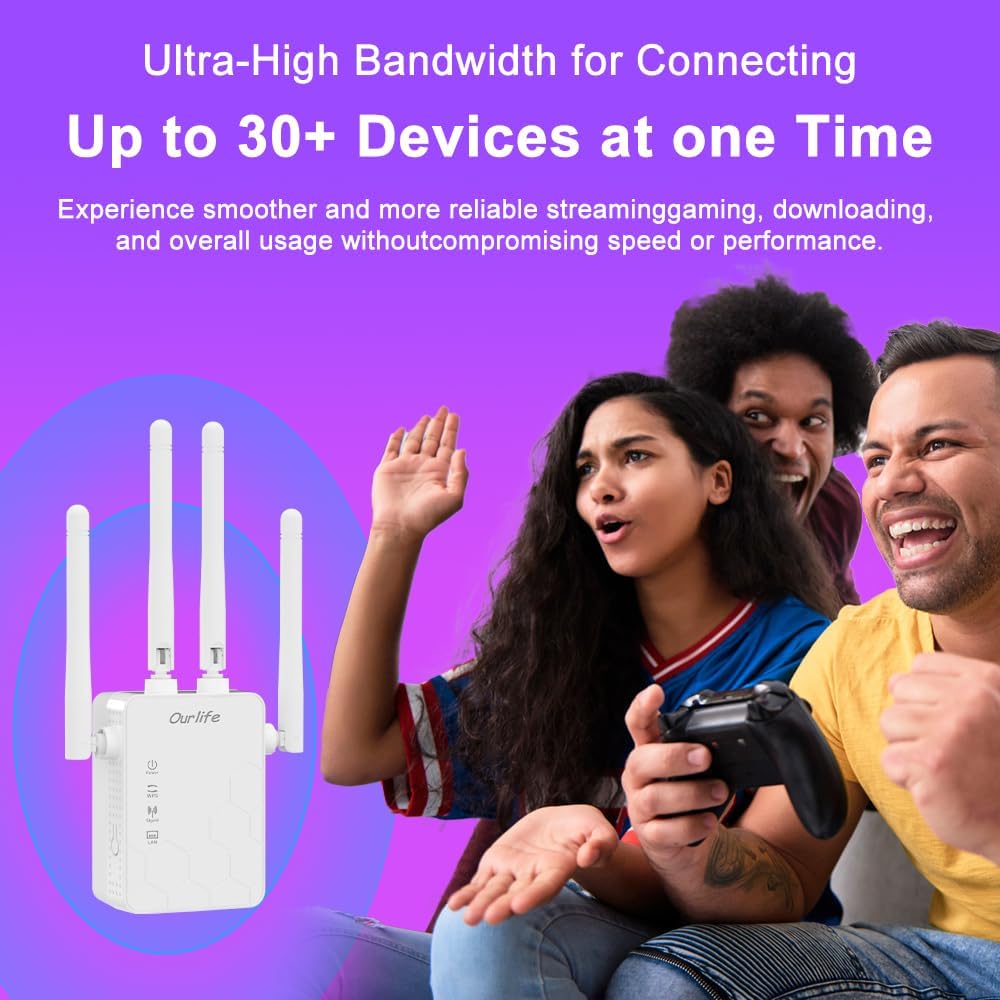
The extender supports a high number of simultaneous device connections for a smooth experience.
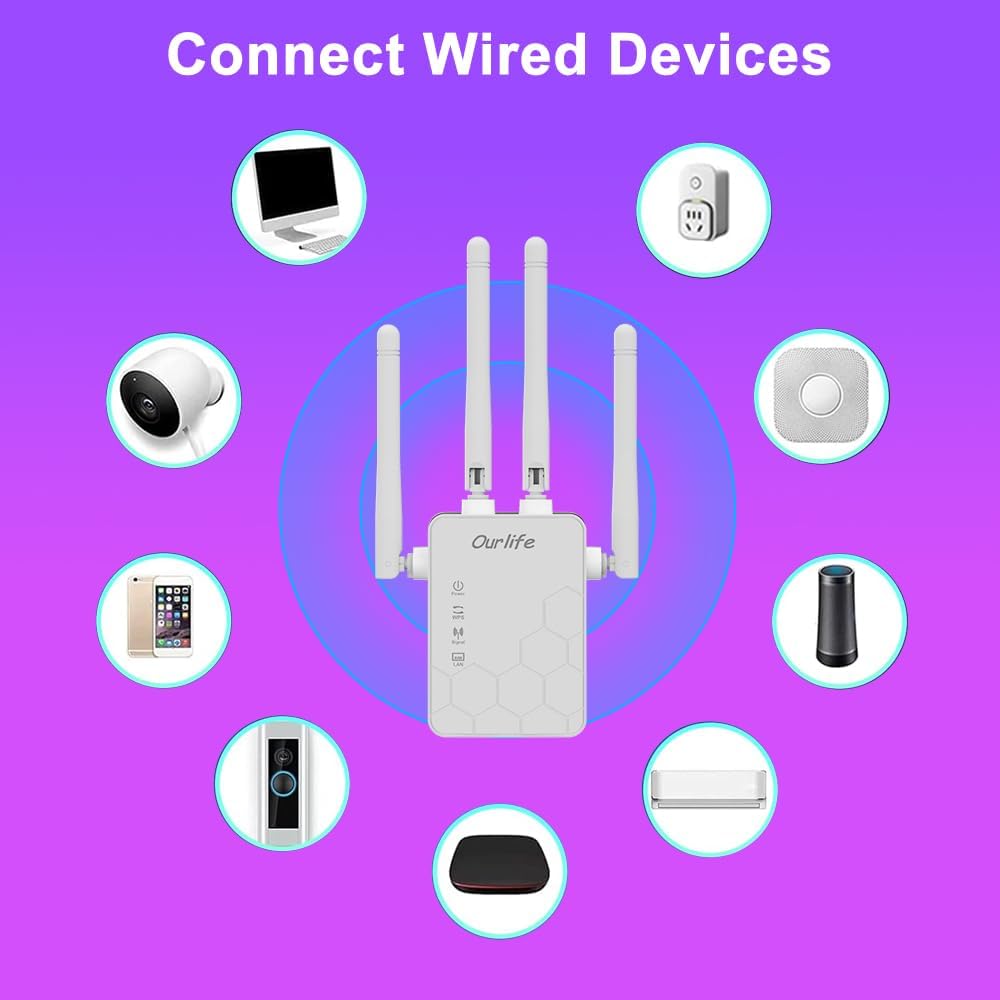
The extender's Ethernet ports allow for direct connection of wired devices.

Visual representation of how the extender expands Wi-Fi coverage to eliminate dead spots.

Illustration of the enhanced signal penetration provided by the four external antennas.
Maintenance
To ensure optimal performance and longevity of your Ourlife WiFi Extender, consider the following maintenance tips:
- Placement: Place the extender in an open area, away from obstructions like large metal objects, concrete walls, or other electronic devices that may cause interference.
- Ventilation: Ensure the device has adequate ventilation. Do not cover the extender or place it in an enclosed space to prevent overheating.
- Cleaning: Gently wipe the exterior of the device with a soft, dry cloth. Do not use liquid cleaners or aerosols.
- Firmware Updates: Periodically check the Ourlife official website for any available firmware updates. Keeping the firmware updated can improve performance, security, and add new features.
- Rebooting: If you experience network issues, try rebooting the extender by unplugging it from the power outlet for 10 seconds and then plugging it back in.
Troubleshooting
If you encounter issues with your Ourlife WiFi Extender, refer to the following common troubleshooting steps:
- No Signal/Weak Signal:
- Ensure the extender is placed within the range of your main router.
- Relocate the extender to a position roughly halfway between your router and the desired coverage area.
- Check the Signal indicator light on the extender; it should be solid or green (if applicable) for a good connection.
- Verify that your main router is functioning correctly.
- Cannot Connect to Extender's Wi-Fi:
- Ensure the extender is powered on.
- If using WPS, ensure both WPS buttons were pressed within the time limit.
- If using web setup, ensure you are connecting to the correct extender SSID and entering the correct password.
- Try resetting the extender to factory defaults (refer to the full manual for reset instructions, usually a small button).
- Slow Internet Speed:
- Ensure the extender is placed in an optimal location, not too far from the main router.
- Check for interference from other electronic devices (microwaves, cordless phones).
- Verify the internet speed from your main router directly.
- Ensure your devices are connecting to the 5GHz band if available and supported, for higher speeds.
- Connection Drops Frequently:
- Check for signal interference.
- Ensure the extender is not overheating.
- Reboot both the router and the extender.
- Consider updating the extender's firmware.
Specifications
| Feature | Detail |
|---|---|
| Brand | Ourlife |
| Model Number | B0D81DD8WL |
| Data Transfer Rate | 1200 Megabits Per Second (Mbps) |
| Frequency Band Class | Dual-Band (2.4GHz & 5GHz) |
| Special Features | Advanced Antenna Design, Access Point Mode, Wireless Security Features |
| Connector Type | USB 2.0 |
| Manufacturer | Ourlife |
| First Available Date | July 30, 2024 |
Warranty and Support
For warranty information and technical support, please refer to the official Ourlife website or contact their customer service directly. Keep your purchase receipt as proof of purchase for warranty claims.
Ourlife Customer Support:
- Website: Visit the Ourlife Store on Amazon (for general brand information and product listings)
- Refer to the product packaging or included documentation for specific contact details (email, phone number).
Ask a question about this manual
Ask about setup, troubleshooting, compatibility, parts, safety, or missing instructions. Manuals+ will review the question and use this page’s manual context to help answer it.