
1. Introduction
Thank you for choosing the Hangrui Kids Camera C3. This digital camera is specifically designed for children, featuring a unique appearance, an HD IPS screen, and a durable soft silicone case. It allows children to capture high-resolution photos and videos, fostering their creativity and imagination. This manual provides essential information for setting up, operating, maintaining, and troubleshooting your camera.
2. Product Overview
2.1 Package Contents
- 1 x Hangrui Kids Camera
- 1 x USB Cable
- 1 x Lanyard
- 1 x User Manual
- 1 x 32GB Memory Card (pre-installed)
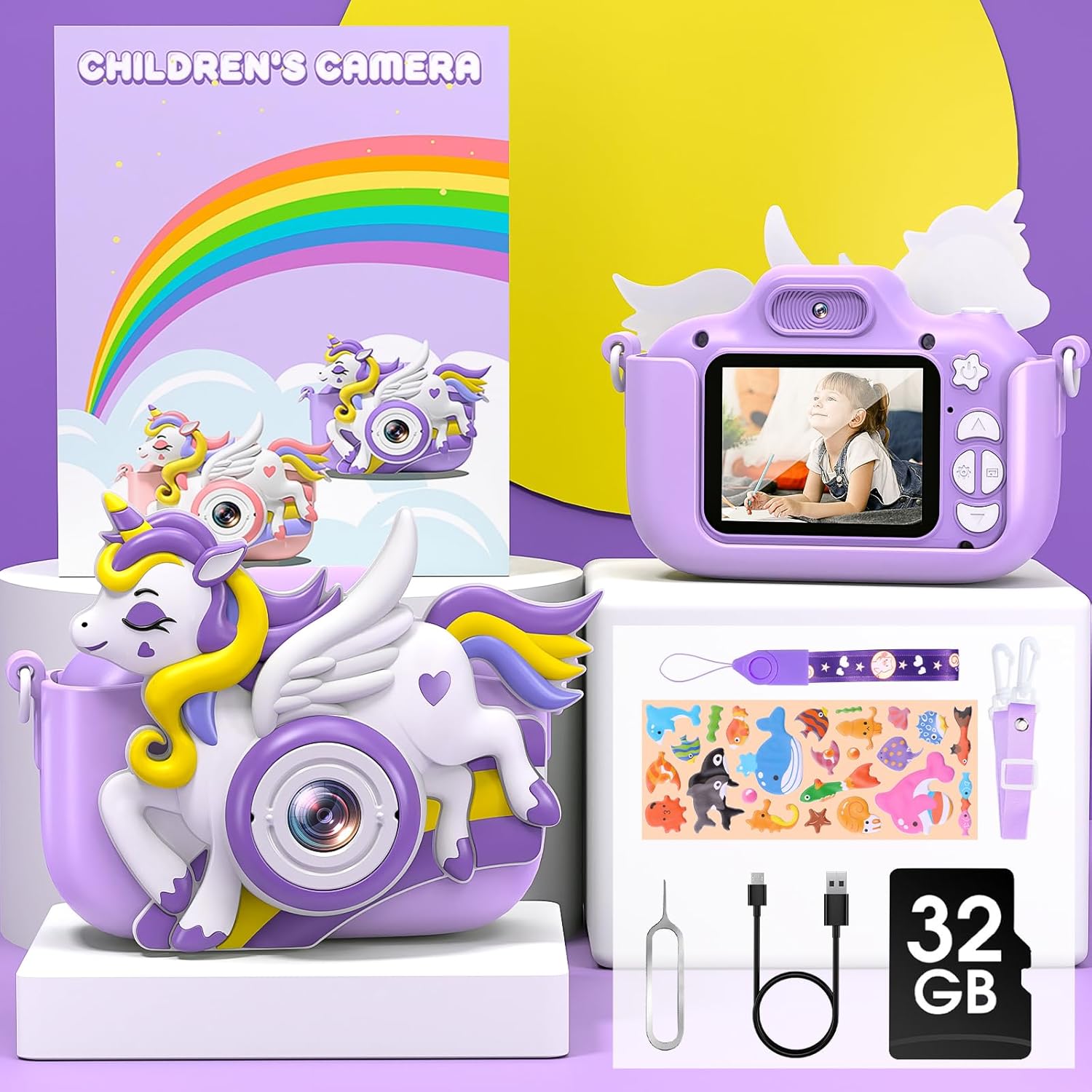
Image: Contents of the Hangrui Kids Camera C3 package.
2.2 Key Features
- 2.0-inch IPS Screen: Clear display for viewing photos and videos.
- 20 Million Pixels (20MP) Photos: High-resolution image capture.
- 1080P HD Video Recording: Capture moments in high definition.
- 8X Digital Zoom: Magnify subjects for detailed shots.
- Multifunctionality: Supports photo taking, video recording, playback, selfie mode, time-lapse, and includes fun filters, stickers, and built-in puzzle games (Snake, Tetris, Sokoban).
- 1000mAh Rechargeable Battery: Provides 3-5 hours of continuous use on a full charge.
- 32GB Memory Card: Stores approximately 5,000 photos.
- Durable Design: Eco-friendly soft silicone case protects against bumps and drops.
- Portable: Includes a durable lanyard for easy carrying.

Image: Overview of the Hangrui Kids Camera C3 and its main features.
3. Setup
3.1 Memory Card Installation
The 32GB memory card is typically pre-installed in the camera. If you need to remove or re-install the memory card, ensure the camera is powered off. After re-installing the memory card, you must restart the camera for it to be recognized properly.
3.2 Initial Charging
Before first use, fully charge the camera. When the camera indicates a low battery, use the included USB data cable to charge it promptly. Ensure the camera is powered off during charging. Connect the USB cable to a 5V/1A power adapter (not included) or a standard USB power port.
4. Operating Instructions
4.1 Power On/Off
Press and hold the power button to turn the camera on or off.
4.2 Taking Photos
In photo mode, press the shutter button to take a picture. Use the navigation buttons to select from various filters and fun frames to enhance your photos.

Image: Examples of color filters and funny frames available for photos.
4.3 Recording Videos
Switch to video mode and press the shutter button to start recording. Press it again to stop recording. The camera supports 1080P HD video resolution.
4.4 Selfie Mode
The camera features both front and rear lenses. Switch to selfie mode to use the front-facing camera for self-portraits.

Image: Demonstrating the front and rear selfie camera function.
4.5 Zoom Function
Use the zoom buttons to apply up to 8X digital zoom while taking photos or recording videos.
4.6 Time-Lapse Photography
Select the time-lapse function to capture a series of photos at set intervals, creating a time-lapse video.

Image: Illustrating 1080P HD video recording, time-lapse settings, and 8X zoom.
4.7 Playing Games
The camera includes three puzzle games: Snake, Tetris, and Sokoban. Navigate to the games menu to select and play.
4.8 Music Playback
The camera supports music playback. Transfer audio files to the memory card and access them through the music menu.

Image: The camera's compact design and music feature.
5. Maintenance and Safety
5.1 Charging Guidelines
Always use the provided USB cable for charging. Ensure the camera is turned off during charging. Use a 5V/1A power adapter or a standard USB port. Avoid overcharging the battery.
5.2 General Safety Warnings
- Do Not Disassemble: Do not attempt to disassemble the camera yourself to avoid potential hazards or damage.
- Handle with Care: Do not strike or crush the camera, as this can damage internal electronic components.
- Not Waterproof: This camera is an electronic product and is not waterproof. Do not expose it to water splashes or immerse it in water.
- Cleaning: Use a soft, dry cloth to clean the camera. Avoid using liquid cleaners.
6. Troubleshooting
If you encounter any issues with your Hangrui Kids Camera C3, please refer to the following common solutions:
- Camera Not Turning On: Ensure the battery is sufficiently charged. Connect the camera to a power source using the USB cable and try again.
- Memory Card Error: If the camera displays a memory card error, ensure the card is correctly inserted. Power off the camera, remove and re-insert the 32GB memory card, then restart the camera. If the issue persists, try formatting the card (this will erase all data) or using a different compatible memory card.
- Poor Image/Video Quality: Ensure the lens is clean and free from smudges. Check lighting conditions.
- Camera Freezes: If the camera becomes unresponsive, press and hold the power button for an extended period (e.g., 10-15 seconds) to force a shutdown, then restart it.
- Short Battery Life: Ensure the camera is fully charged before use. Reduce screen brightness or turn off unnecessary features to conserve battery.
If these steps do not resolve the issue, please contact customer support.
7. Specifications
| Brand | Hangrui |
| Model Name | C3 |
| Product Type | Compact Digital Camera |
| Screen | 2.0 inch IPS LCD |
| Effective Still Resolution | 20 Megapixels |
| Video Resolution | 1080p |
| Digital Zoom | 8x |
| Battery Capacity | 1000 mAh Lithium-polymer |
| Charging Time | 3-4 hours |
| Storage Support | 32GB Memory Card (included) |
| Connectivity Technology | USB |
| Water Resistance Level | Not Waterproof |
| Model Year | 2024 |
8. Warranty and Support
Specific warranty information for the Hangrui Kids Camera C3 is not provided in this manual. For details regarding warranty coverage, terms, and conditions, please refer to the product packaging or contact the retailer where the product was purchased.
For technical support, troubleshooting assistance beyond what is covered in this manual, or inquiries about replacement parts, please contact Hangrui customer service or the authorized distributor.