
SOOMFON XF-B9203A
SOOMFON Bluetooth 5.2 Transmitter Receiver User Manual
Model: XF-B9203A
Introduction
Thank you for choosing the SOOMFON Bluetooth 5.2 Transmitter Receiver. This device is designed to enhance your audio experience by providing seamless wireless connectivity for various audio systems. It functions as both a Bluetooth transmitter (TX) to send audio from non-Bluetooth devices to Bluetooth headphones/speakers, and a Bluetooth receiver (RX) to stream audio from your Bluetooth-enabled devices to wired speakers or home stereo systems. Featuring aptX Low Latency and aptX HD support, it ensures high-quality audio with minimal delay.
Safety Information
Please read and follow all safety instructions carefully before using this product to prevent injury or damage.
- Dispose of batteries properly to avoid environmental harm.
- Do not expose the device to extreme temperatures, humidity, or direct sunlight.
- Do not disassemble or attempt to repair the device yourself. Refer all servicing to qualified personnel.
- Keep the device away from water and other liquids.
- Use only the provided or recommended power adapter.
Product Overview
The SOOMFON Bluetooth 5.2 Transmitter Receiver (Model: XF-B9203A) is a versatile audio adapter. It features a sleek design with a wood grain finish, an intuitive LCD screen, and a multi-function rotary knob for easy operation.
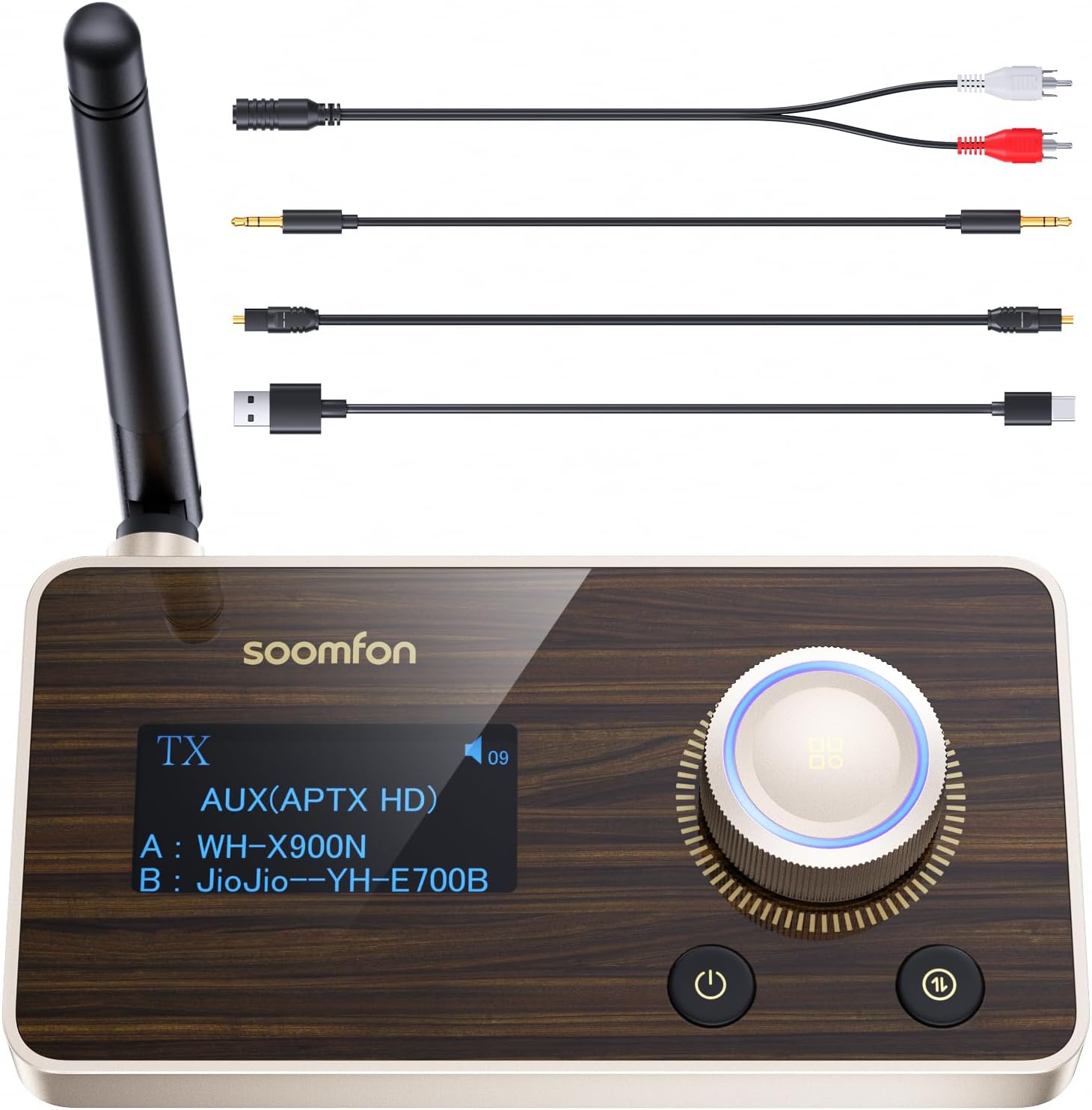
Image: The SOOMFON Bluetooth 5.2 Transmitter Receiver unit, showcasing its front panel with an LCD display, rotary knob, and buttons. Various audio cables (RCA, AUX, USB-C) are displayed above the unit, indicating connectivity options.
Key Features:
- Bluetooth 5.2 Technology: Provides stable and efficient wireless connection.
- Transmitter (TX) & Receiver (RX) Modes: Easily switch between sending and receiving audio.
- aptX Low Latency & aptX HD: Ensures synchronized audio for videos and high-fidelity sound quality.
- Long Range: Up to 30 meters (RX) and 15 meters (TX) indoors with the external antenna.
- Dual Pairing: Connect two Bluetooth headphones or speakers simultaneously in TX mode.
- Multiple Audio Inputs/Outputs: Supports Optical (SPDIF), AUX (3.5mm), and RCA connections.
- LCD Display: Provides clear information on connection status, mode, and codec.
- User-Friendly Controls: Intuitive rotary knob for volume adjustment and mode switching.

Image: A detailed view of the SOOMFON unit's top panel, highlighting the wood grain design, the LCD screen displaying "TX AUX(APTX HD)", and the illuminated rotary volume knob, along with the power and mode buttons.
Setup Guide
1. Unpacking and Initial Inspection:
Carefully remove all components from the packaging. Ensure all items listed in the "Packing List" section are present and undamaged.

Image: The SOOMFON Bluetooth 5.2 Transceiver, its green packaging box, and all included accessories: an optical cable, a 3.5mm AUX audio cable, a 3.5mm to RCA audio cable, a USB-A to USB-C charging cable, and the user manual.
2. Power Connection:
Connect the provided USB-A to USB-C charging cable to the USB-C power input port on the back of the SOOMFON unit. Plug the other end into a USB power adapter (not included) or a USB port on your device (e.g., TV, computer) for power.
3. Attaching the Antenna:
Screw the external antenna firmly into the antenna port on the back of the unit. Ensure it is upright for optimal signal reception and transmission.
4. Audio Connection:
Choose the appropriate audio cable based on your source device (in TX mode) or audio system (in RX mode):
- Optical (SPDIF): For digital audio connection, use the optical cable. Connect one end to the Optical IN/OUT port on the SOOMFON and the other to your TV, soundbar, or amplifier.
- AUX (3.5mm): For analog audio connection, use the 3.5mm AUX cable. Connect one end to the AUX IN/OUT port on the SOOMFON and the other to your device's headphone jack or AUX port.
- RCA: For analog audio connection to devices with RCA ports, use the 3.5mm to RCA audio cable. Connect the 3.5mm end to the AUX IN/OUT port on the SOOMFON and the RCA ends to the corresponding L/R audio input/output on your stereo system or TV.
Ensure the correct input/output ports are selected on both the SOOMFON unit and your connected audio device.
Operating Instructions
Power On/Off:
Press and hold the power button (⏻) for approximately 3 seconds to turn the device on or off. The LCD screen will illuminate upon power-on.
Switching Modes (TX/RX):
Press the mode switch button (⇆) to toggle between Transmitter (TX) mode and Receiver (RX) mode. The current mode will be displayed on the LCD screen.
Transmitter Mode (TX):
In TX mode, the SOOMFON unit sends audio from your non-Bluetooth device (e.g., TV, PC, CD player) to Bluetooth headphones or speakers.

Image: A person wearing headphones watching TV, with the SOOMFON unit connected to the TV, illustrating the Transmitter (TX) mode for wireless audio transmission.
- Set the SOOMFON to TX mode.
- Connect the SOOMFON to your audio source (TV, PC, etc.) using an Optical, AUX, or RCA cable.
- Put your Bluetooth headphones or speakers into pairing mode.
- The SOOMFON will automatically search for and display available Bluetooth devices on its LCD screen.
- Use the rotary knob to select the desired device and press the knob to confirm pairing.
- Once connected, the LCD will show the connected device's name and the active audio codec (e.g., aptX HD, aptX LL).
- To connect a second device, put the second device into pairing mode, then short press the mode switch button on the SOOMFON to initiate a new search and pair.
For optimal low latency, ensure your headphones also support aptX Low Latency (aptX LL).

Image: A graph illustrating audio delay comparisons between different Bluetooth codecs (aptX LL, aptX, AAC, SBC), showing aptX LL provides the lowest latency for synchronized audio.
Receiver Mode (RX):
In RX mode, the SOOMFON unit receives audio from your Bluetooth-enabled device (e.g., smartphone, tablet, laptop) and plays it through your wired speakers or home stereo system.

Image: A person relaxing on a sofa, listening to music through a home stereo system connected wirelessly via the SOOMFON unit in Receiver (RX) mode.
- Set the SOOMFON to RX mode.
- Connect the SOOMFON to your wired audio system (speakers, amplifier, etc.) using an Optical, AUX, or RCA cable.
- On your Bluetooth-enabled device (smartphone, tablet), search for "SOOMFON XF-B9203A" in the Bluetooth settings and pair.
- Once connected, the LCD will show the connected device's name and the active audio codec.
- You can now stream audio wirelessly from your device to your wired audio system.
The SOOMFON supports aptX HD in RX mode for high-quality audio streaming.
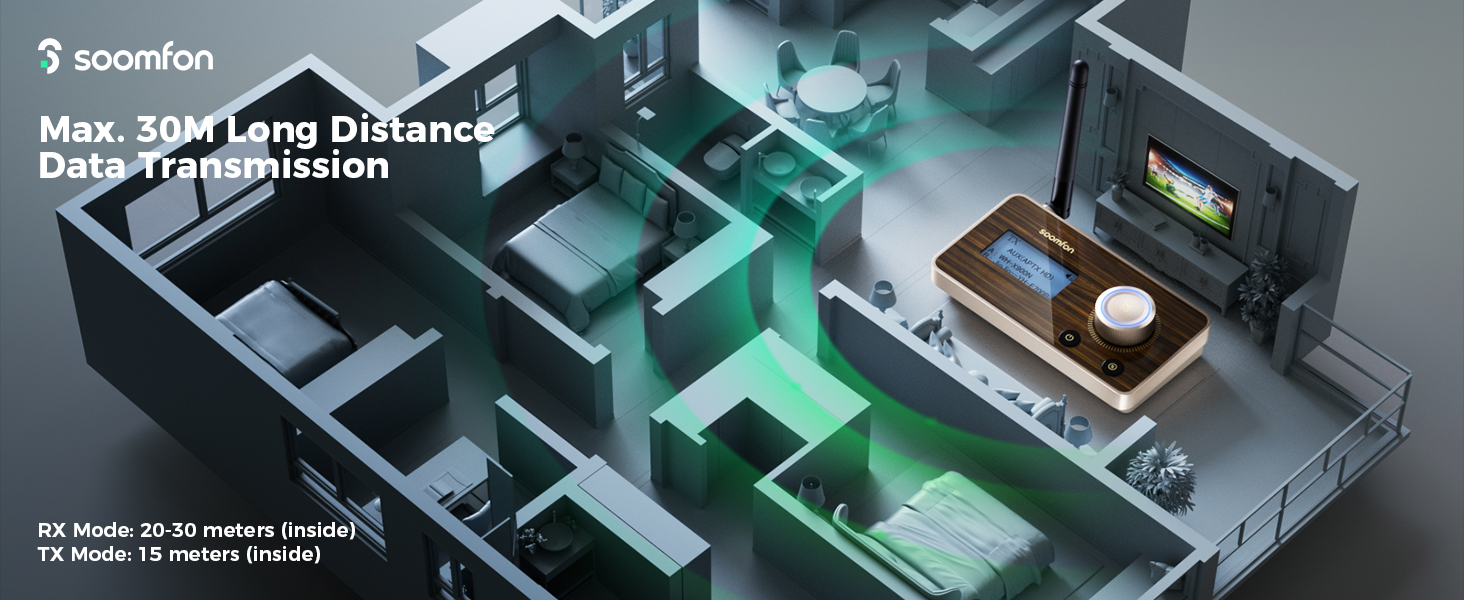
Image: A bar chart comparing audio bitrates for different codecs (SBC, aptX, aptX HD), demonstrating that aptX HD provides the highest bitrate for CD-like sound quality.
Volume Control:
Rotate the multi-function knob clockwise to increase volume and counter-clockwise to decrease volume. Press the knob to pause/play audio or confirm selections during pairing.
Maintenance
- Clean the device with a soft, dry cloth. Do not use liquid cleaners or aerosols.
- Keep the device free from dust and debris.
- Store the device in a cool, dry place when not in use.
- Avoid dropping or subjecting the device to strong impacts.
Troubleshooting
| Problem | Possible Cause | Solution |
|---|---|---|
| No power | Power cable not connected properly; faulty power source. | Ensure USB-C cable is securely connected. Try a different USB power adapter or USB port. |
| Cannot pair device | Device not in pairing mode; too far from SOOMFON; interference. | Ensure your Bluetooth device is in pairing mode. Move devices closer. Restart both devices. Clear previous pairings on your Bluetooth device. |
| Audio delay/lag | Connected device does not support aptX Low Latency; environmental interference. | For minimal delay, ensure both the SOOMFON and your connected headphones/speakers support aptX Low Latency (aptX LL). Reduce distance between devices. |
| No sound | Incorrect audio cable connection; wrong input/output selected; volume too low. | Verify audio cables are correctly connected to the SOOMFON and your audio system. Ensure the correct input/output is selected on both devices. Increase volume on both the SOOMFON and your connected device. |
| Short Bluetooth range | Obstructions; antenna not properly attached. | Ensure the antenna is securely attached and upright. Minimize obstructions (walls, large furniture) between the SOOMFON and your Bluetooth device. |
Specifications
| Feature | Detail |
|---|---|
| Model Number | XF-B9203A |
| Bluetooth Version | 5.2 |
| Supported Codecs | aptX HD, aptX Low Latency, aptX, SBC, AAC |
| Operating Modes | Transmitter (TX), Receiver (RX) |
| Audio Interfaces | Optical (SPDIF) IN/OUT, 3.5mm AUX IN/OUT, RCA IN/OUT |
| Power Input | USB Type-C |
| Indoor Range (RX Mode) | 20-30 meters (approx. 65-98 feet) |
| Indoor Range (TX Mode) | 15 meters (approx. 49 feet) |
| Package Dimensions | 14.7 x 12 x 4 cm |
| Weight | 240 g |
Packing List
The following items are included in your SOOMFON Bluetooth 5.2 Transmitter Receiver package:
- 1 x SOOMFON Bluetooth 5.2 Transceiver Unit
- 1 x Optical Cable
- 1 x 3.5mm AUX Audio Cable
- 1 x 3.5mm to RCA Audio Cable
- 1 x USB-A to USB-C Charging Cable
- 1 x User Manual
Warranty and Support
SOOMFON provides a 2-year product guarantee for this device. If you encounter any issues or have questions regarding the product, please contact SOOMFON customer support. We aim to provide a prompt response within 24 hours.
For support, please refer to the contact information provided in the packaging or on the official SOOMFON website.
Related documentsXF-B9203A


Ask a question about this manual
Ask about setup, troubleshooting, compatibility, parts, safety, or missing instructions. Manuals+ will review the question and use this page’s manual context to help answer it.