
Redragon H868
Redragon H868 3-Mode Wireless RGB Gaming Headset
Model: H868 | Brand: Redragon
Introduction
The Redragon H868 is a versatile 3-mode wireless RGB gaming headset designed to provide an immersive audio experience across multiple platforms. Featuring 7.1 surround sound, 40mm audio drivers, and a noise-canceling microphone, this headset ensures clear communication and rich sound. Its multi-mode connectivity (2.4GHz wireless, Bluetooth, and 3.5mm wired) offers flexible usage for PC, PS5, Xbox, Nintendo Switch, and mobile devices. This manual provides detailed instructions for setup, operation, maintenance, and troubleshooting to help you maximize your gaming and audio experience.
What's in the Box
- Redragon H868 Gaming Headset
- Detachable Microphone
- USB-C Charging Cable
- 3.5mm Audio Cable
- 2.4GHz USB Wireless Dongle
- User Manual
Features Overview

The Redragon H868 headset in black, showcasing its sleek design, detachable microphone, and the included 2.4GHz wireless USB dongle.

An overview of the headset's capabilities, including 7.1 Virtual Surround, 3-Mode Connection, 40mm Sound Units, 3 EQ Modes, On-Ear Controls, Full Rotation Mic, Adjustable Headband, and RGB Lighting Effect.
- Immersive 7.1 Surround Sound: Experience rich, detailed audio with 40mm drivers, delivering crisp highs and deep lows for a fully immersive gaming experience.
- 3-Mode Wireless Connectivity: Seamlessly switch between 2.4GHz wireless (via USB dongle), Bluetooth 5.3, and 3.5mm wired connections for ultimate flexibility across devices.

Visual representation of the headset's versatile 3-mode connection technology.
- Noise-Canceling Microphone: The omnidirectional, detachable microphone captures your voice clearly while suppressing background noise, ensuring effective communication with teammates.

The 360° adjustable noise-canceling microphone ensures clear voice pickup.
- Multiple EQ Modes: Tailor your audio with three preset EQ modes: Classic, Game, and Music, optimized for different listening experiences.

Easily switch between Gaming, Music, and Classic EQ modes to optimize your audio.
- Dynamic RGB Lighting: Enhance your gaming setup with customizable RGB lighting, offering 4 cycling and static preset modes.

The headset features immersive dynamic RGB lighting with various modes.
- Comfortable Design: Equipped with cozy PU leather ear pads and an adjustable headband for extended comfort during long gaming sessions.
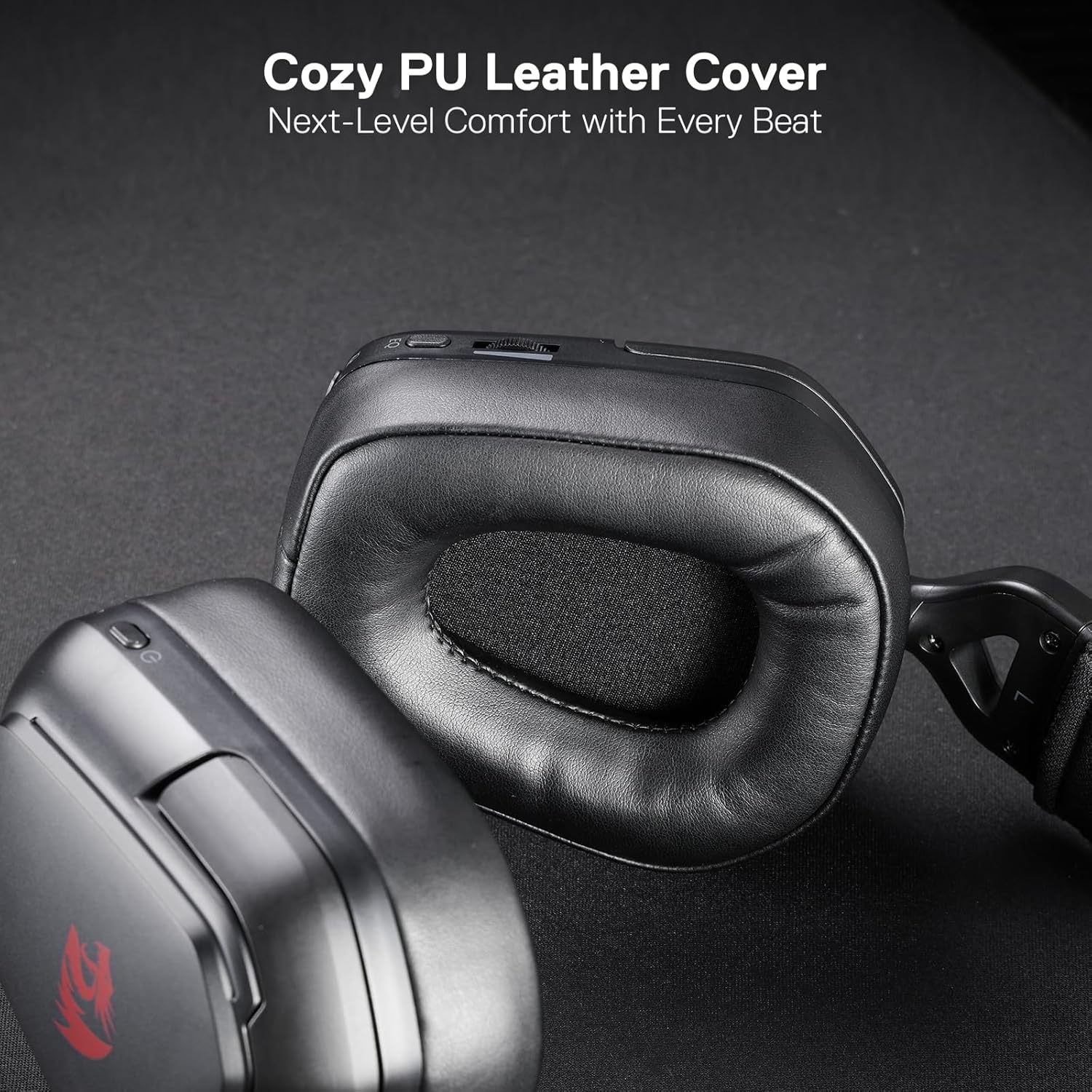
The soft PU leather ear pads provide next-level comfort.
- Long-lasting Battery: An 800mAh battery provides up to 30 hours of continuous use, ensuring extended gaming and listening sessions.

Enjoy extended playtime with the headset's long-lasting battery.
Setup Guide
1. Initial Charging
Before first use, fully charge the headset. Connect the included USB-C charging cable to the headset's USB charging port and the other end to a USB power source (e.g., computer USB port, USB wall adapter). The LED indicator will show charging status and turn off when fully charged.
2. Attaching the Microphone
Align the detachable microphone with the microphone port on the left earcup and gently push it in until it clicks into place. Ensure it is securely connected. The microphone can be rotated 360 degrees for optimal positioning.
3. Connection Modes
The Redragon H868 offers three connection modes:
3.1. 2.4GHz Wireless Connection (Recommended for PC/PS5/XBOX/NS)
- Insert the 2.4GHz USB wireless dongle into an available USB port on your device (PC, PS5, Xbox, Nintendo Switch).
- Power on the headset by pressing and holding the Power button until the RGB lights illuminate.
- The headset should automatically connect to the dongle. If not, briefly press the mode switch button on the headset to cycle to 2.4GHz mode. The indicator light will confirm connection.
- Ensure the headset is selected as the default audio input/output device in your system's sound settings.
3.2. Bluetooth Connection (Recommended for Mobile/PC)
- Power on the headset.
- Press the mode switch button on the headset to cycle to Bluetooth mode. The indicator light will flash, indicating pairing mode.
- On your device (smartphone, tablet, PC), enable Bluetooth and search for "Redragon H868" in the list of available devices.
- Select the headset to pair. Once connected, the indicator light will become solid.
3.3. 3.5mm Wired Connection
- Connect one end of the 3.5mm audio cable to the Aux Jack on the headset.
- Connect the other end of the 3.5mm audio cable to the audio port on your device.
- The headset will automatically power off when the 3.5mm cable is plugged in, operating in passive wired mode.
Operating Instructions

Detailed view of the headset's controls for effortless sound tailoring.
- Power On/Off: Press and hold the ON/OFF button for 3 seconds to power the headset on or off.
- Volume Control: Use the Volume Wheel located on the left earcup to adjust the audio output level.
- Microphone Mute: Press the Mute Mic button to toggle the microphone on or off. An indicator light on the microphone will show its status.
- EQ Mode Switching: Press the EQ Modes button to cycle through the three preset equalization modes: Classic, Game, and Music.
- RGB Lighting Control: Press the RGB Mode button to cycle through different RGB lighting effects and turn the lighting on/off.
- Mode Switching (Wireless): Briefly press the ON/OFF button (or a dedicated mode button if present) to switch between 2.4GHz wireless and Bluetooth modes.
Maintenance and Care
- Cleaning: Use a soft, dry cloth to clean the headset. For ear pads, gently wipe with a damp cloth and mild soap solution if necessary, then dry thoroughly. Do not use harsh chemicals or abrasive materials.
- Storage: Store the headset in a cool, dry place away from direct sunlight and extreme temperatures. When not in use, it is recommended to store it in its original packaging or a protective case to prevent damage.
- Battery Care: To prolong battery life, avoid fully discharging the headset frequently. Charge it regularly, even if not in constant use.
- Microphone Care: Handle the detachable microphone carefully. Avoid bending it excessively or applying undue force when attaching or detaching.
Troubleshooting
| Problem | Possible Cause | Solution |
|---|---|---|
| No sound/microphone not working | Incorrect connection mode, low battery, mic muted, incorrect system settings. | Ensure headset is in the correct mode (2.4GHz, BT, or wired). Check battery level. Unmute microphone. Verify headset is selected as default audio device in OS settings. Re-seat detachable microphone. |
| Headset keeps saying "LOW BATTERY" | Battery is critically low. | Charge the headset immediately. The headset is designed to alert you when the battery is low to prevent unexpected power loss. |
| Microphone sound is too quiet or muffled | Microphone sensitivity settings, mic positioning. | Adjust microphone gain/volume in your device's sound settings. Ensure the microphone is positioned correctly near your mouth. Check for any obstructions. |
| Cannot connect via 2.4GHz wireless | Dongle not recognized, interference. | Try plugging the USB dongle into a different USB port. Ensure no other 2.4GHz devices are causing interference. Re-pair the headset with the dongle if necessary (refer to setup guide). |
| Bluetooth pairing issues | Headset not in pairing mode, device Bluetooth off. | Ensure headset is in Bluetooth pairing mode (flashing indicator light). Turn off and on Bluetooth on your device. Forget previous pairings and try again. |
| Wired connection (3.5mm) audio but no mic | Incorrect 3.5mm cable type or port. | Ensure you are using a 4-pole (TRRS) 3.5mm cable if your device requires combined audio and mic input. Some devices may require a splitter. Verify the device's audio port supports microphone input. |
Specifications
| Model Name | MIRA (H868) |
| Connectivity Technology | Wired (3.5mm), Wireless (Bluetooth 5.3, 2.4GHz RF) |
| Audio Driver Size | 40mm |
| Sound Features | 7.1 Surround Sound, 3 EQ Modes (Classic, Game, Music) |
| Microphone | Noise-Canceling, Detachable, Omnidirectional, 360° Adjustable |
| Battery Capacity | 800mAh (Lithium Polymer) |
| Battery Life | Up to 30 hours |
| RGB Lighting | Dynamic RGB with 4 preset modes |
| Ear Placement | Over-Ear |
| Ear Pad Material | PU Leather Foam |
| Compatible Devices | PC, PS5, XBOX, Nintendo Switch, Mobile devices with 3.5mm/Bluetooth |
| Frequency Range | 20 Hz - 20,000 Hz |
| Impedance | 32 Ohm |
| Item Weight | 8.6 ounces (approx. 0.54 lbs) |
Warranty and Support
Redragon products are manufactured to high quality standards. For specific warranty information regarding your Redragon H868 headset, please refer to the warranty card included with your product or visit the official Redragon website. If you encounter any issues not covered in this manual or require further assistance, please contact Redragon customer support through their official channels. Keep your purchase receipt as proof of purchase for warranty claims.
Redragon Official Website: www.redragonusa.com
Related documentsH868

Ask a question about this manual
Ask about setup, troubleshooting, compatibility, parts, safety, or missing instructions. Manuals+ will review the question and use this page’s manual context to help answer it.