
1. Introduction
This manual provides comprehensive instructions for the Beyution RC813 FMB2 Replacement Voice Remote Control. This remote is designed to function with various TCL Smart TV models, offering convenient control and voice search capabilities. Please read this manual carefully to ensure proper setup and operation.
Compatible TCL Smart TV Models:
This remote control is compatible with, but not limited to, the following TCL Smart TV models:
- 75QM850G, 85QM850G, 98QM850G
- 32S350G, 40S350G, 43S350G
- 55Q650G, 98S550G, 65QM850G
- 43S450G, 50S450G, 55S450G, 85S450G
- 75Q650G, 65Q650G, 85Q650G
- 85Q750G, 55Q750G, 65Q750G, 75Q750G, 85Q750G-CA
- 50Q550G, 55Q550G, 65Q550G
- 50S450G-CA, 55S450G-CA, 58S450G, 65S450G, 65S450G-CA, 75S450G, 75S450G-CA
2. Product Features
The Beyution RC813 FMB2 remote control offers several key features designed for an enhanced user experience:
- Voice Search Function: Easily control your TV and search for content using voice commands.
- Ergonomic Design: Lightweight and comfortable to hold, ensuring ease of use.
- Durable Materials: Constructed from ABS plastic and soft rubber for longevity and tactile feedback.
- Extended Range: Operates effectively up to 10 meters (approximately 33 feet) with stable performance.
- Upgraded Smart Chip: Ensures stable performance and fast response times.

Image: The Beyution RC813 FMB2 remote control shown alongside a TCL Smart TV, illustrating its key attributes such as no complex setup, soft plastic buttons, and durable ABS material construction.

Image: The Beyution RC813 FMB2 remote control, emphasizing its internal upgraded smart chip for stable and reliable performance.
3. Setup
3.1 Battery Installation
- Locate the battery compartment cover on the back of the remote control.
- Slide the cover downwards or press the latch to open it.
- Insert two AAA batteries (not included), ensuring the positive (+) and negative (-) terminals align correctly with the markings inside the compartment.
- Replace the battery compartment cover until it clicks securely into place.

Image: Rear view of the remote control with the battery cover removed, illustrating the correct orientation for battery insertion.
3.2 Pairing with Your TCL Smart TV
For the voice search function and full remote control functionality, the Beyution RC813 FMB2 must be paired with your TCL Smart TV via Bluetooth. A network connection is required on your TV to utilize the voice recognition feature.
- Ensure your TCL Smart TV is powered on and connected to the internet.
- On your TV, navigate to the Settings menu.
- Look for options such as Remotes & Accessories, Bluetooth, or Add Device.
- Select the option to add a new device or pair a Bluetooth remote.
- Follow the on-screen instructions on your TV. Typically, you will need to press and hold specific buttons on the Beyution RC813 FMB2 remote (e.g., the 'OK' button and a directional button, or the 'Home' and 'Back' buttons) simultaneously for a few seconds until an indicator light on the remote flashes or the TV detects it.
- Once the remote appears on your TV's screen, select it to complete the pairing process.
- Test the remote's functions, including voice search, to confirm successful pairing.
4. Operating Instructions
After successful pairing, your Beyution RC813 FMB2 remote control is ready for use. The buttons are designed for good elasticity, requiring only a light press for activation.
4.1 Button Functions Overview
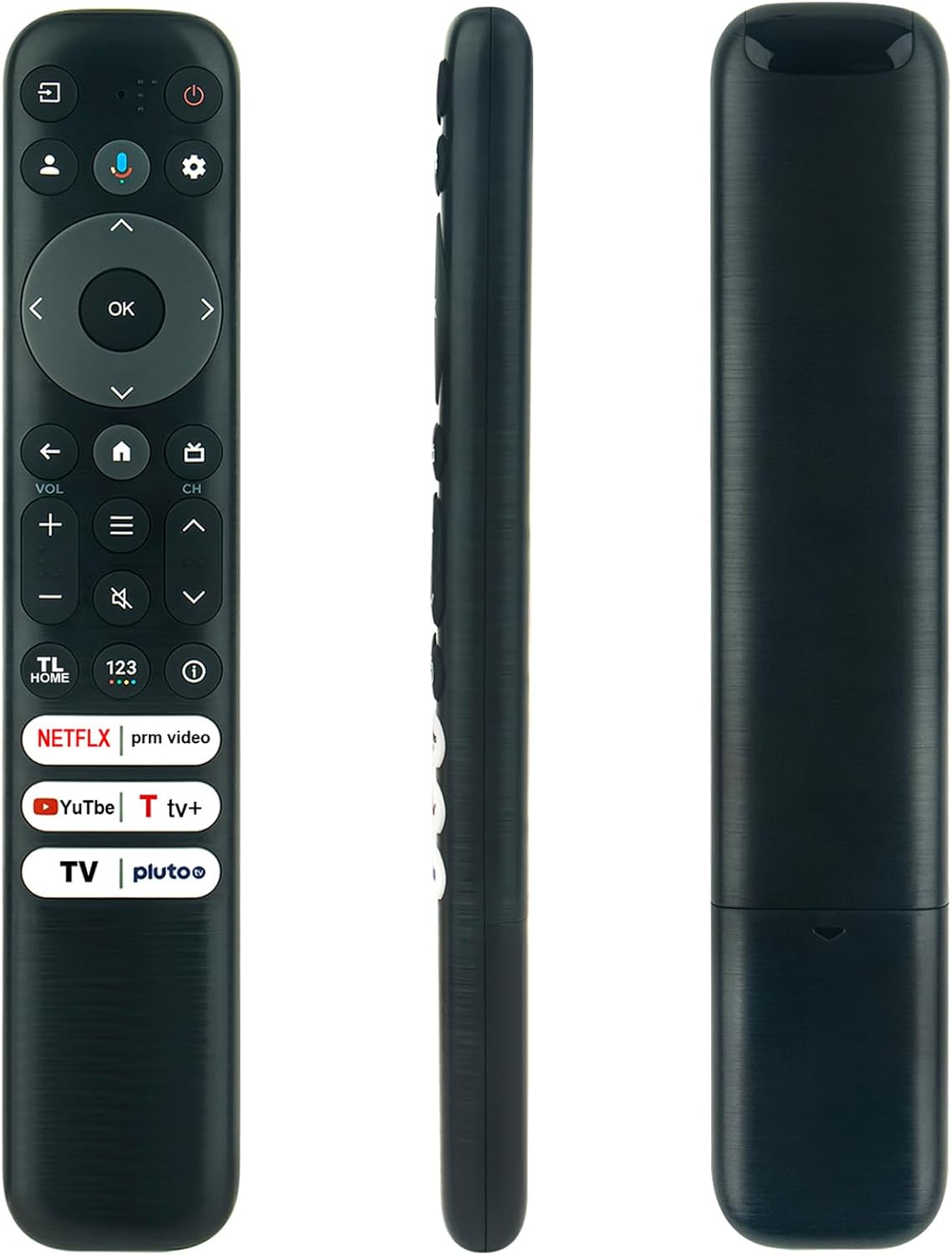
Image: A comprehensive view of the Beyution RC813 FMB2 remote control, displaying its front panel with all buttons, its slim side profile, and the textured back.
Refer to the image above for the general layout. Key buttons include:
- Power Button: Turns the TV on or off.
- Voice Button (Microphone Icon): Activates the voice search function.
- Navigation Pad (Up, Down, Left, Right, OK): For menu navigation and selection.
- Home Button: Returns to the TV's home screen.
- Volume Up/Down: Adjusts the TV volume.
- Channel Up/Down: Changes TV channels.
- Mute Button: Mutes or unmutes TV audio.
- Quick Access Buttons: Dedicated buttons for popular streaming services (e.g., Netflix, Prime Video, YouTube, TV+, Pluto TV).
4.2 Using Voice Search
The voice search feature allows for hands-free control and content discovery.
- Ensure the remote is successfully paired with your TV and the TV has an active internet connection.
- Press and hold the Voice Button (microphone icon) on the remote.
- Speak clearly into the remote's microphone. For example, you can say "Open Netflix," "Search for action movies," or "What's the weather?"
- Release the Voice Button when you have finished speaking. The TV will process your command or search query.

Image: The Beyution RC813 FMB2 remote control, highlighting the microphone button used to activate its voice search function.
5. Maintenance
5.1 Cleaning
To maintain the remote control's appearance and functionality:
- Wipe the surface with a soft, dry cloth.
- For stubborn dirt, lightly dampen the cloth with water or a mild, non-abrasive cleaner.
- Avoid using harsh chemicals, solvents, or abrasive materials, as these can damage the remote's finish or internal components.
5.2 Battery Replacement
Replace batteries when the remote's performance degrades or it stops responding. Always replace both batteries at the same time with new AAA batteries. Do not mix old and new batteries, or different types of batteries.
6. Troubleshooting
If you encounter issues with your Beyution RC813 FMB2 remote control, please refer to the following troubleshooting steps:
- Remote Not Responding:
- Check if the batteries are inserted correctly with the correct polarity.
- Replace the batteries with fresh ones.
- Ensure there are no obstructions between the remote and the TV.
- Voice Search Not Working:
- Verify that the remote is successfully paired with your TCL Smart TV. Refer to Section 3.2.
- Confirm that your TV has an active internet connection. Voice recognition requires network access.
- Ensure you are pressing and holding the Voice Button while speaking.
- Pairing Issues:
- Repeat the pairing process as described in Section 3.2.
- Ensure no other Bluetooth devices are interfering during the pairing process.
- Restart your TV and try pairing again.
If the remote control you received is damaged or does not work after following these steps, please contact customer support for assistance.
7. Specifications
| Model Number | RC813 FMB2 |
| Brand | Beyution |
| Connectivity Technology | Bluetooth |
| Special Features | Ergonomic, Voice Search |
| Material | ABS Plastic, Soft Rubber |
| Maximum Operating Distance | 10 Meters (approx. 33 feet) |
| Color | Black |
| Product Dimensions | 7 x 1.5 x 0.7 inches (17.78 x 3.81 x 1.78 cm) |
| Item Weight | 1.9 ounces (53.86 grams) |
| Compatible Devices | Television |
| Max Number of Supported Devices | 1 |

Image: The Beyution RC813 FMB2 remote control with its physical dimensions clearly indicated for reference.
8. Warranty and Support
8.1 Warranty Period
This Beyution RC813 FMB2 remote control comes with a 3-month warranty period from the date of purchase.
8.2 Customer Support
If you have questions, require assistance, or if your specific TV model is not listed in this manual, please contact Beyution customer support. If you receive a remote control that is damaged or does not function as expected, please reach out to us for a satisfactory solution.
Contact information for support is typically available through your purchase platform or the Beyution official website.