
SENCKIT ZB-Power-Monitor
SENCKIT WiFi Smart Energy Meter User Manual
Model: ZB-Power-Monitor
1. Introduction
Thank you for choosing the SENCKIT WiFi Smart Energy Meter. This device is designed to provide real-time monitoring of your energy consumption, including voltage, current, and power, through the Tuya Smart or Smart Life mobile application. With its dual 80A CT clamps, it offers accurate and reliable data for various appliances, helping you manage your home's energy usage efficiently. This manual provides essential information for safe installation, operation, and maintenance of your smart energy meter.
2. Safety Information
WARNING: Electrical shock hazard. Installation should only be performed by qualified personnel. Always turn off power at the circuit breaker before installation or maintenance.
- Ensure the main power supply is disconnected before attempting any wiring.
- Do not exceed the specified current measurement range of 0.2-80A.
- Operate the device within the specified working temperature range of -10℃ to 50℃.
- This device is designed for indoor use only. Avoid exposure to moisture or extreme temperatures.
- Keep out of reach of children.
3. Product Overview
The SENCKIT WiFi Smart Energy Meter is a compact device that allows you to monitor the energy consumption of your electrical circuits. It comes with two 80A Current Transformer (CT) clamps that non-invasively measure current flow. The device connects to your home's 2.4GHz WiFi network, enabling remote monitoring and control via the Tuya Smart or Smart Life app.
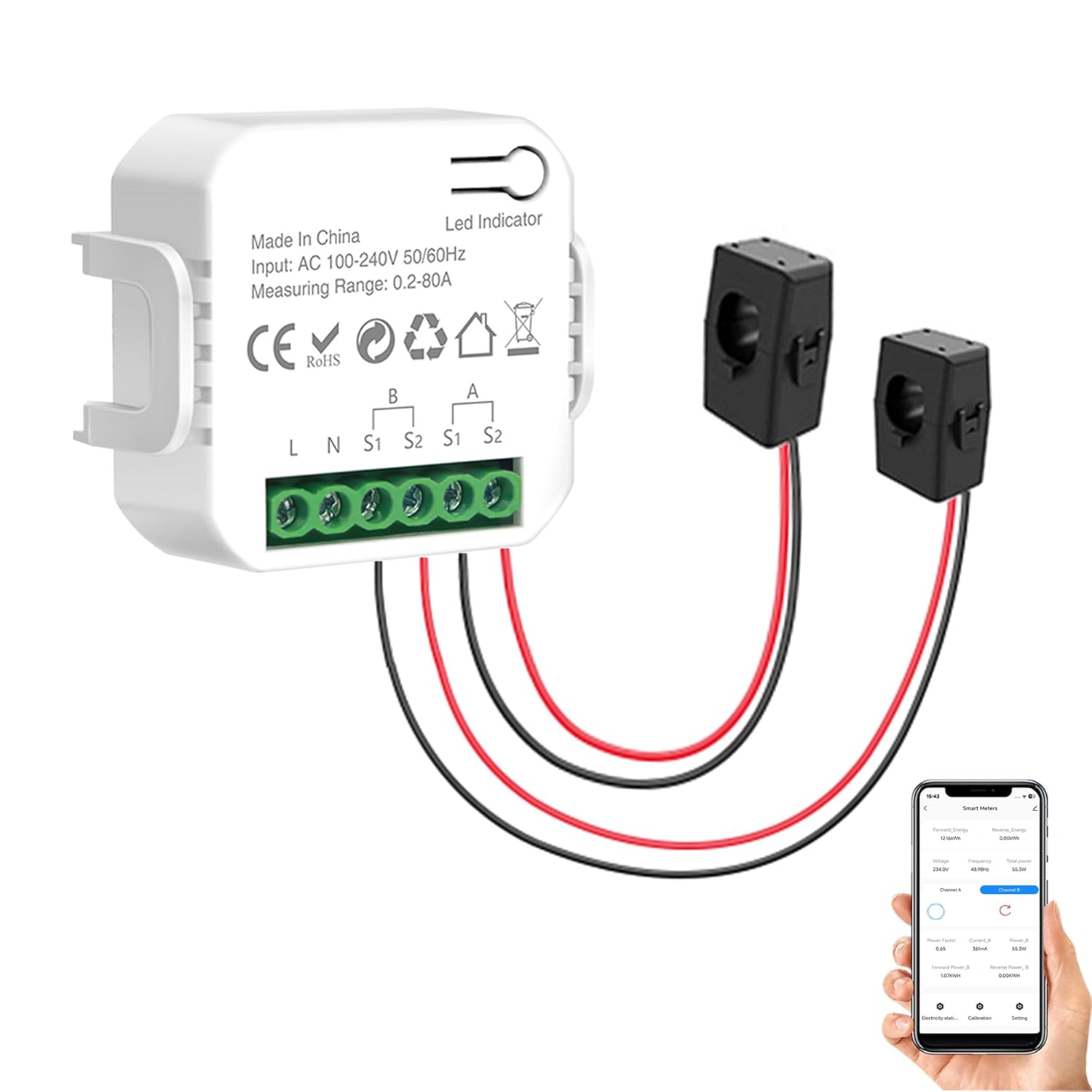
Figure 3.1: SENCKIT WiFi Smart Energy Meter with included CT clamps and app preview.
Key Features:
- Real-Time Energy Monitoring: View energy consumption (kWh), voltage, current, power factor, active power, and frequency in real-time.
- App Remote Control: Monitor and manage your energy usage from anywhere using the Tuya Smart or Smart Life app.
- Accurate Measurements: Equipped with two 80A sensors for precise monitoring of appliances. Calibration accuracy is ≤ 100W within ± 2W, and for higher wattages within ± 2%.
- Data History and Automation: Access hourly, daily, monthly, and yearly energy consumption records. Supports automation with other Tuya devices.
- Easy Installation: Designed for quick snap-on installation without needing to disconnect wires.

Figure 3.2: The energy meter is compatible with popular smart home platforms.

Figure 3.3: The device supports a maximum measured current of 80A per channel.
4. Package Contents
Please check the package contents upon opening to ensure all items are present:
- 1 x SENCKIT WiFi Power Meter Monitor
- 1 x User Manual (this document)
5. Specifications
| Parameter | Value |
|---|---|
| Product Name | Tuya Wifi Power Meter Monitor |
| Model Number | ZB-Power-Monitor |
| Material | Plastics |
| Input Voltage | AC100-240V, 50/60Hz |
| Current Measurement Range | 0.2-80A |
| Supported Systems | Google Home, Amazon Alexa |
| Wireless Type | 2.4GHz WiFi (802.11 B/G/N20) |
| Working Temperature | -10℃ to 50℃ |
| Product Dimensions (L x W x H) | 50 x 45 x 45 mm (1.97 x 1.77 x 1.77 inches) |
| Item Weight | 150g (5.29 ounces) |
| Measurement Type | Ammeter |
6. Setup
Follow these steps to install and set up your SENCKIT WiFi Smart Energy Meter:
6.1 Wiring Installation
- Turn off Power: Before starting, ensure the main power supply to the circuit you intend to monitor is completely turned off at the circuit breaker.
- Connect Power to Meter: Connect the AC100-240V power source to the L (Live) and N (Neutral) terminals on the smart energy meter.
- Attach CT Clamps: Clip the two 80A CT clamps onto the live wires of the circuits you wish to monitor. Ensure the direction of the arrow on the CT clamp points towards the load (away from the power source). Connect the CT clamp wires to the S1 and S2 terminals for each channel (A and B).

Figure 6.1: General wiring diagram for the energy meter.

Figure 6.2: Example of product wiring in a distribution box. Clamp the transformer to the live wire.

Figure 6.3: The CT clamps feature a snap-on design for quick installation without disconnecting wires.
6.2 App Installation and Pairing
- Download App: Download the "Tuya Smart" or "Smart Life" app from your smartphone's app store (Google Play Store for Android, Apple App Store for iOS).
- Register/Log In: Open the app and register for a new account or log in if you already have one.
- Add Device: Turn on the power to the energy meter. The LED indicator on the meter should start blinking, indicating it's in pairing mode. In the app, tap "+" to add a new device.
- Select Device Type: Choose "Electrical Engineering" > "Power Meter" or "Energy Meter" (the exact path may vary slightly by app version).
- Connect to WiFi: Confirm the LED indicator is blinking rapidly. Enter your 2.4GHz WiFi network name and password. The device only supports 2.4GHz WiFi.
- Pairing: The app will begin searching for and connecting to the device. Once connected, you can rename the device and complete the setup.
7. Operating Instructions
Once successfully set up, you can begin monitoring your energy usage through the mobile app.
7.1 Real-Time Monitoring
Open the Tuya Smart or Smart Life app and select your SENCKIT WiFi Smart Energy Meter. The main screen will display real-time data for:
- Voltage (V)
- Current (A)
- Active Power (W)
- Power Factor
- Frequency (Hz)
- Total Energy Consumption (kWh)

Figure 7.1: Multiple monitoring data displayed within the app.
7.2 Data History and Statistics
The app records and stores energy consumption data for over a year. You can view historical records by hour, day, month, or year within the app's "Electricity Statistics" section. This allows you to track trends and identify areas for energy saving.
7.3 Smart Home Integration
The SENCKIT WiFi Smart Energy Meter supports integration with Google Home and Amazon Alexa. Follow the instructions within the Tuya Smart or Smart Life app to link your device to these platforms for voice control and advanced automation scenarios.

Figure 7.2: The energy meter can be integrated into various home energy monitoring setups, including those with solar panels.
8. Maintenance
To ensure optimal performance and longevity of your SENCKIT WiFi Smart Energy Meter, follow these simple maintenance guidelines:
- Cleaning: Gently wipe the device with a dry, soft cloth. Do not use abrasive cleaners, solvents, or wet cloths, as these can damage the device.
- Firmware Updates: Periodically check the Tuya Smart or Smart Life app for available firmware updates. Keeping the device's firmware updated ensures you have the latest features and performance improvements.
- Environmental Conditions: Ensure the device is kept within its specified working temperature range and away from excessive moisture or direct sunlight.
9. Troubleshooting
If you encounter issues with your SENCKIT WiFi Smart Energy Meter, refer to the following common problems and solutions:
| Problem | Possible Cause | Solution |
|---|---|---|
| Device not pairing with app | Incorrect WiFi band (not 2.4GHz), weak WiFi signal, incorrect password, device not in pairing mode. | Ensure your router is broadcasting a 2.4GHz network. Check WiFi signal strength at the installation location. Verify WiFi password. Reset the device to enter pairing mode (refer to app instructions for reset procedure). |
| No power reading (0.0W) | CT clamps not correctly installed, CT clamp direction incorrect, no load on the circuit. | Ensure CT clamps are securely clipped around the live wire. Verify the arrow on the CT clamp points towards the load. Confirm there is an active electrical load on the monitored circuit. |
| Inaccurate readings | CT clamp not fully closed, interference, calibration issue. | Ensure CT clamps are fully closed and properly seated. Avoid installing near strong electromagnetic interference. If issues persist, contact support. |
| Frequent disconnections from WiFi | Weak WiFi signal, router interference, too many devices on network. | Relocate the WiFi router closer to the device or use a WiFi extender. Ensure your 2.4GHz network is optimized. Reduce network congestion if possible. |
| Not working with Alexa/Google Home | Incorrect linking, app permissions, regional restrictions. | Ensure the Tuya Smart/Smart Life skill/service is enabled and linked correctly in your Alexa/Google Home app. Verify device name for voice commands. |
10. Warranty and Support
For warranty information and customer support, please refer to the documentation provided at the time of purchase or visit the official SENCKIT website. You can also contact SENCKIT customer service through the contact information provided on their website or through your retailer.
Manufacturer: SENCKIT
Related documentsZB-Power-Monitor

Ask a question about this manual
Ask about setup, troubleshooting, compatibility, parts, safety, or missing instructions. Manuals+ will review the question and use this page’s manual context to help answer it.