
ATTACK SHARK X85 PRO
ATTACK SHARK X85 Pro Wireless Gaming Keyboard User Manual
Model: X85 PRO | Brand: ATTACK SHARK
Introduction
The ATTACK SHARK X85 Pro is a high-performance 75% layout mechanical gaming keyboard designed for versatility and customization. It features a unique TFT smart screen, a CNC knob for intuitive control, and tri-mode connectivity (Bluetooth 5.0, 2.4GHz wireless, and Type-C wired). With hot-swappable switches, a gasket-mounted structure, and extensive RGB backlighting, this keyboard offers a premium typing and gaming experience for PC and Mac users.

Figure 1: Top-down view of the ATTACK SHARK X85 Pro keyboard, showcasing its 75% layout, dedicated knob, and TFT screen.
What's in the Box
- ATTACK SHARK X85 Pro Wireless Gaming Keyboard
- USB Type-C Cable
- Detachable Gold-Plated Solder Breadboard PCB (integrated)
- Aluminum CNC Knob (pre-installed)
- PBT Keycaps (pre-installed)
- Keycap Puller
- Switch Puller
- User Manual (this document)
Product Overview
The X85 Pro keyboard integrates several advanced features for an enhanced user experience.

Figure 2: Overview of key features including TFT screen, tri-mode connection, knob design, gasket structure, hot-swap, RGB, and 4000mAh battery.
Key Features:
- Custom TFT Smart Screen & CNC Knob: Displays battery, time, system, and connection mode. The CNC knob allows navigation through screen menus for RGB backlight, volume, language, and custom GIF images.
- Gold-Plated Solder Breadboard PCB & Hot Swappable: Ensures good circuit performance and heat dissipation. Supports 3/5 pin mechanical switches for easy customization.
- Tri-Mode Connection & Rechargeable 4000mAH Battery: Offers Bluetooth 5.0, 2.4GHz wireless, and Type-C wired connectivity. Connects up to 5 devices. The 4000mAh battery provides extended usage.
- Gasket Keyboard & Pre-lubed Linear Switches: Features a 5-layer sound-absorbing and shock-absorbing gasket structure for reduced hollow sounds and improved typing feel. Comes with factory-lubricated Blueberry switches.
- QMK Web Driven & Amazing RGB Backlight: Allows macro recording, shortcut key customization, GIF image uploads, and extensive RGB backlight control via a web interface. Features 16.8 million RGB colors, 19 effects, and adjustable brightness/speed.
- Precision-Engineered 1.2mm Single Key Slotted PCB & Full Key Anti Ghosting: Ensures accurate and stable keystrokes with full N-key rollover for competitive gaming and fast typing.
- 75 Percent TKL Layout & OEM Profile Ergonomic Design: Compact layout saves desk space. Double-shot PBT keycaps with classic OEM profile and two adjustable feet provide ergonomic comfort.

Figure 3: Exploded view illustrating the 5-layer gasket structure for sound absorption and improved typing feel.
Setup
1. Connectivity Modes
The X85 Pro supports three connection modes: 2.4GHz Wireless, Bluetooth 5.0, and Type-C Wired.

Figure 4: Visual representation of the three connection modes: 2.4GHz wireless dongle, Bluetooth, and Type-C wired connection.
- 2.4GHz Wireless Mode:
- Locate the 2.4GHz USB receiver, typically stored in a magnetic slot on the keyboard's underside.
- Plug the receiver into an available USB port on your computer.
- Switch the keyboard's mode selector to "2.4G". The keyboard should automatically connect.
- Bluetooth Mode:
- Switch the keyboard's mode selector to "BT".
- On your computer or device, enable Bluetooth and search for new devices.
- Select "ATTACK SHARK X85 Pro" (or similar name) from the list of available devices to pair.
- The keyboard can store up to 3 Bluetooth connections (BT1, BT2, BT3). Use the Fn + Q/W/E keys to switch between paired devices.
- Type-C Wired Mode:
- Connect the provided USB Type-C cable to the keyboard's Type-C port.
- Connect the other end of the cable to a USB port on your computer.
- Switch the keyboard's mode selector to "USB". The keyboard will function as a wired device and charge simultaneously.
Video 1: Demonstrates the unboxing, connection modes, and initial setup of the X85 Pro keyboard.
2. Operating System Compatibility
The keyboard features a switch to toggle between Windows (Win) and Mac operating system layouts. Ensure the switch located near the USB port is set to your current operating system for correct key mapping.
3. QMK Web Driven Customization
The X85 Pro supports QMK firmware, allowing for extensive customization via a web interface. No software installation is required.

Figure 5: Screenshot of the QMK web interface for customizing keyboard functions, macros, and RGB lighting.
- Access the customization website by clicking the link: https://www.qmk.top/
- Through this interface, you can:
- Record and edit macros.
- Customize shortcut keys.
- Upload and display GIF images on the TFT screen.
- Adjust RGB backlight settings (effects, brightness, speed).
- Follow the on-screen instructions on the QMK website to apply your desired configurations to the keyboard.
Operating Instructions
1. TFT Smart Screen & CNC Knob Control
The integrated TFT screen and CNC knob provide intuitive control over various keyboard functions.
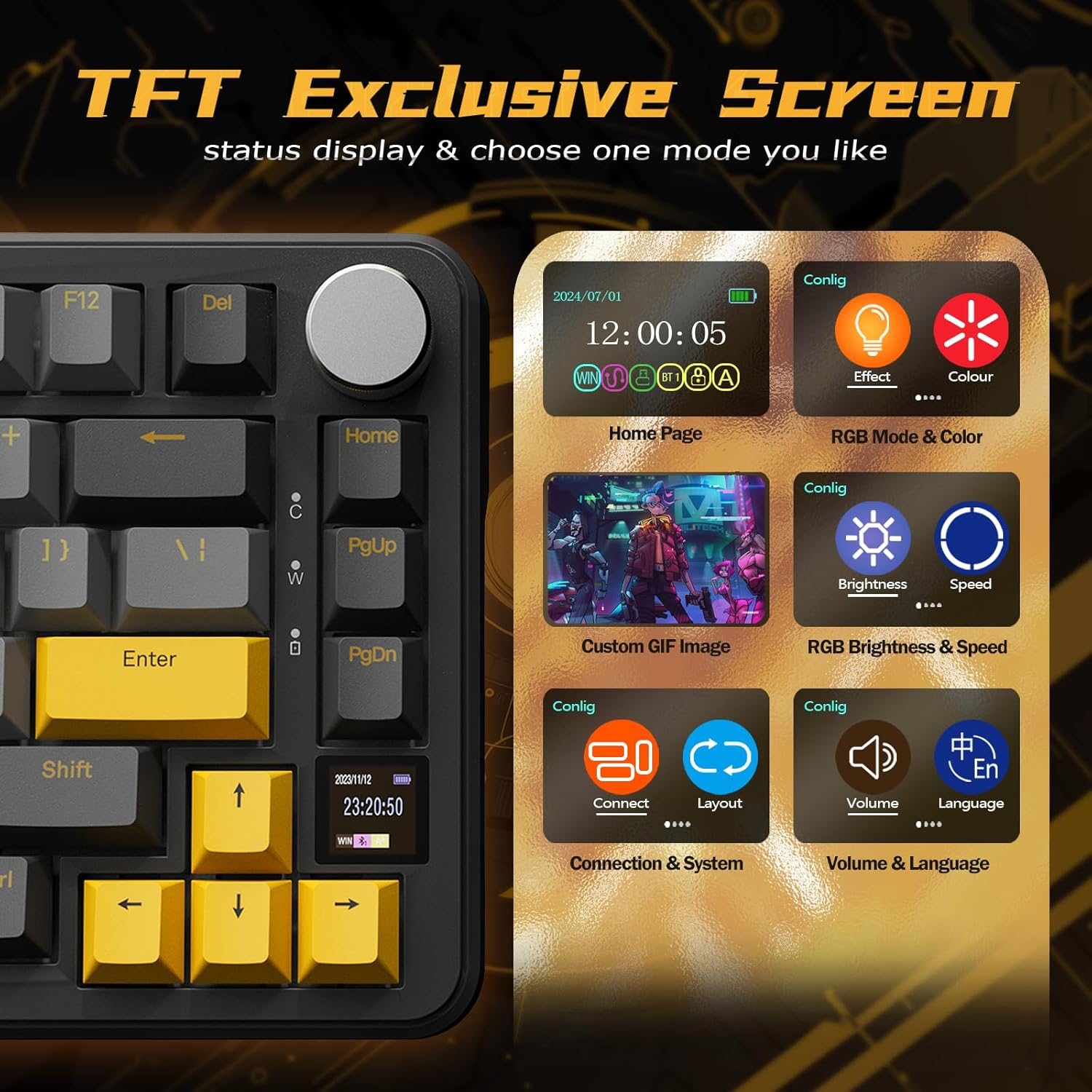
Figure 6: Detailed view of the TFT screen and its menu options for configuration.
- Default Mode (Office Mode):
- Rotate the CNC knob left or right to adjust the system volume.
- Press down on the knob to mute/unmute audio.
- Gaming Mode (Screen Menu Access):
- Long press the Fn key and then press the CNC knob to enter the screen menu.
- Rotate the knob to navigate through menu options (e.g., RGB backlight effects, volume, language, connection mode).
- Press the knob to confirm a selection.
- Long press the Fn key and then press the CNC knob again to exit the screen menu and return to default volume control.

Figure 7: Instructions for using the CNC knob to adjust TFT display settings and volume.
Video 2: Demonstrates the sound and feel of the keyboard, including knob functionality and RGB lighting.
Video 3: Highlights the gasket structure, hot-swappable switches, TFT screen, and QMK customization features.
2. RGB Backlight Settings
The keyboard offers extensive RGB backlight customization.
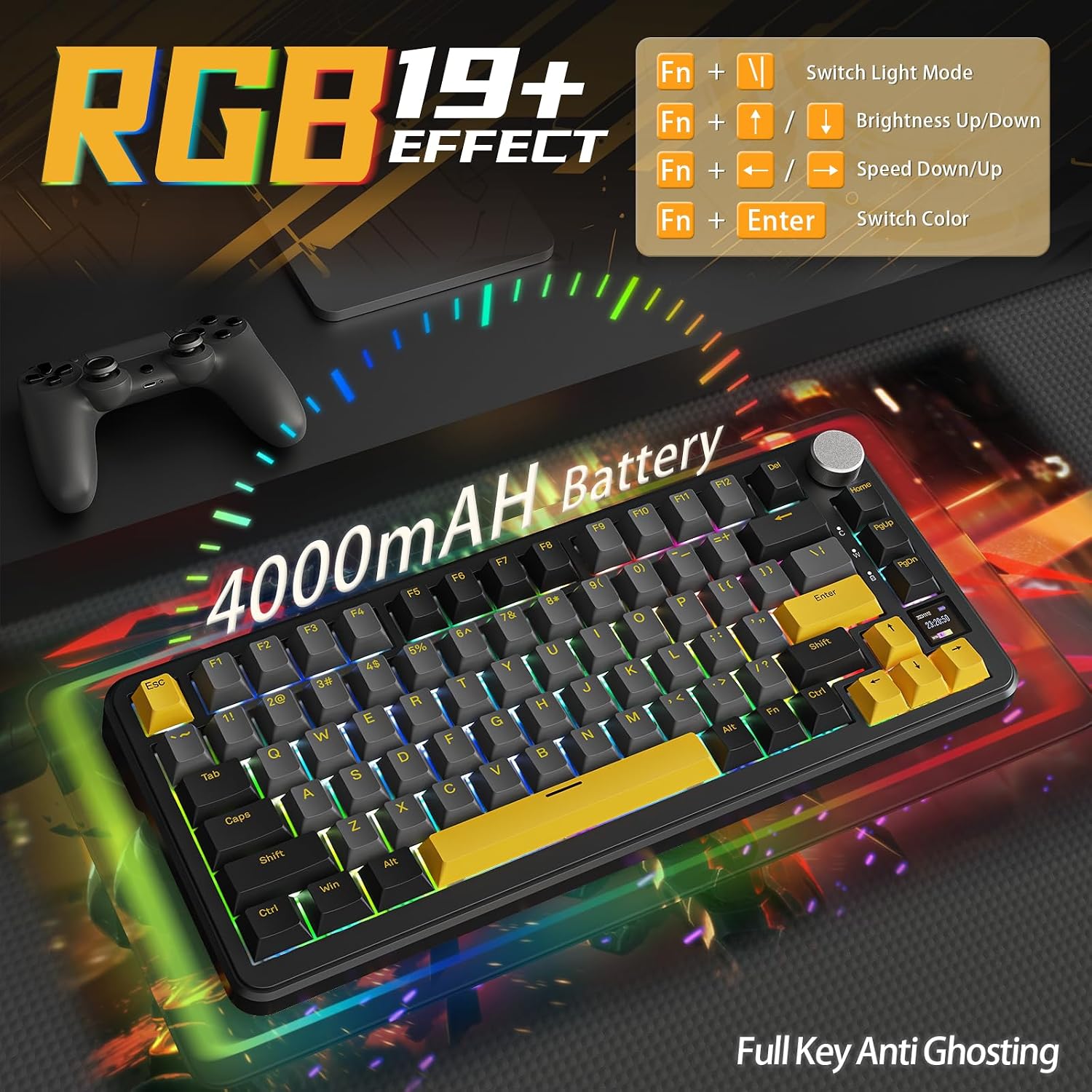
Figure 8: Overview of RGB backlight effects and battery capacity.
- Switch Light Mode: Press Fn + \ |
- Brightness Up/Down: Press Fn + ↑ / ↓
- Speed Down/Up: Press Fn + ← / →
- Switch Color: Press Fn + Enter
- Music rhythm mode is available in 2.4GHz wireless and wired modes.
3. Hot-Swappable Switches
The X85 Pro features a hot-swappable PCB, allowing you to easily change mechanical switches without soldering.

Figure 9: Illustration of the hot-swappable PCB, pre-lubed linear switches, and included tools.
- Use the included switch puller to carefully remove existing switches.
- Align the pins of the new 3-pin or 5-pin mechanical switch with the sockets on the PCB.
- Gently press the new switch into place until it clicks securely. Ensure pins are not bent.
- Keycaps can also be replaced using the included keycap puller.
Maintenance
- Cleaning: Regularly clean the keyboard with a soft, dry cloth. For deeper cleaning, remove keycaps and use compressed air to clear debris from between switches.
- Keycap and Switch Replacement: As detailed in the Operating Instructions, use the provided tools for safe removal and installation of keycaps and switches. Avoid excessive force to prevent damage to the PCB sockets.
- Battery Care: To prolong battery life, avoid fully discharging the keyboard frequently. Store in a cool, dry place when not in use for extended periods.
Troubleshooting
| Issue | Possible Cause | Solution |
|---|---|---|
| Keyboard not responding (Wireless) | Low battery, incorrect mode, receiver not connected, interference. | Charge the keyboard. Ensure mode switch is set correctly (2.4G/BT). Re-insert USB receiver. Check for other wireless devices causing interference. Re-pair Bluetooth. |
| Keyboard not responding (Wired) | Cable not connected properly, incorrect mode, faulty cable/port. | Ensure USB-C cable is fully inserted. Set mode switch to "USB". Try a different USB port or cable. |
| TFT screen not displaying correctly | Firmware issue, incorrect settings. | Check QMK settings for display configuration. Try resetting keyboard (if applicable, refer to QMK documentation). |
| RGB backlight not working/incorrect | Incorrect settings, low battery. | Adjust backlight settings using Fn key combinations or via QMK. Ensure keyboard has sufficient charge. |
| Keys not registering or double-typing | Loose switch, debris under keycap/switch, faulty switch. | Remove keycap and switch, clean the socket, re-insert switch firmly. If issue persists, replace the switch. |
Specifications
| Feature | Detail |
|---|---|
| Model Number | X85 PRO |
| Layout | 75% TKL (82 keys) |
| Connectivity | Bluetooth 5.0, 2.4G Wireless, USB-C Wired |
| Switches | Pre-lubed Linear Blueberry Switches (Hot-swappable 3/5 pin) |
| Keycaps | PBT Double-shot, OEM Profile |
| Backlighting | RGB (16.8 million colors, 19+ effects) |
| Battery Capacity | 4000mAH |
| Special Features | Custom TFT Smart Screen, CNC Knob, Gasket Mount, QMK Web Driven, Full Key Anti Ghosting |
| Compatible Devices | Laptop, PC, Tablet (Windows/Mac) |
| Item Weight | 2.25 pounds |
| Package Dimensions | 14.41 x 7.52 x 2.09 inches |
Warranty and Support
For warranty information and technical support, please refer to the official ATTACK SHARK website or contact their customer service directly. Keep your purchase receipt as proof of purchase for any warranty claims.
Related documentsX85 PRO


Ask a question about this manual
Ask about setup, troubleshooting, compatibility, parts, safety, or missing instructions. Manuals+ will review the question and use this page’s manual context to help answer it.