
1. Introduction
Thank you for choosing the I-SHUNFA E27 RGB Smart LED Bulb. This smart bulb offers a versatile lighting experience with 16 million colors, adjustable white light, music synchronization, and smart control via app or voice assistants. This manual provides essential information for safe installation, operation, and maintenance of your smart LED bulb.
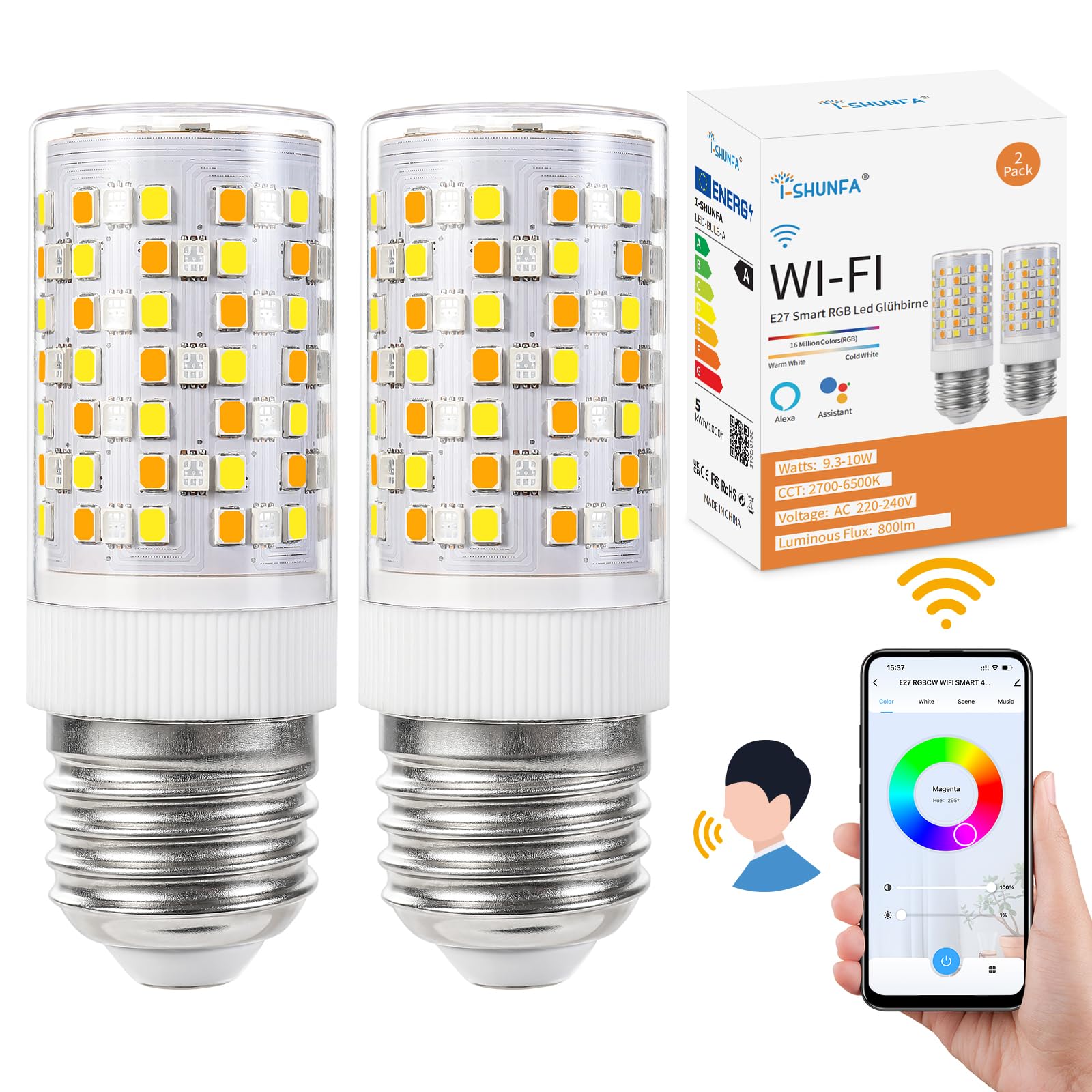
Image 1.1: I-SHUNFA E27 RGB Smart LED Bulb.
2. Safety Information
- Ensure the power is turned off before installing or removing the bulb.
- This bulb is designed for indoor use only.
- Do not use with standard dimmer switches. The bulb features integrated smart dimming via app/voice control.
- Avoid exposing the bulb to water or high humidity.
- Do not disassemble or modify the bulb.
- Keep out of reach of children.
3. Package Contents
Your package should contain the following items:
- I-SHUNFA E27 RGB Smart LED Bulb (Quantity as per purchase, e.g., 2 bulbs)
- User Manual (This document)

Image 3.1: Example of I-SHUNFA E27 RGB Smart LED Bulb packaging.
4. Product Overview and Features
The I-SHUNFA E27 RGB Smart LED Bulb is designed to provide versatile and customizable lighting for your home. Key features include:
- E27 Base: Standard screw-in base for easy installation.
- RGBWW Color: Offers 16 million colors, warm white (2700K), and cool white (6500K) options.
- Dimmable: Adjust brightness from 1% to 100% via the app or voice control.
- Music Synchronization: Lights can pulse and change color to the rhythm of music detected by your phone's microphone.
- 12 Preset Scenes: Choose from various lighting scenes for different moods and occasions.
- DIY Colors: Create and save your own custom color settings.
- App Control: Remote control via "Smart Life" or "Tuya Smart" applications.
- Voice Control: Compatible with Amazon Alexa and Google Assistant for hands-free operation.
- Scheduling: Set timers and schedules for automatic on/off and scene changes.

Image 4.1: Technical diagram of the smart WiFi LED bulb showing the E27 base, RGB color options, and app connectivity functions.

Image 4.2: Smart RGB LED bulbs with three color temperatures: warm white (2700 K), cool white (6000 K), and colorful RGB options.
5. Setup Instructions
5.1. Physical Installation
- Turn off Power: Before installation, ensure the power supply to the light fixture is switched off at the main switch.
- Screw in Bulb: Carefully screw the I-SHUNFA E27 RGB Smart LED Bulb into a standard E27 light socket. Do not overtighten.
- Restore Power: Turn the power back on. The bulb should light up or flash, indicating it's ready for pairing.
5.2. App Installation and Pairing
- Download App: Download the "Smart Life" or "Tuya Smart" app from your smartphone's app store (Google Play Store for Android or Apple App Store for iOS).
- Register/Log In: Open the app and register for a new account or log in if you already have one.
- Ensure 2.4GHz Wi-Fi: Make sure your home Wi-Fi network is 2.4GHz. Smart bulbs typically do not support 5GHz networks.
- Add Device: In the app, tap the "+" icon (usually in the top right corner) to add a new device. Select "Lighting" or "Light Source (Wi-Fi)".
- Confirm Flashing: Confirm that the bulb is flashing rapidly. If it's not, you may need to reset it by turning it off and on three times until it flashes.
- Connect to Wi-Fi: Enter your 2.4GHz Wi-Fi network name and password in the app.
- Pairing: The app will begin searching for the bulb. Once found, it will connect and add the device. This may take a few moments.
- Rename Device: After successful pairing, you can rename the bulb to something easily recognizable (e.g., "Living Room Lamp").

Image 5.1: App interface for controlling the smart bulb.
6. Operating Instructions
6.1. App Control
Once connected, you can control your smart bulb using the "Smart Life" or "Tuya Smart" app:
- On/Off: Tap the bulb icon to turn it on or off.
- Brightness: Use the slider to adjust the brightness from 1% to 100%.
- Color Selection: Choose from 16 million colors using the color wheel or select a specific color temperature (warm white to cool white).
- Scenes: Select from 12 pre-programmed scenes or create custom scenes to suit your mood.
- Scheduling: Set timers for the bulb to turn on/off at specific times or to activate certain scenes.

Image 6.1: Light dimming demonstration showing four lamp settings at different brightness levels, from 25% to 100%.

Image 6.2: Demonstration of the smart bulb color palette, including standard white, warm white, and full RGB color spectrum.
6.2. Voice Control
To enable voice control, link your "Smart Life" or "Tuya Smart" account to Amazon Alexa or Google Assistant through their respective apps. Once linked, you can use voice commands such as:
- "Alexa, turn on [Bulb Name]."
- "Hey Google, set [Bulb Name] to blue."
- "Alexa, dim [Bulb Name] to 50%."
- "Hey Google, change [Bulb Name] to warm white."

Image 6.3: Voice control setup with Amazon Alexa and Google Assistant devices.
6.3. Music Synchronization
Activate the music rhythm mode in the app. The bulb will change colors and brightness in sync with music or sounds detected by your smartphone's microphone, creating a dynamic lighting effect.

Image 6.4: The smart bulb synchronizing light changes with music.
7. Maintenance
- Cleaning: Ensure the bulb is off and cool before cleaning. Wipe with a soft, dry cloth. Do not use liquid cleaners.
- Storage: If storing the bulb for an extended period, keep it in a cool, dry place away from direct sunlight.
- Replacement: When the bulb reaches the end of its lifespan, replace it with a new I-SHUNFA E27 RGB Smart LED Bulb.
8. Troubleshooting
| Problem | Possible Cause | Solution |
|---|---|---|
| Bulb not connecting to Wi-Fi | Incorrect Wi-Fi band (5GHz instead of 2.4GHz) Incorrect Wi-Fi password Bulb not in pairing mode | Ensure your router is set to 2.4GHz or your phone is connected to the 2.4GHz network. Double-check the Wi-Fi password. Reset the bulb by turning it off and on three times until it flashes rapidly. |
| Voice control not working | App account not linked to Alexa/Google Assistant Incorrect device name Internet connection issue | Link your "Smart Life" or "Tuya Smart" account in the Alexa/Google Home app. Use the exact device name you set in the app. Check your internet connection. |
| Bulb not dimming or changing color | Using a physical dimmer switch App/voice command error | This smart bulb is not compatible with physical dimmer switches. Use the app or voice commands for dimming and color changes. Ensure correct commands are used and the app is functioning. |
| Music sync not working | Microphone access denied No music playing/detected | Ensure the app has microphone permissions on your smartphone. Play music near your smartphone and ensure the music sync mode is activated in the app. |
9. Specifications
| Specification | Value |
|---|---|
| Model Number | E27-142LED-RGB |
| Bulb Base | E27 |
| Wattage | 10 Watts |
| Incandescent Equivalent | 100 Watts |
| Luminous Efficacy | 800 Lumens |
| Color Temperature | 2700K-6500K (Warm White to Cool White) + RGB |
| Voltage | 220-240 Volts (AC) |
| Frequency | 50 Hertz |
| Connectivity Technology | Wi-Fi (2.4GHz), Bluetooth |
| Control Method | Application, Voice Control (Alexa, Google Assistant) |
| Special Features | Voice Control, Dimmable, Energy Efficient, Remote Control APP |
| Product Dimensions (L x W x H) | 3 x 3 x 8.5 cm |
| Material Type | Polyvinyl Chloride (PVC) |
| Energy Label | A |
| Color Rendering Index (CRI) | 85 |
| Beam Angle | 360 Degrees |
For detailed energy information, please refer to the EPREL database: https://eprel.ec.europa.eu/qr/2020478

Image 9.1: Product data sheet with technical specifications.

Image 9.2: Energy label indicating efficiency class A.
10. Warranty and Support
Specific warranty information for the I-SHUNFA E27 RGB Smart LED Bulb is not available in the provided product data. For warranty claims or technical support, please contact the seller or manufacturer directly through your purchase platform.