
Introduction
Thank you for choosing the EWEADN Typewriter Style Mechanical Gaming Keyboard. This keyboard combines a retro aesthetic with modern mechanical performance, featuring 104 keys, customizable LED backlighting, and a convenient media control knob. Designed for both gaming and productivity, it offers a comfortable and responsive typing experience. This manual provides detailed instructions for setup, operation, and maintenance to ensure optimal performance and longevity of your device.
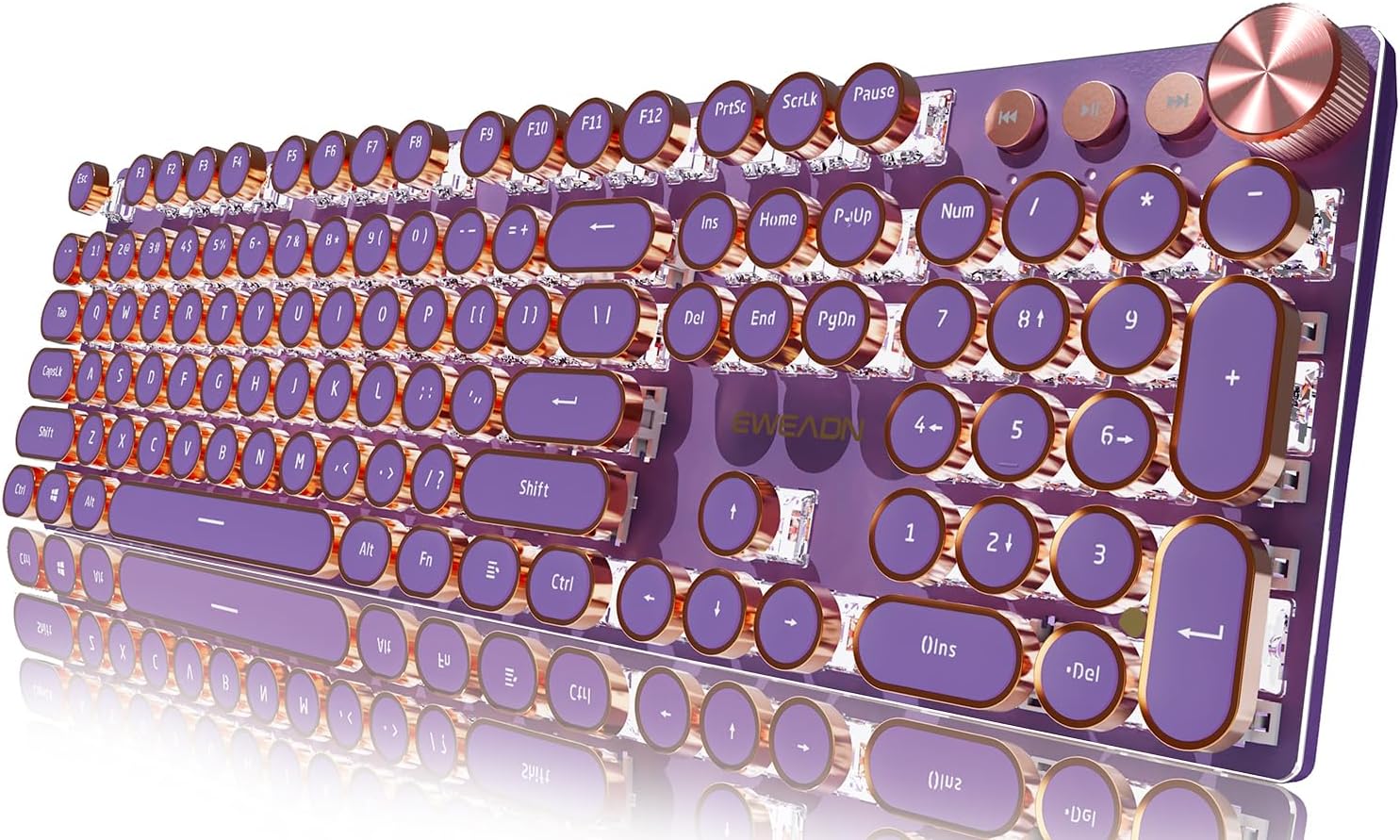
Figure 1: EWEADN Typewriter Style Mechanical Gaming Keyboard (Purple)
Package Contents
Please verify that all items are present in your package:
- EWEADN Typewriter Style Mechanical Gaming Keyboard
- USB Cable (Type-C)
- User Manual (this document)
Specifications
| Feature | Detail |
|---|---|
| Brand | SEUNKWANG |
| Model Number | V20 |
| Number of Keys | 104 |
| Switch Type | Mechanical (Pink Switches) |
| Connectivity | Wired, USB-C |
| Backlighting | LED (Single Color, 19 effects) |
| Material | Metal Panel |
| Compatibility | Windows 7/8/10/XP/Vista, Linux, Mac OS |
| Item Weight | 1.94 pounds |
| Package Dimensions | 17.52 x 6.1 x 1.65 inches |
Setup
- Connect the Keyboard: Insert the USB-C end of the provided cable into the keyboard's port and the USB-A end into an available USB port on your computer. The keyboard is plug-and-play; no additional drivers are typically required.

Figure 2: Connecting the keyboard via USB-C cable.
- System Compatibility: The keyboard is compatible with Windows 7/8/10/XP/Vista, Linux, and Mac OS systems. To switch between Windows and Mac layouts, press and hold the Fn key and the TAB key simultaneously.

Figure 3: Switching between Mac and Windows layouts using Fn + TAB.
Operating Instructions
Multimedia and Backlight Control
The keyboard features a dedicated multimedia knob and function key combinations for controlling volume and backlighting.
- Multimedia Knob:
- Turn the knob to adjust volume or backlight brightness.
- Press the knob (Fn + Knob) to mute/unmute audio or change light effects.

Figure 4: Multimedia Control Knob.
- Backlight LED Control: The keyboard offers 19 lighting effects.
- Press Fn + 1~8 to select specific game backlight modes.
- Adjust backlight brightness using Fn + Up Arrow (increase) / Fn + Down Arrow (decrease). There are 5 adjustable levels.
- Adjust lighting speed using Fn + Left Arrow (decrease) / Fn + Right Arrow (increase).
- Press Fn + INS to switch between 9 basic lighting effects.
- Press Fn + DEL to record or store custom lighting effects.

Figure 5: Backlight control functions.
- Dedicated Volume Buttons: Three buttons next to the multimedia knob allow quick adjustment for previous song, next song, and pause/play.
Key Features Overview
- Retro Typewriter Mechanical Keyboard: Features custom pink mechanical switches designed for a smooth linear feel with low resistance. The round keycaps emulate a classic typewriter, providing a comfortable typing experience with a stable click.

Figure 6: Pink Mechanical Switches for responsive typing.
- Metal Panel and Electroplated Punk Keycaps: The keyboard panel is constructed from high-grade aluminum alloy, offering a metallic matte texture for durability and scratch resistance. The floating keycaps are electroplated, enhancing the keyboard's visual appeal with a unique monochromatic light.
- 104 Keys Anti-Ghosting: This mechanical gaming keyboard incorporates anti-ghosting technology for all keys. This ensures that every key press is accurately registered, even when multiple keys are pressed simultaneously, preventing conflicts and errors during high-speed typing or intense gaming sessions.

Figure 7: Full N-Key Rollover (Anti-Ghosting) capability.
- Ergonomic Design: The keyboard is designed with ergonomics in mind, featuring adjustable feet to provide a comfortable typing angle, reducing strain during extended use.

Figure 8: Ergonomic design with adjustable feet.
Maintenance
Proper maintenance ensures the longevity and performance of your keyboard.
- Cleaning: Regularly clean the keyboard with a soft, dry cloth. For dust and debris between keycaps, use compressed air. Avoid using harsh chemicals or abrasive materials.
- Keycap Removal: If necessary, keycaps can be carefully removed for deeper cleaning or switch replacement using a keycap puller (not included). Exercise caution to avoid damaging the switches.
- Storage: When not in use, store the keyboard in a dry, dust-free environment. Avoid exposing it to extreme temperatures or direct sunlight.
Troubleshooting
If you encounter issues with your EWEADN keyboard, please refer to the following common solutions:
- Keyboard Not Responding:
- Ensure the USB-C cable is securely connected to both the keyboard and the computer.
- Try connecting the keyboard to a different USB port on your computer.
- Restart your computer.
- Test the keyboard on another computer to determine if the issue is with the keyboard or your system.
- Backlighting Not Working or Incorrect:
- Check if the backlight brightness is set too low (Fn + Down Arrow).
- Cycle through lighting effects using Fn + INS or the multimedia knob.
- Ensure the keyboard is properly powered via the USB connection.
- Keys Not Registering or Double Typing (Ghosting):
- Ensure the keyboard is clean and free of debris under the keycaps.
- Verify the cable connection is stable.
- If specific keys are consistently problematic, it may indicate a switch issue. Contact support if the problem persists.
- Incorrect Layout (Mac/Windows):
- Press and hold Fn + TAB to toggle between Windows and Mac layouts.
Warranty and Support
Your EWEADN Typewriter Style Mechanical Gaming Keyboard is covered by a manufacturer's warranty. For specific warranty terms and conditions, please refer to the product packaging or contact the seller directly.
For further assistance, technical support, or inquiries, please visit the official SEUNKWANG store on Amazon or contact their customer service.
SEUNKWANG Amazon Store: Visit Store