
1. Introduction
This manual provides detailed instructions for the installation, operation, maintenance, and troubleshooting of your Hikity Android 15 Car Stereo. This unit is designed for the Iveco Daily VI model years 2014-2021 and features a 9-inch HD touchscreen, Android 15 operating system, 2GB RAM, 64GB ROM, wireless CarPlay, Android Auto, Bluetooth, GPS navigation, and reverse camera support.
2. Setup and Installation
2.1 Compatibility
This car stereo is specifically designed for Iveco Daily VI vehicles manufactured between 2014 and 2021.
2.2 Installation Process
Professional installation is highly recommended due to the complexity of vehicle electrical systems and dashboard disassembly. Ensure the vehicle's power is disconnected before beginning installation.
- Wiring: Connect the power harness, speaker wires, antenna, GPS antenna, and reverse camera input according to the provided wiring diagram.
- Steering Wheel Control Connection: If your vehicle has original steering wheel controls, connect the appropriate wires from the stereo harness to the vehicle's steering wheel control wires. Refer to your vehicle's wiring diagram for specific connections.
- Mounting: Securely mount the head unit into the dashboard opening.

Image: The Hikity Android 15 Car Stereo after installation in an Iveco Daily VI vehicle, displaying the main interface with various application icons.
2.3 Initial Power-On and Configuration
After installation, reconnect the vehicle's power. The unit will boot up to the Android interface. Follow on-screen prompts for initial setup, including language selection and time zone.
3. Operating Instructions
3.1 Wireless CarPlay / Android Auto & Mirror Link
The unit supports both wireless and wired CarPlay and Android Auto, as well as Mirror Link for screen mirroring.
- Wireless Connection: Enable Bluetooth and Wi-Fi on your smartphone. Pair your phone with the car stereo via Bluetooth. Once paired, the system will prompt you to activate CarPlay or Android Auto wirelessly.
- Wired Connection: Connect your smartphone to the stereo's USB port using a certified USB cable. The system will automatically detect and launch CarPlay or Android Auto.
- Mirror Link: For both iOS and Android devices, connect via Wi-Fi or USB to project your phone's screen onto the stereo display.
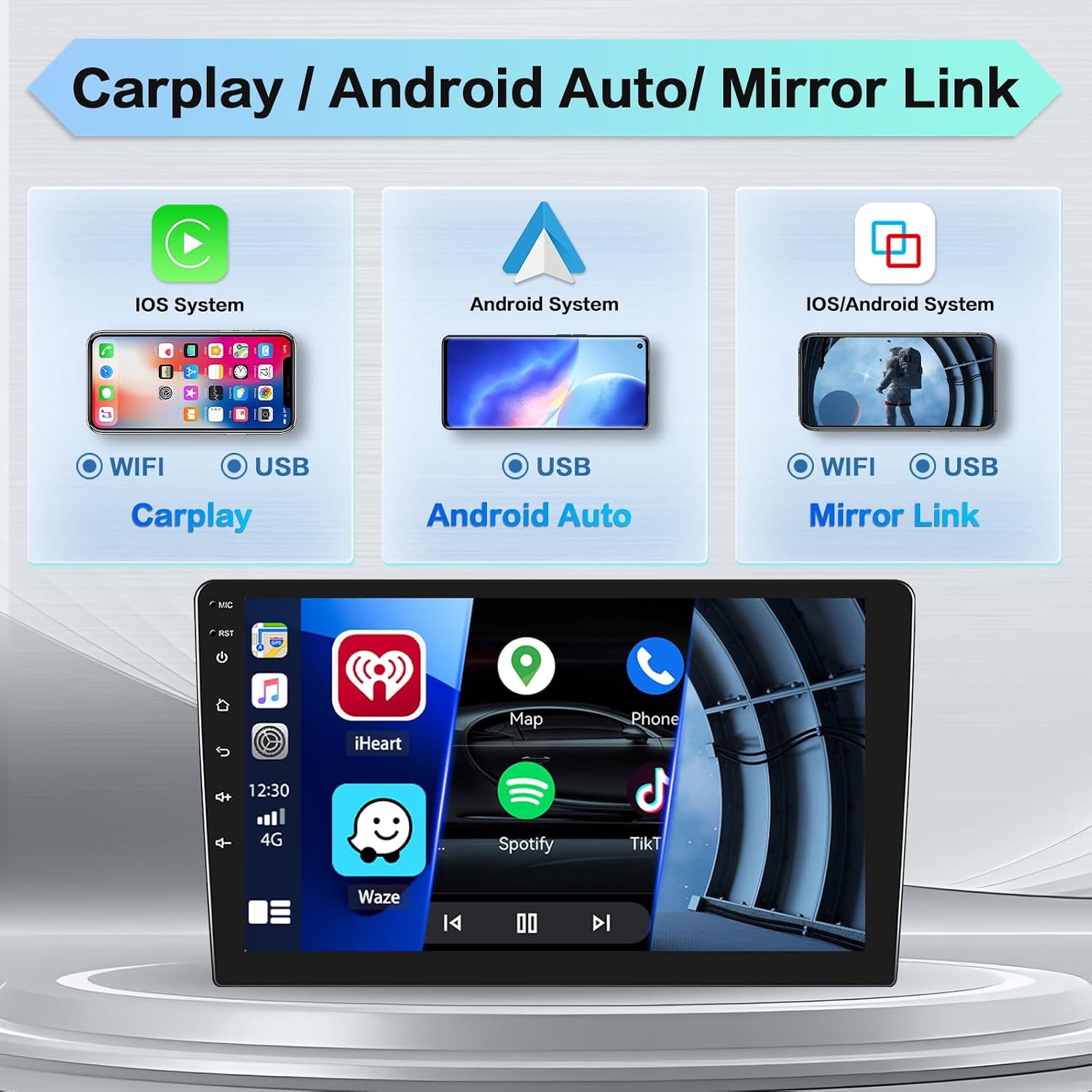
Image: Visual representation of CarPlay, Android Auto, and Mirror Link features, illustrating connectivity options (WiFi/USB) for iOS and Android devices.
3.2 Bluetooth Functionality
Connect your smartphone via Bluetooth for hands-free calling and audio streaming.
- Pairing: Go to the Bluetooth settings on the car stereo and your phone. Search for available devices on your phone and select the car stereo's Bluetooth name. Confirm the pairing code if prompted.
- Hands-Free Calling: Once paired, you can make and receive calls directly from the stereo's touchscreen.
- Audio Streaming: Play music from your phone through the car's speakers.
3.3 FM/RDS Radio
Access the radio application to listen to FM stations. The RDS (Radio Data System) feature displays station information where available.
- Tuning: Use the on-screen controls to scan for stations or manually tune to a specific frequency.
- Saving Presets: Long-press on a frequency button to save the current station as a preset.
3.4 GPS Navigation and WiFi Connection
The unit includes integrated GPS for navigation and supports WiFi connectivity for online services.
- GPS Navigation: The stereo comes with pre-installed navigation software. You can use online maps via WiFi or download offline maps for use without an internet connection.
- WiFi Connection: Connect the stereo to a mobile hotspot or a local Wi-Fi network to access online videos, browse the internet, and download applications from the app store.

Image: Illustrations of WiFi connectivity for online content access and GPS navigation displaying a map with route information.
3.5 EQ Settings and Audio Customization
Adjust the audio output to your preference using the built-in equalizer.
- Equalizer: Access the EQ settings to select from various preset sound effects (e.g., Pop, Rock, Jazz) or customize individual frequency bands.
- Sound Effects: Explore additional sound effects and balance controls to optimize your listening experience.
3.6 Steering Wheel Controls
If properly wired during installation, the unit supports your vehicle's original steering wheel controls.
- Configuration: Access the steering wheel control learning function in the stereo's settings. Follow the on-screen instructions to assign functions (e.g., volume up/down, track skip, mode) to your vehicle's steering wheel buttons.

Image: Displays of the Equalizer (EQ) settings for audio customization and the interface for configuring steering wheel controls.
3.7 Reverse Camera Input
The unit supports an AHD reverse camera (included) which automatically displays the rear view when the vehicle is in reverse gear.
- Automatic Display: When the vehicle is shifted into reverse, the stereo screen will automatically switch to the camera view.
- Camera Features: The included AHD camera offers a 170° wide-angle view and is waterproof.
3.8 DVR Function (Optional)
The unit supports an optional Digital Video Recorder (DVR) function. A separate DVR camera accessory is required for this feature.

Image: A composite image detailing Bluetooth connectivity, FM/RDS radio interface, the optional DVR function, and the AHD 1080P reverse camera view with parking guidelines.
4. Maintenance
- Screen Cleaning: Use a soft, lint-free cloth to clean the touchscreen. Avoid abrasive cleaners or solvents.
- Software Updates: Periodically check the manufacturer's website for available software updates to ensure optimal performance and access to new features.
- General Care: Avoid exposing the unit to extreme temperatures or direct sunlight for prolonged periods.
5. Troubleshooting
5.1 Common Issues and Solutions
- Unit Does Not Power On:
- Check all power connections, ensuring they are securely attached.
- Verify the vehicle's fuse for the stereo is intact.
- Camera Bug / Unit Restarts When Camera Connected:
- Ensure the reverse camera and its wiring are correctly installed and not short-circuiting.
- Verify the camera's power supply is stable and matches the unit's requirements.
- Test with a different camera if possible to rule out a faulty camera.
- Rear Camera Cable Too Short:
- An extension cable for the reverse camera may be required for larger vehicles. These are typically available from automotive electronics retailers.
- No Sound:
- Check speaker wire connections.
- Ensure volume is not muted or set to minimum.
- Verify audio settings in the EQ menu.
- GPS Signal Loss:
- Ensure the GPS antenna is properly connected and mounted in a location with a clear view of the sky.
- Avoid placing the antenna near metal objects that could interfere with the signal.
6. Specifications
| Feature | Specification |
|---|---|
| Brand | Hikity |
| Model Number | Hikity-A7969A3195A4MI2EU26-C304 |
| Operating System | Android 15 |
| Processor | 4-core |
| RAM | 2 GB |
| ROM | 64 GB |
| Screen Size | 9 inches |
| Display Resolution | HD 1080P |
| Wireless Connectivity | Bluetooth, Wi-Fi |
| Audio Output Mode | Stereo |
| Output Power | 45 Watts x 4 Channels |
| Compatible Devices | Smartphone |
| Controller Type | Android |
| Country of Origin | China |
7. Warranty and Support
7.1 Warranty Information
This Hikity car stereo comes with a 2-year warranty from the date of purchase. Please retain your proof of purchase for warranty claims. The warranty covers manufacturing defects and malfunctions under normal use.
7.2 Customer Support
For technical assistance, troubleshooting not covered in this manual, or warranty inquiries, please contact Hikity customer support through their official website or the retailer where the product was purchased. Provide your model number (Hikity-A7969A3195A4MI2EU26-C304) and purchase details when contacting support.


