
Introduction
This manual provides detailed instructions for the setup, operation, maintenance, and troubleshooting of your PDP Victrix Pro BFG Wireless Controller. Designed for competitive gaming, this controller offers extensive modularity and customization options for PlayStation 4, PlayStation 5, and PC platforms.
Package Contents
- Victrix Pro BFG Wireless Controller
- Reversible Left Module (Standard PlayStation stick configuration or offset sticks)
- Standard Right Module
- 6-Button Fight Pad Module
- 4 Interchangeable Analog Stick Caps
- 3 Different D-pads
- 4 Analog Stick Gates
- Braided USB-C to USB-A Cable
- USB Wireless Dongle
- Carrying Case
- Module Removal Tool
Setup
1. Initial Charge
Before first use, fully charge the controller using the included USB-C to USB-A cable. Connect the USB-C end to the controller and the USB-A end to a compatible USB port on your console or PC. The LED indicator will show charging status.
2. Connecting the Controller
Wired Connection:
Connect the USB-C end of the cable to the controller and the USB-A end to your PS4, PS5, or PC. Ensure the Connection Switch on the back of the controller is set to 'Wired'.
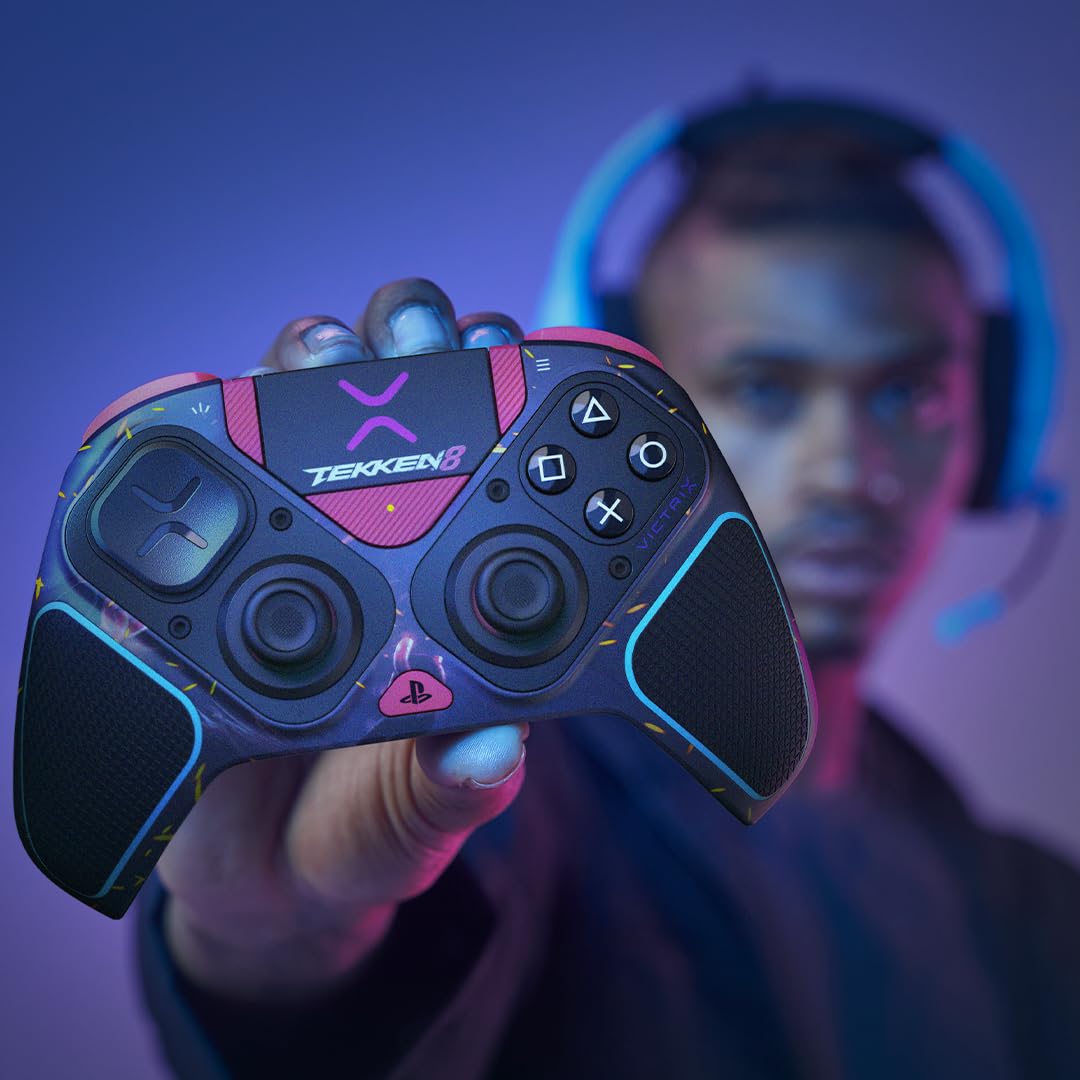
Figure 1: Controller connected via wired mode, highlighting the USB-C port and clutch triggers.
Wireless Connection:
Insert the USB Wireless Dongle into an available USB port on your PS4, PS5, or PC. Set the Connection Switch on the back of the controller to 'Wireless'. The controller will automatically pair with the dongle. If pairing fails, press the pairing button on the dongle and the controller simultaneously until the LED indicators show a successful connection.
3. Platform Selection
Use the Mode Switch located on the back of the controller to select your desired platform: PS5, PS4, or PC (X-input).
4. Victrix Control Hub App (PC)
For advanced customization, including button remapping, stick and trigger recalibration, deadzone adjustments, EQ settings, diagnostics, and firmware updates, download the Victrix Control Hub app from the official Victrix website. This application is essential for unlocking the full potential of your controller.

Figure 2: Victrix Control Hub App interface for advanced controller customization.
Operating Instructions
1. Modular Customization
The Victrix Pro BFG features a highly modular design, allowing you to adapt the controller to various game genres and personal preferences. Use the included module removal tool to safely detach and attach modules.
- Reversible Left Module: Swap between standard PlayStation stick configuration (left stick below D-pad) or offset sticks (left stick above D-pad) to suit your ergonomic preference.
- 6-Button Fight Pad Module: Replace the standard right stick module with the 6-button fight pad, ideal for fighting games requiring precise, rapid inputs.
- Interchangeable Components: Customize your analog sticks (different heights and cap styles), D-pads (various shapes), and analog stick gates (circular or octagonal) by simply pulling them off and pushing new ones into place.

Figure 3: Exploded view of the Victrix Pro BFG Controller showcasing its modular components.
2. Mappable Back Buttons
The controller features four mappable back buttons. These can be assigned to any standard controller input to provide quick access to critical functions without removing your thumbs from the analog sticks. Use the Profile Button to cycle through and activate up to three custom button mapping profiles, configured via the Victrix Control Hub app.
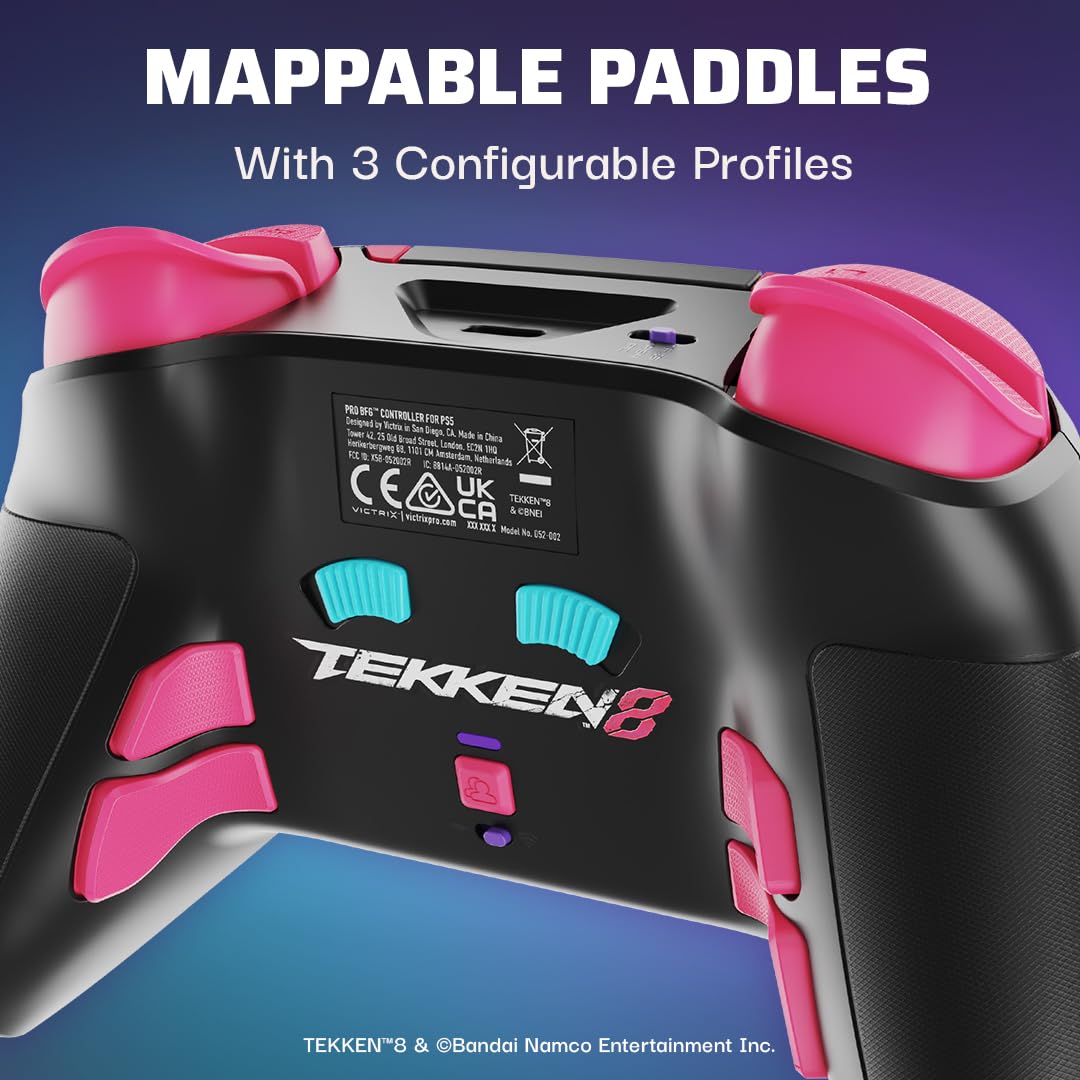
Figure 4: Rear view illustrating the mappable back paddles and profile selection button.
3. Clutch Triggers™
The patented Clutch Triggers™ offer five distinct trigger stops, allowing you to adjust the travel distance of the L2 and R2 triggers. This feature is particularly useful for competitive gaming, enabling faster reaction times in shooters (hair trigger mode) or precise control in racing games. Adjust the physical switches located on the underside of the controller to set your preferred trigger stop.

Figure 5: Detail of the Clutch Triggers™ and their adjustment mechanism.
4. Audio Features
The controller supports Sony 3D Audio on PS5, providing immersive soundscapes. It also features low-latency audio and multiple EQ profiles, which can be configured through the Victrix Control Hub app, to optimize your in-game audio experience.
Maintenance
Cleaning:
Use a soft, dry cloth to clean the controller's surface. For stubborn dirt, slightly dampen the cloth with water. Avoid using harsh chemicals or abrasive materials, as these can damage the controller's finish. Ensure all modular components are free of debris before reattaching.
Storage:
When not in use, store the controller in its included carrying case to protect it from dust, spills, and physical damage. Store in a cool, dry place away from direct sunlight.
Battery Care:
The controller contains a Lithium Ion battery. For optimal battery life, avoid fully discharging the battery frequently. Charge the controller regularly, even if not in constant use. Do not expose the battery to extreme temperatures.
Troubleshooting
| Problem | Possible Cause | Solution |
|---|---|---|
| Controller not connecting wirelessly. | Dongle not inserted, incorrect mode switch setting, pairing issue, low battery. | Ensure dongle is securely inserted. Set Connection Switch to 'Wireless' and Mode Switch to correct platform. Re-pair controller and dongle. Charge controller. |
| Buttons or sticks unresponsive. | Loose module, software glitch, recalibration needed. | Ensure modules are securely attached. Restart controller/console/PC. Use Victrix Control Hub app to recalibrate sticks and triggers. |
| Controller not charging. | Faulty cable, power source issue, controller port damage. | Try a different USB-C cable and USB port. Ensure the power source is active. If issues persist, contact support. |
| Victrix Control Hub app not detecting controller. | Controller not connected to PC, app not updated, driver issue. | Ensure controller is connected to PC via USB cable and Mode Switch is set to 'PC'. Update the app to the latest version. Check PC device manager for driver issues. |
Resetting the Controller:
If the controller becomes unresponsive, locate the small reset button on the back of the controller (often near the serial number). Use a small, pointed object (like a paperclip) to press and hold the reset button for 5 seconds. This will perform a soft reset.
Specifications
- Model Number: 052-002-TEK
- Compatibility: PlayStation 5, PlayStation 4, PC (X-input)
- Connectivity: Wired (USB-C), Wireless (USB Dongle)
- Battery: 1 Lithium Ion battery (included)
- Dimensions: 3.58 x 7.87 x 7.87 inches (9.09 x 19.99 x 19.99 cm)
- Weight: 10.51 ounces (298 grams)
- Audio: Sony 3D Audio support (PS5), Low-latency audio, Customizable EQ profiles
- Special Features: Modular design, Reversible left module, 6-button fight pad, Mappable back buttons, Clutch Triggers™ with 5 stops, Victrix Control Hub app support.
Warranty and Support
Warranty Information:
For detailed warranty information, please refer to the warranty card included with your product or visit the official PDP/Victrix website. Keep your proof of purchase for warranty claims.
Customer Support:
If you encounter any issues not covered in this manual or require further assistance, please contact Victrix customer support. You can find contact information and additional resources on the official Victrix website: www.victrixpro.com/support


