
1. Introduction
This manual provides instructions for the installation, operation, and maintenance of your SignalBrick SR75702002 Multi-Band Cell Phone Signal Booster. This device is designed to enhance 5G, 4G LTE, and 3G cellular signals within your home or office, covering up to 5,000 square feet. It supports all major U.S. carriers, including Verizon, AT&T, and T-Mobile, across bands 12/17, 13, 5, 2/25, and 4/66.
The SignalBrick SR75702002 features an intelligent automatic gain control function, optimizing signal stability without manual intervention. This product is FCC approved under FCC ID: A7V-SR75702002.
Important Note: Before installation, ensure you have at least 1-2 bars of reliable outdoor signal for the booster to function effectively. This device is intended for fixed location use only.
2. Package Contents
Verify that all items listed below are included in your package:
- Signal Booster Unit
- Outdoor Antenna (Log-Periodic)
- Indoor Antenna (Wall-Mount)
- Power Supply
- Stainless Steel Pole (10-inch) with mounting kits
- 2 x 30ft Coaxial Cables

Figure 2.1: Included Components
3. Product Overview
The SignalBrick SR75702002 is a multi-band signal booster designed to improve cellular reception indoors. It captures weak outdoor signals, amplifies them, and re-broadcasts the stronger signal inside your building.
3.1 Key Features
- Five-Band Support: Compatible with Band 12/17, Band 13, Band 5, Band 2/25, and Band 4/66.
- Wide Carrier Compatibility: Works with all major U.S. carriers (Verizon, AT&T, T-Mobile, Sprint, etc.).
- Extensive Coverage: Boosts signal for areas up to 5,000 square feet.
- High Gain Directional Antenna: Allows for precise aiming towards the nearest cell tower, enhancing weak signal capture up to 300X.
- Wall-Mounted Indoor Antenna: Provides up to 8dB gain for wider and more stable indoor coverage, supporting 5 to 10 users simultaneously.
- Intelligent Automatic Gain Control: Automatically adjusts system gain and power for optimal performance and reduced power consumption.
- FCC Approved: Certified for safe and compliant operation.

Figure 3.1: SignalBrick SR75702002 System Components

Figure 3.2: System Capabilities Overview
3.2 How It Works
The system operates by establishing a connection between your outdoor antenna and the nearest cell tower. The outdoor antenna captures the existing weak signal, which is then sent via coaxial cable to the booster unit. The booster amplifies this signal and transmits it to the indoor antenna. The indoor antenna then broadcasts the strong, amplified signal throughout your desired coverage area. This process also works in reverse, amplifying your phone's outgoing signal back to the cell tower.

Figure 3.3: Signal Booster Operation Diagram
4. Setup and Installation
Proper installation is crucial for optimal performance. Please follow these steps carefully.
4.1 Pre-Installation Check
- Verify Outdoor Signal: Use your mobile phone to check the signal strength outside your home. You need at least 1-2 bars of stable signal for the booster to work.
- Identify Nearest Cell Tower: Generally, the strongest signal will be on the side of your home facing the nearest cell tower. You can use online tools or apps to locate nearby towers.
- Test Frequency Bands: Confirm your carrier's frequency bands are supported (12/17, 13, 5, 2/25, 4/66).
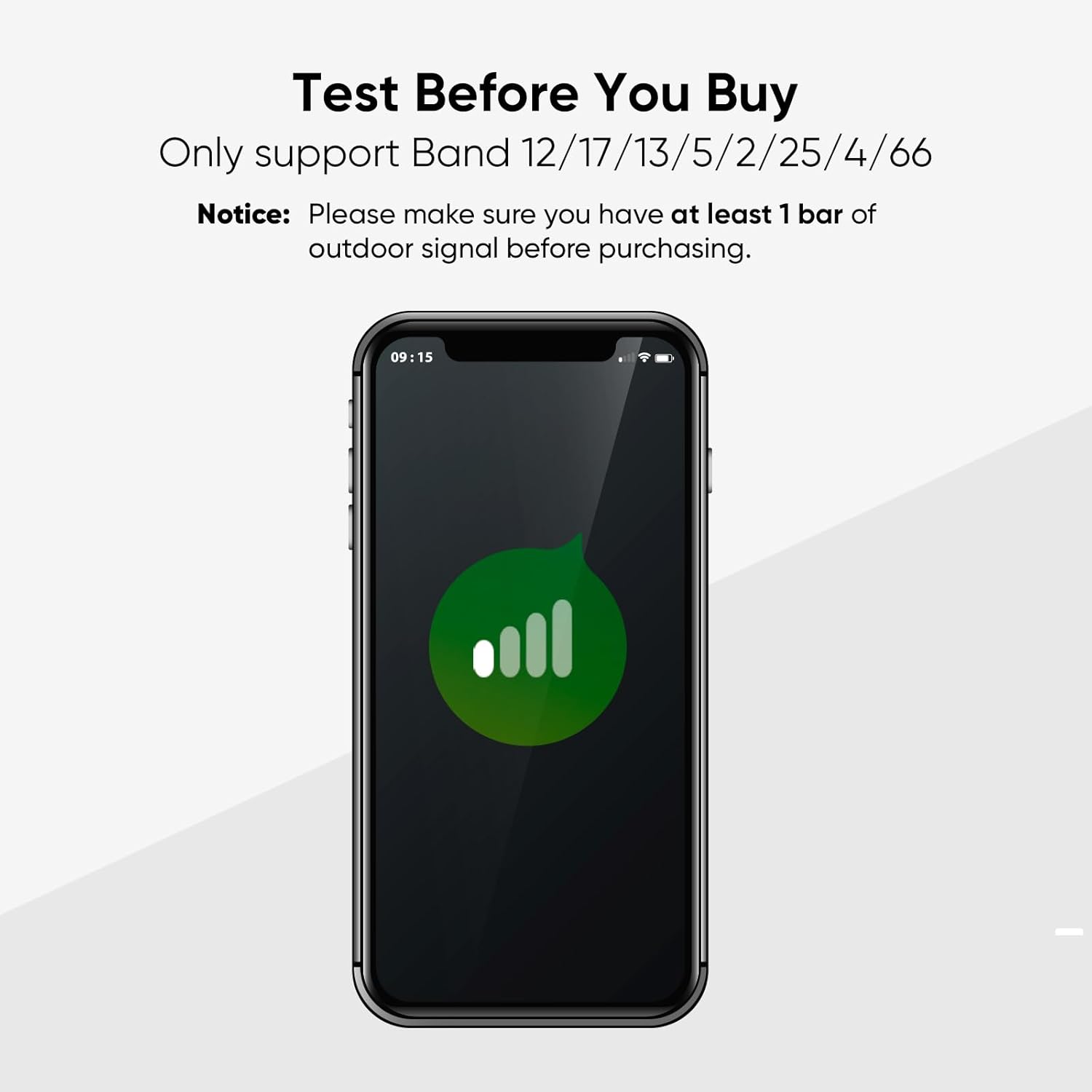
Figure 4.1: Pre-Installation Signal Check

Figure 4.2: Testing Methods for Frequency Band
4.2 Outdoor Antenna Placement
The outdoor antenna (log-periodic) should be mounted in a location where it can receive the strongest possible signal from the cell tower. This is typically on the roof, an exterior wall, or a pole, facing the direction of the nearest tower.
- Mount the outdoor antenna as high as possible to minimize obstructions.
- Use the included 10-inch stainless steel pole and mounting kits for secure installation.
- Ensure the antenna is pointed directly towards the cell tower for optimal signal capture.
- Maintain a minimum vertical separation of 13 feet (4 meters) and a horizontal separation of 20 feet (6 meters) between the outdoor and indoor antennas to prevent oscillation.

Figure 4.3: Outdoor Antenna Pole Installation
4.3 Indoor Antenna Placement
The indoor antenna (wall-mount) should be placed in the center of the area where you need improved signal. It should be mounted on an interior wall.
- Mount the indoor antenna on a wall in the main area requiring signal improvement.
- Ensure the indoor antenna is not facing the outdoor antenna directly to avoid feedback.
- The wall-mounted design offers a wider coverage range compared to whip antennas.

Figure 4.4: Wall-Mounted vs. Whip Antenna
4.4 Connecting the System
- Connect one end of a 30ft coaxial cable to the outdoor antenna.
- Route the cable indoors and connect the other end to the port labeled "OUTDOOR" or "BTS" on the Signal Booster unit.
- Connect one end of the second 30ft coaxial cable to the indoor antenna.
- Connect the other end of this cable to the port labeled "INDOOR" or "MS" on the Signal Booster unit.
- Ensure all cable connections are finger-tight.
- Connect the power supply to the booster unit and then plug it into a power outlet.
Caution: Do not power on the booster until all antennas and cables are securely connected.
5. Operating Instructions
Once the system is fully installed and powered on, the SignalBrick SR75702002 will begin operating automatically.
- The booster features an intelligent automatic gain control (AGC) function. This system continuously monitors the incoming signal and adjusts its gain and power output to maintain optimal performance and prevent interference with cellular networks.
- Indicator lights on the booster unit will show the status of each frequency band. Refer to the booster unit's labels for specific light indications (e.g., "Alarm" for issues, solid green for active boosting).
- Allow a few minutes for the booster to optimize its settings after power-up.
- You should observe an improvement in your cellular signal strength (more bars) on your mobile devices within the coverage area.

Figure 5.1: Enhanced Connectivity with Signal Booster
6. Maintenance
The SignalBrick SR75702002 is designed for minimal maintenance. Follow these guidelines to ensure longevity and optimal performance:
- Regular Inspection: Periodically check all cable connections for tightness and ensure antennas are securely mounted and free from damage.
- Cleaning: Keep the booster unit and antennas clean and free of dust or debris. Use a soft, dry cloth for cleaning. Do not use liquid cleaners.
- Environmental Protection: Ensure the outdoor antenna is clear of snow, ice, or heavy foliage that could obstruct the signal.
- Power Cycle: If you experience a sudden drop in signal, try power cycling the booster by unplugging it for 30 seconds and then plugging it back in.
7. Troubleshooting
If you encounter issues with your signal booster, refer to the following troubleshooting steps:
7.1 No Signal Improvement
- Check Outdoor Signal: Confirm there is at least 1-2 bars of usable signal outside where the outdoor antenna is mounted. The booster cannot create a signal where none exists.
- Antenna Alignment: Ensure the outdoor antenna is pointed directly towards the nearest cell tower. Slight adjustments can significantly improve performance.
- Cable Connections: Verify all coaxial cables are securely connected to both antennas and the booster unit.
- Antenna Separation: Ensure sufficient vertical (13ft/4m) and horizontal (20ft/6m) separation between the outdoor and indoor antennas to prevent oscillation (feedback).
- Power: Confirm the booster unit is powered on and the power indicator light is active.
7.2 Flashing or Red Indicator Lights
- Flashing or red lights often indicate oscillation (feedback) between the indoor and outdoor antennas. Increase the separation distance between the antennas.
- Ensure the outdoor antenna is not pointing towards the indoor antenna.
- Check for loose connections.
7.3 Intermittent Signal
- Cable Integrity: Inspect cables for any damage or kinks.
- Power Stability: Ensure the power outlet is stable and not shared with high-power appliances.
- Obstructions: Check if any new obstructions (e.g., trees, buildings) are blocking the outdoor antenna's line of sight to the cell tower.
If problems persist after following these steps, please contact SignalBrick customer support for further assistance.
8. Specifications
| Feature | Detail |
|---|---|
| Model | SR75702002 |
| Supported Frequency Bands | 12/17, 13, 5, 2/25, 4/66 |
| Compatible Carriers | All U.S. Carriers (Verizon, AT&T, T-Mobile, Sprint, etc.) |
| Maximum Gain | 72dB |
| Coverage Area | Up to 5,000 sq ft |
| Output Power (Uplink/Downlink) | 23dBm (Uplink) / 6dBm (Downlink) |
| Noise Figure | <5dB |
| In-band Flatness | <9dB |
| EIRP | 1W |
| Impedance | 50 ohm |
| Current | <1.5A (12V DC) |
| Item Weight | 7.23 pounds |
| Package Dimensions | 14.69 x 9.53 x 6.14 inches |

Figure 8.1: FCC Approval Label
9. Warranty and Support
SignalBrick products are designed for reliability and performance. For warranty information and technical support, please refer to the official SignalBrick website or contact their customer service directly. Keep your purchase receipt as proof of purchase for warranty claims.
For additional resources and support, you may visit the SignalBrick Store on Amazon.
