
Introduction
Thank you for choosing the TECURS WK007 Wireless Gaming Keyboard. This manual provides detailed instructions for setting up, operating, and maintaining your new keyboard. Designed for comfort and performance, this keyboard features silent membrane keys, ergonomic design, 2.4 GHz wireless connectivity, and adjustable LED backlighting.
Please read this manual carefully before using the product to ensure proper function and longevity.

Image: The TECURS WK007 Wireless Gaming Keyboard with its 2.4G USB receiver, showcasing the vibrant LED backlighting.
Setup
Package Contents
- TECURS WK007 Wireless Gaming Keyboard
- 2.4G USB Receiver
- USB Charging Cable
- User Manual

Image: The keyboard, charging cable, 2.4G receiver, and user manual as included in the product packaging.
Charging the Keyboard
- Locate the USB charging port on the keyboard.
- Connect the provided USB charging cable to the keyboard and to a USB power source (e.g., computer USB port, USB wall adapter).
- The charging indicator light will illuminate. Once fully charged, the light may change color or turn off.
- A full charge provides up to 15 days of use without backlighting, or approximately 10 hours with backlighting enabled.
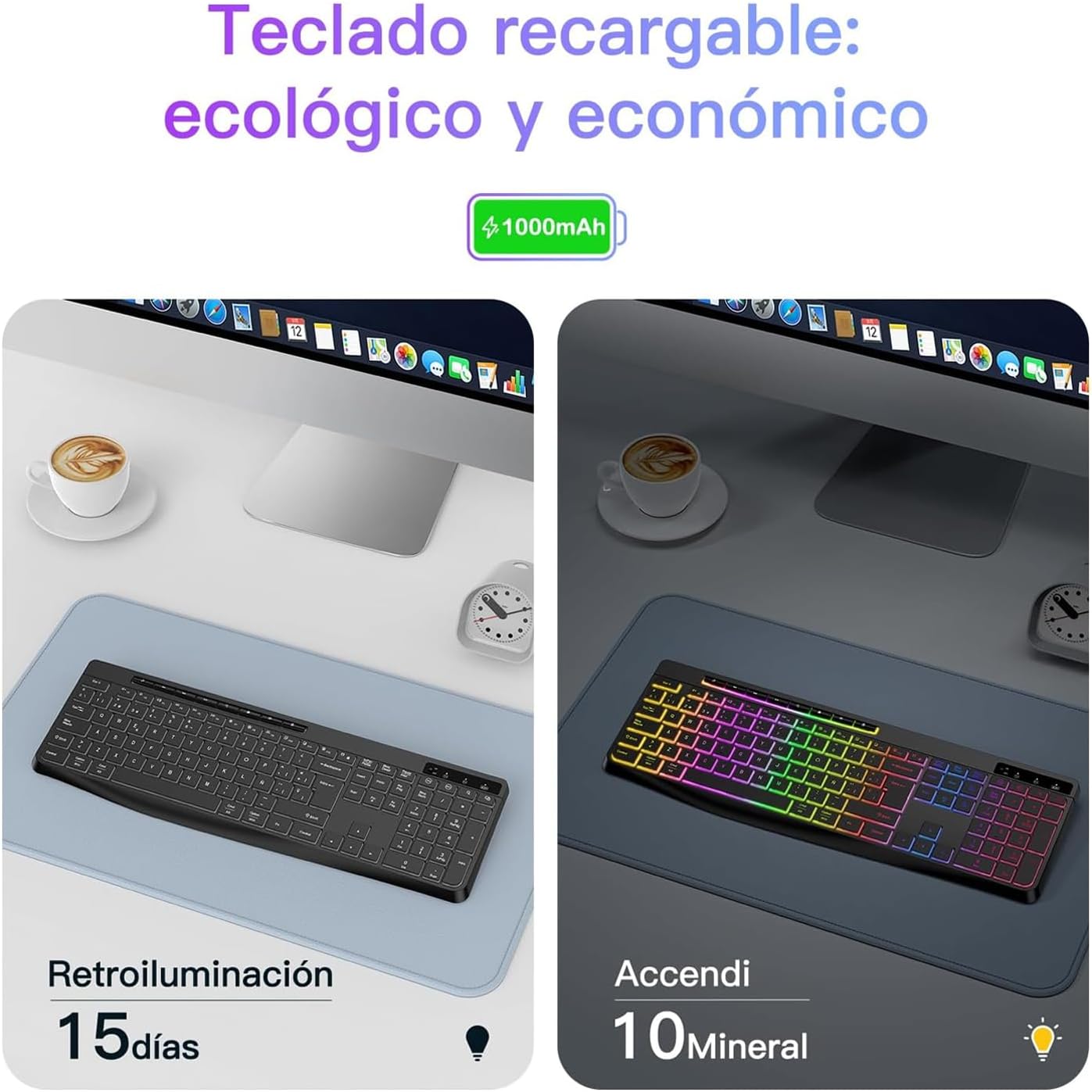
Image: The keyboard highlighting its rechargeable battery and estimated battery life with and without backlighting.
Connecting the Keyboard
- Take out the 2.4G USB receiver from its storage slot, usually located on the underside of the keyboard.
- Plug the USB receiver into an available USB-A port on your computer (PC, Mac, Windows, PS4, Xbox compatible).
- The keyboard should automatically connect to your device. No additional drivers are typically required.
- Ensure the keyboard is powered on. The wireless range is approximately 8-10 meters.

Image: The wireless keyboard with its 2.4G USB receiver, illustrating the 8-10 meter reception distance.
Operating Instructions
Basic Typing and Ergonomics
The WK007 features a full-size QWERTY layout with silent membrane keys, designed for comfortable and quiet typing. Its ergonomic design provides support during extended use.

Image: A user typing on the TECURS WK007 keyboard in a dimly lit room, emphasizing its quiet operation, with a sleeping child in the background.

Image: Children using TECURS WK007 keyboards in a library, demonstrating the low noise level suitable for quiet environments.
Backlight Control
The keyboard features a monochromatic mixed-color backlight with adjustable brightness levels.
- Turn On/Off Backlight: Press the dedicated backlight key (often indicated by a light bulb icon) to toggle the backlight on or off.
- Adjust Brightness: Press the backlight key repeatedly to cycle through different brightness levels (low, medium, high) or to turn it off.
- Smart Backlight: The backlight may automatically turn off after a period of inactivity to conserve battery and reactivate upon typing.
Multimedia Keys
The keyboard includes dedicated multimedia keys for convenient control of media playback and system functions. These keys are typically located above the function keys (F1-F12).
- Volume Control: Keys for Volume Up, Volume Down, and Mute.
- Media Playback: Keys for Play/Pause, Previous Track, and Next Track.
- Other Functions: Keys for opening default browser, email, calculator, and locking the computer.
To use the F1-F12 keys as standard function keys, you may need to press the 'Fn' key simultaneously. Some keyboards allow locking the Fn key behavior; refer to the specific key markings on your keyboard.
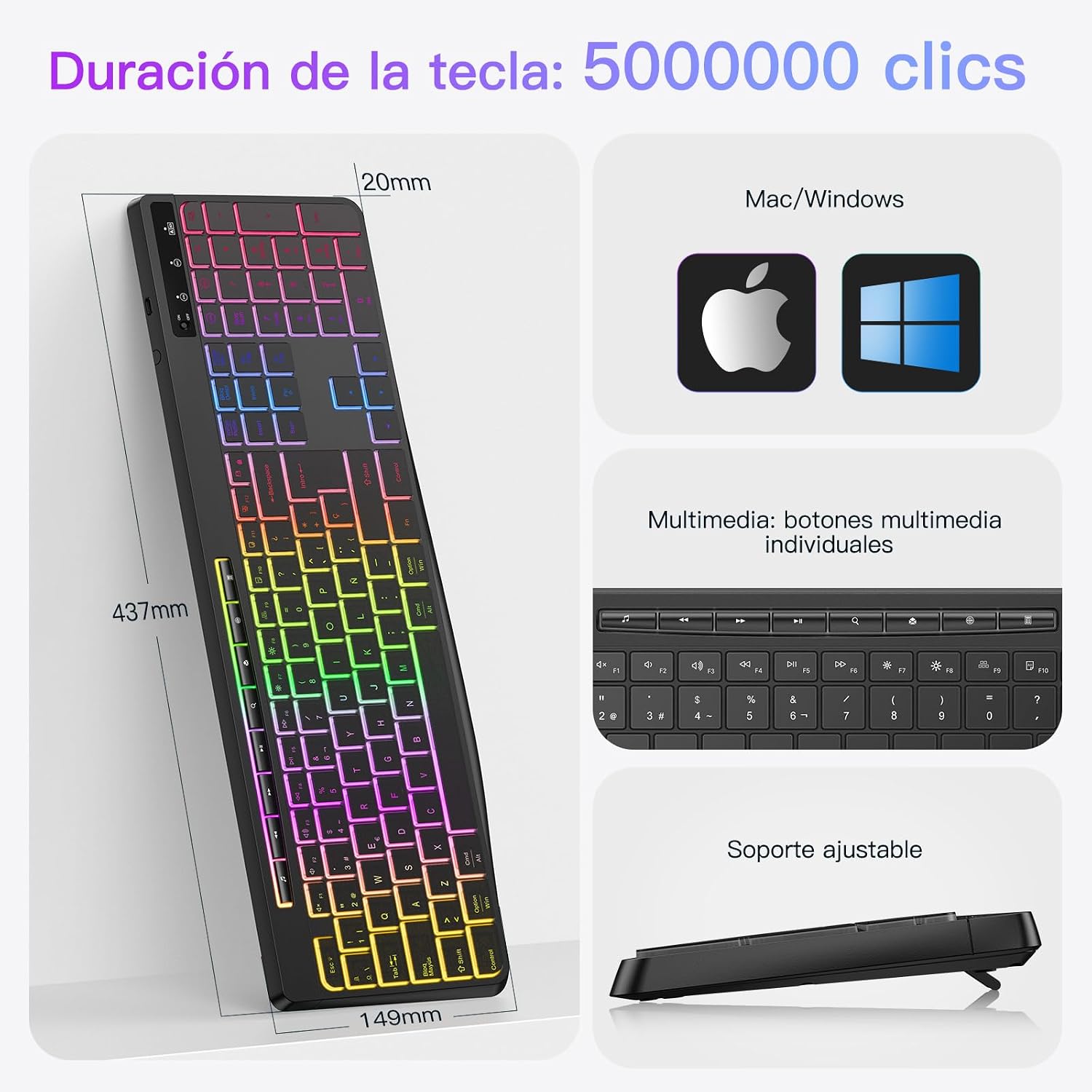
Image: The TECURS WK007 keyboard displaying its dimensions, dedicated multimedia buttons, and adjustable support feet. It also indicates compatibility with Mac and Windows operating systems.
Maintenance
Cleaning
- Disconnect the keyboard from your device before cleaning.
- Use a soft, lint-free cloth slightly dampened with water or a mild cleaning solution to wipe the surface of the keyboard.
- Avoid using harsh chemicals, abrasive cleaners, or solvents.
- For dust and debris between keys, use compressed air.
Water Resistance
The keyboard is designed to be water-resistant, offering protection against minor spills. However, it is not waterproof and should not be immersed in liquid. In case of a spill, immediately disconnect the keyboard, wipe it dry, and allow it to air dry completely before reconnecting.
Troubleshooting
Keyboard Not Responding
- Check Battery: Ensure the keyboard is sufficiently charged. Connect the charging cable and allow it to charge for a while.
- Check Connection: Verify that the 2.4G USB receiver is securely plugged into a working USB port on your device. Try a different USB port.
- Re-pair: Turn the keyboard off and then on again. Sometimes, simply restarting the connection can resolve issues.
- Interference: Move the keyboard closer to the USB receiver and away from other wireless devices that might cause interference.
Backlight Not Working
- Check Battery: Low battery can cause the backlight to dim or turn off. Charge the keyboard fully.
- Toggle Backlight: Press the backlight key to ensure it's not simply turned off or set to the lowest brightness.
Incorrect Key Output (Layout Issues)
- The keyboard has a QWERTY layout. Ensure your operating system's keyboard language settings match the physical layout of the keyboard (e.g., Italian QWERTY, Spanish QWERTY).
- If symbols do not match, adjust your operating system's keyboard input language to the correct regional QWERTY layout.
Specifications
| Model Number | WK007 |
| Brand | TECURS |
| Connectivity Technology | 2.4 GHz Wireless (USB-A Receiver) |
| Keyboard Layout | QWERTY (ES-Layout) |
| Number of Keys | 104 |
| Switch Type | Tactile (Membrane) |
| Special Features | Ergonomic, Backlit, Silent Keys, Multimedia Keys, Water-resistant |
| Backlight Color Support | Monochromatic Mixed-Color |
| Power Source | Rechargeable Battery (1 battery included) |
| Material | Plastic |
| Compatible Devices | PC, MacBook Air/Pro/Mini, Windows, PS4, Xbox |
| Minimum OS Requirement | Mac OS 13 Ventura, Mac OS 14 Sonoma, Windows 11 |
Warranty Information
TECURS products typically come with a standard manufacturer's warranty. For specific details regarding the warranty period and terms for your WK007 Wireless Gaming Keyboard, please refer to the warranty card included in your product packaging or visit the official TECURS website.
Customer Support
If you encounter any issues or have questions about your TECURS WK007 Wireless Gaming Keyboard that are not covered in this manual, please contact TECURS customer support. You can usually find contact information on the official TECURS website or through the retailer where you purchased the product.


