
1. Introduction
This manual provides essential information and instructions for the safe and efficient use of your Fujitsu LIFEBOOK AH40/H 15.6-inch laptop. Please read this manual thoroughly before using your device and retain it for future reference. This laptop is equipped with Windows 11 Home, an Intel Celeron 7305 processor, 8GB RAM, and a 256GB SSD.
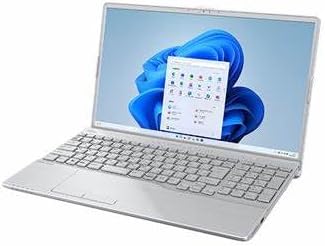
Figure 1: Fujitsu LIFEBOOK AH40/H Laptop
2. Setup
2.1 Unboxing and Initial Inspection
Carefully remove all components from the packaging. Verify that all items listed below are present and undamaged:
- Fujitsu LIFEBOOK AH40/H Laptop
- AC Adapter and Power Cord
- Documentation (Quick Start Guide, Warranty Information)
If any items are missing or damaged, contact your retailer immediately.
2.2 Connecting the Power Adapter
- Connect the AC adapter cable to the power input port on the side of your laptop.
- Plug the power cord into the AC adapter.
- Insert the power cord into a grounded electrical outlet.
The laptop battery will begin charging automatically.
2.3 First Boot and Windows 11 Setup
- Open the laptop lid and press the power button.
- Follow the on-screen instructions to complete the Windows 11 Home setup process. This includes selecting your region, language, connecting to a Wi-Fi network, and creating a user account.
- Allow the system to install any necessary updates after the initial setup is complete. This may require a restart.
3. Operating Your Laptop
3.1 Keyboard and Touchpad
The laptop features a full-sized keyboard and a precision touchpad. Use the touchpad for cursor control and multi-touch gestures. Refer to Windows 11 settings for customizing touchpad sensitivity and gestures.
3.2 Connecting External Devices
Your LIFEBOOK AH40/H includes various ports for connecting peripherals:
- USB Ports: For connecting USB devices like mice, keyboards, and external storage.
- HDMI Port: For connecting to external displays or projectors.
- Audio Jack: For headphones or external speakers.
- Ethernet Port: For wired network connections.
3.3 Using the DVD-RW Drive
The integrated DVD-RW drive allows you to read and write CDs and DVDs. To open the tray, press the eject button located on the drive itself. Insert the disc with the label side facing up and gently push the tray back in until it clicks.
3.4 WPS Office 2
Your laptop comes pre-installed with WPS Office 2. This suite includes word processing, spreadsheet, and presentation applications. You can access these applications from the Windows Start Menu.
4. Maintenance
4.1 Cleaning Your Laptop
To maintain optimal performance and appearance:
- Use a soft, lint-free cloth slightly dampened with water or a specialized screen cleaner for the display.
- For the keyboard and chassis, use a soft, dry cloth. Avoid harsh chemicals or abrasive materials.
- Periodically use compressed air to clear dust from keyboard keys and ventilation grilles.
4.2 Battery Care
To prolong battery life:
- Avoid extreme temperatures.
- Do not fully discharge the battery frequently.
- If storing the laptop for an extended period, ensure the battery is charged to approximately 50-70%.
4.3 Software Updates
Regularly check for and install Windows updates to ensure system stability, security, and performance. You can find update settings in Windows 11 under Settings > Windows Update.
5. Troubleshooting
This section addresses common issues you might encounter. For more complex problems, refer to the online support resources or contact customer service.
5.1 No Power
- Ensure the AC adapter is securely connected to both the laptop and a working power outlet.
- Check if the power outlet is functional by plugging in another device.
- If the battery is completely drained, allow it to charge for a few minutes before attempting to power on.
5.2 Display Issues
- If the screen is blank, try pressing the function key combination (e.g., Fn + F7 or F8) to toggle the display output.
- Ensure external monitors are properly connected and powered on.
- Restart the laptop.
5.3 Slow Performance
- Close unnecessary applications running in the background.
- Check for and install any pending Windows updates.
- Ensure your SSD has sufficient free space.
- Run a virus scan.
6. Specifications
| Feature | Specification |
|---|---|
| Model Name | LIFEBOOK AH40/H |
| Product Model Number | FMVA40HSJ2 |
| Operating System | Windows 11 Home |
| Processor | Intel Celeron 7305 (1.1 GHz) |
| RAM | 8 GB DDR4 SDRAM |
| Storage | 256 GB SSD |
| Display Size | 15.6 inches |
| Display Resolution | 1366 x 768 pixels |
| Graphics | Intel Graphics |
| Optical Drive | DVD-RW |
| Wireless Connectivity | 802.11 ABGN |
| Battery | 1 Lithium Ion Battery (45 Wh) |
| Dimensions (L x W x H) | 45.5 x 35.4 x 13.2 cm |
| Weight | 3 kg |
| Included Software | WPS Office 2 |
7. Warranty and Support
7.1 Warranty Information
This product is covered by the Amazon Renewed 180-day return guarantee. This warranty covers defects in materials and workmanship under normal use during the warranty period. For details on how to claim warranty service, please refer to the Amazon Renewed program terms and conditions or contact Amazon customer service.
7.2 Customer Support
For technical assistance, troubleshooting beyond this manual, or warranty claims, please contact Amazon customer support through your purchase history. Have your product model number (FMVA40HSJ2) and purchase details ready when contacting support.


