
DOOGEE U10
DOOGEE U10 Tablet User Manual
Model: U10
1. Introduction
Welcome to the user manual for your new DOOGEE U10 Tablet. This guide provides detailed instructions to help you get started, operate, maintain, and troubleshoot your device. The DOOGEE U10 is a modern tablet featuring the latest Android 14 system, a vibrant 10.1-inch IPS display, and robust performance capabilities.
Key Features
- Operating System: Android 14 for a smooth and secure experience.
- Display: 10.1-inch IPS HD (1280x800) with TÜV Low Blue Light Eye Protection.
- Performance: Rockchip RK3562 Quad-core Processor, 9GB RAM (4GB + 5GB virtual).
- Storage: 128GB internal storage, expandable up to 1TB via TF card.
- Cameras: 8MP Rear Camera and 5MP Front Camera for clear photos and video calls.
- Battery: Long-lasting 5060mAh battery.
- Connectivity: Ultra-fast WiFi 6, Bluetooth 5.0, and OTG support.
- Streaming: Widevine L1 support for high-quality streaming on platforms like Amazon Prime Video and Hulu.

Image: Overview of DOOGEE U10 Tablet's main features including screen size, connectivity, OS, eye protection, memory, battery, and camera specifications.
2. Setup
2.1 What's in the Box
Upon unboxing your DOOGEE U10 Tablet, please ensure all the following items are present:
- 1 x DOOGEE U10 Android 14 Tablet
- 1 x Type-C USB Cable
- 1 x Charger
- 1 x User Manual (this document)
- 1 x Warranty Card
2.2 Initial Charging
Before first use, it is recommended to fully charge your tablet. Connect the provided Type-C USB cable to the tablet's charging port and the charger to a power outlet. The charging indicator will show the charging status. A full charge typically takes a few hours.

Image: Illustration of the 5060mAh battery capacity and charging port, indicating fast charging capability and a 3.5mm headphone jack.
2.3 Powering On/Off
- To Power On: Press and hold the Power button (usually located on the side) until the DOOGEE logo appears on the screen.
- To Power Off: Press and hold the Power button until a power-off menu appears. Select "Power off" and confirm.
- To Restart: From the power-off menu, select "Restart".
2.4 Initial Configuration
Follow the on-screen prompts to complete the initial setup:
- Select your preferred language.
- Connect to a Wi-Fi network.
- Accept the terms and conditions.
- Sign in with your Google account or create a new one.
- Set up screen lock (PIN, pattern, password, or Face ID).
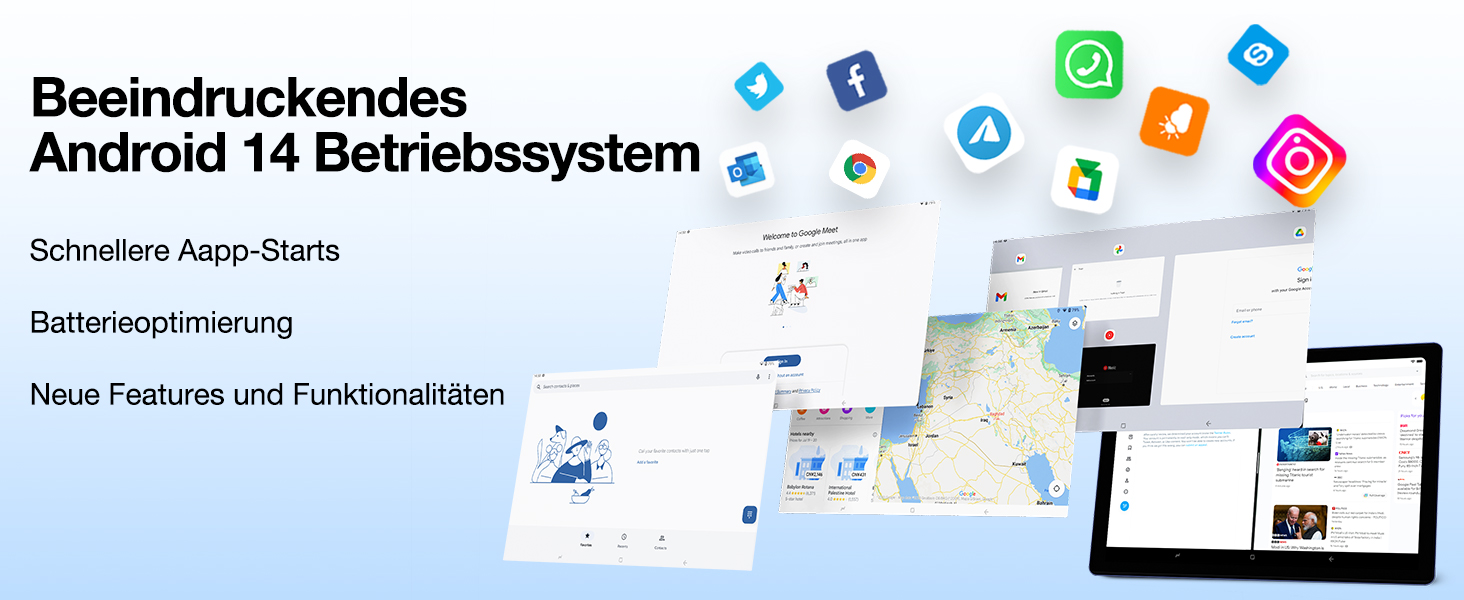
Image: Visual representation of the Android 14 operating system interface, highlighting faster app starts and battery optimization.
3. Operating Your Tablet
3.1 Basic Navigation
The DOOGEE U10 Tablet uses touch gestures for navigation:
- Tap: To select an item or open an app.
- Swipe: To scroll through pages or lists.
- Pinch: To zoom in or out on images or web pages.
- Long Press: To access contextual menus or move icons.
3.2 Connectivity
Your tablet supports advanced connectivity options:
- Wi-Fi 6: For high-speed internet access. Go to Settings > Network & internet > Wi-Fi, then select your network and enter the password.
- Bluetooth 5.0: For connecting wireless headphones, speakers, or other Bluetooth devices. Go to Settings > Connected devices > Bluetooth, turn it on, and pair with your device.
- OTG (On-The-Go): Allows you to connect USB devices like flash drives, keyboards, or mice using a compatible OTG adapter (not included).
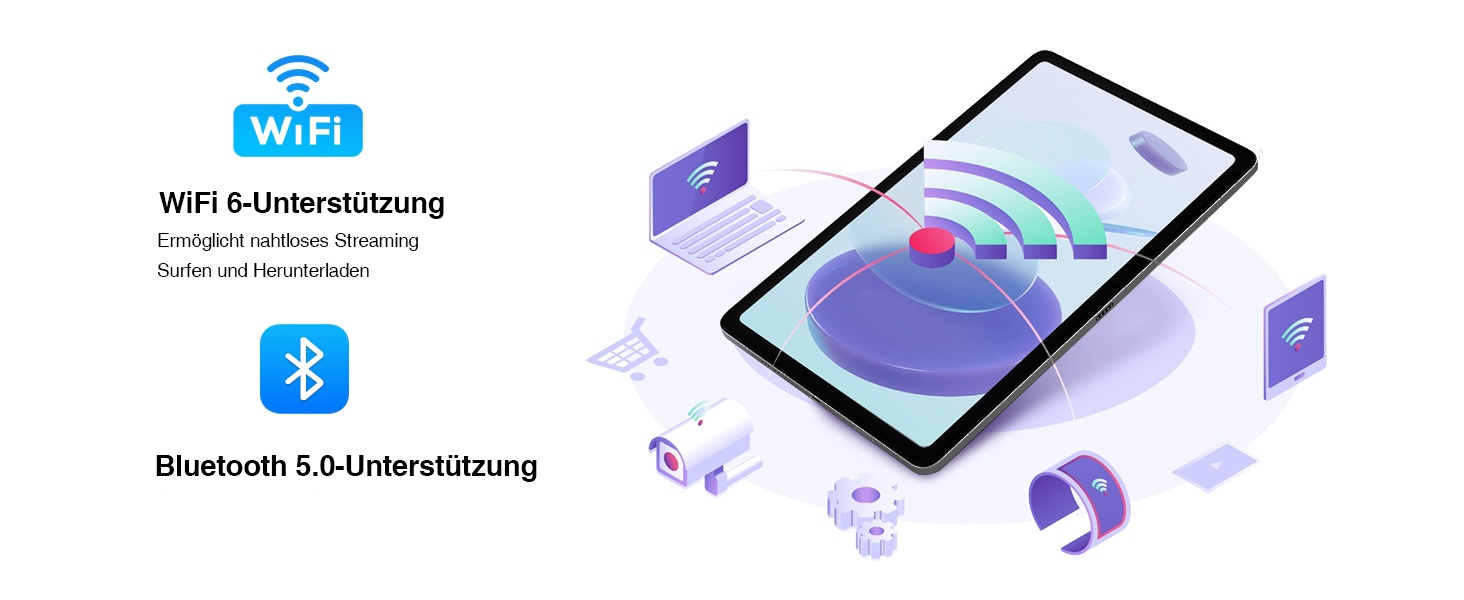
Image: Visual representation of WiFi 6 and Bluetooth 5.0 support, enabling seamless streaming, browsing, and downloading, and connecting to various devices.
3.3 Camera Usage
The DOOGEE U10 features an 8MP rear camera and a 5MP front camera. Open the Camera app to capture photos and videos. Switch between front and rear cameras using the icon on the screen.

Image: Close-up of the tablet's dual camera system, highlighting the 5MP front and 8MP rear cameras, suitable for photos and video chats.
3.4 Storage Management
Your tablet comes with 128GB of internal storage. You can expand this up to 1TB using a microSD (TF) card. Insert the TF card into the designated slot. To manage storage, go to Settings > Storage.
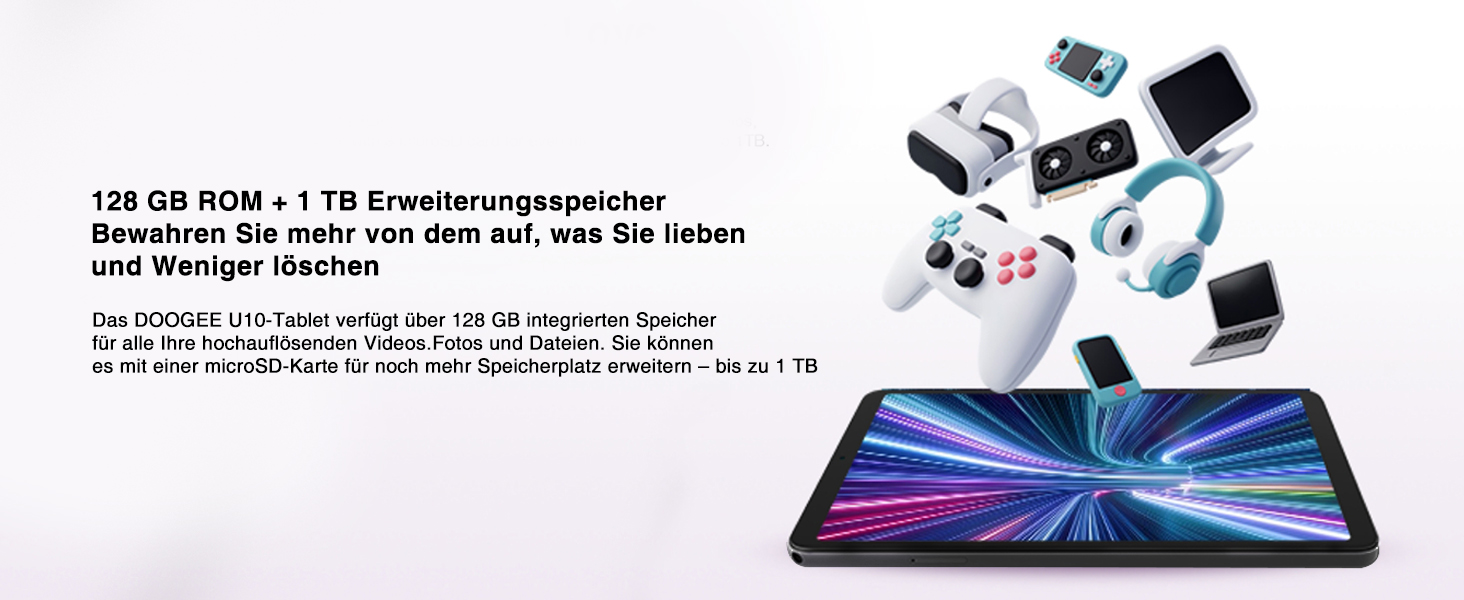
Image: Depiction of the tablet's 128GB ROM and 1TB expandable storage, illustrating ample space for media and files.
3.5 Entertainment Features
- Widevine L1 Support: Enjoy high-definition content from streaming services like Amazon Prime Video, Hulu, and HBO Max.
- Screen Casting: Share your tablet's screen to a larger display, such as a TV, for presentations or family viewing.
- Split-Screen Function: Enhance productivity by running two apps side-by-side, allowing for seamless multitasking.
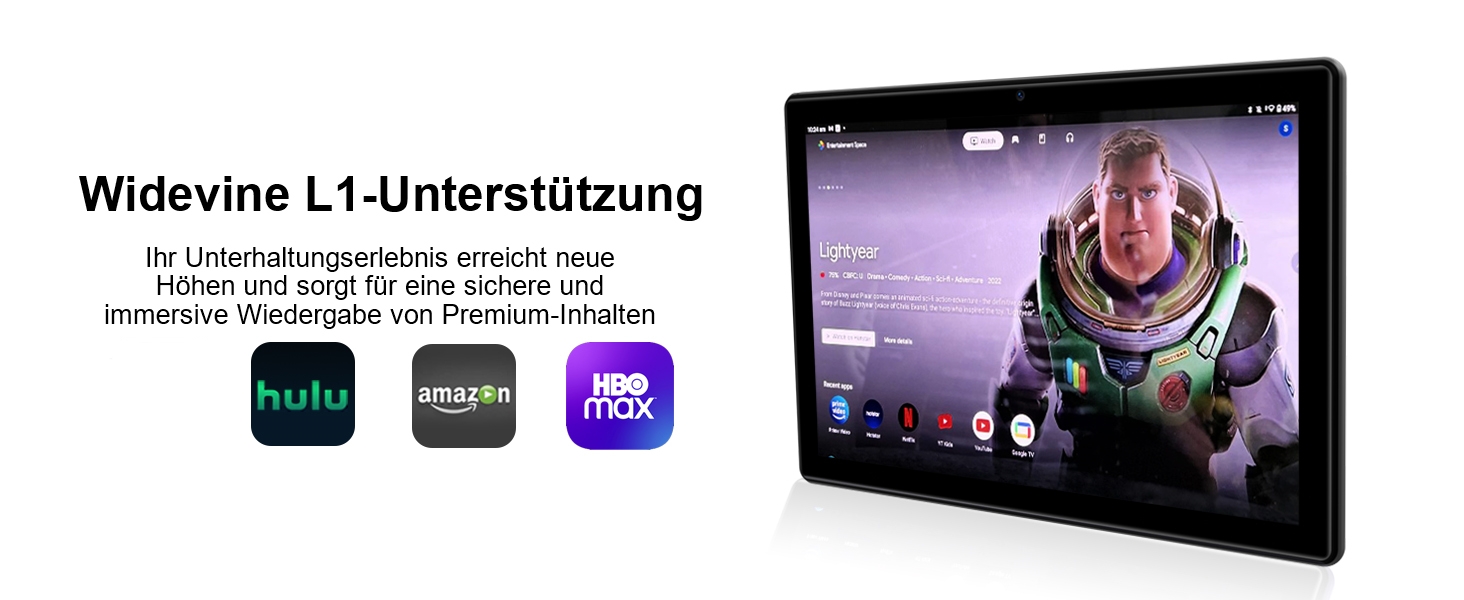
Image: The tablet displaying streaming service logos (Hulu, Amazon, HBO Max) and content, indicating Widevine L1 support for premium content playback.
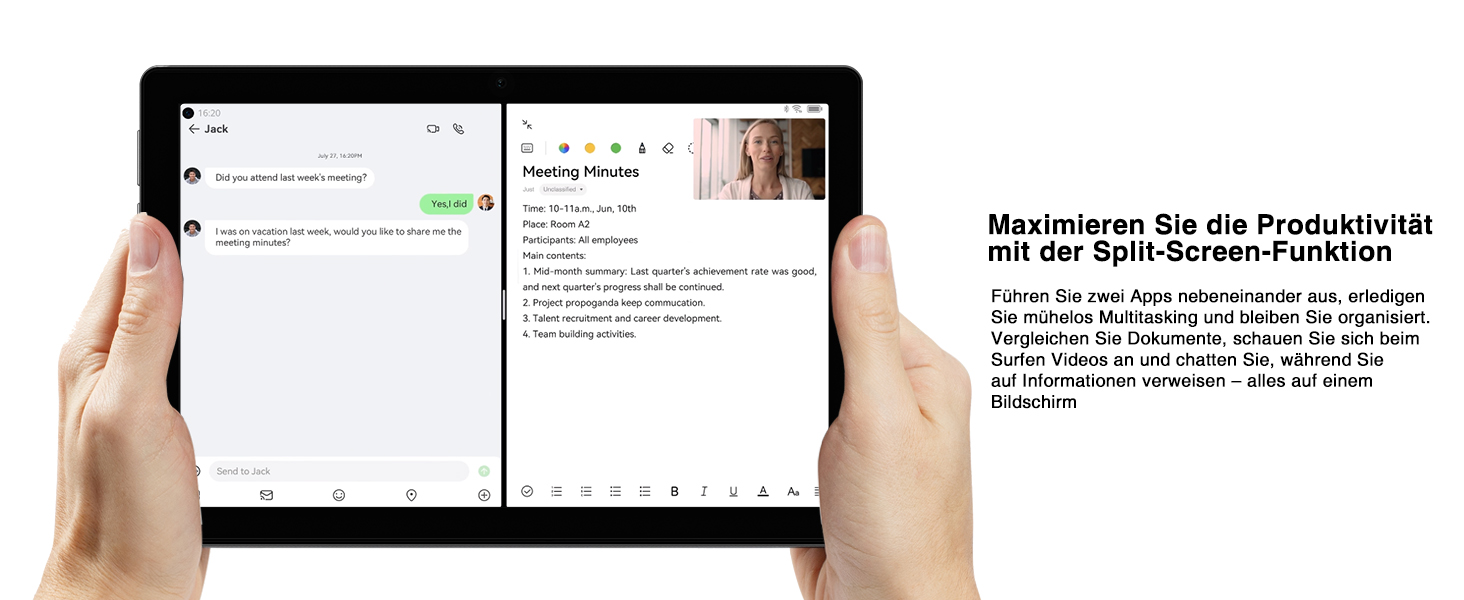
Image: A tablet screen split into two applications, demonstrating the split-screen feature for enhanced productivity and multitasking.
4. Maintenance
4.1 Battery Care
To maximize the lifespan of your 5060mAh battery:
- Avoid extreme temperatures.
- Do not let the battery drain completely before recharging regularly.
- Use the provided charger for optimal charging.
- Enable power-saving modes when battery is low.
4.2 Cleaning Your Tablet
Use a soft, lint-free cloth to clean the screen and body of the tablet. For stubborn smudges, slightly dampen the cloth with water or a screen cleaner. Avoid using harsh chemicals or abrasive materials.
4.3 Software Updates
Keep your tablet's software up to date to ensure optimal performance and security. Go to Settings > System > System update to check for and install available updates.
4.4 Storage Optimization
Regularly review your installed apps and files. Uninstall unused apps and delete unnecessary files to free up storage space and improve performance. Consider moving large media files to an external TF card.
5. Troubleshooting
This section addresses common issues you might encounter with your DOOGEE U10 Tablet. If the problem persists, please contact customer support.
| Problem | Possible Cause | Solution |
|---|---|---|
| Tablet does not turn on or charge. | Battery is completely drained; faulty charger/cable; hardware issue. | Ensure the charger and cable are securely connected. Try a different power outlet. Allow the tablet to charge for at least 30 minutes before attempting to power on. If still unresponsive, perform a forced restart by holding the power button for 10-15 seconds. |
| Wi-Fi connection is unstable or not connecting. | Incorrect password; router issue; interference. | Verify the Wi-Fi password. Restart your Wi-Fi router. Move closer to the router. Forget the network on your tablet and reconnect. |
| Tablet is slow or apps are freezing. | Too many apps running; low storage; outdated software. | Close background apps. Clear app caches (Settings > Apps > [App Name] > Storage & cache > Clear cache). Free up internal storage. Check for system updates. Restart the tablet. |
| Camera is not working. | App permissions; software glitch. | Check camera permissions for the Camera app (Settings > Apps > Camera > Permissions). Restart the tablet. Clear the Camera app's cache and data. |
| Screen display issues (e.g., flickering, incorrect colors). | Software glitch; hardware defect. | Restart the tablet. Ensure the TÜV Low Blue Light Eye Protection mode is not causing an unintended effect if you prefer standard display. If the issue persists, it may indicate a hardware problem. |
6. Specifications
| Feature | Detail |
|---|---|
| Brand | DOOGEE |
| Model | U10 (DOOGEE U10 TABLET) |
| Dimensions | 1 x 1 x 1 cm; 509 Grams |
| Display Size | 10.1 inches |
| Display Resolution | 1280 x 800 Pixels (IPS HD) |
| Processor | Rockchip RK3562 Quad-core, 2.0 GHz |
| RAM | 9GB (4GB + 5GB virtual expansion) |
| Internal Storage | 128GB ROM |
| Expandable Storage | Up to 1TB (TF card) |
| Operating System | Android 14 |
| Battery Capacity | 5060mAh |
| Rear Camera | 8MP |
| Front Camera | 5MP |
| Wi-Fi Type | 802.11ax (WiFi 6) |
| Bluetooth | Bluetooth 5.0 |
| Ports | Type-C, 3.5mm Headphone Jack |
| Special Features | Widevine L1, TÜV Low Blue Light Eye Protection, OTG, Face ID |

Image: Detailed diagram of the Rockchip RK3562 CPU, highlighting its quad-core processor, 2.0 GHz speed, and memory capabilities (9GB RAM, 128GB ROM, 1TB TF).
7. Warranty and Support
DOOGEE is committed to providing high-quality products and excellent customer service.
- Money Back Guarantee: Enjoy a 30-day money-back guarantee and free returns.
- Limited Warranty: Your DOOGEE U10 Tablet comes with a 2-year limited warranty.
- Online Support: 24/7 online support is available for any queries or assistance you may need.
For further assistance, please refer to the warranty card included in your package or visit the official DOOGEE support website.

Image: Icons representing after-sales support, including a 30-day money-back guarantee, 2-year limited warranty, and 24/7 online support.
Ask a question about this manual
Ask about setup, troubleshooting, compatibility, parts, safety, or missing instructions. Manuals+ will review the question and use this page’s manual context to help answer it.