
Introduction
Thank you for purchasing the SinLoon USB Mini 3-Key Programmable Mechanical Keyboard. This compact and versatile device is designed to enhance your productivity and gaming experience with customizable functions and vibrant RGB lighting. It features a hot-swappable design, allowing for easy keycap and switch replacement, and connects via a standard USB Type-C cable. This manual will guide you through the setup, operation, and customization of your new keyboard.
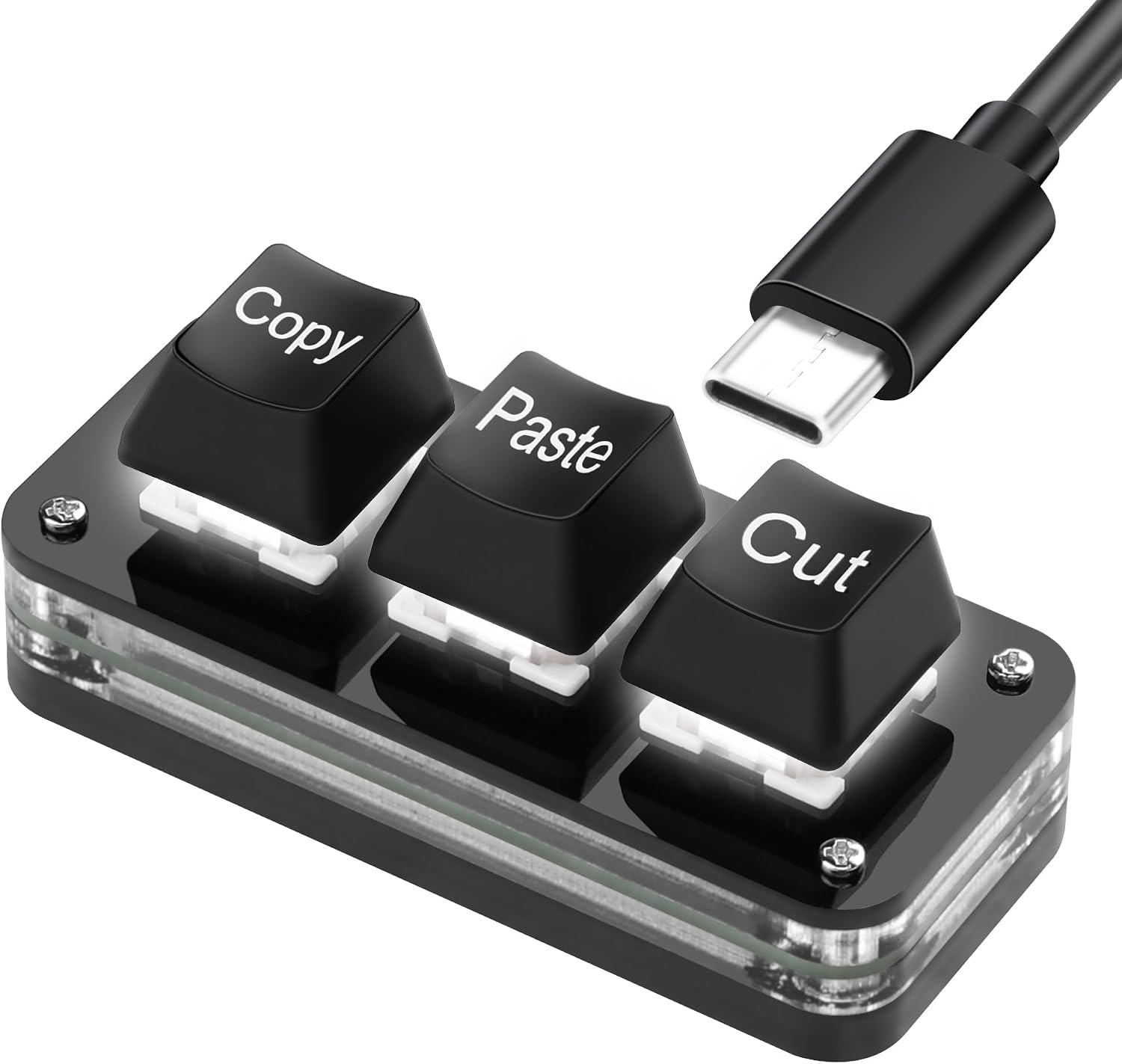
Image: The SinLoon USB Mini 3-Key Keyboard, featuring 'Copy', 'Paste', and 'Cut' keys, connected via a USB-C cable.
Setup
- Connect the Keyboard: Plug the provided USB Type-C cable into the keyboard's Type-C port and connect the other end to an available USB port on your computer. The keyboard is plug-and-play for its default functions.
- Software Installation for Customization: To customize key functions and RGB lighting, you need to download and install the dedicated software.
- Visit the official software download page: https://sikaicase.com/blogs/news/before-software-setting.
- Download the software installer compatible with your Windows operating system (Windows 7 or higher).
- Install the software by following the on-screen instructions.
- Mac User Note: If you intend to use the keyboard with a Mac, perform all custom key programming and settings on a Windows computer first. Once programmed, the settings are saved to the keyboard's internal memory, and it will function as configured on your Mac without needing the software running in the background. Ensure the USB-C cable remains connected during operation.
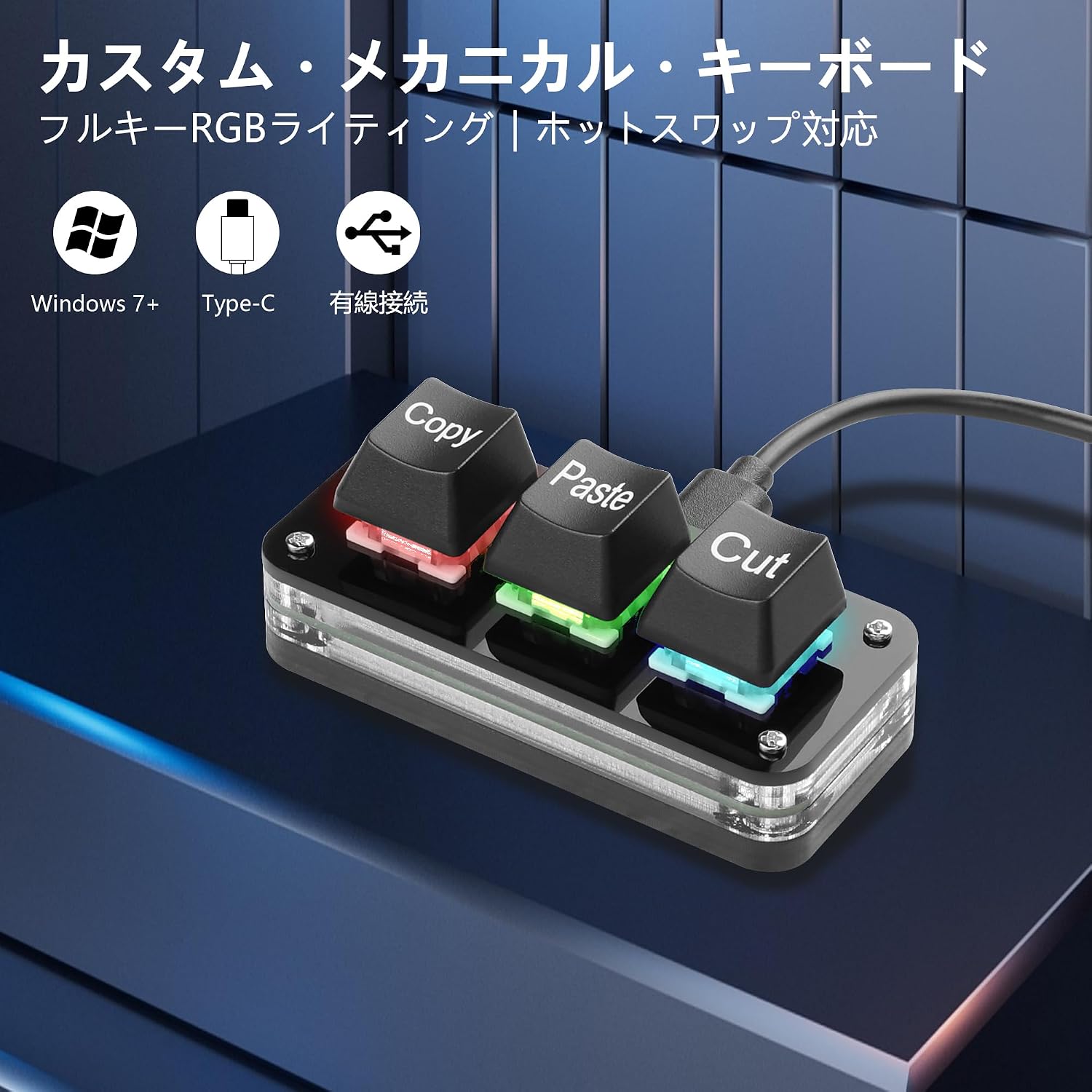
Image: The keyboard highlighting compatibility with Windows 7+, Type-C connectivity, and wired operation.
Operating Instructions
Default Functions
Out of the box, the keyboard's default functions are typically 'Copy', 'Paste', and 'Cut'. Simply plug it in, and these functions will be immediately available.

Image: The 3-key keyboard with illuminated keys, illustrating its plug-and-play functionality.
Custom Key Programming
Utilize the downloaded software to program each of the three keys with various functions:
- Standard Shortcuts: Assign common shortcuts like Undo, Redo, Select All, Save, Print, etc.
- Multimedia Controls: Control playback (Play/Pause, Next Track, Previous Track), volume (Volume Up, Volume Down, Mute).
- Custom Scripts/Macros: Create complex sequences of key presses or custom scripts for specific applications (e.g., for gaming like OSU, graphic design software like Photoshop, or video editing).
- Mouse Functions: Assign mouse clicks or movements.
Once programmed, the commands are stored directly on the device, eliminating the need to reconfigure when switching computers.

Image: The keyboard integrated into a multi-monitor workstation, demonstrating its use as a productivity tool for tasks like video editing.
RGB Lighting Customization
The keyboard supports RGB lighting with 7 colors and 2 modes (light fade mode or touch button mode). Use the software to select your preferred color and lighting effect. You can also choose to turn off the lighting if desired.
Maintenance
Cleaning
To clean the keyboard, disconnect it from your computer. Use a soft, dry cloth to wipe the surface. For stubborn dirt, a slightly damp cloth can be used, ensuring no moisture enters the key switches or electronics. Avoid harsh chemicals or abrasive materials.
Keycap and Switch Replacement (Hot-Swap)
This keyboard features a hot-swappable design, allowing you to easily change keycaps and mechanical switches without soldering. Use a keycap puller to remove keycaps and a switch puller to remove switches. This enables DIY customization to suit your preferences.
Anti-Slip Pads
The keyboard comes with four small adhesive anti-slip pads. Apply these to the four corners on the underside of the keyboard to prevent it from sliding during use.

Image: The underside of the keyboard, illustrating the placement of the four anti-slip pads.
Troubleshooting
- Software Not Connecting / 'Disconnect' Error: Ensure you are using the correct software version downloaded from the official link provided in the manual. If the software shows 'disconnect', try unplugging and replugging the USB cable.
- Keyboard Freezes or Becomes Unresponsive: If the keyboard stops responding or behaves erratically, disconnect the USB cable from your computer and then reconnect it. This often resolves temporary communication issues.
- LED Lighting Issues: While the software allows color and mode selection, fine-grained control over brightness may be limited. If the lighting is too bright or distracting, you can turn it off via the software.
- Loud Key Clicks: This is a characteristic of mechanical keyboards, especially those with tactile switches. If the sound is a concern in quiet environments, consider replacing the switches with quieter alternatives (e.g., linear switches) due to the hot-swappable design.
Specifications
| Feature | Detail |
|---|---|
| Brand | SinLoon |
| Model Number | SL076 |
| Connectivity Technology | USB Type-C (Wired) |
| Key Count | 3 |
| Keyboard Description | Mechanical |
| Special Features | Ergonomic, Lightweight, Hot-swappable, Programmable |
| Backlight Color | RGB (7 colors, 2 modes) |
| Included Components | Keyboard, USB Cable, Instruction Manual, 4x Small Adhesive Anti-slip Pads |
| Switch Type | Tactile |
| Keyboard Layout | QWERTY (for programming context) |
| Hand Orientation | Ambidextrous |
| Compatible Devices | Notebook PCs (Windows 7+, iOS, Android) |
| Minimum Operating System | Windows 10 |
| Origin | China |

Image: Dimensions of the SinLoon USB Mini 3-Key Keyboard, showing approximate measurements of 7.5 cm length, 3.3 cm width, and 3 cm height.
Warranty Information
Warranty content for this product is not specified in the provided information. Please refer to your purchase documentation or contact the seller directly for any warranty-related inquiries.
Support
For further assistance or to download the latest software for customization, please visit the official support page:
SinLoon Software Download & Support Page
Ensure your USB-C cable is properly connected when using the software. If you encounter persistent issues, refer to the troubleshooting section or contact SinLoon customer service.

Image: Screenshot of the SinLoon software interface, demonstrating options for customizing RGB lighting and programming key functions.