
COMICA EJoy Uni Pro A-B
Comica EJoy Uni Pro A Wireless USB Microphone User Manual
Model: EJoy Uni Pro A-B
Introduction
The Comica EJoy Uni Pro A is a revolutionary USB condenser microphone designed for versatile audio recording. It features an integrated wireless module, allowing for both wired and wireless operation, providing unparalleled flexibility for various scenarios such as podcasting, streaming, gaming, and music creation. With its 48kHz/24-bit recording capability, dynamic RGB lighting, and user-friendly controls, this microphone delivers professional studio-quality sound.

Figure 1: The Comica EJoy Uni Pro A microphone being used in various professional and creative settings, highlighting its versatility for podcasting, recording, music production, and gaming.
Package Contents
Please check the package contents upon opening to ensure all items are present and in good condition.
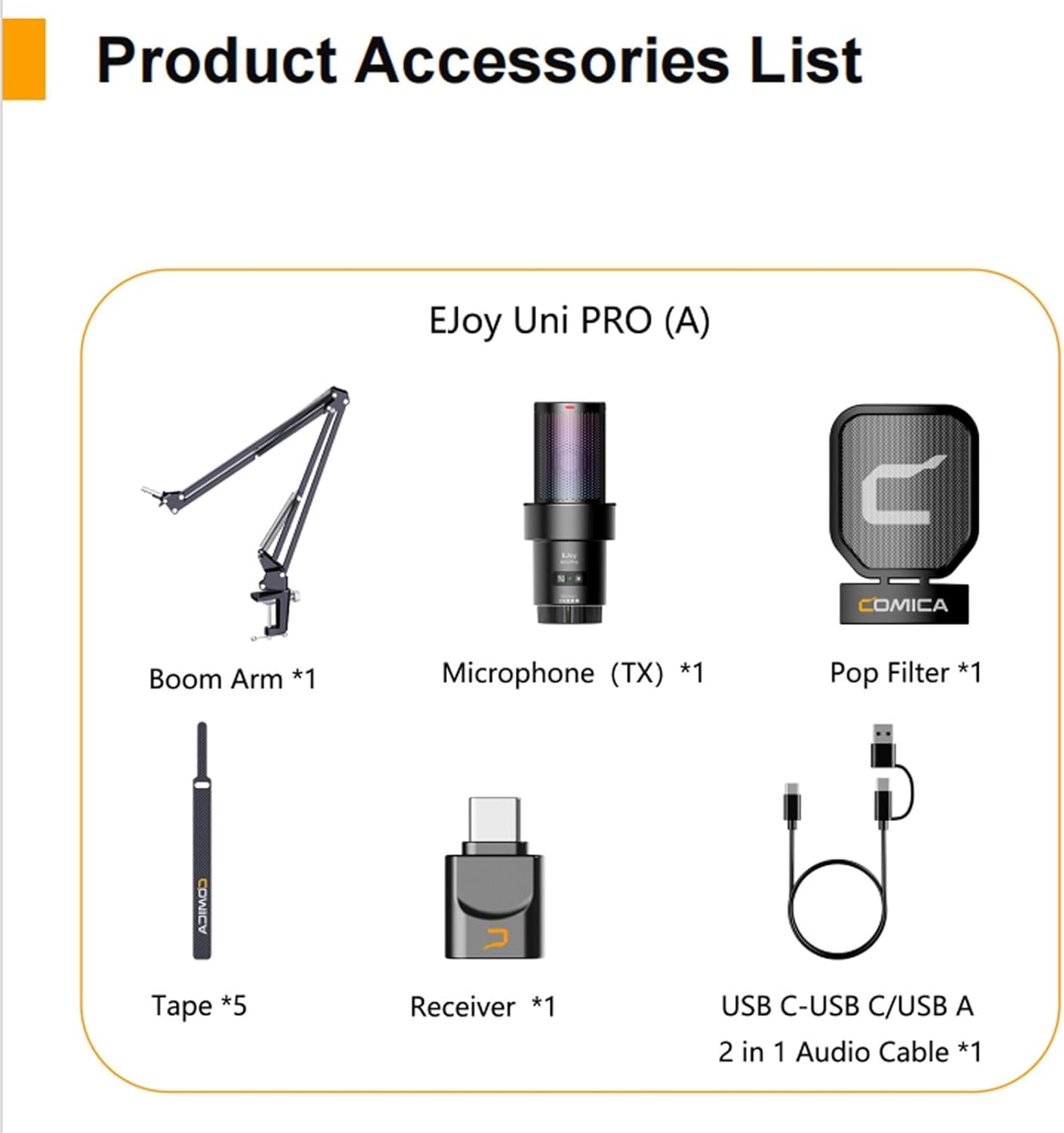
Figure 2: Visual representation of all components included in the Comica EJoy Uni Pro A package.
- 1 x USB Microphone (TX)
- 1 x Receiver (RX)
- 1 x Pop Filter
- 5 x Velcro Fasteners (Tape)
- 1 x Boom Arm
- 1 x USB-C to USB-C/USB-A 2-in-1 Audio Cable
- 1 x User Manual
- 1 x Warranty Card
Product Features
- Integrated Wireless Module: Revolutionary studio microphone with a built-in RF wireless module, breaking traditional wired connection limitations.
- Dual Wired/Wireless Modes: Supports both wired and wireless connections for flexible usage. Wireless transmission distance up to 20 meters.
- Professional Audio Quality: 48kHz/24-bit high-resolution recording captures rich and detailed audio, restoring real timbre.
- Built-in Sound Card: Plug and Play functionality, compatible with various operating systems and applications without additional drivers.
- Comprehensive Controls: Supports gain control, real-time monitoring, one-key denoise, and one-key muting.
- Dynamic RGB Lighting: Features 3 unique RGB effects (Breathing Light, Dynamic Gradient, Audio Dynamics) to customize your setup.
- Universal USB-C Output: Digital USB-C output for intact sound quality, widely compatible with smartphones and computers.
- Robust Accessories: Includes a unique shock-mount and a metal pop filter for improved audio clarity and stability.
- Adjustable Boom Arm: Stable and handy boom arm, adjustable to meet various usage requirements, supporting up to 1.5kg.

Figure 3: Illustration of the microphone's cardioid pickup pattern and its high-resolution 48kHz/24-bit recording capability, ensuring professional studio quality.

Figure 4: The microphone's dynamic RGB lighting in action, showcasing the three unique lighting effects that can be switched freely.

Figure 5: Details of the adjustable boom arm, capable of holding up to 1.5kg, and the integrated shock-mount with a metal pop filter designed to reduce vibrations and plosives.
Specifications
| Feature | Specification |
|---|---|
| Transmission Power | +10 dBm |
| Receiving Sensitivity | -97 dBm |
| Antenna Type | Ceramic Antenna |
| Wireless Delay | <20 ms |
| Polar Pattern | Cardioid (Unidirectional) |
| Microphone Sensitivity | -35 dB ± 2 dB |
| Frequency Range | 20 Hz ~ 20 kHz |
| Maximum SPL | 105 dB (at 1% THD) |
| Signal/Noise Ratio | 72 dB SPL (A-weighted, according to IEC651) |
| Equivalent Noise | 22 dB SPL (A-weighted, according to LEC651) |
| Dynamic Range | 83 dB SPL (A-weighted, according to LEC651) |
| Sampling Rate | 48 kHz |
| Bit Depth (Recording) | 24 bits |
| Bit Depth (Headphone Monitoring) | 16 bits |
| Output Interface | USB-C |
| Monitoring Port | 3.5mm TRS/TRRS |
| Battery Type | 1000 mAh 3.7V Lithium Polymer |
| Standby Time (RGB Off) | 50 hours |
| Standby Time (RGB On) | 20 hours |
| Net Weight (Microphone Body) | 140 g |
| Net Weight (RX) | 2.6 g |
| Dimensions (Microphone Body) | 64.5 x 154.2 mm |
| Dimensions (RX) | 15.5 x 7.0 x 25.7 mm |
| Item Weight (Total) | 1.04 Kilograms |
| Impedance | 2.2 Kiloohms |
| Hardware Platform | Smartphone, Computer |
| Recommended Uses | Singing, Gaming, Streaming, Voice Recording, Video Recording |
Setup Guide
1. Assembling the Microphone and Boom Arm
- Attach the boom arm to a stable surface using its clamp.
- Securely mount the microphone onto the boom arm. Ensure the shock-mount is properly installed around the microphone body.
- Attach the metal pop filter to the boom arm, positioning it approximately 2-3 inches in front of the microphone.
2. Connecting the Microphone
The Comica EJoy Uni Pro A supports both wired and wireless connections.
Wired Connection:
- Connect the USB-C end of the 2-in-1 audio cable to the microphone's USB-C port.
- Connect the other end (USB-C or USB-A, depending on your device) to your computer or smartphone.
- The microphone is plug-and-play and should be recognized automatically by your device.
Wireless Connection:
- Insert the wireless receiver (RX) into the USB-C port of your computer or smartphone.
- Ensure the microphone (TX) is powered on. The microphone and receiver should automatically pair.
- The wireless connection provides flexibility for movement up to 20 meters.

Figure 6: Connection diagrams for both wired and wireless modes, showing how the microphone connects to different devices.

Figure 7: The microphone features a built-in sound card, enabling direct plug-and-play operation without the need for additional drivers.
Operating Instructions
1. Power On/Off
- Press and hold the power button (often combined with the pairing button) to turn the microphone on or off.
2. Gain Control
- Rotate the gain knob on the microphone body to adjust the input volume. Adjust as needed to prevent clipping or low audio levels.
3. Real-Time Monitoring
- Plug your headphones into the 3.5mm monitoring port on the microphone to listen to your audio in real-time. This helps in adjusting levels and ensuring clear sound.
4. One-Key Denoise
- Press the denoise button to activate or deactivate the noise reduction feature. This helps to minimize background noise for clearer recordings.
5. One-Key Muting
- Press the mute button to instantly mute or unmute the microphone. An indicator light will typically show the mute status.
6. RGB Lighting Effects
- Cycle through the three dynamic RGB lighting effects (Breathing Light, Dynamic Gradient, Audio Dynamics) by pressing the dedicated RGB button.

Figure 8: Close-up of the microphone's control panel, illustrating the functions for gain adjustment, real-time monitoring, noise reduction, and muting.
Maintenance
- Cleaning: Use a soft, dry cloth to clean the microphone body and boom arm. Do not use liquid cleaners or abrasive materials.
- Storage: When not in use, store the microphone in a dry, dust-free environment.
- Handling: Avoid dropping the microphone or subjecting it to strong impacts, as this can damage internal components.
- Pop Filter: Periodically clean the pop filter to ensure optimal performance.
Troubleshooting
| Problem | Possible Cause | Solution |
|---|---|---|
| No sound output | Microphone not powered on; Incorrect connection; Muted; Low gain; Incorrect input device selected on computer/smartphone. | Ensure microphone is powered on. Check wired/wireless connection. Unmute microphone. Increase gain. Select "Comica EJoy Uni Pro A" as the input device in your system settings. |
| Poor sound quality / Distortion | Gain too high (clipping); Background noise; Pop filter not positioned correctly. | Reduce gain. Activate one-key denoise. Ensure pop filter is correctly placed and clean. Record in a quieter environment. |
| Wireless connection unstable | Too far from receiver; Interference; Low battery. | Move closer to the receiver (within 20m). Avoid strong electromagnetic interference. Charge the microphone battery. |
| RGB lights not working | RGB feature turned off; Malfunction. | Press the RGB button to cycle through effects. If still not working, contact support. |
Warranty and Support
The Comica EJoy Uni Pro A microphone comes with a manufacturer's warranty. Please refer to the included Warranty Card for specific terms and conditions, including warranty period and coverage details.
For technical support, troubleshooting assistance, or warranty claims, please contact Comica customer service through their official website or the contact information provided on your Warranty Card.
Manufacturer: comica
Country of Origin: China
Related documentsEJoy Uni Pro A-B


Ask a question about this manual
Ask about setup, troubleshooting, compatibility, parts, safety, or missing instructions. Manuals+ will review the question and use this page’s manual context to help answer it.