
Introduction
This manual provides comprehensive instructions for the setup, operation, maintenance, and troubleshooting of your TISHLED Gasket Creamy Mechanical Numpad (Model K19-IS-Do). Please read this manual thoroughly to ensure optimal performance and longevity of your device.
What's in the Box
- 1x Tri-Mode Programmable Mechanical Numpad
- 1x Nano 2.4G USB Receiver
- 1x USB-C Cable
- 1x Keycaps & Switches Puller
Setup
Connection Modes
The numpad supports three connection modes: Wireless 2.4GHz, Bluetooth 5.0, and Wired USB-C. It is compatible with Windows, MacOS, iOS, and Android systems, supporting PCs, laptops, Macs, smartphones, iPads, and tablets.
- Wireless 2.4GHz: Insert the Nano 2.4G USB Receiver into your device's USB port. Press FN + 4 on the numpad to switch to 2.4G mode.
- Bluetooth 5.0: The numpad can connect to up to three Bluetooth devices. Press FN + 1, FN + 2, or FN + 3 to select a Bluetooth channel (BT1, BT2, BT3). Follow your device's instructions to pair with the numpad.
- Wired USB-C: Connect the numpad to your device using the provided USB-C cable. Press FN + 5 to switch to Wired mode.
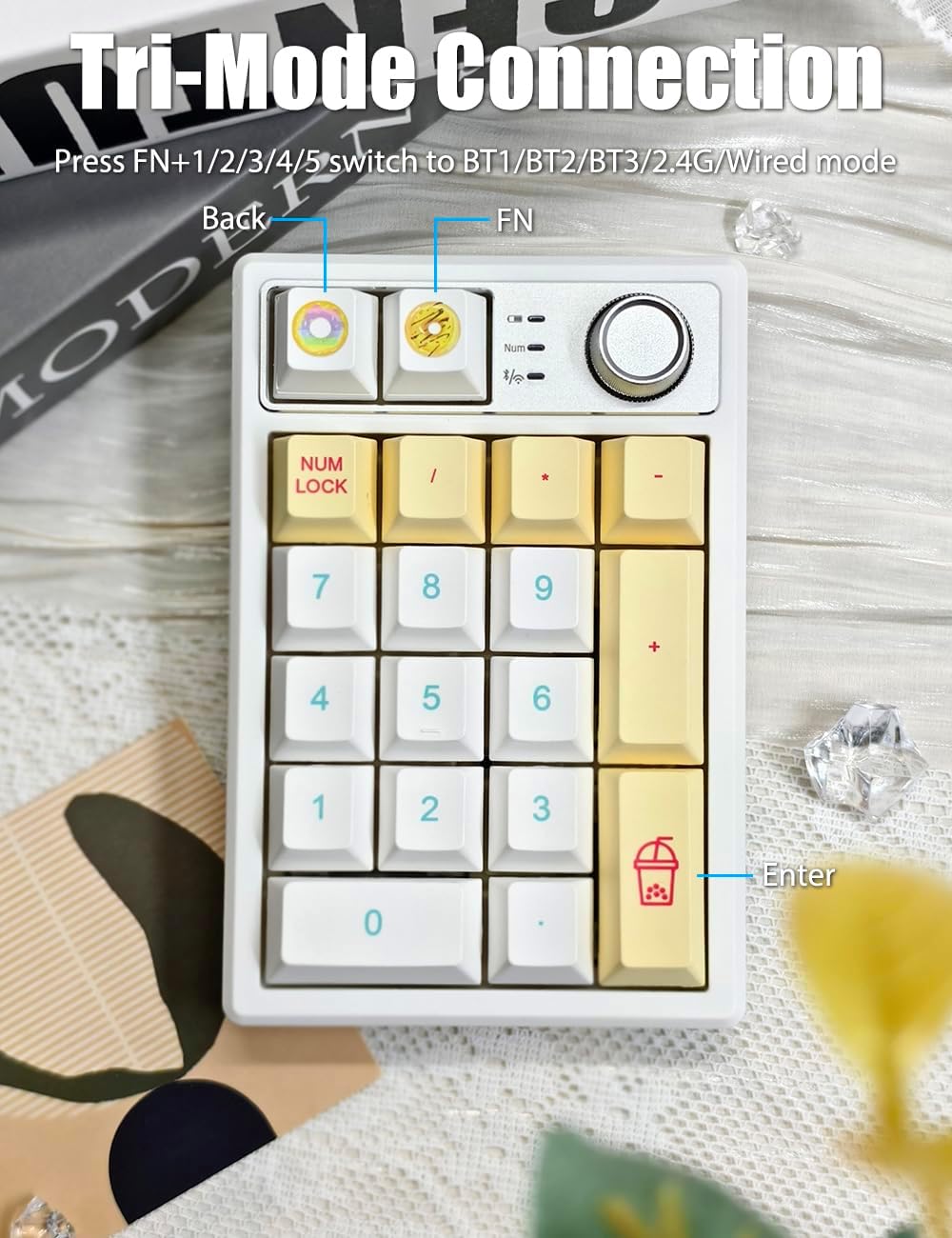
Image: TISHLED Numpad illustrating the different connection modes and corresponding FN key combinations.
Hot-Swappable Switches
The numpad features a gasket-mount design for a consistent and softer typing feel. It supports both 3-pin and 5-pin mechanical switches. The numpad comes pre-installed with creamy linear Ice switches. Use the included keycaps & switches puller to replace switches if desired.
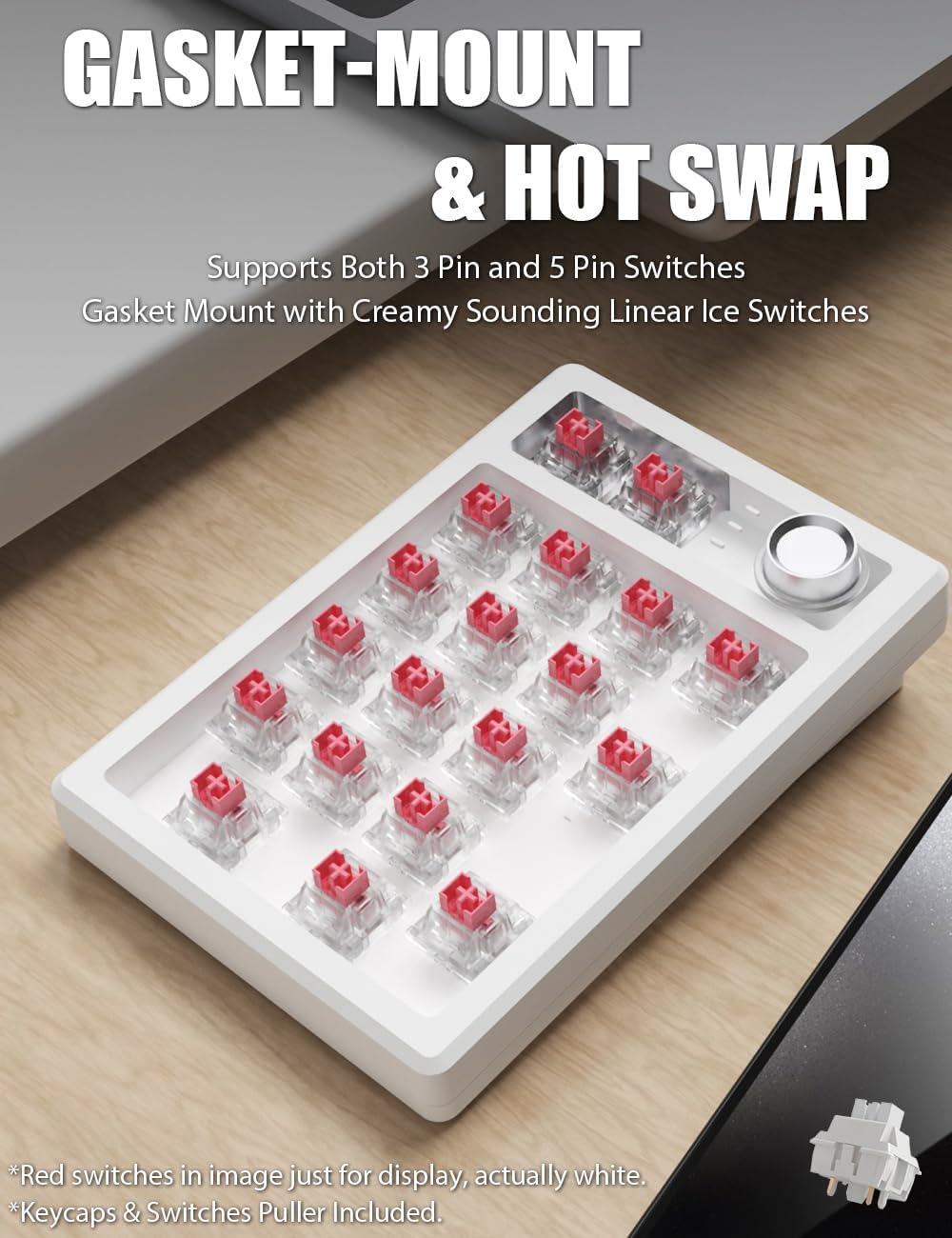
Image: TISHLED Numpad with several keycaps removed, revealing the hot-swappable mechanical switches underneath.
Driver Installation
To unlock full customization for programmable keys and RGB lighting, download the dedicated driver from: bit.ly/K19-Driver. The numpad features memory capability, retaining settings even after power loss.
Operating Instructions
Key Functions
The numpad features 19-key NKRO (N-Key Rollover), ensuring all keystrokes are registered simultaneously, which is beneficial for fast typing and intense usage scenarios.
Multifunction Knob
The metal knob provides versatile control:
- Volume Control: Turn the knob to adjust the system volume.
- Escape Function: Click the knob to activate the 'Esc' key.
- Brightness Control: Press FN + Click the knob to switch to brightness adjustment mode. Then, turn the knob to adjust the backlight brightness.

Image: TISHLED Numpad displaying the multifunction knob and various key functions, including FN key combinations.
Programmable Keys
All 18 keys, excluding the FN key, are programmable using the keypad driver. You can customize each key with various functions such as system shortcuts, multimedia shortcuts, text input, one-click file/folder/web page opening, and macros.

Image: TISHLED Numpad with vibrant RGB backlighting, illustrating the concept of programmable keys.
RGB Backlight & PBT Keycaps
The numpad features true RGB backlighting with up to 18 backlight modes, supporting both RGB colors and single colors. Backlight customization and music rhythm mode are available through the driver. The numpad is equipped with ultra-durable PBT keycaps, ensuring legends will not wear away and providing a dry, non-oily typing surface.

Image: Close-up of the TISHLED Numpad highlighting the RGB backlighting and the texture of the PBT keycaps.
Rechargeable & Energy-Saving
The numpad includes a 1500mAh lithium battery. With a low-power chip and energy-saving technology, it can last between 30-60 days depending on usage. The backlight automatically turns off after 2 minutes of inactivity, and the keyboard enters Hibernation Mode after 30 minutes of sitting idle. Press any key to wake it up. To check the battery level, press FN + .

Image: TISHLED Numpad with an indicator for battery level, emphasizing its rechargeable and energy-saving design.
Maintenance
To ensure the longevity and optimal performance of your TISHLED Numpad, follow these maintenance guidelines:
- Cleaning: Use a soft, dry cloth to wipe the surface of the numpad. For keycaps, a slightly damp cloth can be used. Avoid harsh chemicals or abrasive materials.
- Storage: Store the numpad in a cool, dry place away from direct sunlight and extreme temperatures.
- Handling: Avoid dropping the numpad or exposing it to excessive force, as this may damage internal components.
Troubleshooting
If you encounter any issues with your TISHLED Numpad, please refer to the following common solutions:
- Connection Issues: Ensure the numpad is in the correct mode (2.4G, Bluetooth, or Wired) for your connection type. For wireless modes, check battery level. For Bluetooth, ensure proper pairing. For wired, try a different USB port or cable.
- Unresponsive Keys: Check if the numpad is connected properly. If using wireless, ensure it's not in hibernation mode. If a specific key is unresponsive, consider hot-swapping the switch using the provided tool.
- Backlight Not Working: Check brightness settings using the multifunction knob (FN + Click knob). Ensure the numpad is not in energy-saving mode.
- Battery Not Charging: Ensure the USB-C cable is securely connected to both the numpad and a power source. Try a different cable or power adapter.
- Software Issues: If experiencing problems with programmable keys or advanced settings, ensure you have the latest driver installed from the provided link.
Specifications
| Feature | Detail |
|---|---|
| Product Dimensions | 5.2 x 3.5 x 1.4 inches (13.2 x 8.9 x 3.6 cm) |
| Item Weight | 11.3 ounces (320 grams) |
| Manufacturer | TISHLED |
| Item Model Number | K19-IS-Do |
| Batteries | 1 Lithium Polymer battery required (included) |
| Connectivity Technology | Bluetooth 5.0, Wired USB-C, Wireless 2.4G |
| Compatible Devices | Laptop, PC, Smart TV, Smartphone, Tablet |
| Special Features | Backlit, Hot-Swappable, Programmable Keys, Rechargeable, Volume Roller |
| Keyboard Backlighting | RGB |
Warranty and Support
For warranty information or technical support, please refer to the documentation included with your product or visit the official TISHLED website. Contact details for customer service are typically provided within the product packaging or on the manufacturer's support page.