1. Introduction
This manual provides detailed instructions for the BENFEI CFexpress Type A Card Reader. This device is designed for high-speed data transfer from CFexpress Type A memory cards to your computer or other compatible devices. It features a versatile 2-in-1 USB-C and USB-A connector, supporting USB 3.2 Gen 2 (10Gbps) for efficient workflow.
The BENFEI CFexpress Type A Card Reader is compact and portable, making it an ideal accessory for photographers and videographers who need to quickly offload large files on the go.

Image 1.1: The BENFEI CFexpress Type A Card Reader is designed for portability, easily fitting into a bag alongside other devices.
2. Safety Information
- Do not expose the device to water or excessive moisture.
- Avoid extreme temperatures. Operate within a temperature range of 0°C to 45°C (32°F to 113°F).
- Do not attempt to disassemble or modify the device. This will void the warranty.
- Keep out of reach of children.
- Use only with compatible CFexpress Type A cards. Inserting incompatible cards may damage the reader or the card.
3. Package Contents
Please verify that all items are present in your package:
- 1 x BENFEI CFexpress Type A Card Reader with integrated USB-C/USB-A 2-in-1 cable
4. Product Overview
The BENFEI CFexpress Type A Card Reader features a durable aluminum alloy shell and an integrated braided nylon cable for enhanced longevity. The unique 2-in-1 connector allows for flexible connectivity.

Image 4.1: The BENFEI CFexpress Type A Card Reader with its integrated 2-in-1 USB-C and USB-A cable, ready for use with a CFexpress Type A card.
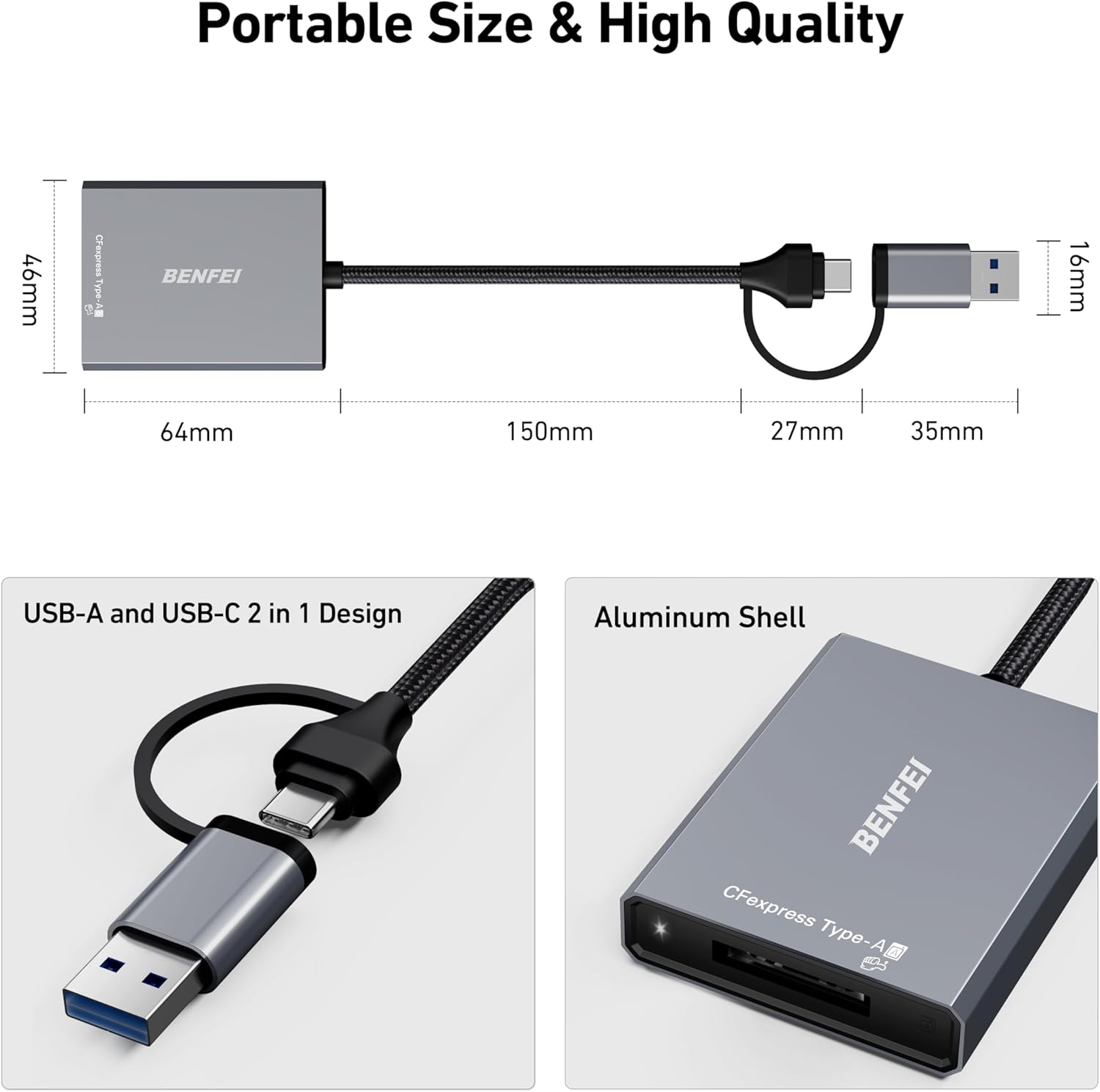
Image 4.2: Physical features of the card reader, highlighting its compact dimensions, the dual USB-A and USB-C connector, and the robust aluminum casing.
5. Setup
The BENFEI CFexpress Type A Card Reader is a plug-and-play device, requiring no driver installation for most operating systems.
5.1 Connecting the Card Reader
- Identify the appropriate USB port on your computer or device (USB-A or USB-C).
- Connect the integrated 2-in-1 USB cable from the card reader to your device's USB port. The USB-C connector is located at the end of the cable, and the USB-A connector slides over the USB-C connector.
- Ensure the connection is secure. The device should be recognized automatically by your operating system.
5.2 Inserting a CFexpress Type A Card
- Locate the CFexpress Type A slot on the card reader.
- Gently insert your CFexpress Type A card into the slot with the contacts facing down (or as indicated by the card's orientation).
- Push the card in until it clicks into place. Do not force the card.
6. Operating Instructions
6.1 Data Transfer
Once the card reader is connected and the CFexpress Type A card is inserted, your computer will recognize it as an external storage device.
- Open your computer's file explorer (Windows) or Finder (Mac).
- Locate the newly mounted drive corresponding to your CFexpress card.
- Drag and drop files to and from the card as you would with any other external drive.
- For optimal performance, ensure your device's USB port supports USB 3.2 Gen 2 (10Gbps). The final data transfer speed depends on the card's speed and the USB port's capabilities.

Image 6.1: The card reader supports Super-speed USB 3.2 Gen 2, offering data transfer rates up to 10Gbps, significantly faster than USB 2.0.
6.2 Ejecting the Card
Always safely eject the CFexpress card before physically removing it to prevent data corruption.
- Windows: Right-click on the drive icon in File Explorer and select "Eject."
- Mac: Drag the drive icon to the Trash or click the Eject button next to the drive in Finder.
7. Compatibility
The BENFEI CFexpress Type A Card Reader offers broad compatibility with various devices and operating systems.
7.1 Supported Operating Systems
- Windows XP/Vista/7/8/8.1/10/11
- Mac OS
- Linux
- Chrome OS
- Android (with compatible devices)
7.2 Supported Devices
- MacBook Pro
- Surface Pro/GO
- Laptops
- Desktop PCs
- Smartphones (with USB-C connectivity and OTG support)

Image 7.1: The card reader is compatible with a wide range of devices and operating systems, ensuring broad usability.
7.3 Card Type Compatibility
- Compatible: CFexpress Type A memory cards.
- Not Compatible: CFexpress Type B, CFexpress Type C, SD cards, XQD cards.

Image 7.2: The card reader is specifically designed for CFexpress Type A cards and is not compatible with other card formats.
The card reader supports CFexpress Type A cards up to 2TB capacity.

Image 7.3: The card reader supports CFexpress Type A cards with capacities up to 2TB, suitable for large photo and video files.
8. Maintenance
- Keep the card reader clean and free from dust. Use a soft, dry cloth for cleaning.
- Avoid bending or twisting the integrated cable excessively.
- Store the device in a cool, dry place when not in use.
9. Troubleshooting
| Problem | Possible Cause | Solution |
|---|---|---|
| Card reader not recognized by computer. | Loose connection, incompatible USB port, card not inserted correctly. | Ensure the USB cable is securely connected. Try a different USB port. Verify the card is fully inserted. Restart your computer. |
| Slow data transfer speeds. | USB 2.0 port used, slow CFexpress card, background processes. | Connect to a USB 3.2 Gen 2 (10Gbps) port. Ensure your CFexpress card supports high speeds. Close unnecessary applications. |
| CFexpress card not detected. | Card not fully inserted, incompatible card type, damaged card. | Re-insert the card firmly. Confirm it is a CFexpress Type A card. Test with another CFexpress Type A card if available. |
| Device gets warm during use. | Normal operation during high-speed data transfer. | This is normal for high-speed devices. The aluminum casing helps dissipate heat. If it becomes excessively hot, disconnect and allow it to cool. |
10. Specifications
- Model: 000367
- Interface: USB 3.2 Gen 2 (10Gbps)
- Connector: USB-C & USB-A 2-in-1
- Compatible Card Type: CFexpress Type A
- Max Card Capacity: Up to 2TB
- Material: Aluminum Alloy Shell, Braided Nylon Cable
- Dimensions: Approximately 64mm (L) x 46mm (W) x 16mm (H) for the reader body (excluding cable)
- Cable Length: Approximately 150mm
- Weight: 60g
- Operating Systems: Windows, Mac OS, Linux, Chrome OS, Android
11. Warranty and Support
BENFEI provides an 18-month warranty for this product, guaranteeing long-term satisfaction. For any issues or inquiries, please contact BENFEI customer service. Our friendly and accessible customer service team is available to assist you in a timely manner.
For support, please refer to the contact information provided with your purchase or visit the official BENFEI website.


