
1. Introduction
This manual provides detailed instructions for the installation, operation, and maintenance of your SIXWIN Android 13 Car Stereo. Please read this manual thoroughly before using the product to ensure proper function and safety. Keep this manual for future reference.
2. Safety Information
- Ensure professional installation to avoid damage to the vehicle's electrical system or the device.
- Do not operate the device in a way that distracts you from driving. Always prioritize road safety.
- Avoid exposing the device to extreme temperatures, direct sunlight for prolonged periods, or excessive moisture.
- Disconnect the vehicle's battery before performing any installation or wiring work.
- Use only specified power cables and accessories to prevent fire or electric shock.
3. Package Contents
Verify that all items listed below are included in your package. If any items are missing or damaged, please contact customer support.

Image: The image displays the dimensions of the 9-inch head unit (235mm/9.2inch width, 275mm/10.8inch height, 210mm/8.2inch bottom width) and a comprehensive list of included accessories. These accessories typically include a microphone, USB cable, GPS antenna, rear camera input cable, radio antenna, installation tool, RCA cable, user manual, rear camera, power cable, Canbus decoder, and antenna head.
4. Compatibility
This SIXWIN Android 13 Car Stereo is specifically designed for Mercedes Benz C-Class W203, C200, C320, C350, and CLK W209 2-door models only. Please ensure your vehicle matches this specification before installation.
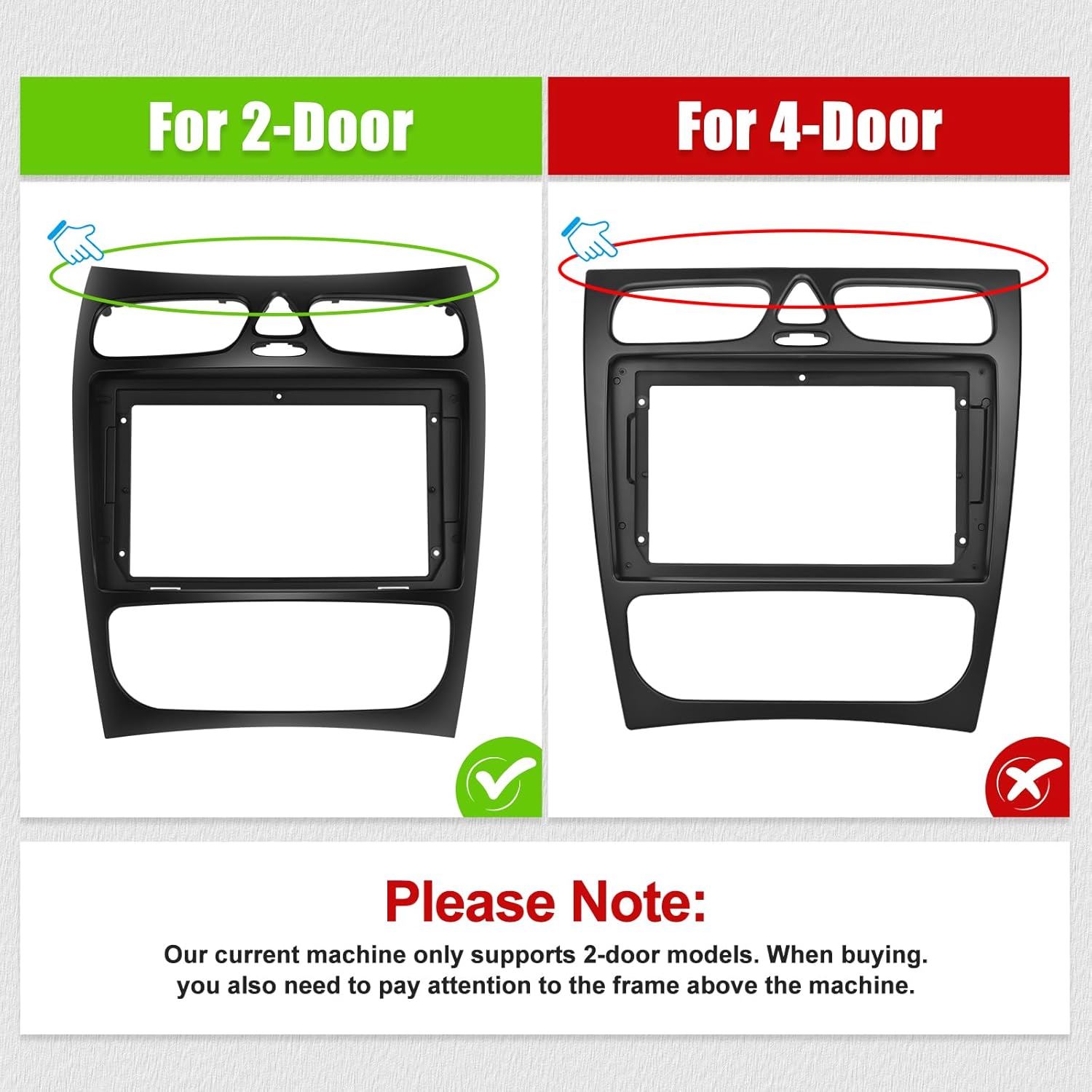
Image: This graphic illustrates the difference in dashboard frame design between 2-door and 4-door Mercedes Benz W203/W209 models. It clearly indicates that the product is compatible with 2-door models (marked with a green check) and not with 4-door models (marked with a red cross). Users must verify their vehicle's door configuration and the corresponding frame above the machine.
5. Installation
Professional installation is highly recommended for this car stereo system. Incorrect installation can lead to damage to the device or your vehicle. Refer to the wiring diagram provided in the separate wiring guide for specific connections.
5.1 Pre-Installation Steps
- Disconnect the negative terminal of your vehicle's battery.
- Carefully remove the original car stereo and dashboard trim.
- Identify the wiring harnesses and antenna connections.
5.2 Wiring Connections
- Connect the main power harness, ensuring correct positive, negative, and ACC (accessory) connections.
- Connect the GPS antenna and position it in a location with a clear view of the sky.
- Connect the USB cables for external devices.
- If installing a rear camera, connect the video input cable and power supply.
- Connect the radio antenna.
- Connect the Canbus decoder if your vehicle requires it for steering wheel controls or other integrated functions.
5.3 Mounting the Head Unit
- Carefully insert the new head unit into the dashboard opening.
- Secure the unit using the provided mounting brackets and screws.
- Reinstall the dashboard trim.

Image: This image shows a 'Before' and 'After' comparison of a Mercedes Benz C-Class dashboard. The 'Before' section displays the original car stereo, while the 'After' section shows the SIXWIN Android 13 Car Stereo seamlessly integrated into the dashboard, highlighting the visual upgrade and fit.
6. Initial Setup
6.1 Power On
After installation, reconnect the vehicle's battery. The unit should power on automatically when the ignition is turned on. If not, press the power button.
6.2 Language and Time Settings
Upon first boot, you may be prompted to select your preferred language and set the date and time. Follow the on-screen instructions.
6.3 Wi-Fi Connection
Navigate to Settings > Network & Internet > Wi-Fi. Select your Wi-Fi network and enter the password to connect. This is necessary for online features, app downloads, and GPS map updates.
6.4 GPS Calibration
Ensure the GPS antenna is properly installed. The system will automatically acquire satellite signals. For optimal navigation, ensure your maps are updated.
7. Operating Instructions
7.1 Main Interface
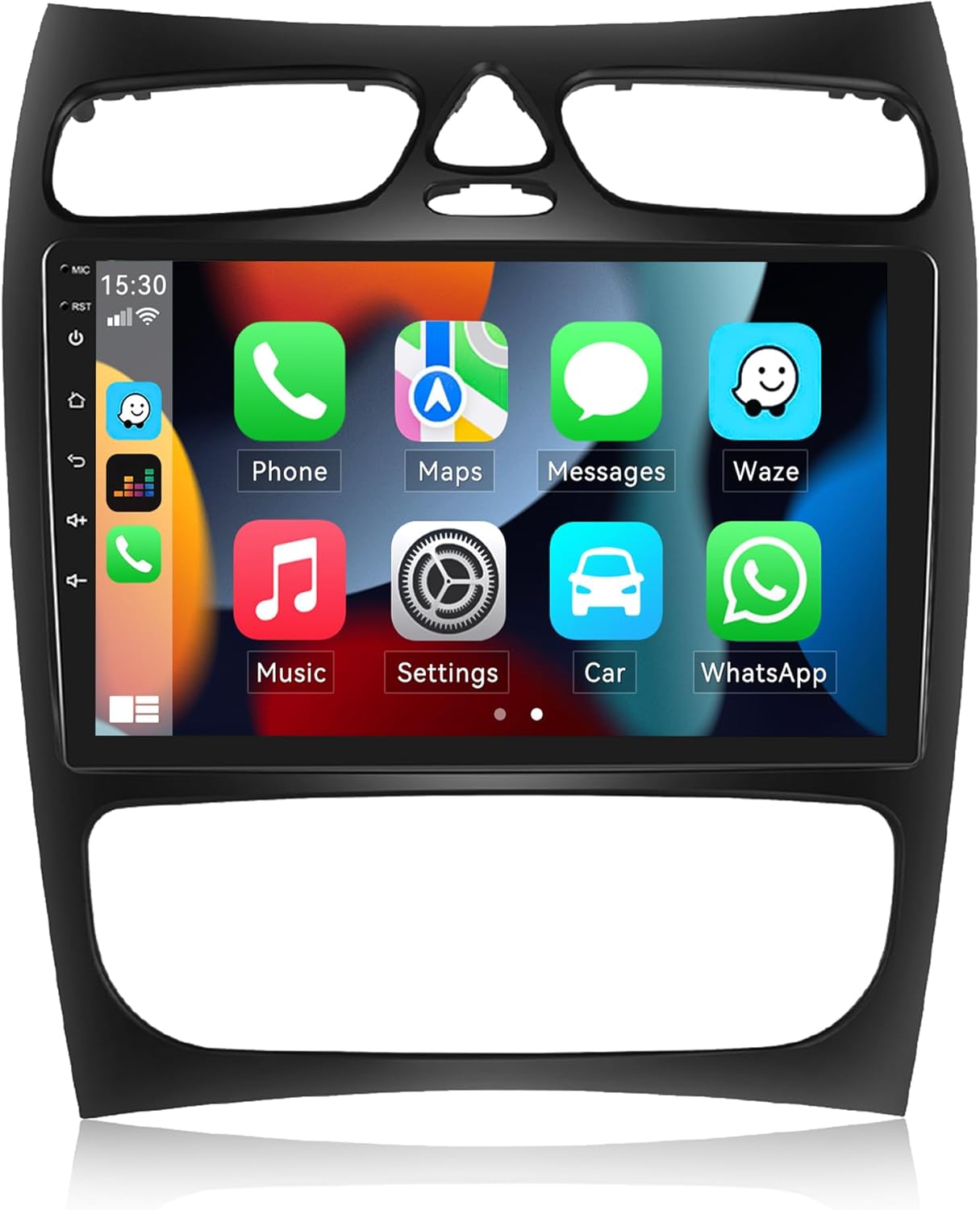
Image: The main interface of the SIXWIN Android 13 Car Stereo is displayed, featuring a grid of application icons such as Phone, Maps, Messages, Waze, Music, Settings, Car, and WhatsApp. A sidebar on the left provides quick access to common functions like volume, home, and back buttons.
The main screen displays various application icons for quick access to functions like Phone, Navigation, Music, and Settings. Swipe left or right to access additional app pages.
7.2 CarPlay and Android Auto
The unit supports both wireless Apple CarPlay and Android Auto for seamless smartphone integration.
- CarPlay: Connect your iPhone wirelessly. Access navigation, contacts, email, notifications, music, and Siri voice control directly from the car stereo display.
- Android Auto: Connect your Android phone wirelessly. Enjoy plug-and-play functionality for navigation, messaging, and music. Use voice commands for hands-free operation.

Image: This graphic demonstrates the CarPlay and Android Auto functionalities. The top section shows the CarPlay interface with common apps like Phone, Maps, Messages, and Spotify. The bottom section illustrates the Android Auto interface, emphasizing its plug-and-play nature and voice control capabilities for safe driving.
7.3 Wi-Fi and GPS Navigation
Connect to Wi-Fi to install or delete apps from the application store, similar to a smartphone. The integrated GPS module provides accurate navigation.

Image: This image highlights the Wi-Fi and GPS navigation features. It shows the car stereo connected to Wi-Fi, allowing access to various online applications. A separate display illustrates the GPS navigation interface with a map showing a route and estimated travel time.
7.4 HiFi Function and EQ
The HiFi function ensures high-fidelity audio playback, closely replicating the original sound quality. Utilize the built-in Equalizer (EQ) to customize audio settings to your preference.

Image: This graphic demonstrates the HiFi audio function and equalizer settings. It shows a car interior with musical notes floating, symbolizing high-quality sound. The car stereo display features an equalizer interface with adjustable frequency bands and preset options like 'Rock', 'Jazz', and 'Pop', allowing users to fine-tune their audio experience.
7.5 Split Screen Function
The split-screen feature allows you to run two applications simultaneously, such as navigation and music playback, enhancing multitasking capabilities.
7.6 Steering Wheel Controls
The unit supports integration with your vehicle's existing steering wheel controls, allowing you to manage audio, calls, and other functions without taking your hands off the wheel. This requires proper Canbus connection and configuration in the settings.

Image: This image illustrates two key features: the split-screen function and steering wheel controls. The top part shows the car stereo display divided, with navigation on one side and a music player (Spotify) on the other. The bottom part depicts a hand on a steering wheel, highlighting the steering wheel control buttons and the corresponding 'Steering Learn' option on the car stereo interface for custom button mapping.
7.7 Bluetooth
Connect your smartphone via Bluetooth for hands-free calling and audio streaming. Access your phone's contacts and call history directly from the head unit.
7.8 FM/RDS Radio
Tune into your favorite FM radio stations. The RDS (Radio Data System) feature displays station information, song titles, and other relevant data where available.
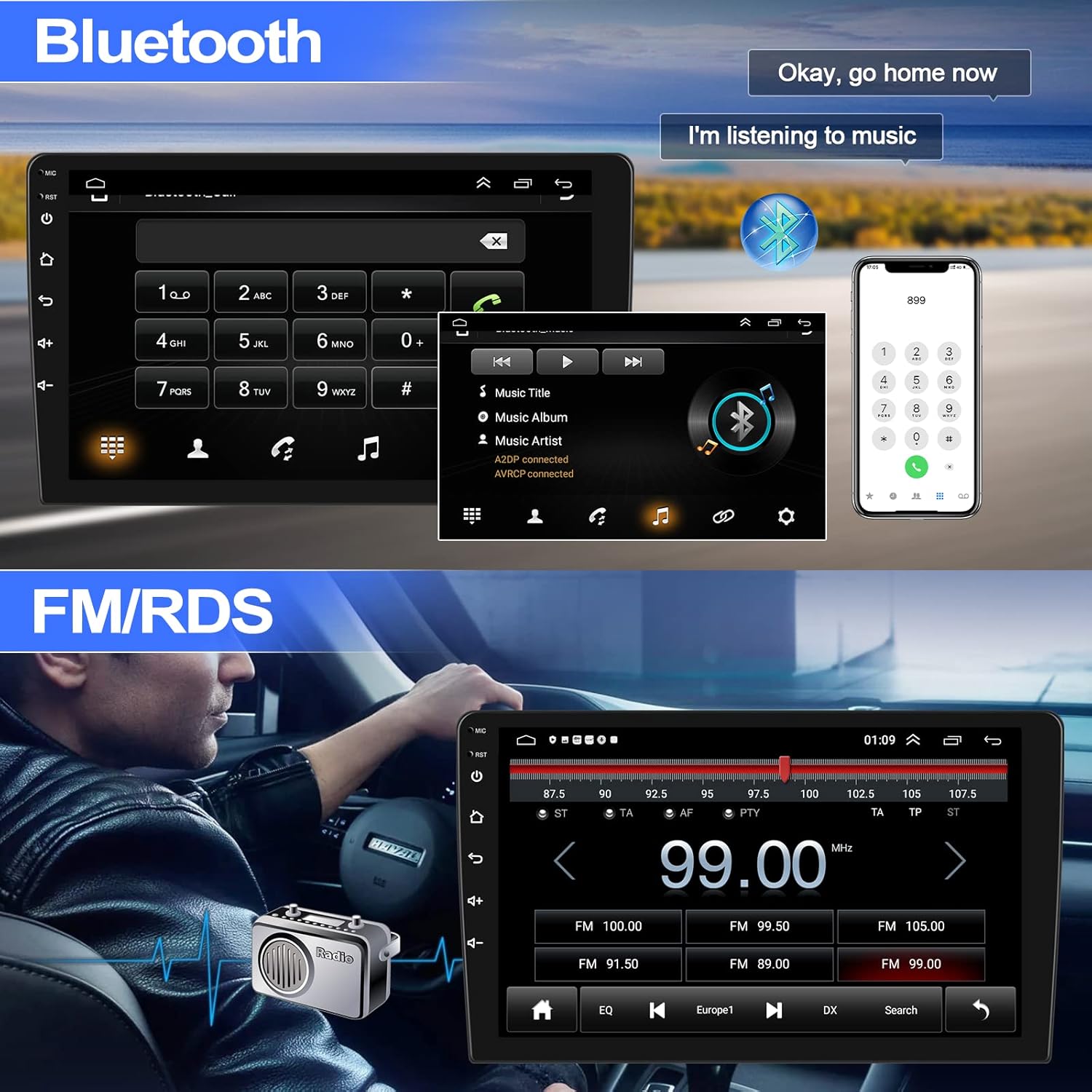
Image: This graphic showcases the Bluetooth and FM/RDS radio functionalities. The top section displays the Bluetooth interface, including a dial pad for making calls and a music player showing track information. The bottom section illustrates the FM radio interface, with a large frequency display (e.g., 99.00 MHz) and controls for tuning, EQ, and station presets.
8. Maintenance
- Cleaning: Use a soft, dry cloth to clean the screen and exterior. Avoid abrasive cleaners or solvents.
- Software Updates: Periodically check for software updates through the system settings or the manufacturer's website to ensure optimal performance and access to new features.
- Temperature: Do not expose the unit to extreme temperatures.
9. Troubleshooting
| Problem | Possible Cause | Solution |
|---|---|---|
| No power | Incorrect wiring, blown fuse, vehicle battery issue | Check power connections, inspect fuses, verify vehicle battery voltage. |
| No sound | Volume too low, speaker wiring issue, incorrect audio source | Increase volume, check speaker connections, select correct audio input. |
| GPS signal lost | GPS antenna obstructed or disconnected | Ensure GPS antenna has a clear view of the sky and is securely connected. |
| Bluetooth not connecting | Bluetooth off on device/stereo, device not in pairing mode | Enable Bluetooth on both devices, put stereo in pairing mode, delete previous pairings. |
| Steering wheel controls not working | Canbus not connected, incorrect configuration | Verify Canbus connection, perform 'Steering Learn' in settings. |
10. Specifications
- Brand: SIXWIN
- Model Number: A7174A3195A4MI2
- Operating System: Android 13
- Memory/Storage: 2GB RAM + 64GB Internal Storage (P2=[2+64G] variant)
- Screen Size: 9 Inches
- Connectivity: Wi-Fi, Bluetooth
- Special Features: Apple CarPlay, Android Auto, HiFi Audio, Equalizer (EQ), GPS Navigation, FM/RDS Radio, Split Screen Function, Steering Wheel Control Support
- Compatible Devices: Mercedes Benz C-Klasse W203 C200 C320 C350 CLK W209 (2-door models)
- Audio Output Mode: Stereo
- Surround Sound Channel Configuration: 2.0
- Video Encoding Support: AVI, 3GP, MKV, DAT, RM, MPEG-2, WMV, VOB, MPEG-4, MJPEG, RMVB, HEVC Main 10, SWF, FLV, XVID, AVC, DIVX, MOV, MPEG-1, ASF, H.263
11. Warranty and Support
This product comes with a 1-year manufacturer's warranty. For warranty claims or technical assistance, please contact SIXWIN customer support.

Image: A customer service representative wearing a headset, indicating available support. For inquiries, please contact sum6987778@163.com.
For any questions or issues, you can reach our support team at: sum6987778@163.com. We aim to provide 24-hour service and support.
