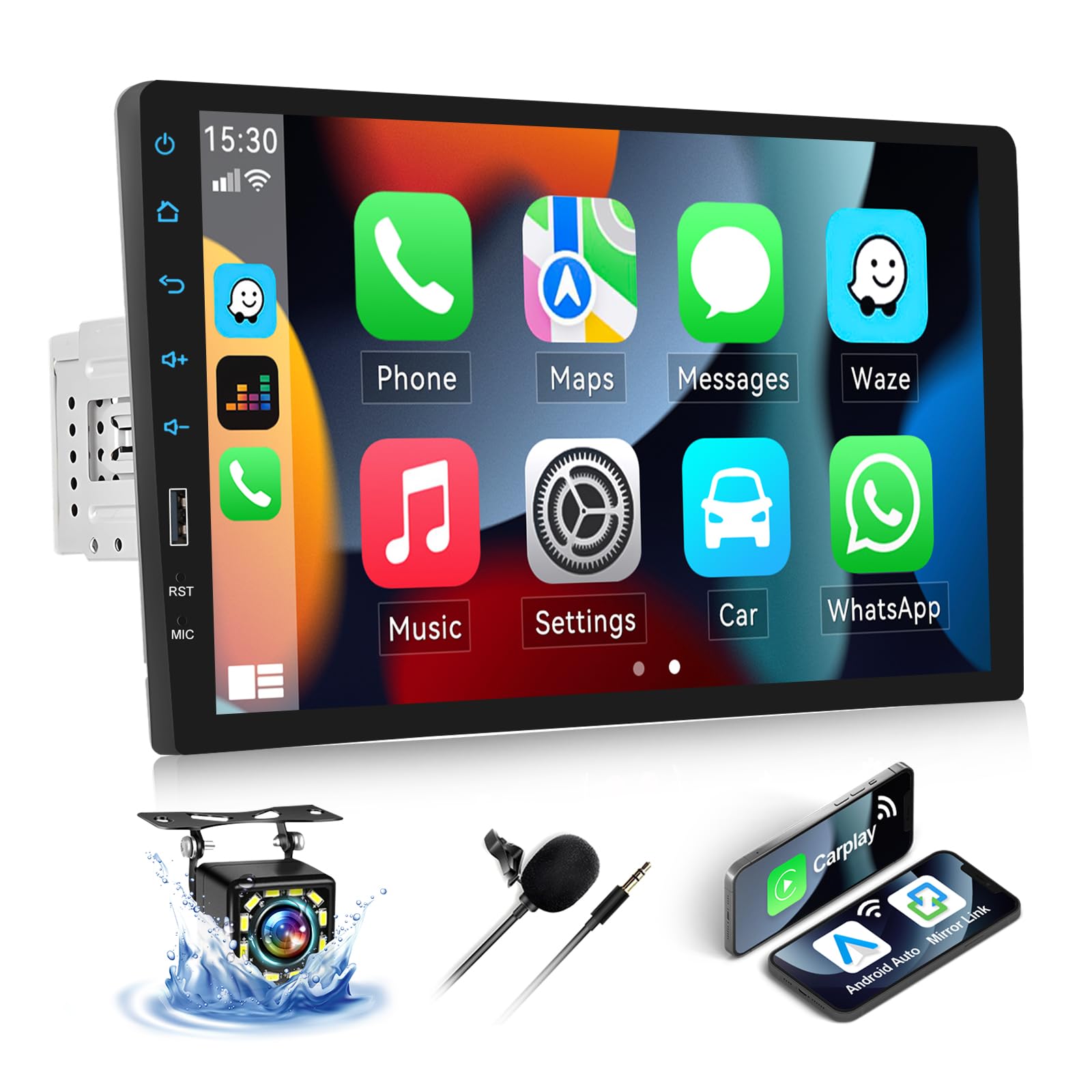
SIXWIN A3446A3

SIXWIN 1 Din Wireless CarPlay Android Auto Autoradio User Manual

Model: A3446A3

Introduction

Thank you for choosing the SIXWIN 1 Din Wireless CarPlay Android Auto Autoradio. This device is designed to enhance your in-car entertainment and connectivity with its 9-inch touchscreen, wireless CarPlay and Android Auto capabilities, Bluetooth 5.1, FM radio, and various media input options. This manual provides essential information for proper installation, operation, and maintenance to ensure optimal performance and user satisfaction.

Setup and Installation

Careful installation is crucial for the proper functioning of your autoradio. Please follow these guidelines.

Package Contents

  • SIXWIN 1 Din Autoradio Unit
  • Power Cable
  • Horn Cable
  • Rear Camera
  • Microphone
  • User Manual

Dimensions and Connections

Refer to the diagram below for the unit's dimensions and the layout of the rear connections. Ensure your vehicle's dashboard opening and wiring harness are compatible.

Diagram showing the dimensions of the SIXWIN autoradio and its rear panel connections.

Image: This diagram illustrates the physical dimensions of the autoradio (228mm/8.9inch width, 130mm/5.1inch height, 216mm/8.5inch screen width) and the rear panel's connection points. Key connections include ISO Power Cable Interface, Fuse (10A), Microphone input, Left Audio Output, Video Output 1, Rear View Camera input, Right Audio Output, Video Output 2, Video Input, and Radio Antenna.

Wiring Instructions

Connect the provided power cable to your vehicle's wiring harness. Ensure all connections are secure to prevent short circuits or malfunctions. The rear camera and external microphone should be connected to their designated inputs on the back panel.

Operating Instructions

Wireless CarPlay and Android Auto

The unit supports both wireless and wired connections for Apple CarPlay and Android Auto. This allows seamless integration of your smartphone's navigation, music, and communication apps directly onto the autoradio's display.

Screenshot of the autoradio display showing CarPlay and Android Auto interfaces.

Image: This image displays the autoradio screen with options for both wireless and wired CarPlay and Android Auto, showing various app icons like Phone, Music, Maps, Messages, Podcasts, and Audiobooks.

Mirror Link Function

The Mirror Link feature enables one-way projection of your mobile phone screen onto the autoradio display. This function typically requires a wired connection for stable performance.

Screenshots demonstrating Mirror Link for iPhone and Android devices showing navigation.

Image: This image illustrates the Mirror Link functionality, showing how an iPhone and an Android phone's navigation screens can be projected onto the autoradio display via a wired USB connection.

Built-in Bluetooth 5.1

Connect your smartphone via Bluetooth 5.1 for hands-free calling, Bluetooth music streaming, and access to your phone book. This ensures safe and convenient communication while driving.

Autoradio screen showing the Bluetooth dial pad and call interface.

Image: The image displays the autoradio's Bluetooth interface, featuring a dial pad for making calls and an incoming call notification, demonstrating hands-free communication.

FM & AM Radio

The autoradio includes a built-in FM/AM radio tuner with automatic station searching. You can save up to 18 preset FM stations for quick access to news, weather, and music during your drive.

Autoradio screen displaying the FM radio interface with station frequencies.

Image: This image shows the autoradio's FM radio interface, displaying the current frequency (87.50 MHz) and several preset station buttons, along with icons for news and weather.

Media Playback

The unit supports various media inputs including USB, AUX, and SD cards, allowing you to play audio and video files directly. It also supports Bluetooth audio input for streaming from your phone.

Autoradio screen showing media playback options and phone link icons.

Image: This image illustrates the autoradio's media playback capabilities, showing icons for Bluetooth, USB, and auxiliary audio inputs, along with a visual representation of a video playing on the screen and two phones connected via 'Two System Phonelink'.

Backup Camera Input

The autoradio includes a backup camera input. When connected, the display automatically switches to the reversing image when the vehicle is in reverse gear, enhancing parking safety. The included camera features night vision, a wide viewing angle, and is waterproof with high definition.

Screenshots of day and night vision from a backup camera displayed on the autoradio.

Image: This image shows the backup camera input feature, displaying both day vision and night vision views on the autoradio screen, with parking guidelines. It also highlights the camera's features: Night Vision, Viewing Angle, Waterproof, and High Definition.

Colorful Backlight Settings

Personalize your autoradio's appearance by selecting from seven different backlight colors. These settings can be adjusted in the setup menu to match your car's interior or your personal preference.

Autoradio screen showing various colorful backlight options.

Image: This image illustrates the colorful backlight settings feature, showing a row of seven different color options (red, orange, yellow, green, blue, indigo, violet) above the autoradio display.

Maintenance

To ensure the longevity and optimal performance of your SIXWIN autoradio, follow these maintenance tips:

  • Cleaning: Use a soft, dry cloth to clean the screen and exterior. Avoid abrasive cleaners or solvents that could damage the surface.
  • Temperature: Avoid exposing the unit to extreme temperatures, both hot and cold, for extended periods.
  • Moisture: Keep the unit dry. Do not expose it to water or excessive humidity.
  • Software Updates: Check the manufacturer's website periodically for any available software updates to improve performance and add new features.

Troubleshooting

If you encounter issues with your autoradio, refer to the following common problems and solutions:

  • No Power: Check the power cable connections and the 10A fuse on the rear panel. Ensure your vehicle's ignition is on.
  • No Sound: Verify speaker connections. Check volume settings on the unit and ensure no audio source is muted.
  • Bluetooth Connectivity Issues: Ensure Bluetooth is enabled on both the autoradio and your smartphone. Try unpairing and re-pairing the devices.
  • CarPlay/Android Auto Not Connecting: For wired connections, ensure the USB cable is functional and properly connected. For wireless, check Wi-Fi and Bluetooth settings on your phone and the unit.
  • Poor Radio Reception: Check the radio antenna connection. Ensure the antenna is properly installed and not obstructed.
  • Screen Unresponsive: Try restarting the unit. If the issue persists, a factory reset might be necessary (consult the full manual for instructions).

For persistent issues not covered here, please contact customer support.

Specifications

BrandSIXWIN
Model NumberA3446A3
Display Size9 Inches
Connectivity TechnologyUSB, Bluetooth, CarPlay, Android Auto
Bluetooth Version5.1
Special FeaturesAndroid Auto, Apple CarPlay, Mirror Link, FM/AM Radio
Compatible DevicesSmartphone
Audio Output ModeStereo
Surround Sound Channel Configuration2.0
Video EncodingH.264, H.265/HEVC, MPEG-4, etc.
Product Dimensions6.8P x 22.8L x 5H centimeters
Country of OriginChina

Warranty and Support

Manufacturer's Warranty

This SIXWIN autoradio comes with a 1-year manufacturer's warranty. Please retain your proof of purchase for warranty claims. The warranty covers defects in materials and workmanship under normal use.

Customer Support

For technical assistance, troubleshooting beyond this manual, or warranty inquiries, please contact SIXWIN customer support through the retailer where you purchased the product or refer to the official SIXWIN website for contact information.

Ask a question about this manual

Ask about setup, troubleshooting, compatibility, parts, safety, or missing instructions. Manuals+ will review the question and use this page’s manual context to help answer it.

After a successful submission, we securely hash the supplied account or form email before sending it to Microsoft Advertising for conversion attribution. Privacy details.