
1. Introduction
This manual provides detailed instructions for the setup, operation, and maintenance of your SEUNKWANG EWEADN V75 75% Wireless Gaming Keyboard and Mouse Combo. Please read this manual thoroughly before using the product to ensure optimal performance and longevity.
2. Package Contents
- EWEADN V75 75% Wireless Gaming Keyboard
- Wireless Mouse
- USB 2.4GHz Receiver
- Type-C Charging Cable
- User Manual (this document)

Image 1: The EWEADN V75 wireless keyboard and mouse combo, including the USB receiver.
3. Setup Instructions
3.1. Charging the Devices
Before first use, it is recommended to fully charge both the keyboard and the mouse.
- Connect the provided Type-C charging cable to the charging port on the keyboard.
- Connect the other end of the cable to a USB power source (e.g., computer USB port, USB wall adapter).
- The keyboard's power indicator light will show charging status. A red warning light (M-LED) indicates low battery. The charging status light is on during charging and turns off when fully charged.
- For the mouse, connect the Type-C cable to its charging port. The mouse typically has an indicator light for charging status.
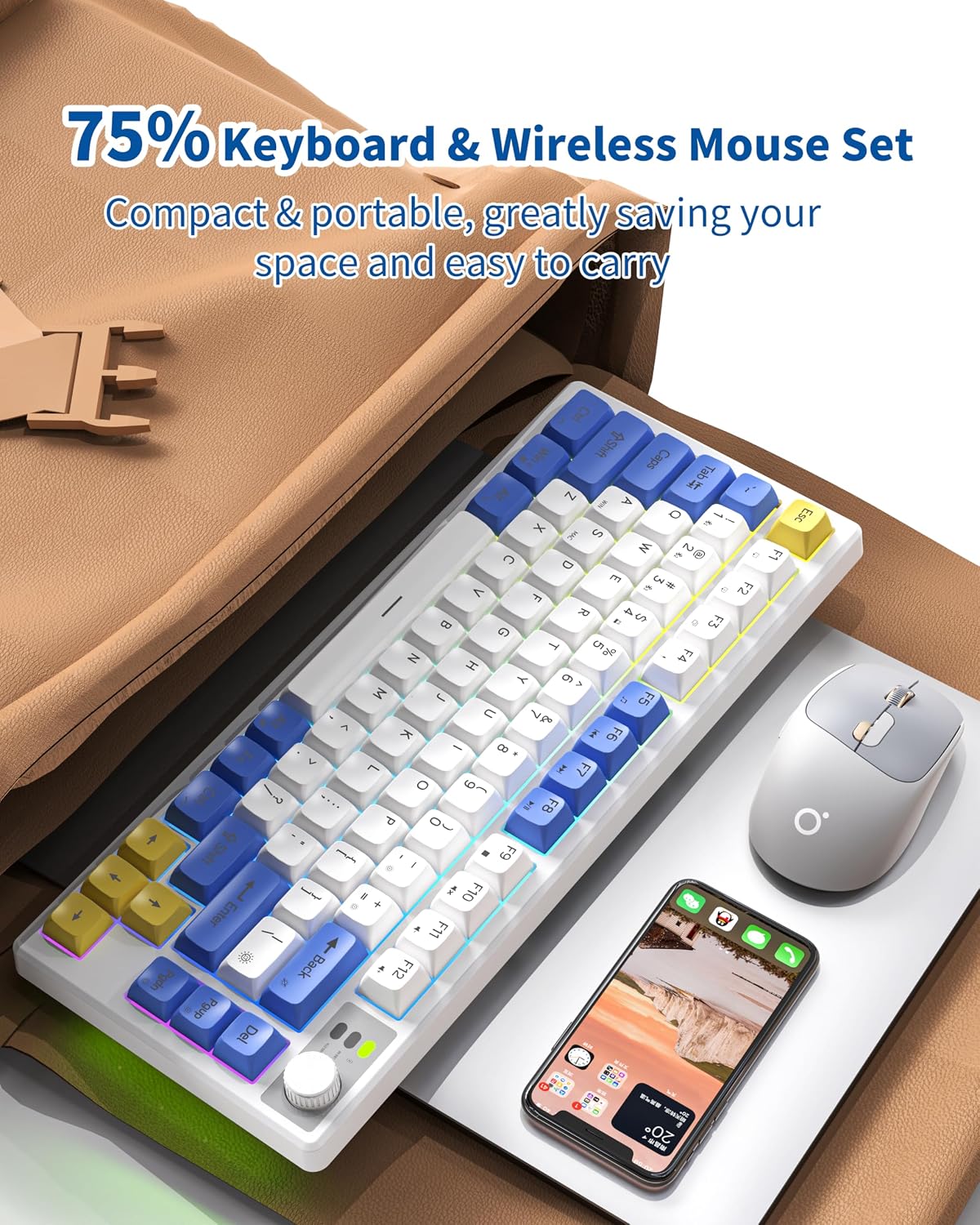
Image 2: The EWEADN V75 keyboard connected via its Type-C charging cable.

Image 3: The wireless mouse showing its battery indicator lights. Two lights indicate battery level below 75%, one light indicates below 50%, and a flashing light indicates below 25%.
3.2. Connecting the Keyboard and Mouse
The combo supports two connection methods: 2.4GHz wireless via USB receiver and Bluetooth 5.0.
3.2.1. 2.4GHz Wireless Mode
- Locate the USB 2.4GHz receiver. It is usually stored in a compartment on the mouse or keyboard.
- Plug the USB receiver into an available USB port on your computer (PC, Mac, Laptop).
- Turn the power switch on the keyboard to "ON".
- Press Fn + 4 on the keyboard to activate 2.4G mode. The keyboard should connect automatically.
- Ensure the mouse is also powered on. It should connect automatically to the same receiver.
3.2.2. Bluetooth 5.0 Mode
The keyboard and mouse can connect independently via Bluetooth.
Keyboard Bluetooth Connection:
- Turn the power switch on the keyboard to "ON".
- Press and hold Fn + 1, Fn + 2, or Fn + 3 for a few seconds to enter Bluetooth pairing mode for one of the three available Bluetooth channels. The indicator light will flash.
- On your device (PC, Mac, Tablet, Smartphone), open Bluetooth settings and search for new devices.
- Select "EWEADN V75" (or similar name) from the list of available devices to pair.
- Once paired, the indicator light on the keyboard will stop flashing.
Mouse Bluetooth Connection:
- Turn on the mouse.
- Press the Bluetooth pairing button on the bottom of the mouse (if available) or switch to Bluetooth mode. The indicator light will flash.
- On your device, open Bluetooth settings and search for new devices.
- Select the mouse from the list to pair.
- Once paired, the indicator light will stop flashing.
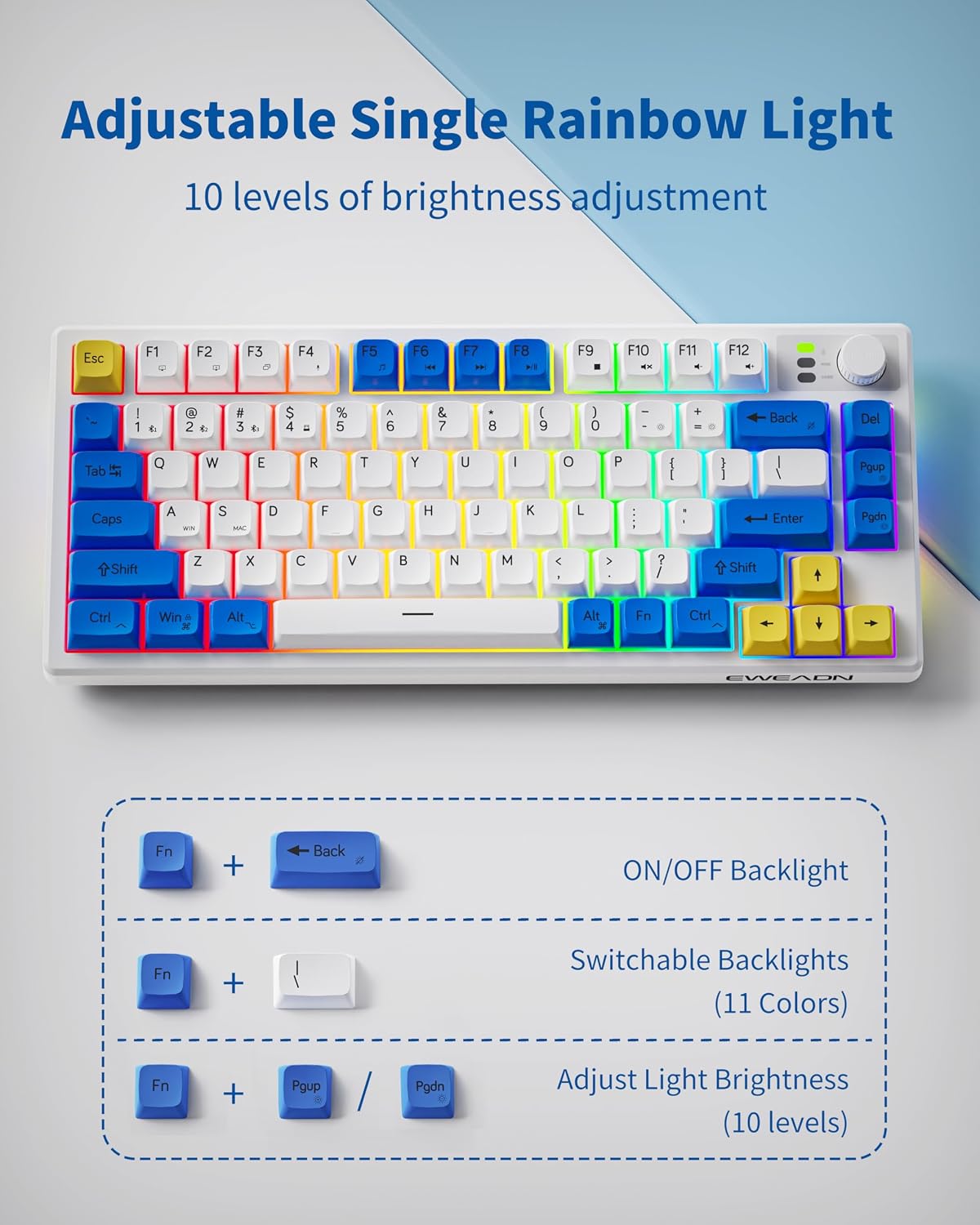
Image 4: The EWEADN V75 keyboard demonstrating compatibility with multiple systems and connection types (Bluetooth 5.0 and 2.4GHz).
4. Operating Instructions
4.1. Keyboard Functions
4.1.1. Backlight Control
The keyboard features a rainbow backlight with adjustable brightness and modes.
- Fn + Back: Toggle backlight ON/OFF.
- Fn + PgUp / PgDn: Adjust backlight brightness (3 levels).
- Fn + [Key with light icon]: Switch between constant light and breathing light modes. (Specific key not explicitly mentioned, usually a dedicated light key or Fn combination).
- In breathing light mode, the breathing speed can also be adjusted (specific key combination not explicitly mentioned, usually Fn + arrow keys or similar).

Image 5: Diagram illustrating keyboard backlight controls: Fn + Back to turn ON/OFF, Fn + PgUp/PgDn to adjust brightness.
4.1.2. Multimedia Knob
The dedicated knob on the keyboard provides quick access to volume control.
- Rotate the knob clockwise to increase volume.
- Rotate the knob counter-clockwise to decrease volume.
- Press the knob to mute/unmute audio.
4.1.3. Function Keys (Fn Combinations)
The keyboard utilizes Fn key combinations for various functions:
- Fn + F1-F12: Access multimedia controls (e.g., play/pause, next track, previous track, volume up/down, mute). Refer to the icons on the F-keys.
- Fn + Win: Lock/Unlock Windows key.
- Fn + Alt: Switch between Windows and Mac layouts (if applicable, indicated by keycap legends).
4.2. Mouse Functions
- Left Click: Primary action.
- Right Click: Secondary action/context menu.
- Scroll Wheel: Scroll up/down, middle click.
- DPI Button: Adjust mouse sensitivity (DPI levels).
- Side Buttons: Forward/Backward navigation in web browsers (if present).
4.3. Compatibility
The EWEADN V75 keyboard and mouse combo is compatible with a wide range of operating systems and devices:
- Windows (PC)
- macOS (Mac)
- Laptop
- Gaming Console (e.g., Xbox, if supported via USB)
- Tablet
- Smartphone

Image 6: Overview of key features including 75% compact layout, dual-mode connectivity, multimedia knob, ergonomic design, and multi-system compatibility.
5. Maintenance
5.1. Cleaning
- Disconnect the keyboard and mouse from your device before cleaning.
- Use a soft, lint-free cloth slightly dampened with water or a mild cleaning solution to wipe the surfaces.
- For dust and debris between keycaps, use compressed air.
- Avoid using harsh chemicals, abrasive cleaners, or excessive moisture.
5.2. Battery Care
- Charge the devices regularly, especially when the low battery indicator appears.
- Avoid completely draining the battery frequently, as this can reduce its lifespan.
- If storing the devices for an extended period, charge them to about 50% and store in a cool, dry place.
6. Troubleshooting
6.1. Connectivity Issues
- Device not connecting (2.4GHz):
- Ensure the USB receiver is securely plugged into a working USB port.
- Verify the keyboard's power switch is ON and it's in 2.4G mode (Fn + 4).
- Try plugging the receiver into a different USB port.
- Ensure the devices are charged.
- Device not connecting (Bluetooth):
- Ensure Bluetooth is enabled on your host device.
- Verify the keyboard/mouse is in Bluetooth pairing mode (flashing indicator light).
- Remove previous pairings from your device's Bluetooth list and try pairing again.
- Ensure the devices are charged.
6.2. Backlight Not Working
- Press Fn + Back to ensure the backlight is not turned off.
- Adjust brightness using Fn + PgUp / PgDn.
- Check battery level; low battery may disable backlighting.
6.3. Keys Not Responding / Mouse Lag
- Check battery levels and charge if necessary.
- Ensure the devices are within range of the receiver or host device (for Bluetooth).
- Avoid strong electromagnetic interference.
- Restart your computer or device.
7. Specifications
| Feature | Detail |
|---|---|
| Model Number | V75 |
| Connectivity Technology | 2.4G Wireless, Bluetooth 5.0 |
| Keyboard Layout | 75% (81 keys) |
| Keyboard Type | Membrane Keyboard |
| Backlight | Rainbow RGB (adjustable brightness, 2 modes) |
| Battery (Keyboard) | 2000mAh Lithium Ion (rechargeable) |
| Battery Life (Keyboard) | Approx. 200 hours continuous use (without backlight) |
| Charging Port | Type-C |
| Keycaps | Durable ABS, laser engraved |
| Special Features | Multimedia Knob, Double Height Legs, Battery Indicator, Side Streamer Light, Mac/Win Compatibility |
| Compatible Devices | Laptop, PC, Gaming Console, Tablet, Smartphone |
| Package Dimensions | 34.21 x 24.79 x 5 cm |
| Weight | 839.15 g |
8. Warranty and Support
For warranty information and technical support, please refer to the contact details provided with your purchase or visit the official SEUNKWANG/EWEADN website. Keep your proof of purchase for warranty claims.
For further assistance, please contact customer support.